
What happens when a user clicks the "Forgot your password?" link on the login page?
Users who normally sign in to Catalyst using a username (email address) and password can reset their password from the login page if they forget it.
The password reset process is quick and secure, requiring access to the email address associated with the user account.
Note: This process is available only for standard user accounts that authenticate using a username and password. It is not available for Service Accounts or users who authenticate exclusively through Single Sign-on (SSO).
Request a password reset
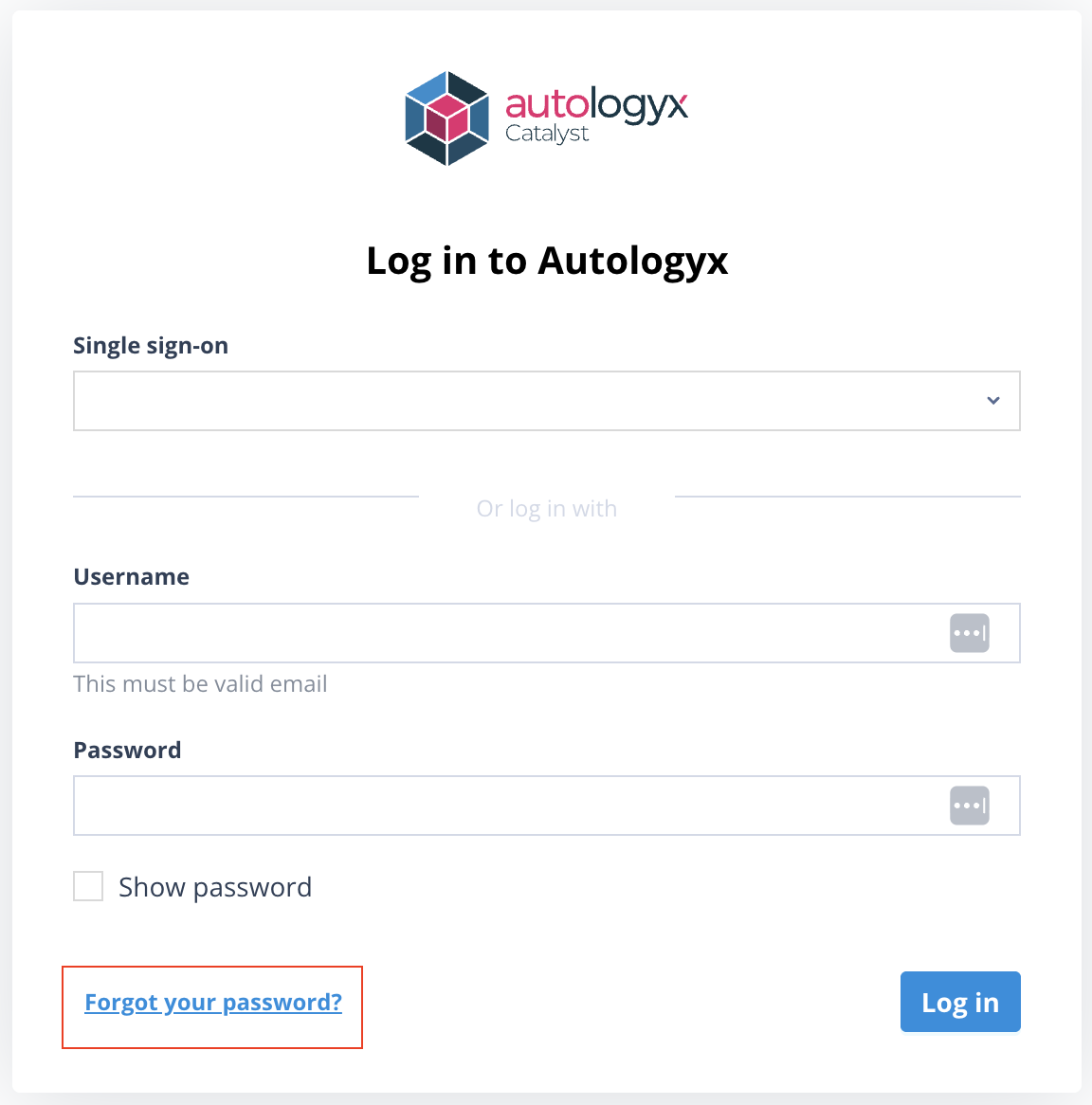
On the login page, click Forgot your password?
Enter your username (email address).
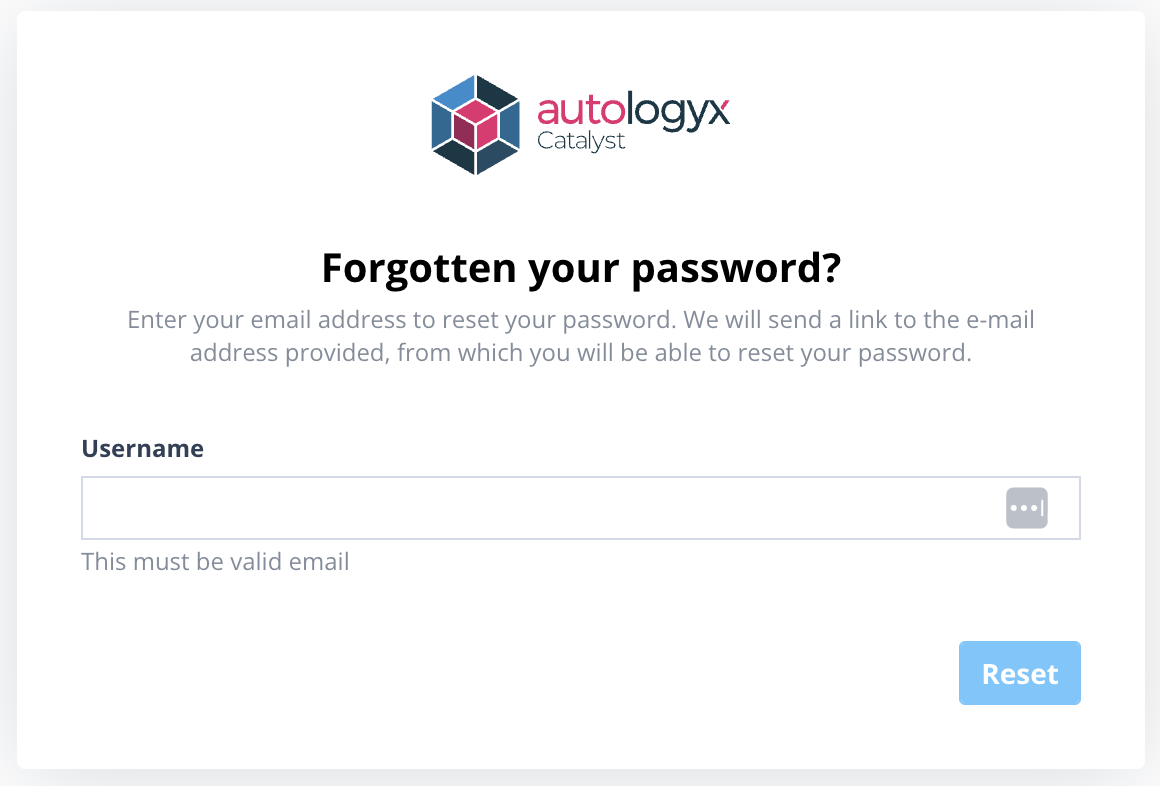
Click Reset.
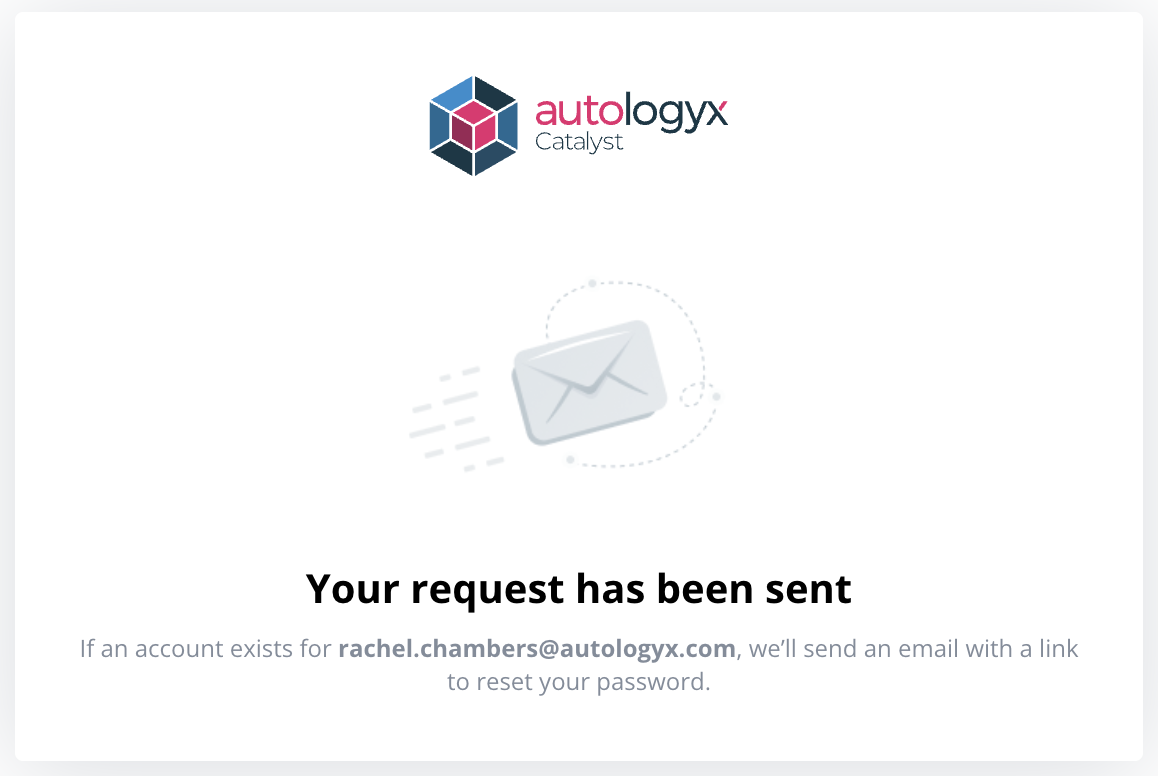
A confirmation message is displayed to confirm that, if the email address belongs to a valid account, a password reset email will be sent.
Important: The email address must belong to an active user account that supports password authentication. Password resets are not available for Internal or External Service Accounts.
Reset your password
The password reset email contains a secure, single-use link.
Clicking the link opens the Reset password page.
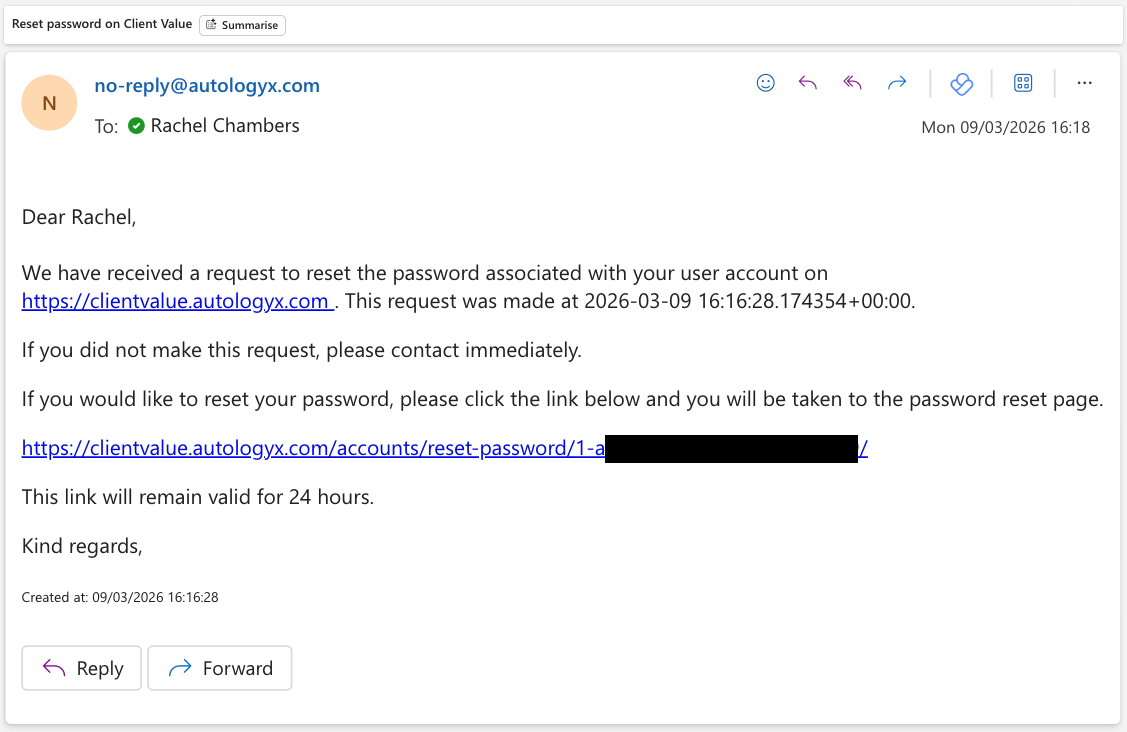
If your organisation has configured contact information on the Company details page, the email also includes details of the person or team to contact if you did not request the password reset.
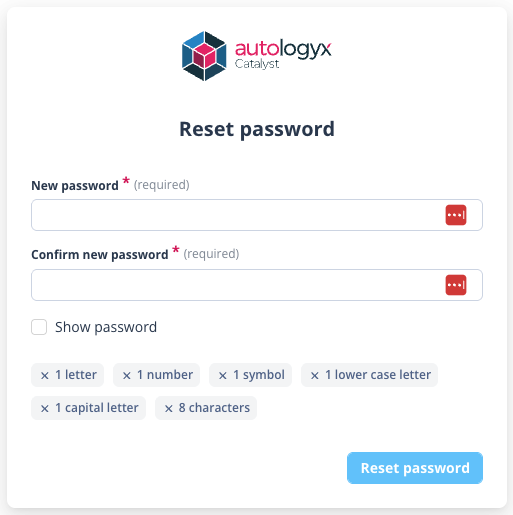
On the Reset password page, enter and confirm your new password.
The page displays your organisation's password requirements, which update in real time as each requirement is satisfied.
 | 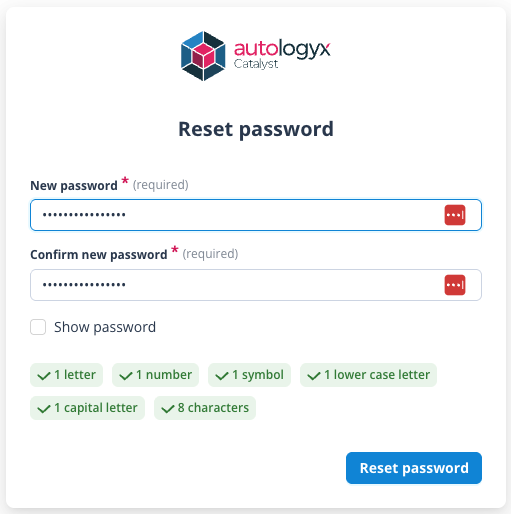 |
When all password requirements have been met, click Reset password.
A confirmation message is displayed and you are automatically signed in and taken to the Workspace.
Things to remember
- Password reset links remain valid for 24 hours.
- If Prevent password re-use is disabled in the Standard authentication configuration, users may reuse a previous password.
- Users who authenticate exclusively through Single Sign-on (SSO) cannot reset their password in Catalyst and will instead be redirected to their organisation's normal sign-in process.
- Service Accounts do not support the Forgot your password? feature. Their passwords can only be reset by a Super Admin.
- Password reset emails are sent only to valid user accounts that support password authentication.