
How do I configure user activation rules?
To configure user activation rules, it is useful to understand the user experience first, so this is where we are starting.
User activation experience
When a new user has been created with a full account, the user will receive an activation email like the one shown below:
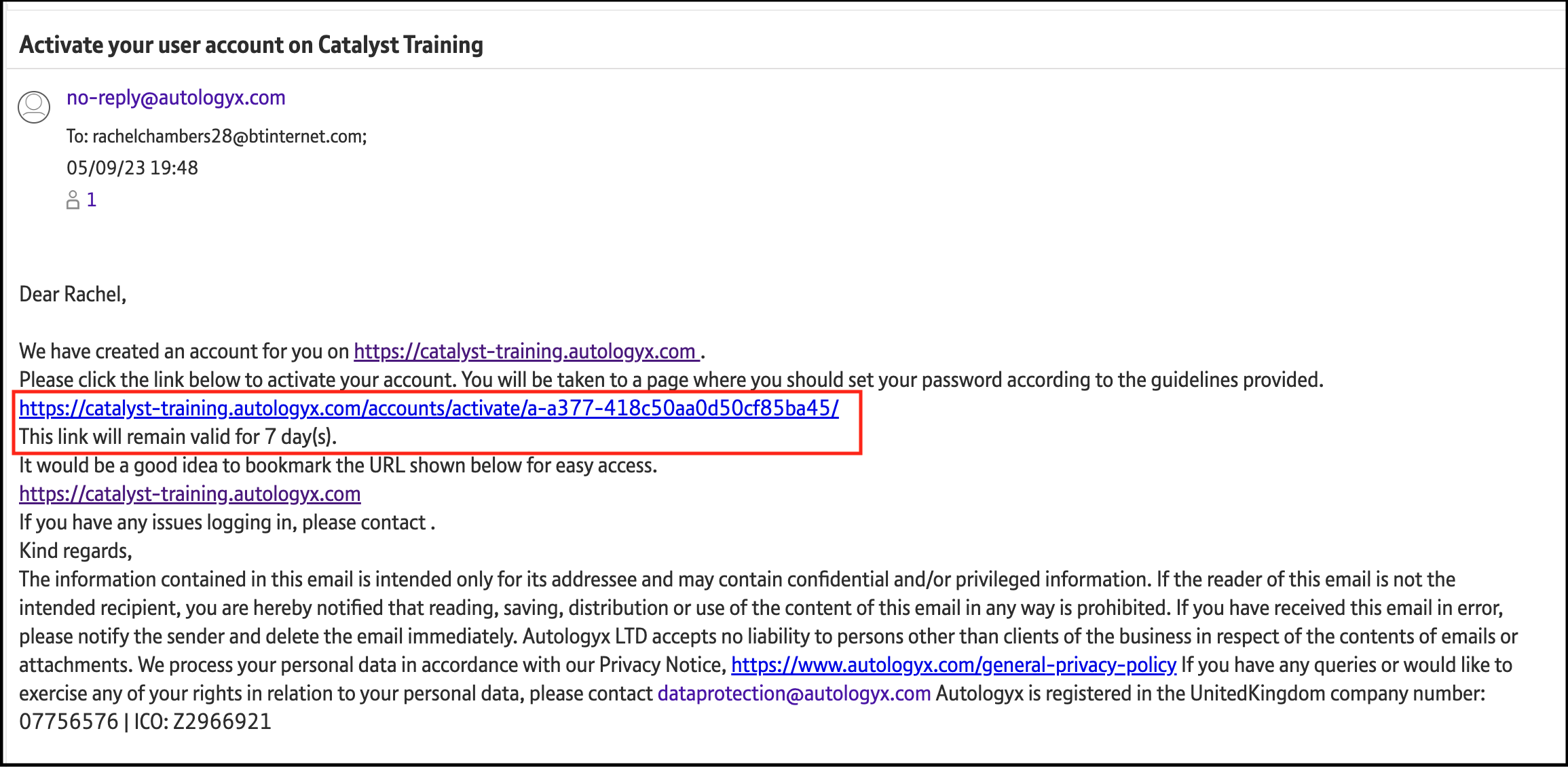
This email will contain an activation link. It will also let the user know how long this link will be active.
When clicked, the user will be taken to the "Activate your user account" page. The user will need to provide a password. The user will not be able to access their instance until they have completed all fields and the Activate button is enabled.
The Activate your user account page looks like this:
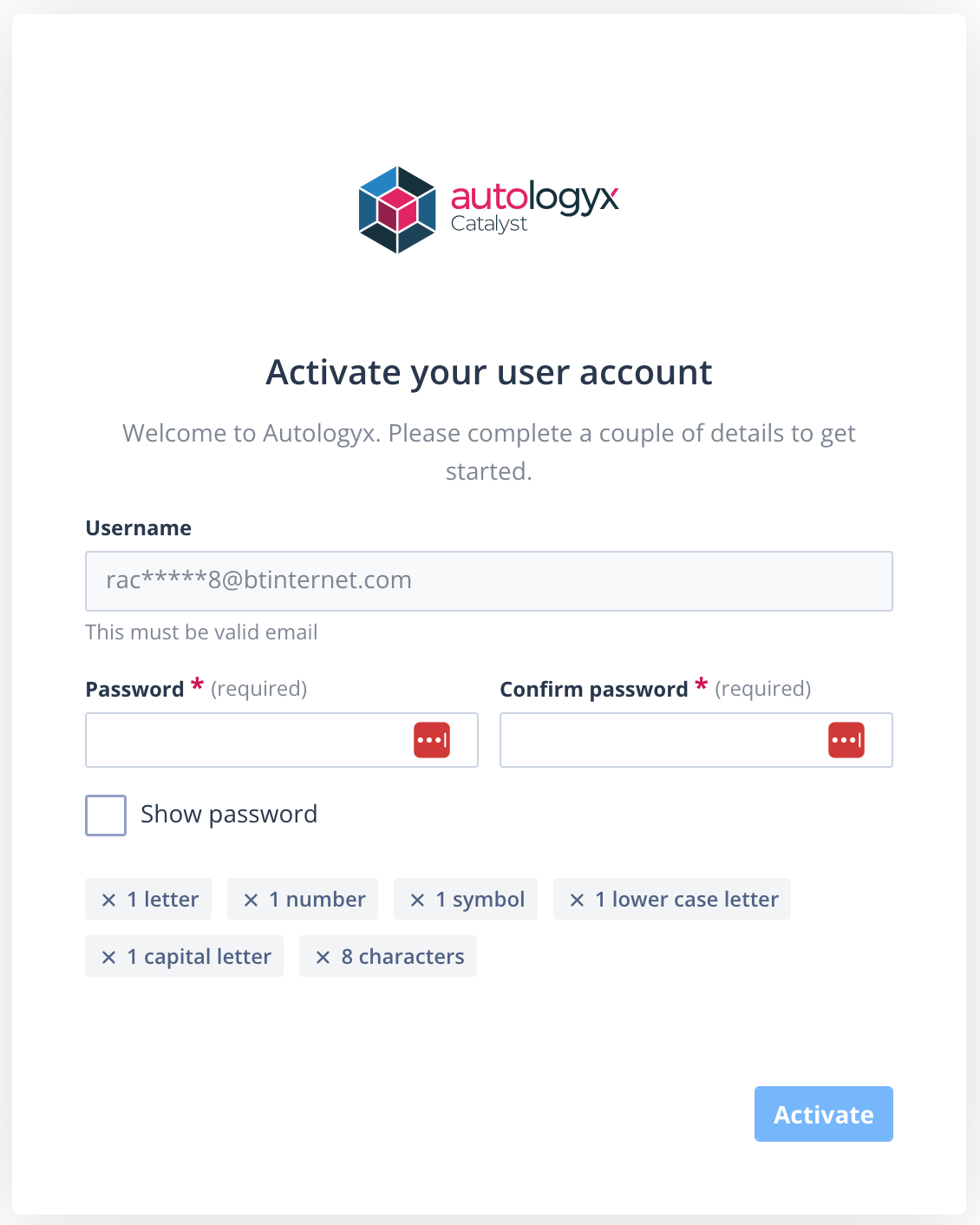
You will note that the user's email address is not shown in full. We do this for security reasons in case our email has been opened by someone other than the intended recipient.
The password rules are clearly shown and, as the user fulfils each requirement, the symbol on that requirement changes from an X to a ✔ and changes colour from grey to green.
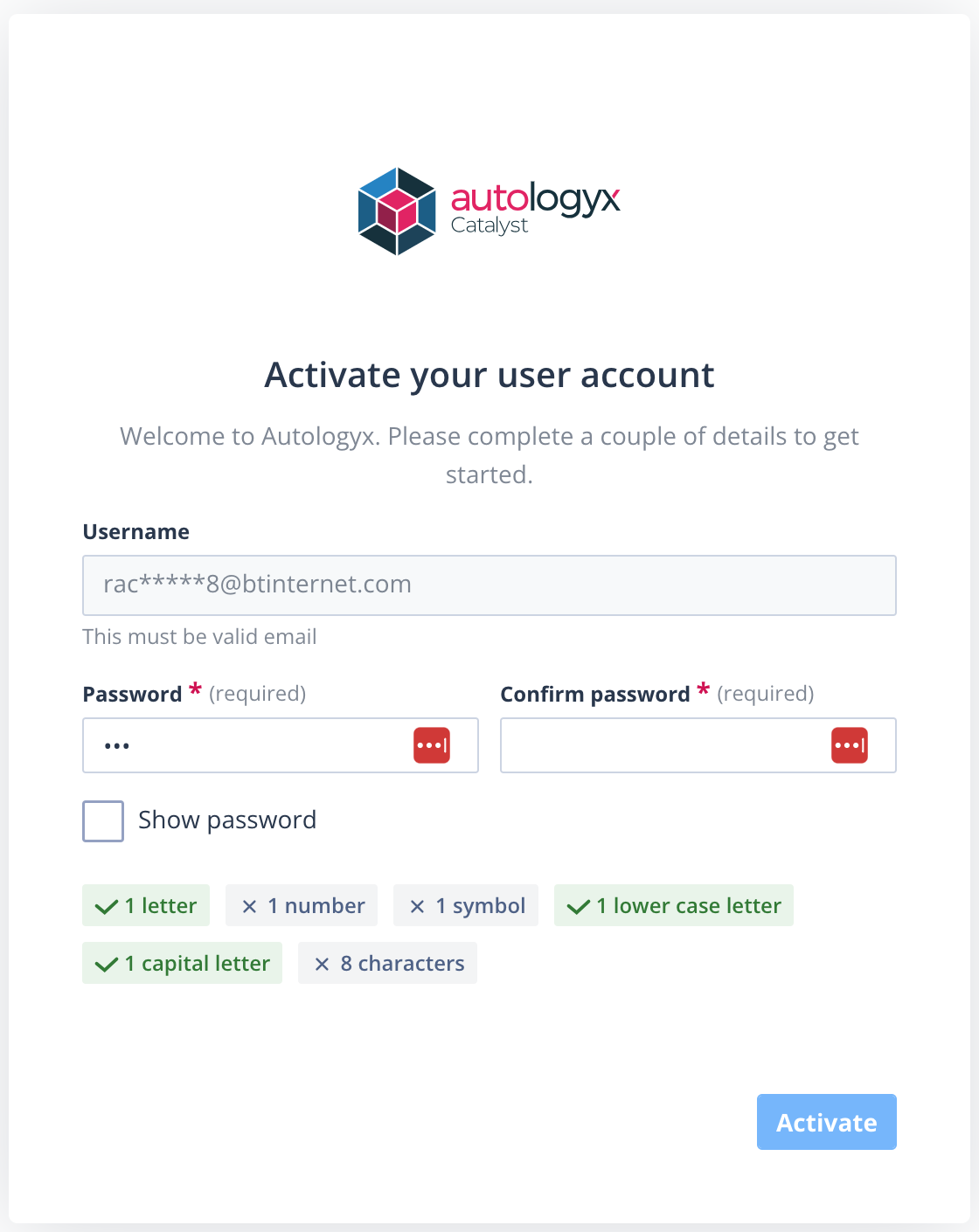
When the account is successfully activated, the user will be taken to the Autologyx landing page.
Configure the activation rules
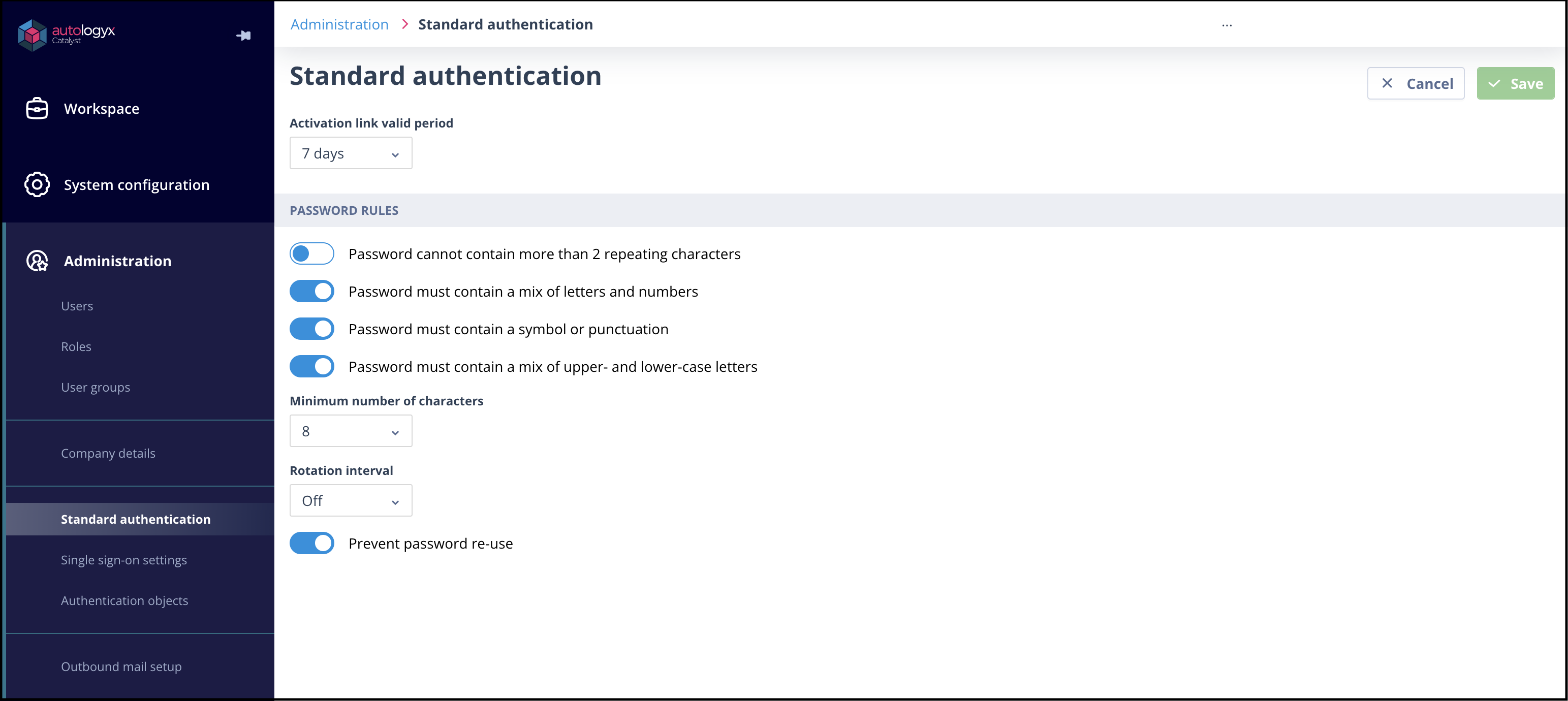
To set the activation rules, go to the Standard authentication page under Administration in the main navigation menu.
Here you can:
- Set the number of days for which the activation link in the email will be active.
- The minimum is one day and the maximum is 30 days.
- This feature can be set to "Off", which means that the link will only become inactive once the user account has been created.
- Set the Password Rules.
- Select the minimum characters a user login password must contain.
- Set the number of days after which a user will be asked to change their password.
- Choose to prevent password re-use.
Notes
The rules set here are applied globally across the system. However, if you are editing the password complexity rules, they will only be applied to new activations and password changes. They will not be enforced for active passwords.
Changes to the Rotation interval and Prevent password re-use settings will take immediate effect for all users.
It is worth checking with your IT department about the company policy for user login password rules and security to ensure that you are maintaining the expected standards.