
How do I create a role?
Roles allow you to control which areas of Administration and System configuration a user can access. They are assigned only to users with the Config Admin account type.
To create a new role, go to:
Administration > Roles
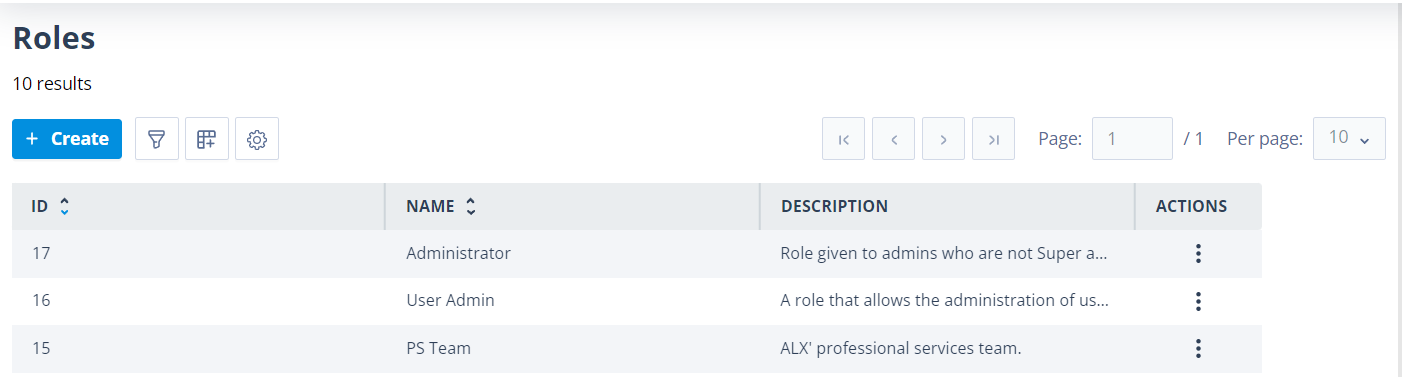
The Roles list will open.
Create a role
Click + Create in the top-left corner of the page.
The Role name field is mandatory and initially displays Unnamed role as a placeholder. Every role must have a unique name.
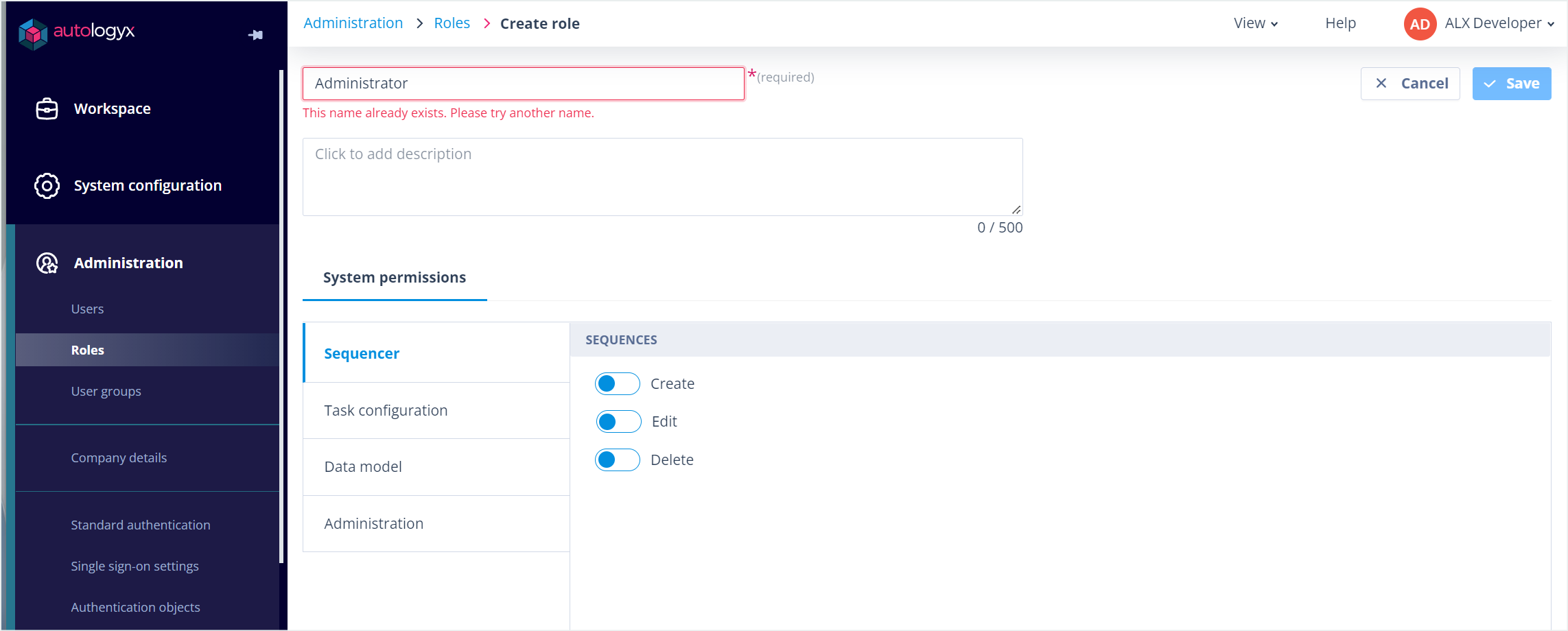
The Description field is optional but recommended. It allows you to describe the purpose of the role, making it easier to distinguish between similar roles.
Both the Role name and Description are displayed in the Roles list.
Configure system permissions
The System permissions section controls which administrative areas users assigned this role can access.
Permissions are grouped into the main areas of Catalyst.
Sequencer
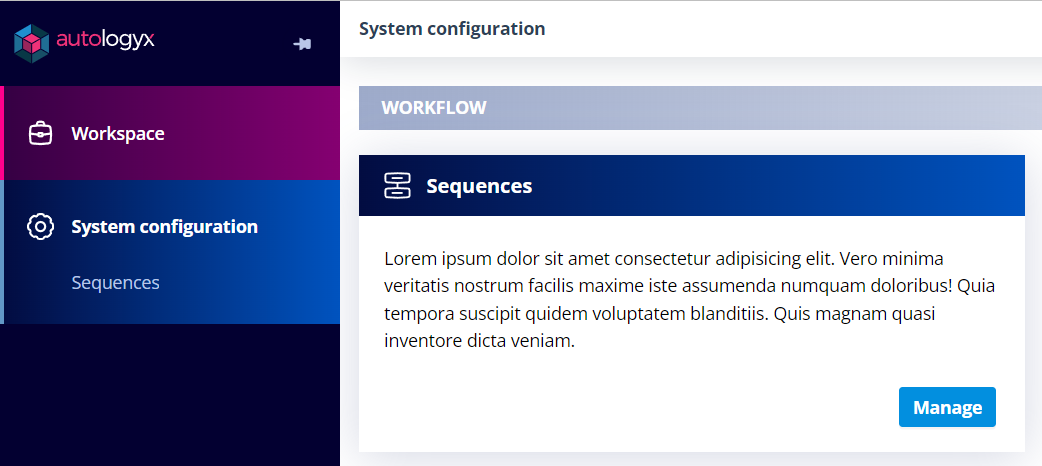
Controls whether users can create, edit, or delete Sequences.
Task configuration
Separate permissions are available for:
Each includes Create and Edit permissions.
Data model
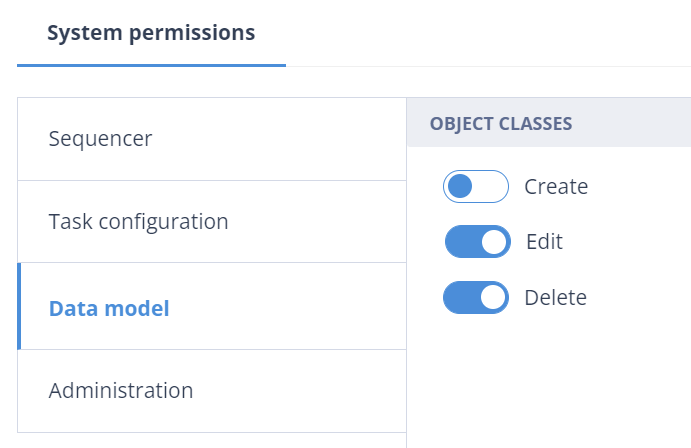
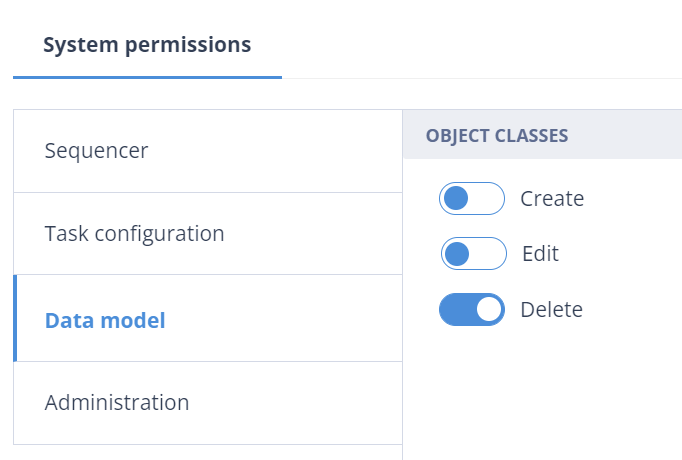
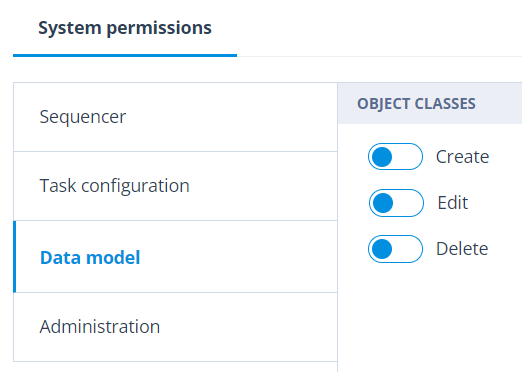
Controls the ability to create, edit, and delete Object Classes.
Administration
Administration permissions are divided into several areas.
For single-page settings, such as Company Details and Standard Authentication, only an Edit permission is available.
When enabled, users can:
- see the page in the navigation menu
- open the page
- edit its settings
If disabled, the page is hidden and cannot be accessed.
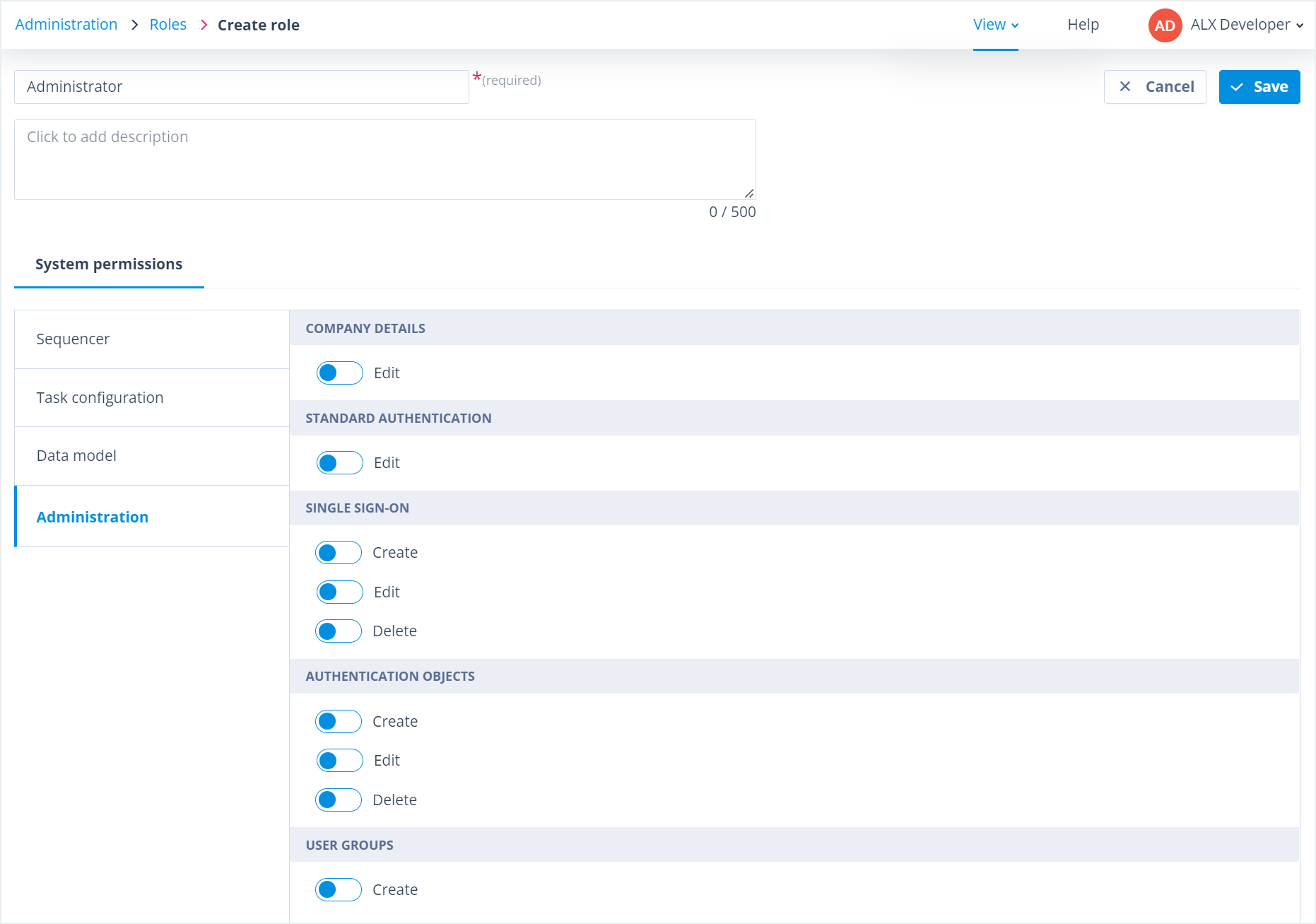
Other Administration areas, such as Authentication Objects and Single Sign-on Settings, support multiple items and therefore include Create, Edit, and Delete permissions.
User Groups are slightly different. Only the Create permission is available because the user who creates a User Group automatically becomes one of its Owners. Ownership then determines who can edit or delete that User Group.
Role permissions control access to administration features only. Permissions for working with Object Classes and Object Records are configured separately using Object Class and Record Permission Sets.
All permissions are disabled by default.
Understanding permission behaviour
Create and Edit
Enabling Create automatically enables Edit.
Users will then be able to:
- access the area from the navigation menu
- view existing items
- create new items
- edit existing items
Delete
The Delete permission can be enabled independently.
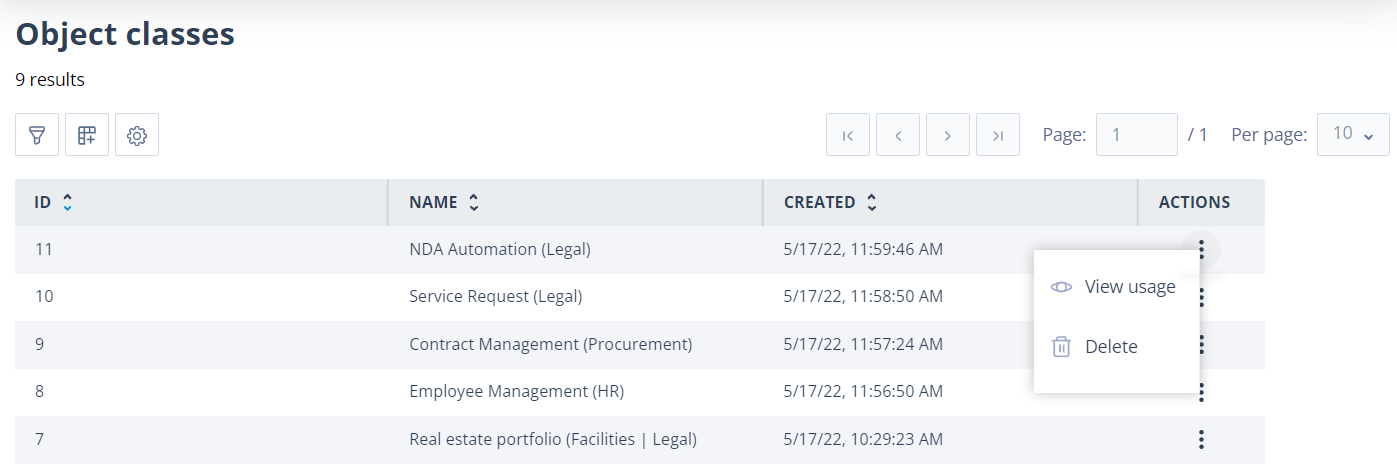
Users with Delete permission can:
- access the list page
- delete existing items
Create disabled
If Create is disabled but Edit remains enabled:
- the + Create button is hidden
- existing items can still be edited
Create and Edit disabled
If both Create and Edit are disabled:
- the navigation item is removed unless Delete is enabled
- users cannot access that area
Things to remember
- If a user has multiple Roles, Catalyst grants the most permissive combination of permissions.
- Users can delete Task Templates only when those templates have no responses associated with them.
- Up to 5,000 Roles can be created in a system. Once this limit is reached, the + Create button is disabled.
- Users with the Super Admin account type automatically have all of these permissions and do not require Roles.