
Associate MCP connectors with Object Classes
You can control which Object Classes an MCP connector can be associated with by selecting classes when you create the connector or by changing its Object Class selections later.
When to use this
Use Object Class associations when an MCP connector should be available for selected areas of your Object Model rather than for every Object Class.
Before you start
You need permission to create or edit MCP connectors and access to the Object Classes that are available in the connector's Object classes tab.
Select Object Classes when creating a connector
- Go to System configuration > Integrations and start creating an MCP connector.
- Open the Object classes tab.
- Expand the Object Class tree to find the classes you want the connector to access.
- Select each required Object Class using its checkbox.
- Save the connector.
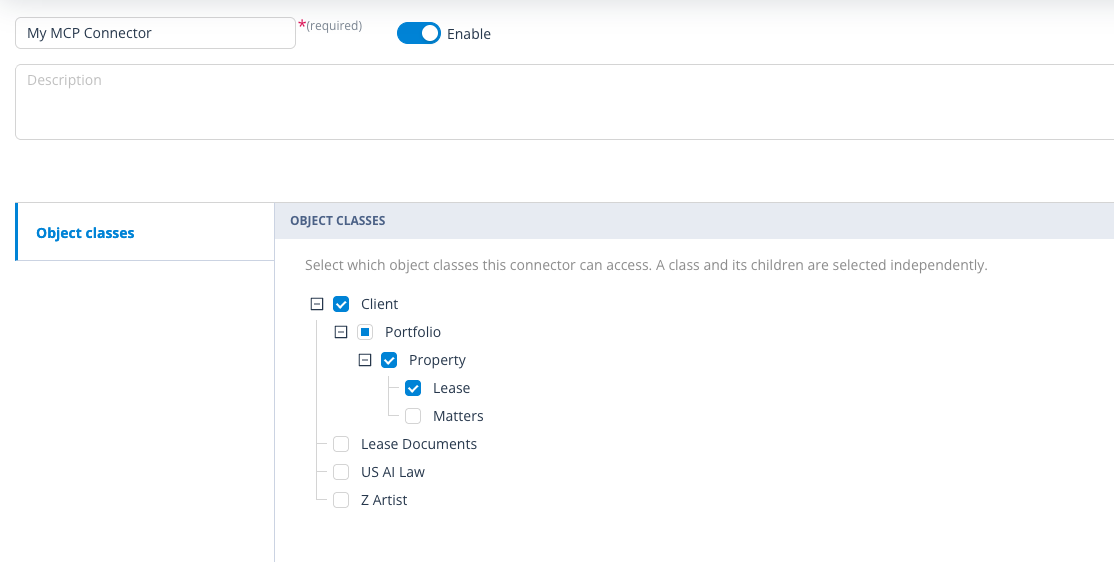
The tree includes nested Object Classes. Parent and child selections are independent: selecting a child does not automatically select its parent, and selecting a parent does not automatically select its children.
A parent can display an indeterminate state when the parent itself is not selected but one or more descendants are selected.
Change Object Class associations for an existing connector
- Open the MCP connector's edit page.
- Open the Object classes tab.
- Existing associations are shown as selected.
- Select additional Object Classes to associate them with the connector.
- Clear selected Object Classes to remove those associations.
- Click Save to apply the changes.
If you click Cancel, changes to the Object Class selections are not applied.
Things to remember
- Object Class selections are independent at every level of the tree.
- An indeterminate parent indicates that one or more descendants are selected; it does not mean the parent itself is selected.
- Only checked Object Classes are associated when you save.
- Removing an association means that connector should no longer be offered for that Object Class in the relevant permissions UI.
Useful info
- Associated connectors are used by the Applied AI selector in Object Class permissions.
- You can update associations later without recreating the connector.