
Configure MCP connector permissions
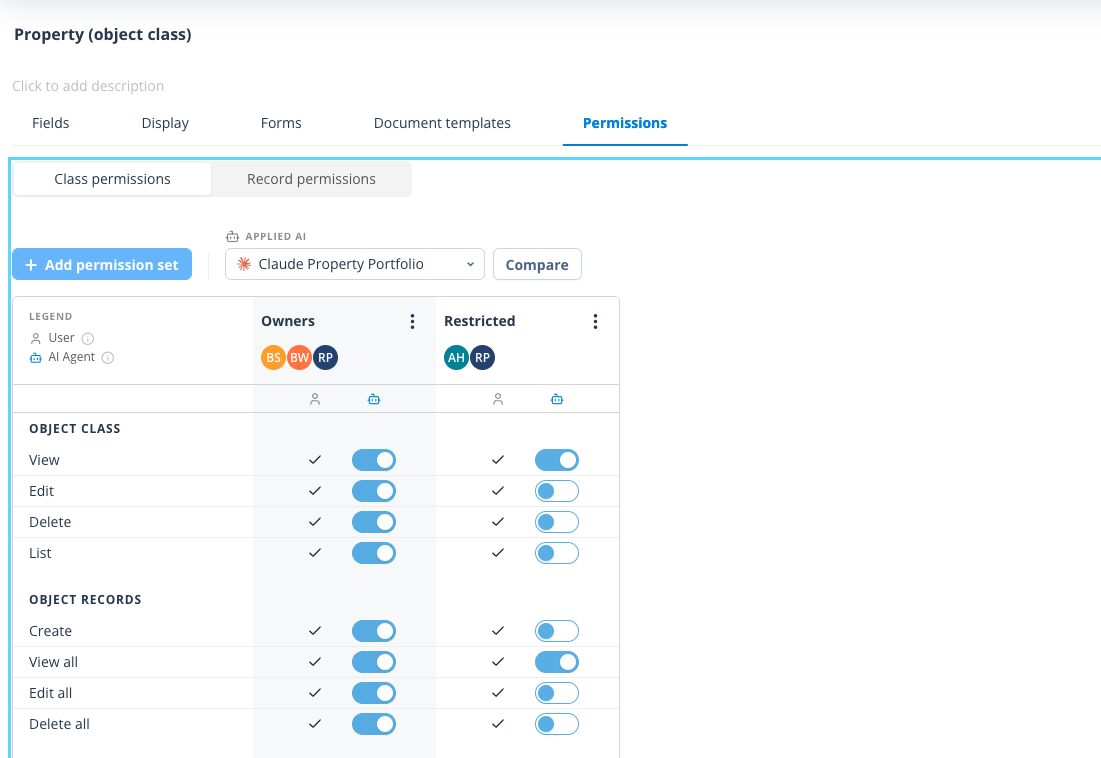
When an MCP connector is associated with an Object Class, you can use the Applied AI selector in the Object Class permissions area to review and configure the permissions that apply to that connector.
When to use this
Use MCP connector permissions when an AI/MCP connector should have a narrower set of permissions than the underlying user/API permission set allows.
Before you start
- The MCP connector must be associated with the Object Class.
- The relevant permission set must already exist.
- An MCP permission cannot be enabled where the corresponding API/user permission is not available.
Select an MCP connector
- Open the Object Class and go to Permissions.
- Open either Class permissions or Record permissions.
- Use Applied AI to choose the required MCP connector.
The Applied AI selector is only shown when at least one MCP connector is associated with the Object Class. User permissions is the default selection. Associated connectors are listed alphabetically in the selector.
Configure Class Permission Set permissions
With Class permissions open and an MCP connector selected:
- Open the permission set's actions menu and select Edit.
- Review the API/user permission column and the MCP connector column.
- Change the enabled MCP toggles as required.
- Click Save to apply the connector permissions, or Cancel to discard your changes.
MCP toggles are only enabled where the corresponding API permission is enabled. For Object Class permissions, the UI enforces these dependencies:
- Edit requires View.
- Delete requires View.
For Object Record permissions in a Class Permission Set, there are certain dependencies:
- Create requires Object Class View.
- View all requires Object Class View.
- Edit all requires View all and Object Class View.
- Delete all requires View all and Object Class View.
For Task permissions in a Class Permission Set:
- Create requires View all, Edit all, Complete all, and Assign all.
- Edit all requires View all.
- Complete all requires View all.
- Assign all requires View all and Complete all.
Use quick actions
While editing an MCP connector's Class Permission Set, use the quick actions menu to:
- Enable all - turns on all MCP toggles that are currently available. Toggles disabled by API permission constraints remain off.
- Disable all - turns all MCP toggles off.
The wider permission-set UI also contains quick actions for user/API permission sets.
Configure Record Permission Set permissions
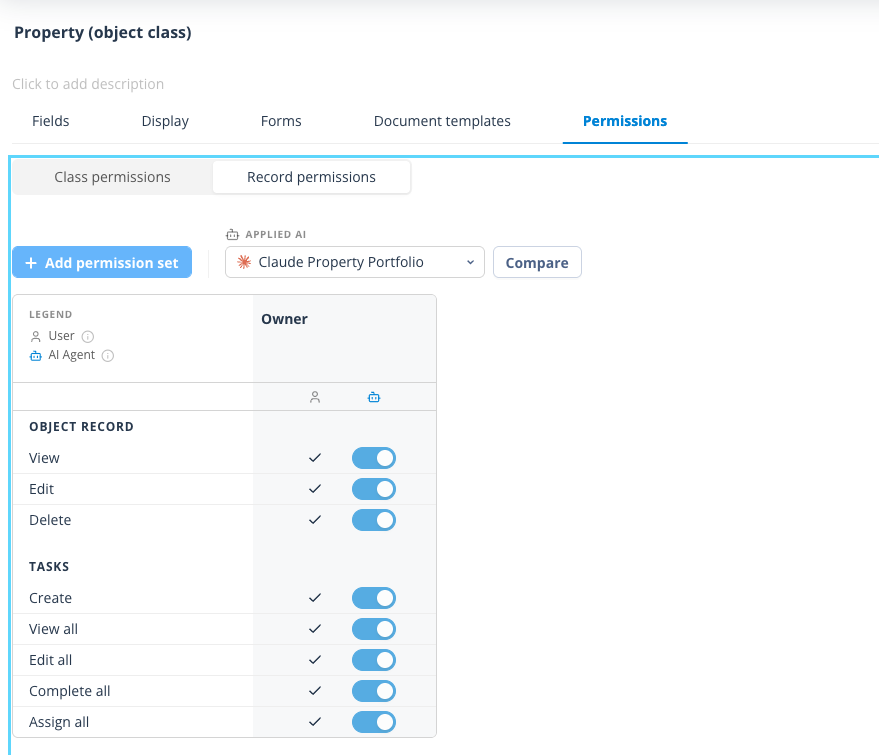
With Record permissions open and an MCP connector selected, edit the required Record Permission Set.
For Object Record permissions, View and Edit can be configured when their corresponding API permissions are enabled.
For Task permissions in Record Permission Sets:
- MCP toggles are disabled when the corresponding API permission is off.
- Edit all remains disabled regardless of the API state.
- Create requires View all, Complete all, and Assign all.
- Complete all requires View all.
- Assign all requires View all and Complete all.
Compare permissions
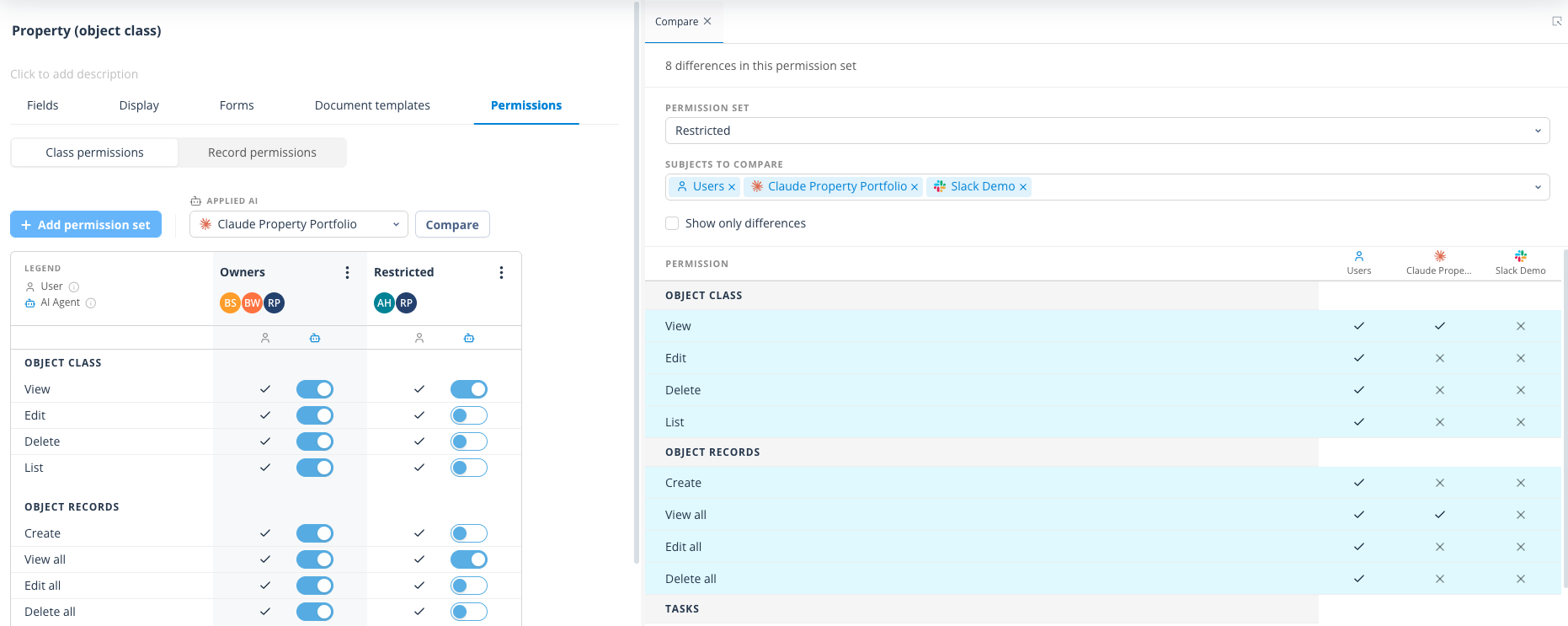
You can compare a selected permission set across users and MCP connectors.
- Click Compare beside Applied AI.
- Select the permission set to compare.
- Select the subjects to compare, up to 5 maximum.
- Review the permissions side by side.
- Turn on Show only differences to focus on rows where the selected subjects differ.
Enabled permissions are shown with a check mark and disabled permissions with an X. Missing or null values are treated as disabled. Rows with differences are highlighted.
Things to remember
- MCP permissions are constrained by the corresponding API/user permissions.
- Add permission set is disabled while an MCP connector is selected in Applied AI.
- Saving MCP changes updates the selected connector's permissions without changing the API permissions or other connectors' permissions.
Useful info
- If no connector is associated with the Object Class, Applied AI is not shown.
- Removing or deleting a connector removes it from the Object Class permissions UI.