
Manage MCP connectors
You can create and maintain MCP connectors for AI/MCP integrations from System configuration > Integrations. This article explains how to view connectors, create and edit a connector, copy its connection details, reset its Client Secret, and delete a connector.
When to use this
Use these steps when you need to add an MCP connector for an AI integration, update an existing connector, retrieve its URL or Client ID, rotate its Client Secret, or remove a connector that is no longer required.
Before you start
MCP capabilities must be enabled for your Autologyx environment. If MCP capabilities are not enabled, contact your account manager.
Super Admins are the intended connector managers and you will need access to System configuration > Integrations and permission to manage MCP connectors.
View MCP connectors
- Go to System configuration > Integrations.
- Open the connectors configuration for the required AI/MCP integration.
- The MCP connectors page lists the connector ID, Name, Status, and Actions.
- You can sort the list by ID or Name.
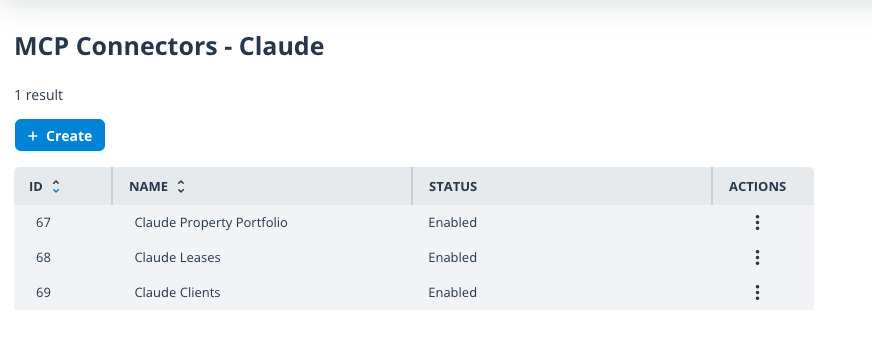
Create an MCP connector
- From the MCP connectors page, click Create.
- Enter a Name. The name is required and must be unique.
- Optionally enter a Description.
- Set the Enabled toggle as required. It is enabled by default in the supplied acceptance criteria.
- Click Save.
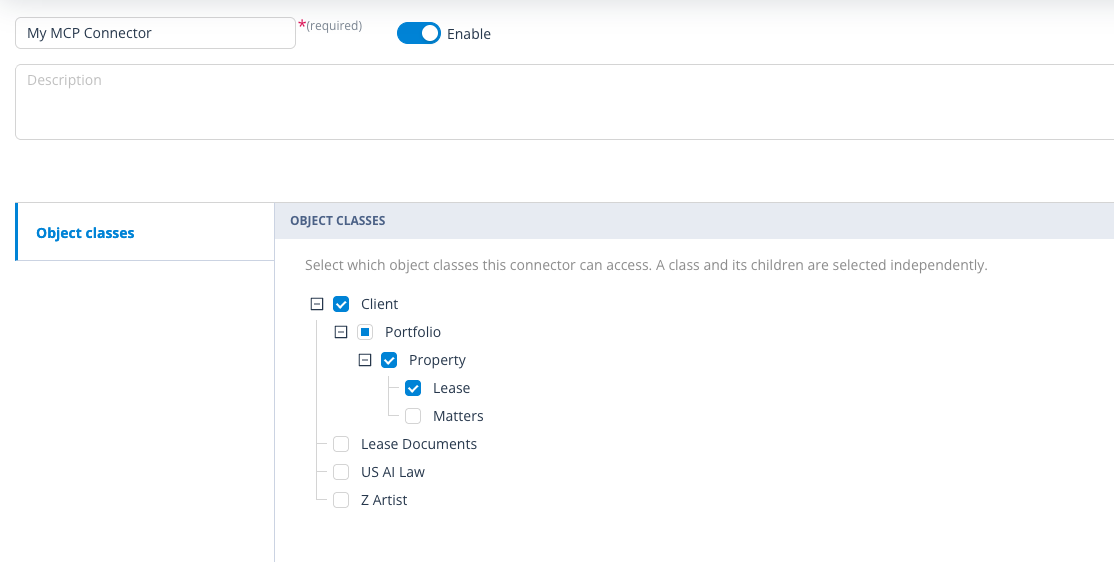
If the name is already in use, Autologyx displays the standard duplicate-name error and does not create the connector. Change the name before trying to save again.
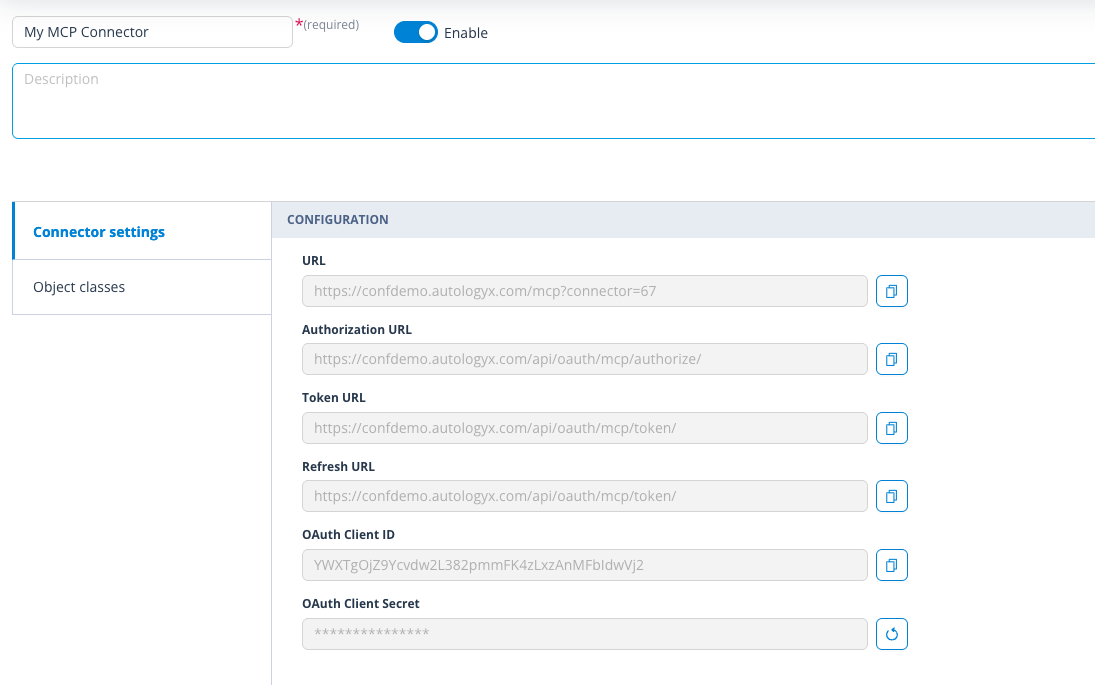
After a connector is created, Autologyx displays its generated connection details, including its URL, OAuth Client ID, and OAuth Client Secret. Copy the Client Secret at this point because its plain-text value is not available again after the modal is closed.
If you leave the create page after entering a name or description, the standard unsaved-changes flow applies.
Edit an MCP connector
- On the MCP connectors page, open the connector's Actions menu and select Edit.
- Update the connector Name, Description, or Enabled state.
- Review the Configuration area. The connector URL and OAuth Client ID are read-only. The Client Secret is obscured.
- Click Save to apply your changes, or Cancel to leave them unchanged.
The standard duplicate-name handling also applies when renaming an existing connector.
Copy the connector URL or Client ID
On the connector's edit page, use the copy control beside the connector URL or OAuth Client ID to copy that value to the clipboard.
Reset the Client Secret
Resetting a Client Secret immediately invalidates the current secret. Any integration still using the old value stops working until it is updated.
- Open the connector's edit page.
- In the Configuration area, use the reset control beside OAuth Client Secret.
- Review the confirmation message and click Reset.
- Copy the new Client Secret from the confirmation modal before closing it.
- Update any external system that uses the connector with the new secret.
The reset is applied immediately and is independent of the page's Save button or any other unsaved edits. After the new-secret modal is closed, the plain-text Client Secret is no longer accessible in the UI.
Delete an MCP connector
- On the MCP connectors page, open the connector's Actions menu.
- Select Delete.
- Review the confirmation dialog.
- Click Delete to permanently remove the connector, or Cancel to keep it.
Deleting a connector removes it from the connectors list and from the Object Class permissions UI where it was previously available.
Things to remember
- Connector names must be unique.
- The generated Client Secret is a one-time value. Store it securely when it is displayed.
- Resetting a Client Secret invalidates the old value immediately.
- Deleting an MCP connector cannot be undone.
Useful info
- You can associate Object Classes with a connector when creating it or later from its edit page.
- Associated connectors can then appear in the Applied AI control when permissions are configured for those Object Classes.