
Column Configuration on List Pages
You can use Column configuration to customise which columns appear on a list page and control the order in which they are displayed.
This allows you to tailor list pages to the information you use most often.
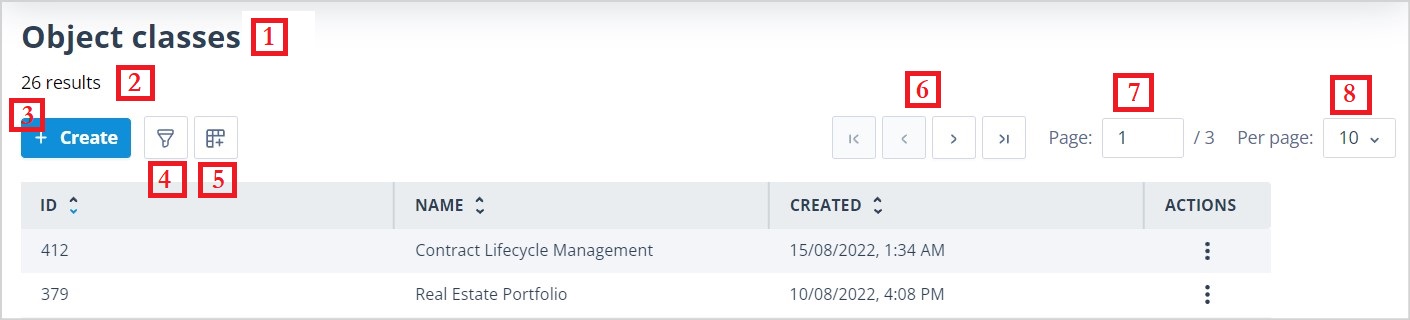
In the screenshot below, the Column configuration control is highlighted.
Configure columns
Each list page has its own default column setup. You can change this by clicking the Column configuration control.
When you do this, three buttons appear above the column headers:
- Save changes
- Reset to default
- Cancel
A circular + insertion icon also appears to the right of each visible column, except the Actions column. Click the + icon where you want to insert extra columns.

The column selection list shows any available columns that are not currently visible in the table.
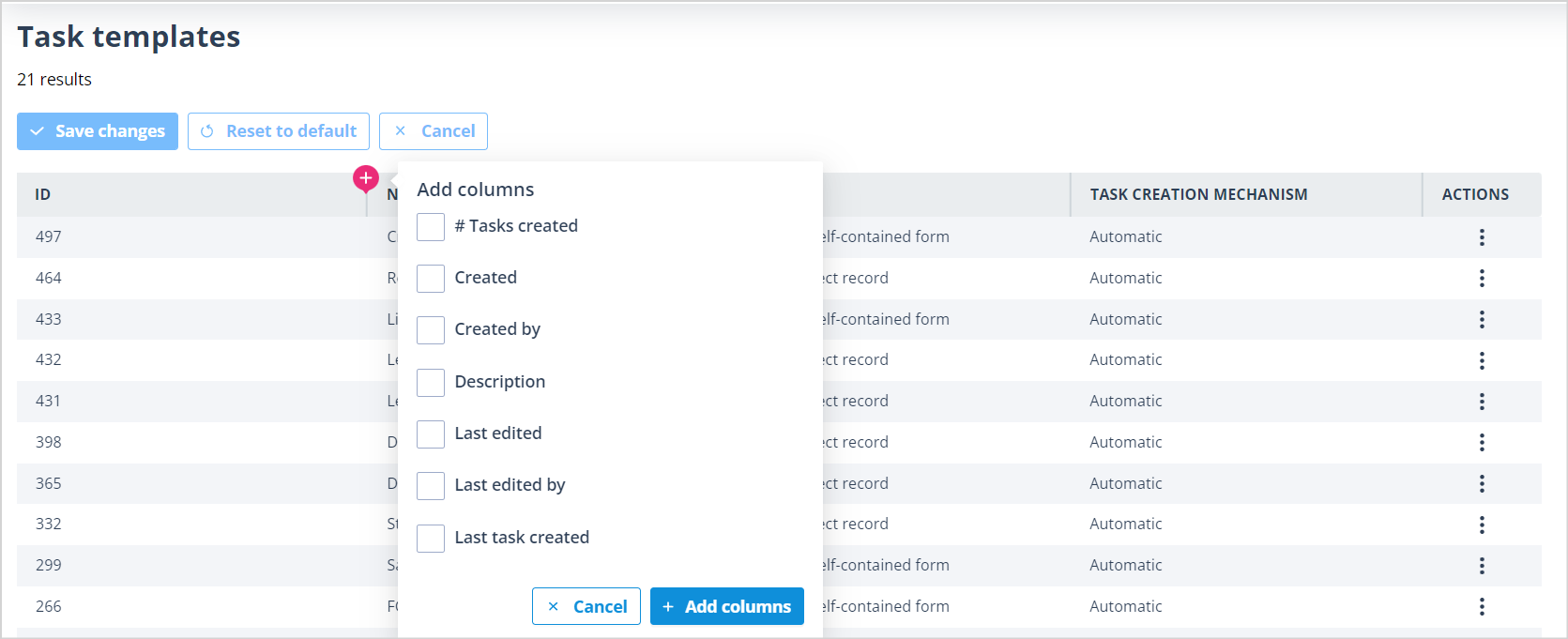
Select the columns you want to add, then click + Add columns.
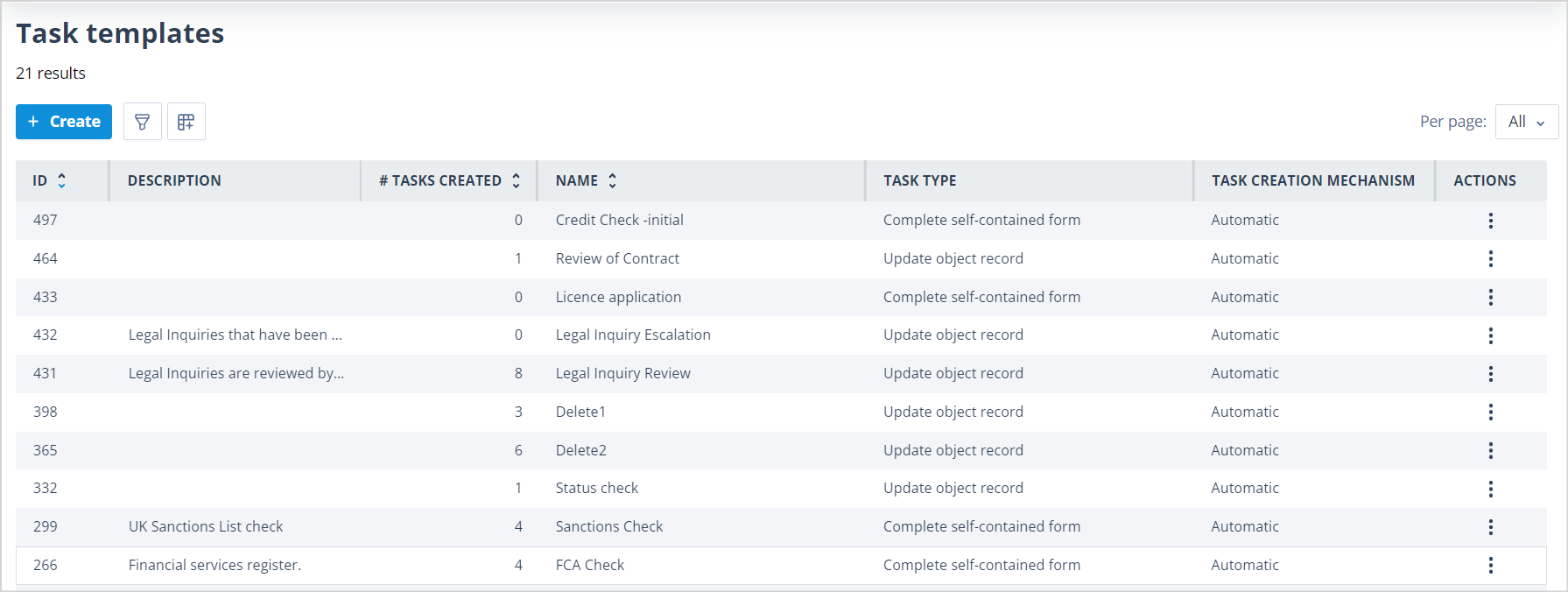
The selected columns appear at the insertion point. Click Save changes to keep the updated column layout.
Other actions in column configuration mode
While in column configuration mode, you can also:
- use the X control on a column header to remove it from the list
- reposition columns by dragging and dropping them into the required position
- cancel changes by clicking Cancel
- reset the list view to the default setting by clicking Reset to default
The Actions column cannot be removed or repositioned.
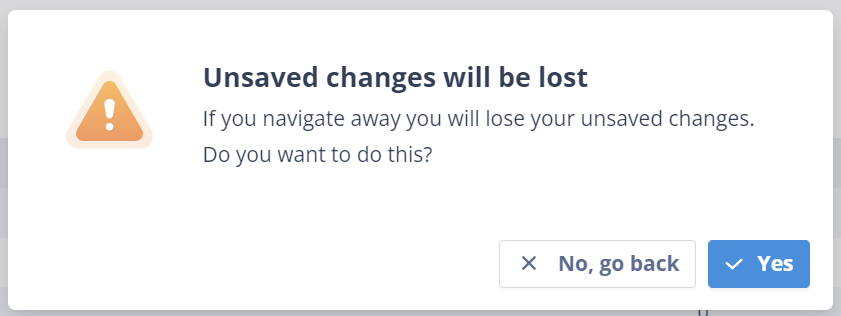
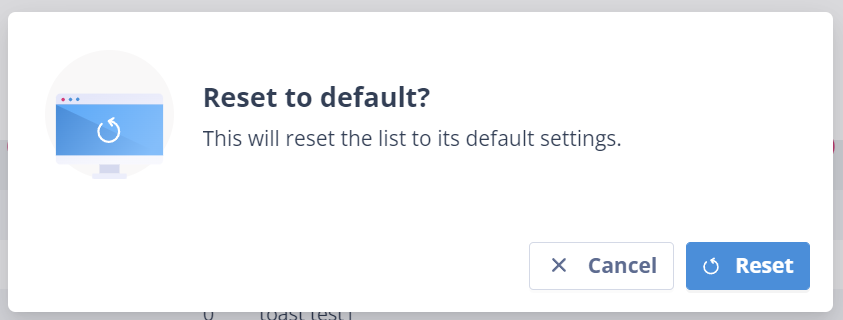
These actions display a warning modal where you can confirm the action or return to column configuration mode.
Things to remember
- Column configuration changes apply only to the current list page.
- The Actions column cannot be removed or repositioned.
- Unsaved changes will be lost if you click Cancel and confirm the warning.
- Use Reset to default if you want to return the list page to its original column layout.