
Child Object Classes
The Child Object Class component will be available in the side panel of the Object class Create and edit view if the Object class is a parent in the relational model Relational model. Only Object classes which are direct children will be available for selection.
| In the relational model shown: - Employee Management (HR) is at the top - we call this the root parent - Employee Management (HR) has one direct child - Employees. Note that object class Employees is not only a child. It is a parent to object class Employment Contracts - Employment Contracts is a direct child of Employees | Screenshot 2024-06-17 at 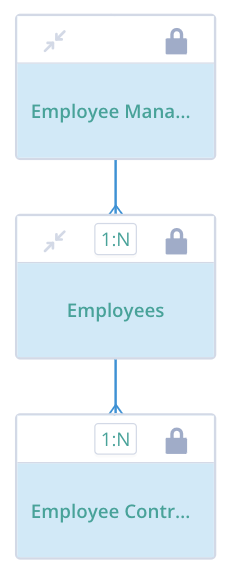 |
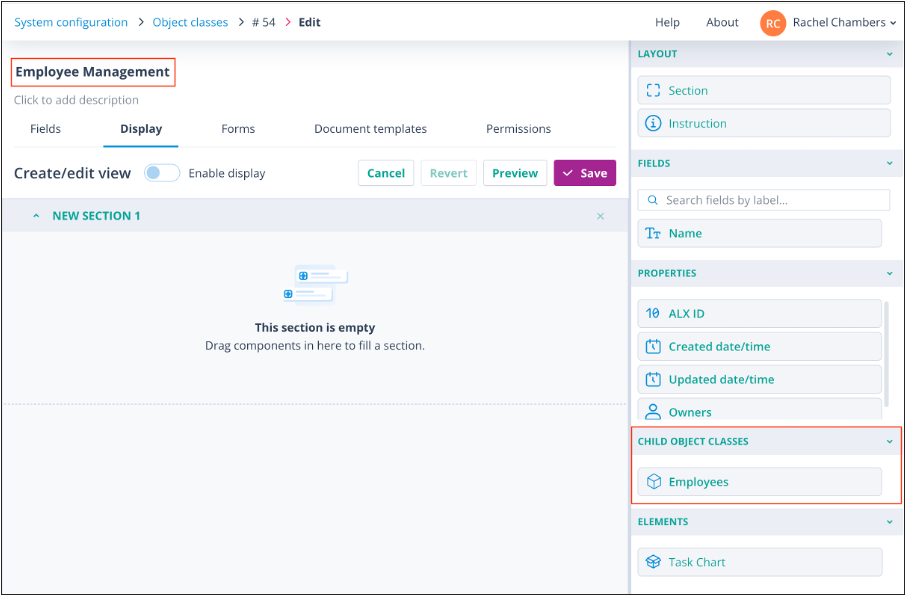
The Child Object Class component "Employees" is available in the side panel of the Create and edit view for Object class "Employee Management".
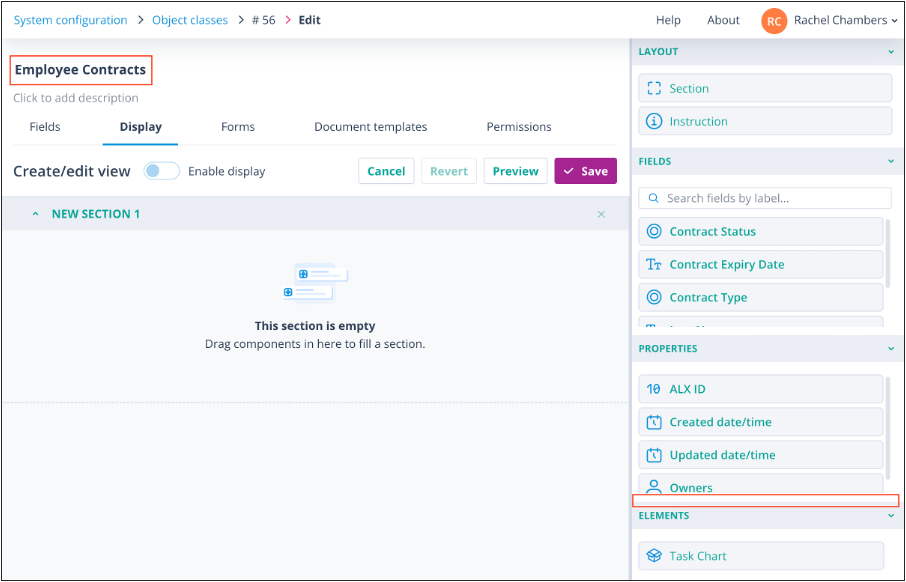
Similarly, "Employee Contracts" will be available in the side panel of the Create and edit view for Object class "Employees".
However, Object class "Employee Contracts" has no children, so the Child Object Class component does not appear.
Add the component to a form
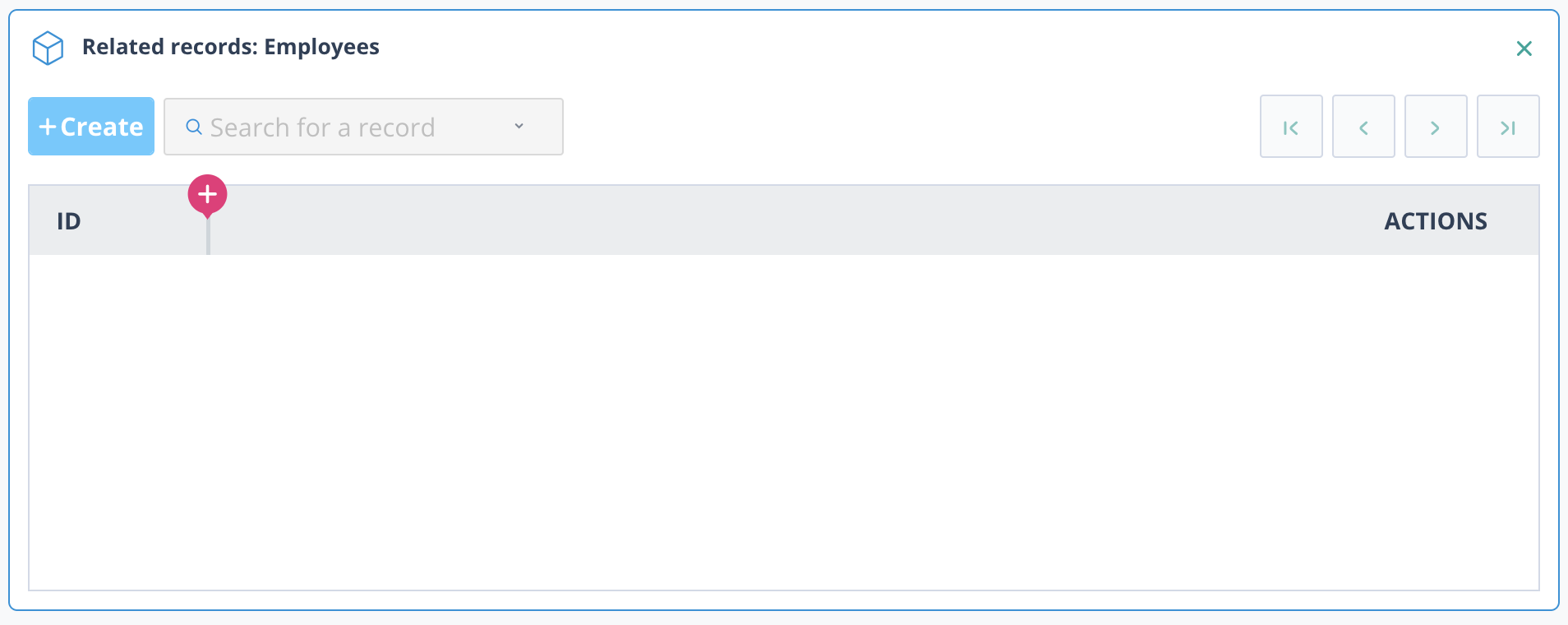
Drag the Child object class component onto the form into a section. It will be greyed out in the side panel and appear as below on the canvas.
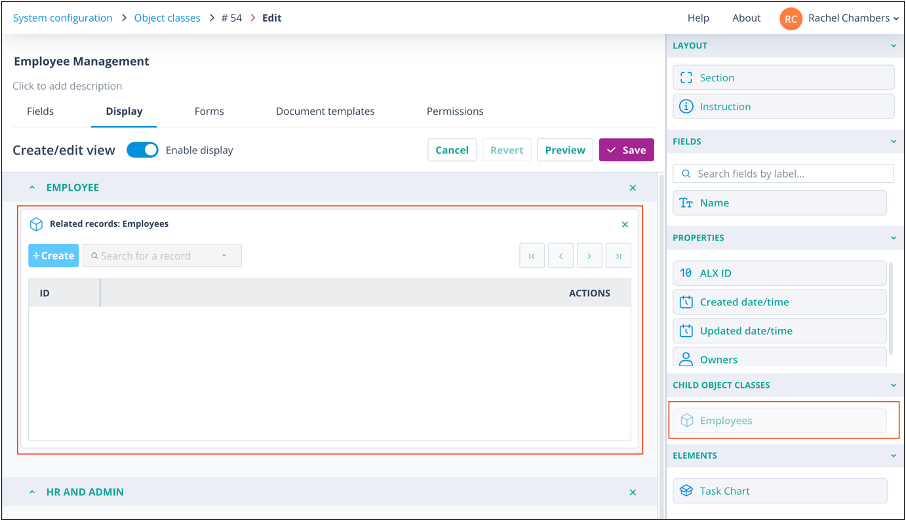
Click on the grey header adjacent to "ID". A plus sign will be displayed, the same as those in the column configuration component on the Records list.
Click on the cross to display Record properties and Class fields. Select those that you wish to display on the Child component in the form.
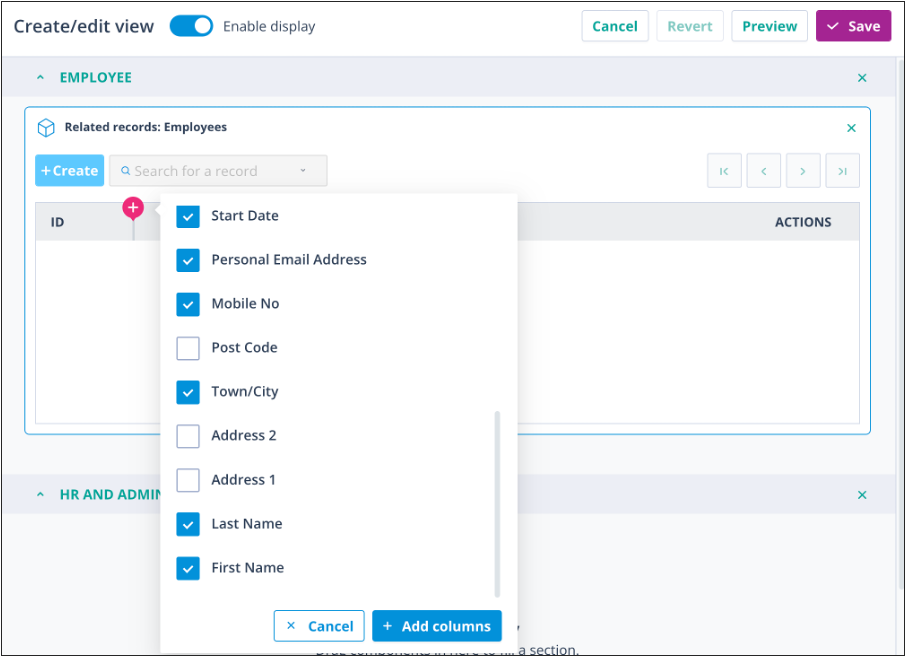
Click + Add columns; the configuration will be saved.
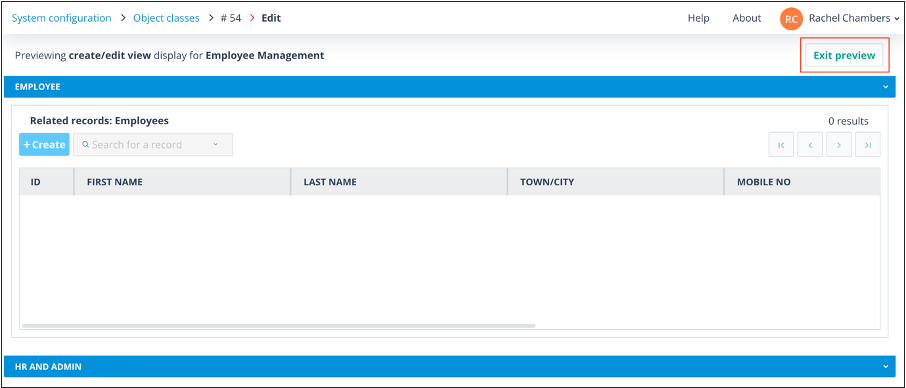
Preview the form to check how the component is displayed. Return to the form to re-space and/or re-order the fields on the header if required, again by clicking on the header itself.
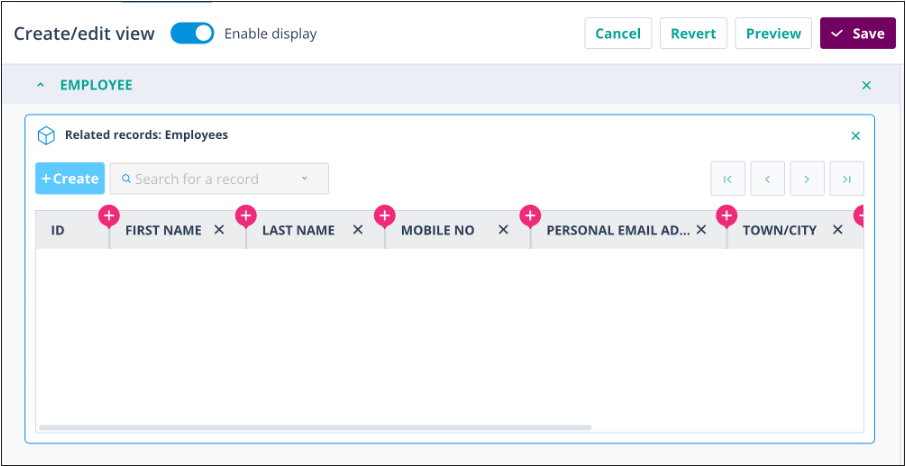
Simply click off the component to save your changes.
Finish configuring the rest of the form and Save.
Using the Child Object Class component in a form
The URL of the Create and edit view can be provided to Users as a link on their Landing page or can be accessed by clicking the + Create record button on the Records list.
The child object component will be displayed as "Related records: Name of child object class" (in this case, Employees). It will have holding text, "No child records added. Search for existing records to add them, or create a new record."
Clearly, you must have permissions to view or create records in the child class in order to carry out these actions.
Search
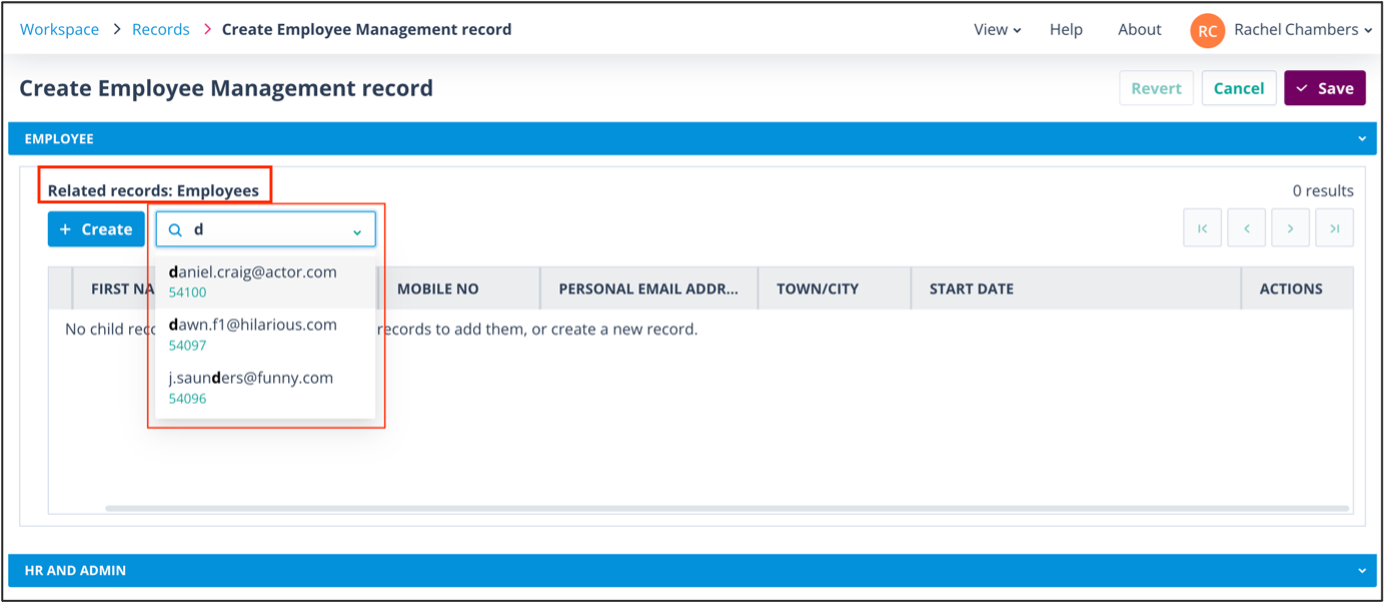
Click into the search field. Records will appear listed by ALX ID number if no other field has been marked as the Identifier. In the below screenshot, records are listed by Personal email address (the chosen Identifier) followed by the ALX ID. You can scroll down the list or start typing - the list will filter accordingly.
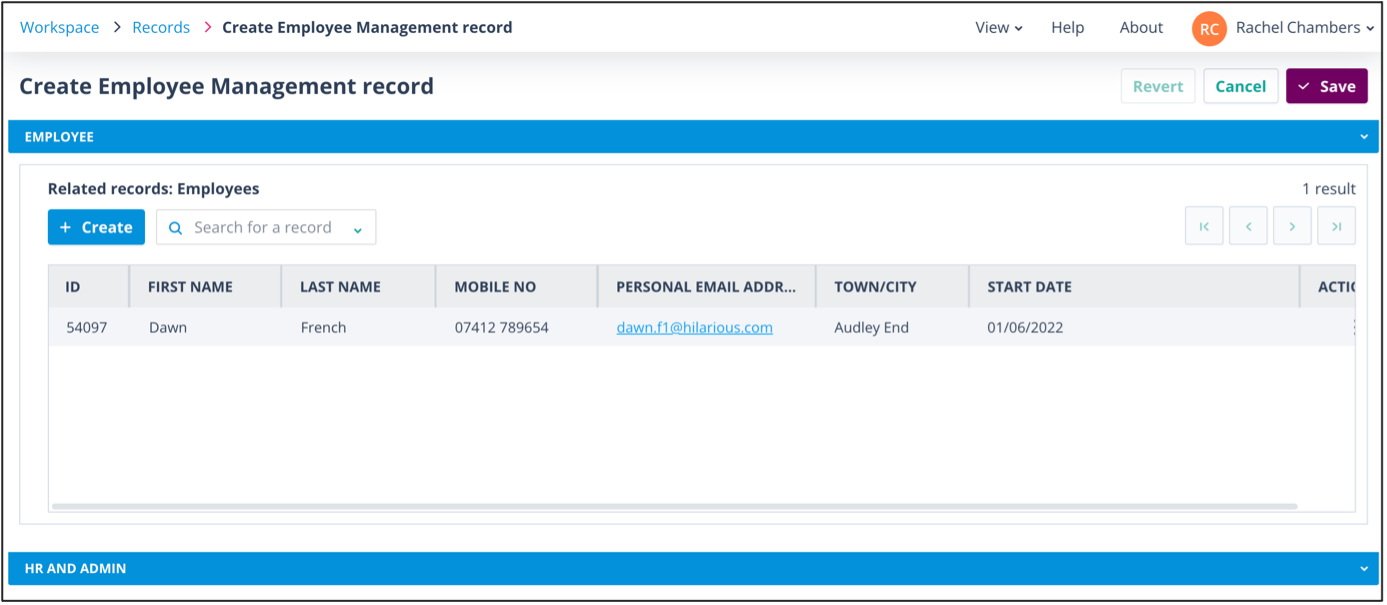
The selected record will appear in the child component as below.
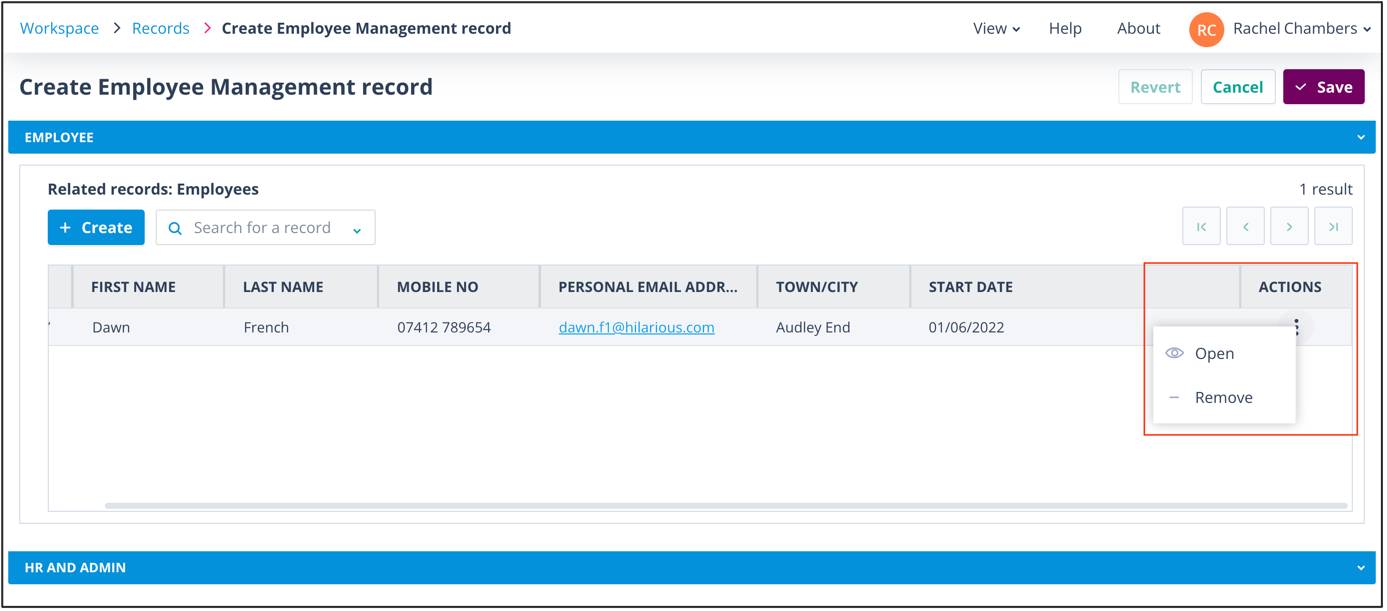
The Actions menu on the child component has two options. Open will open the child record while, if you have selected in error, Remove will take it out of the child component.
Create
If the record you wish to add to the relationship does not exist, click + Create on the Related records child component.
The child Create and edit view form will open so that you can enter the details of the new record. Note that this form includes a Related records child component for Employee Contracts.
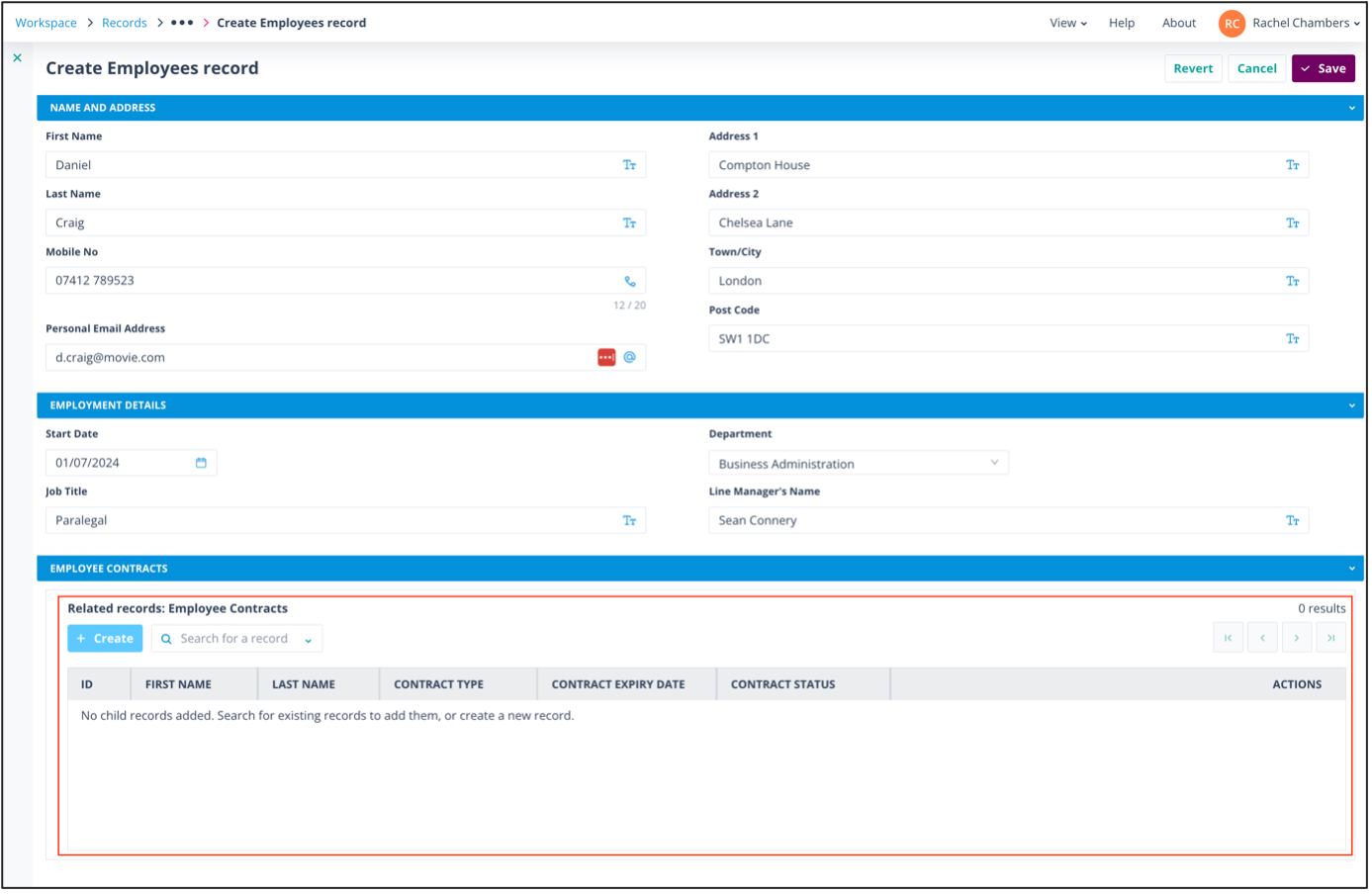
When you save this form, the child record will be created. Note below that their ALX ID has been applied on creation.
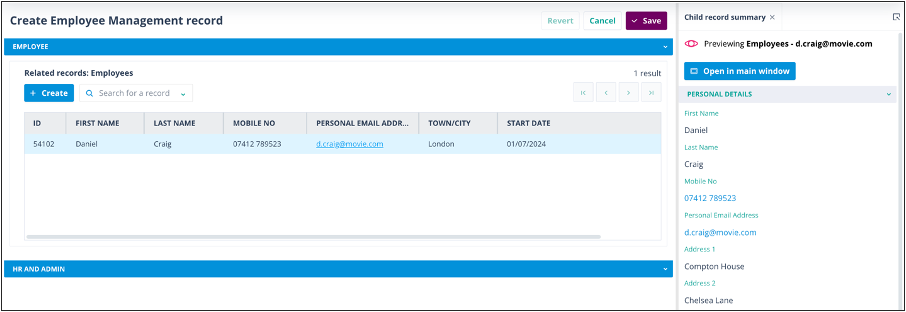
The side panel displays the summary for the child record.
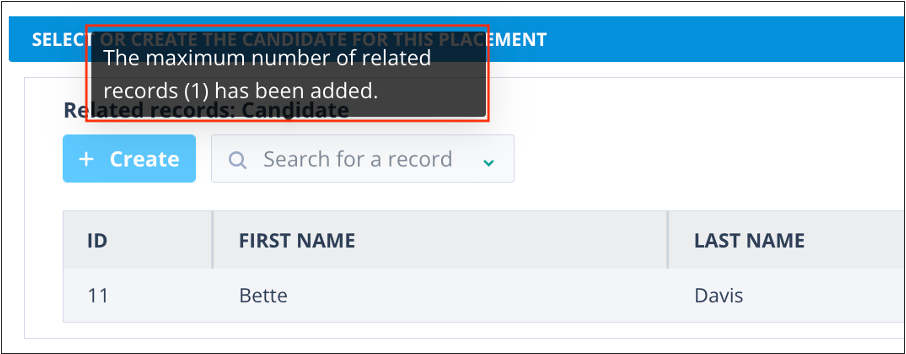
Additional child records can be added if the ratio to the parent is N. If the parent:child ratio is 1:1, the + Create and Search functions will be disabled and clicking either will display a modal telling you that the maximum number of related records has been reached.
Complete the rest of the form for the parent record and save.