Elements
Users with a Super admin account type where the Catalyst system uses Elements will probably have access to comprehensive documentation with use cases and code samples.
As an alternative, we have a section in the knowledgebase which explains what they are and how to configure them. Click HERE for more information.
Access and permissions
You will need a Super admin account type to be able to create/edit Elements.
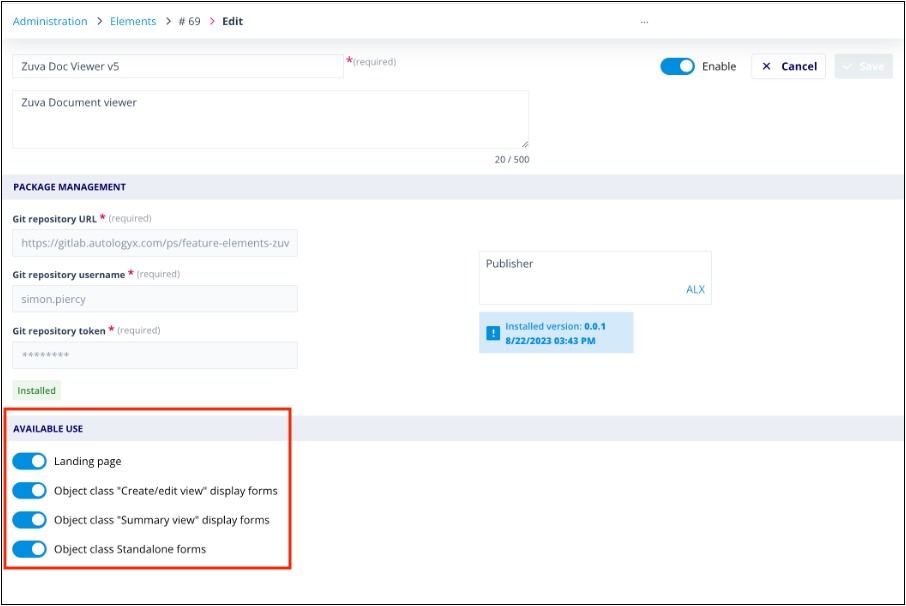
Elements can be used in the following forms:
- The landing page
- Object classes
- create/edit view
- summary view
- standalone forms
The Element create/edit config has radio buttons to enable use in each area.
Users with the account type Config Admin and a Role which allows them to Edit Object classes, or with a Permission set which allows them to Edit a specific Object class, will be able to select the Element on the Object class forms.
These users will not have access to create/edit the Landing page, as that is a Super admin function.
Using Elements in forms
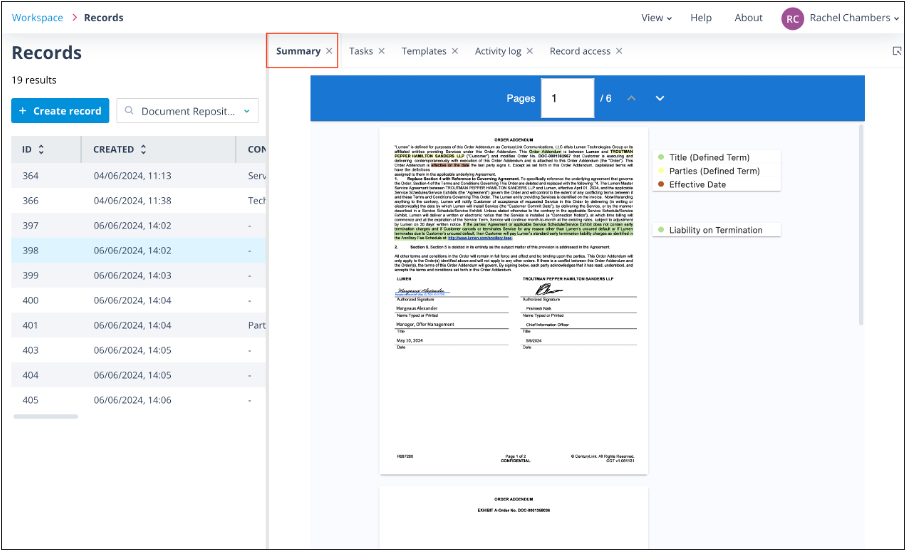
The below shows the use of a Zuva Document Viewer Element in the Summary view of a record.
Best practice: Create a dedicated section, with a clear name if the header is to be shown, for any Elements included in your forms.
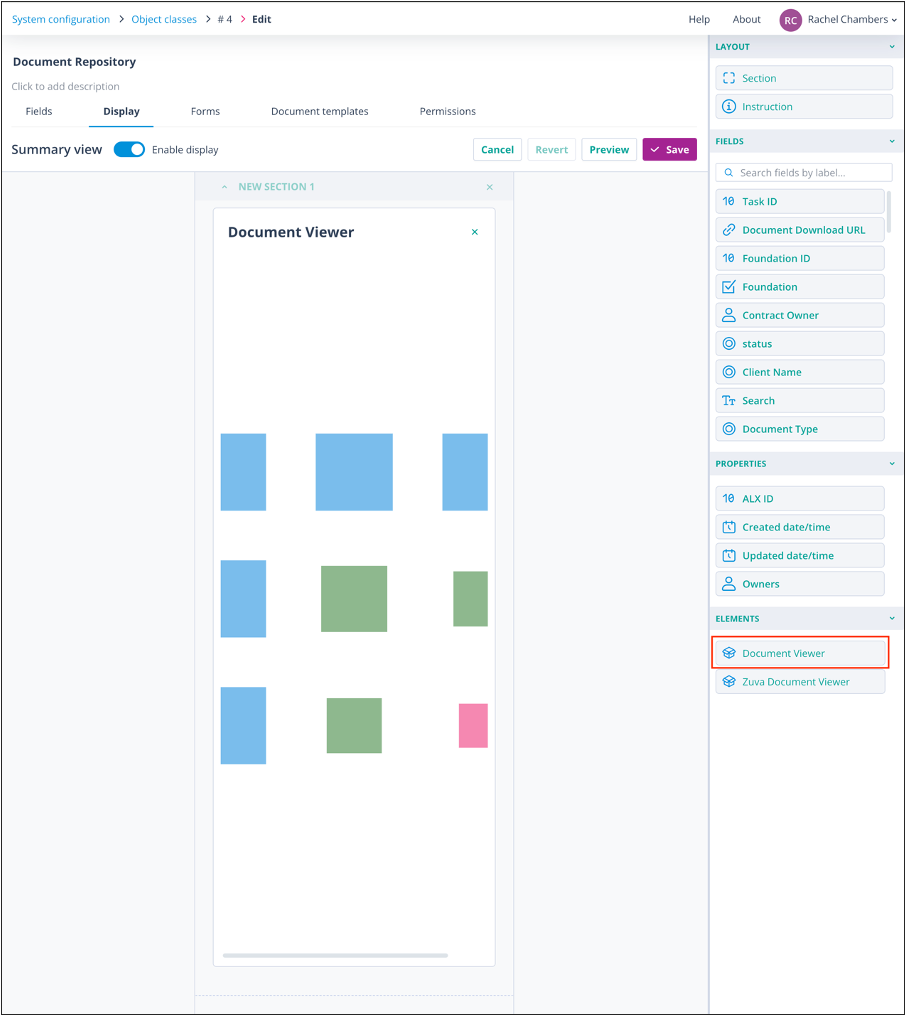
Add an Element
Drag and drop the Element component onto the canvas.
Unlike other form components, it does not become greyed out; you could add it again in the same or another section. This is because the same type of Element can be configured to display different views/results, etc.
Configure an Element
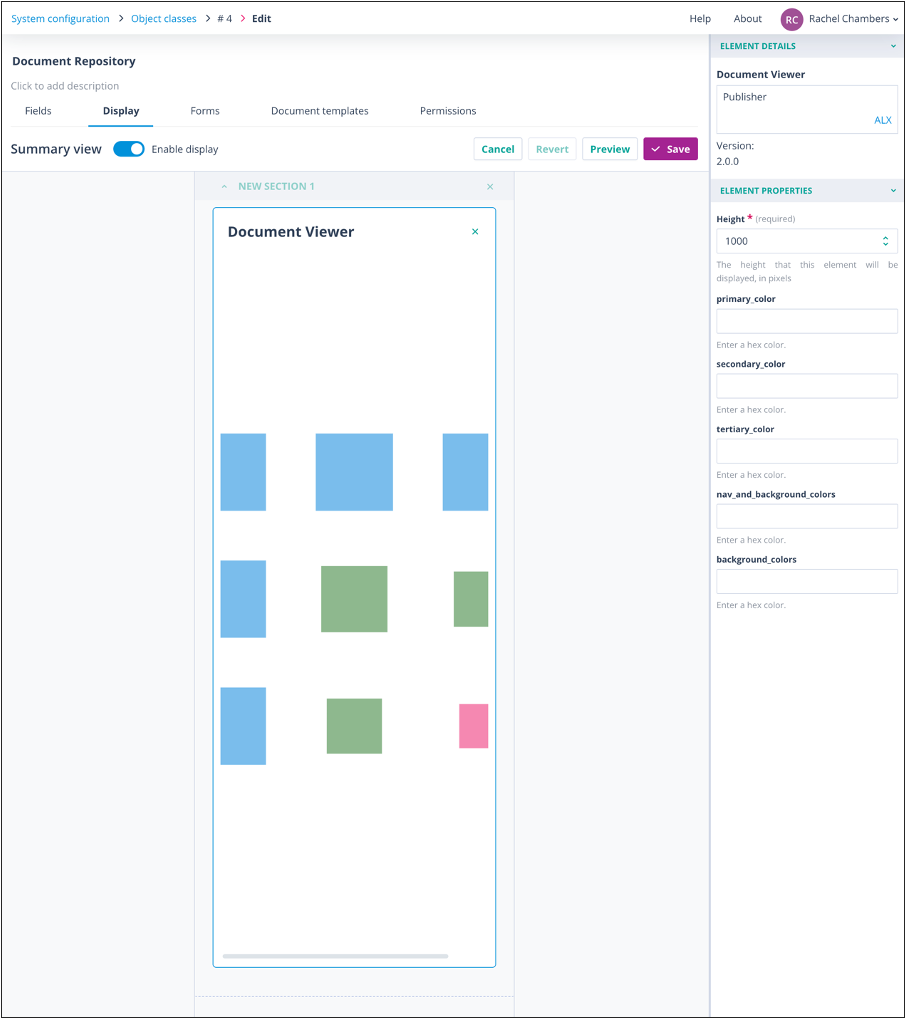
When in place, click on the Element to configure the height, colours, or other characteristics specific to the type of Element, to make it different to the default.
Save the form.
Example: An example of the Element in the Summary view of a record: