
Groups in Class Permission Sets
Managing permissions is now easier with our latest update to Class Permission Sets. We know that handling permissions across multiple users can be a bit of a juggling act, but what if you could simplify the process?
Now, instead of assigning permissions to individual users one by one, you can assign entire User Groups with just a few clicks.
Add a User Group to a Class Permission Set
Adding a User Group to a class permission set is straightforward. Start by navigating to your class permission set and opening the Manage Assignees panel. You’ll notice a refreshed UI, now divided into two tabs:
- Users
- User Groups
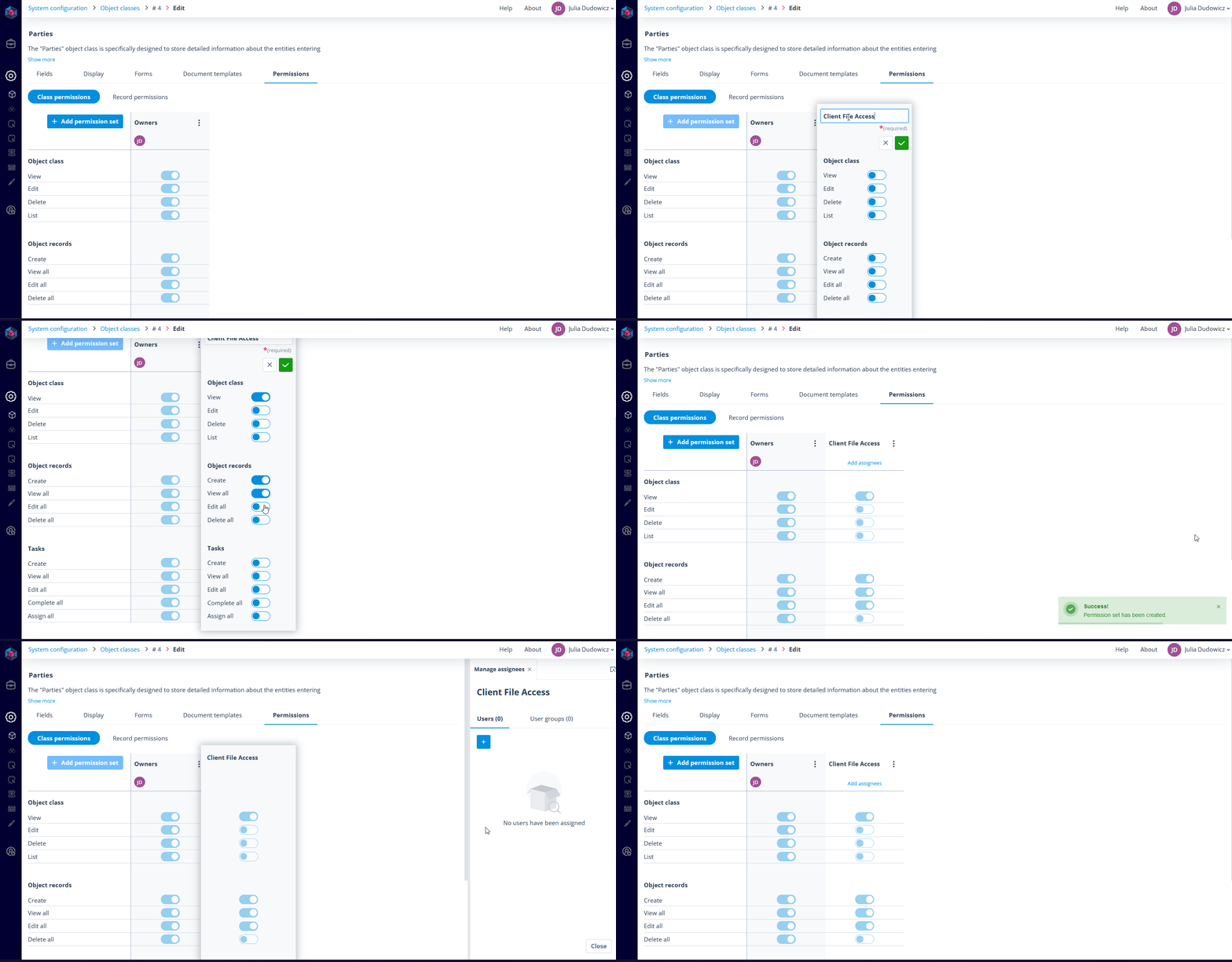
In the Users tab, the process remains the same as before. Clicking the “+” button will take you to the Add Assignees panel, where you can select individual users. This functionality hasn’t changed, so you can continue managing user assignments as you always have.
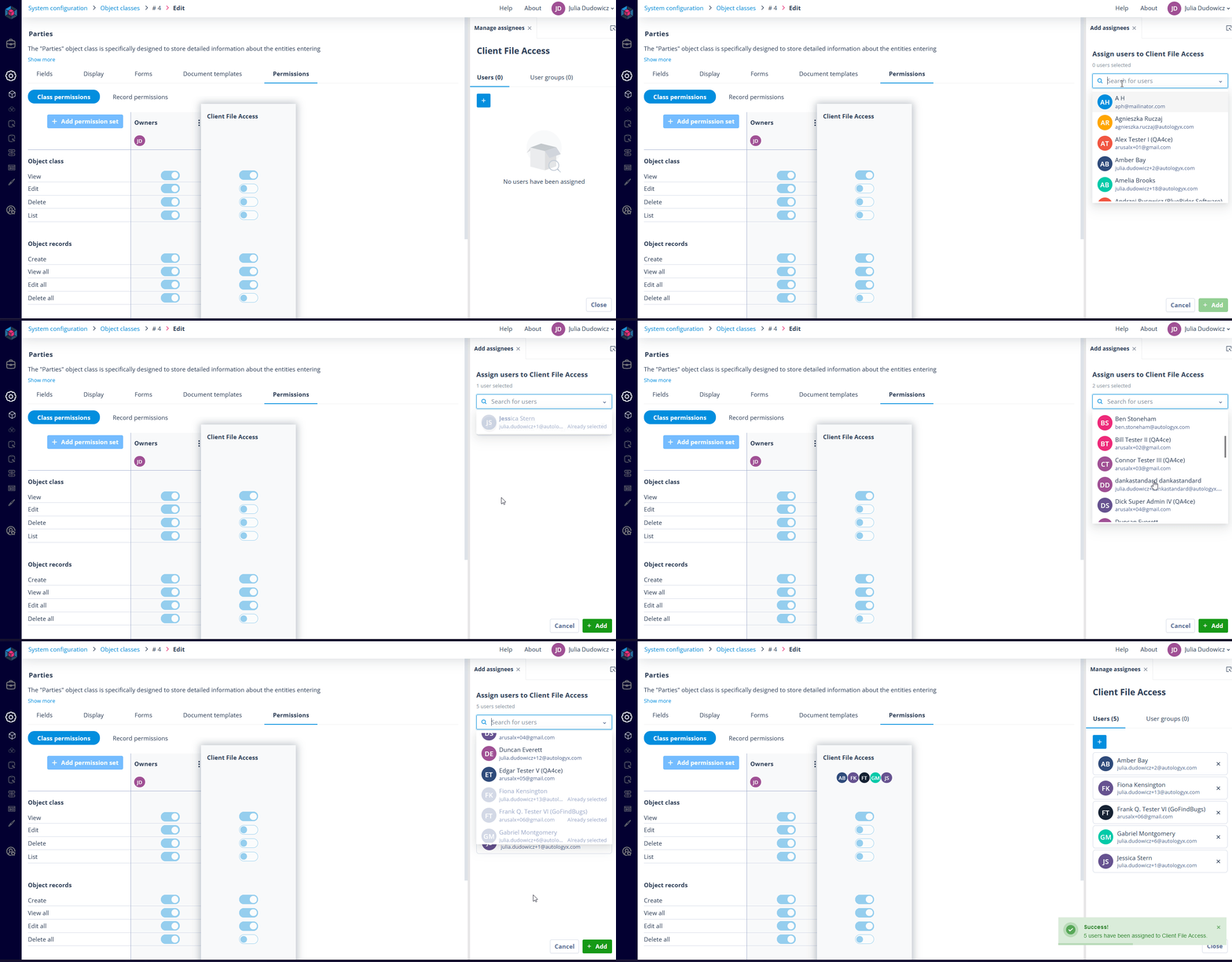
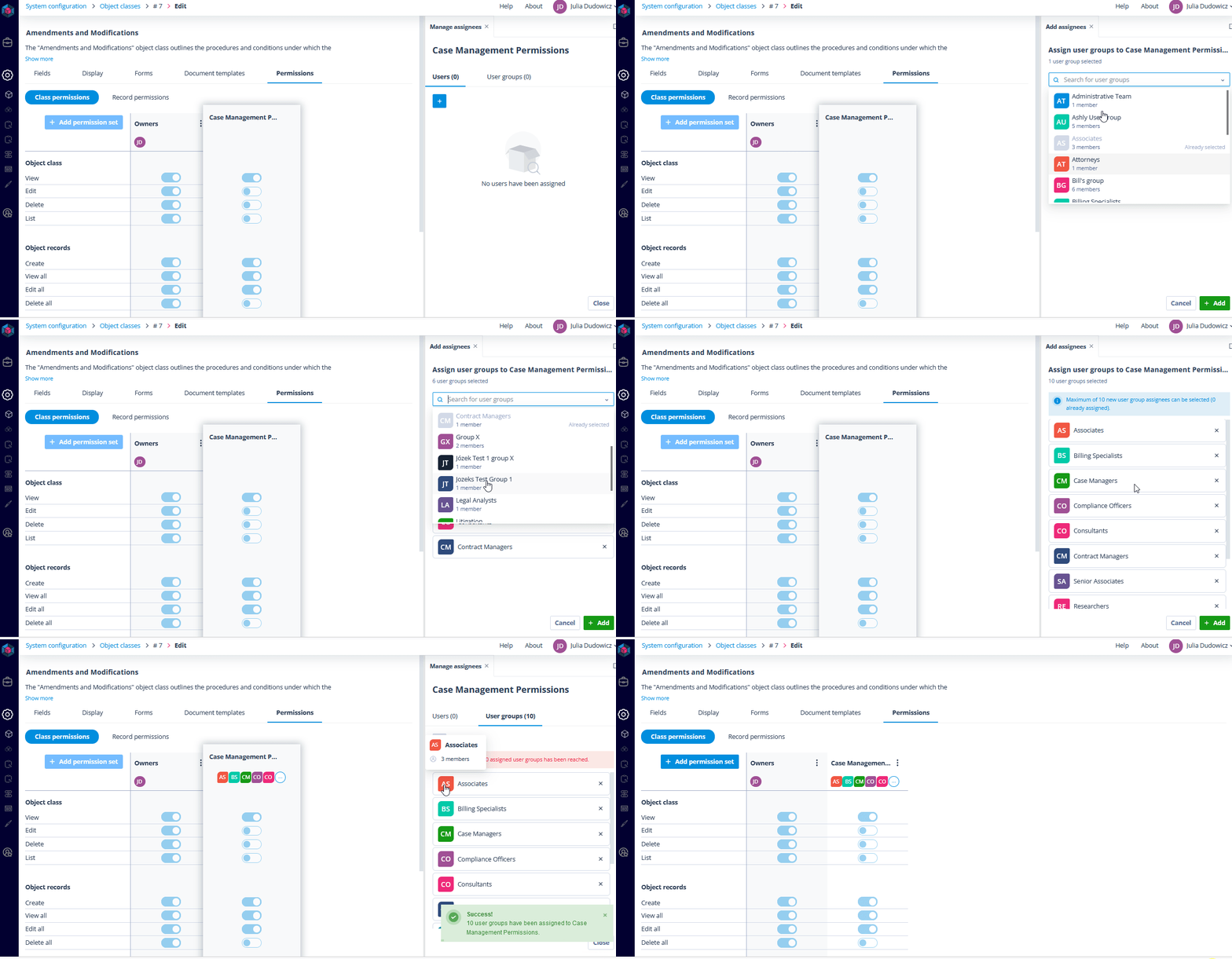
To add a User Group, switch to the User Groups tab. Click the “+” button, and you’ll be taken to a panel that allows you to select User Groups. You’ll see only the groups for which you have view permissions, ensuring that you’re only managing the groups relevant to your role.
By default, you can assign up to 10 groups to each permission set. This allows you to scale your permission management according to your needs, ensuring that the right people always have the right access.
Manage assigned User Groups
After adding a User Group, it will appear as a standard tile within the User Groups tab. Here, you can easily manage the group’s permissions just as you would with individual users.
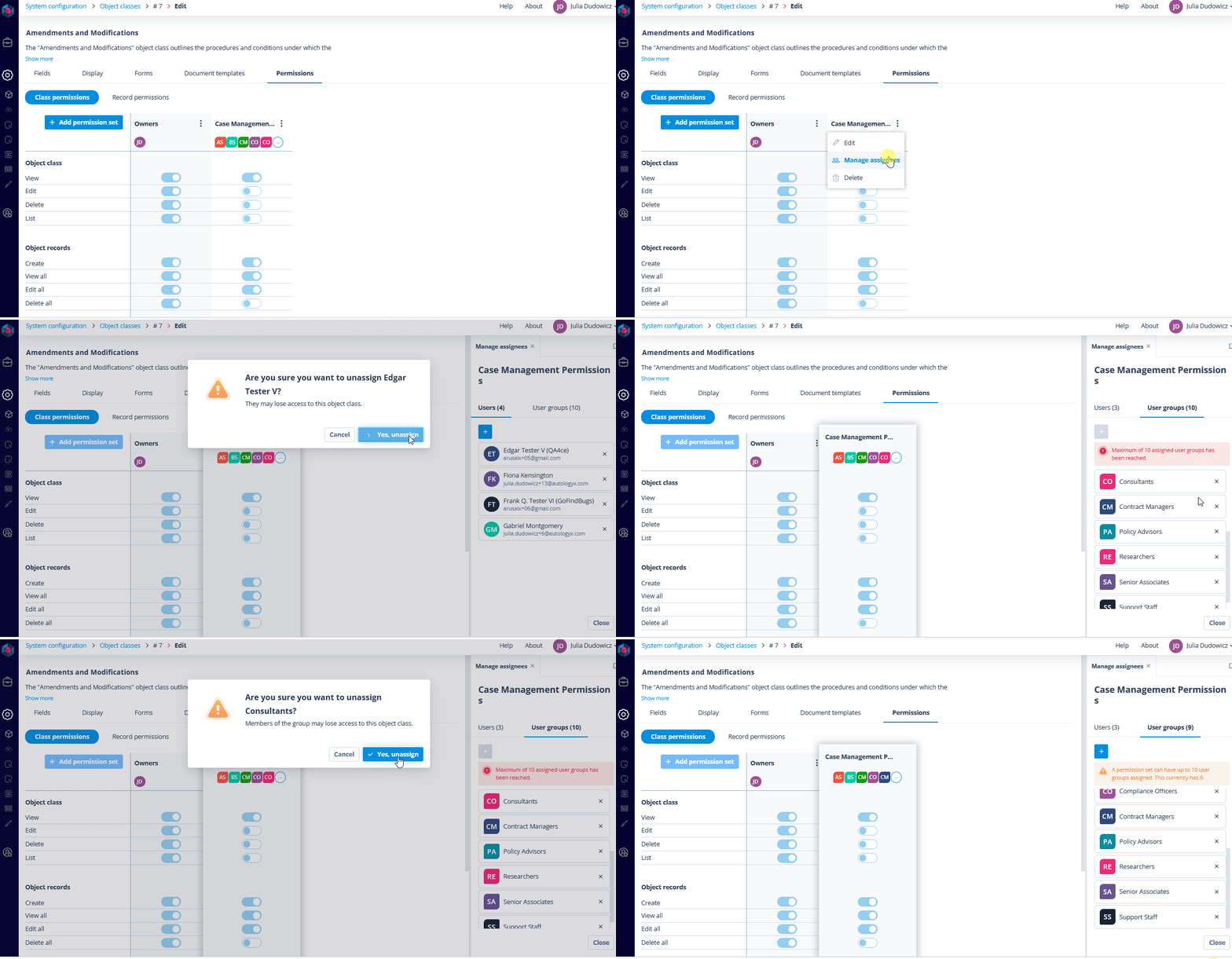
If you need to un-assign a User Group, simply click the “x” on the group’s tile and confirm the un-assignment. This removes the group from the Class Permission Set, and the associated permissions will be automatically revoked from all users in that group.
Benefits
With this new feature, you have more control over who gets access to what, without the need for tedious manual updates. By linking permissions directly to User Groups, you can instantly adjust access for entire teams in just a few clicks.
For corporations with hundreds or thousands of users, this means cutting down hours of manual permission updates to mere minutes. Your security teams can now respond swiftly to organisational changes while maintaining robust access control - all through a streamlined, group-based permission system that scales with your company's growth.