
Groups in User type Class fields
Managing user access and responsibilities across different areas of the system can often feel like trying to piece together a complex puzzle. Our new User Type Class fields feature simplifies this process, giving you the tools to define who can interact with what, and how, within your records. Whether you’re managing permissions, assigning tasks, or simply tracking who’s involved in what, this feature provides the flexibility and precision you need.
What’s new
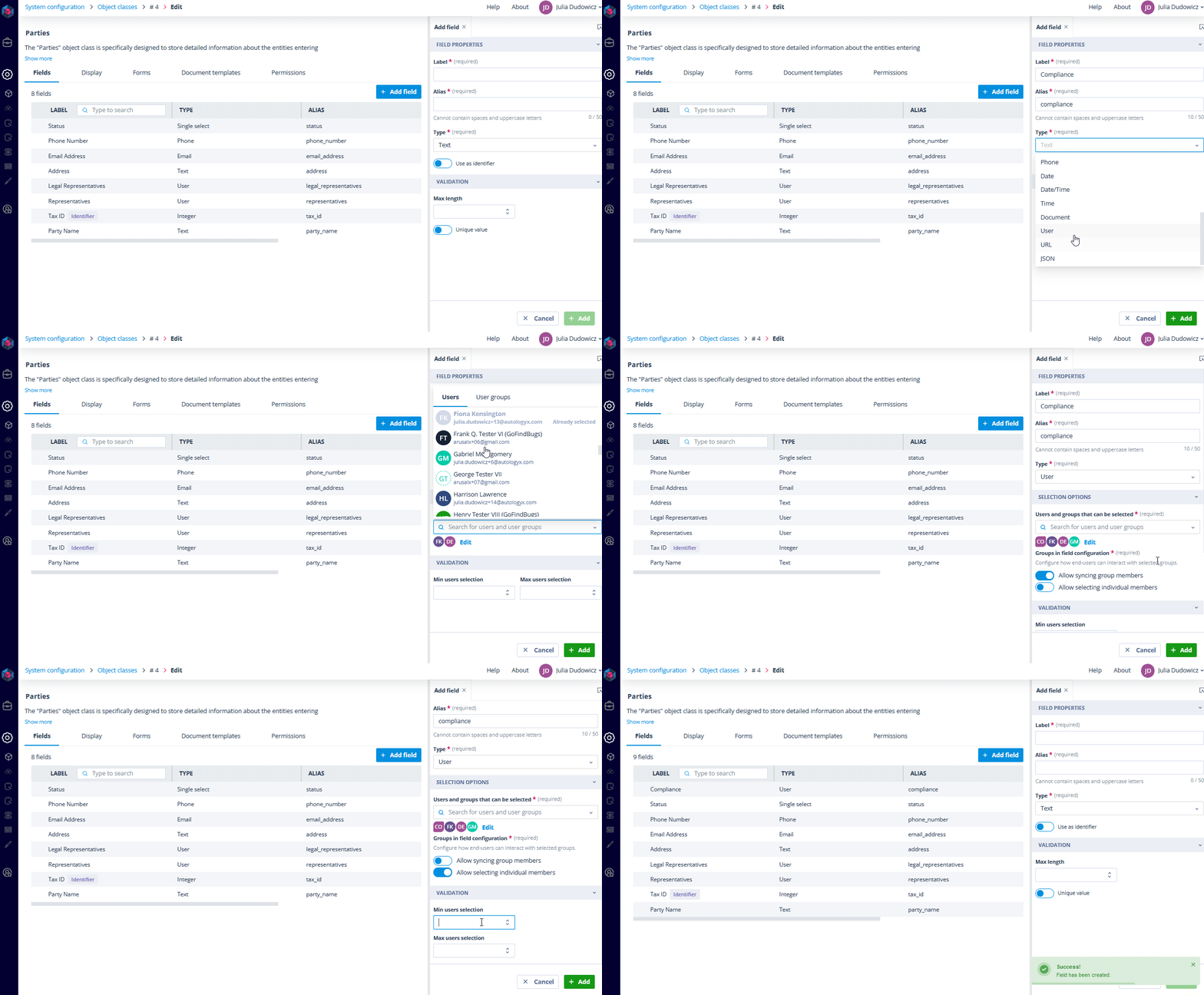
Now, when setting up a Class Field of the user type, you’re no longer limited to selecting individual users. You can also choose User Groups. This means greater efficiency and scalability, especially in large organisations where teams often work together as cohesive units.
When defining a User Type Class Field, you decide which users and User Groups are available for end-users to select. Importantly, you only see and select those users and groups for which you have list permissions. This ensures that configurations are secure and relevant, limiting access to only those with the proper clearance.
Group interaction options
When you define a User Group in a Class Field, you need to decide how end users will interact with it:
- Allow Syncing Group Members: Selecting this option means that end users can choose the entire group as a single entity. The group’s members will be automatically synchronised whenever the group is utilised, ensuring that no one is left out.
- Allow Selecting Individual Members: With this option, end users can select specific members from the group, providing more granular control over who is involved.
You can enable one or both of these options, giving you the flexibility to design workflows that match your exact needs.
Selection limits
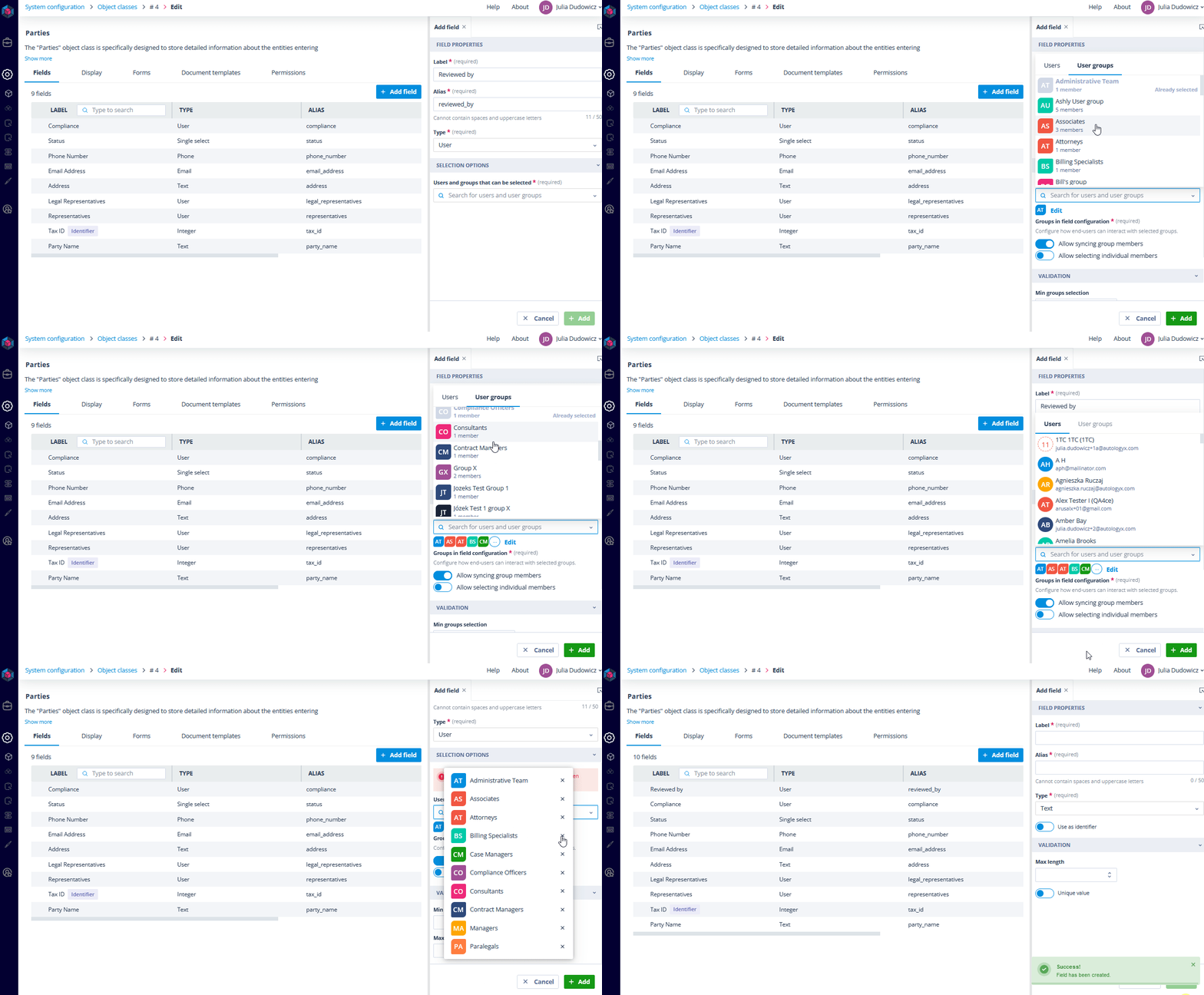
To further refine how fields are used, you can set Min and Max Users selection limits. This feature defines the minimum and maximum number of users, including group members, that can be selected in a field. This is particularly useful for tasks that require a specific level of oversight or involvement.
You can also use Min/Max Groups selection to control how many User Groups can be selected within a record. For example, in a compliance audit, you might want to ensure that at least three different teams are involved, but no more than five to avoid overcrowding and ensure focused collaboration.
By default, the system allows up to 100 users or 10 User Groups to be defined as selection options in a User type Class field.
Where the field can be applied
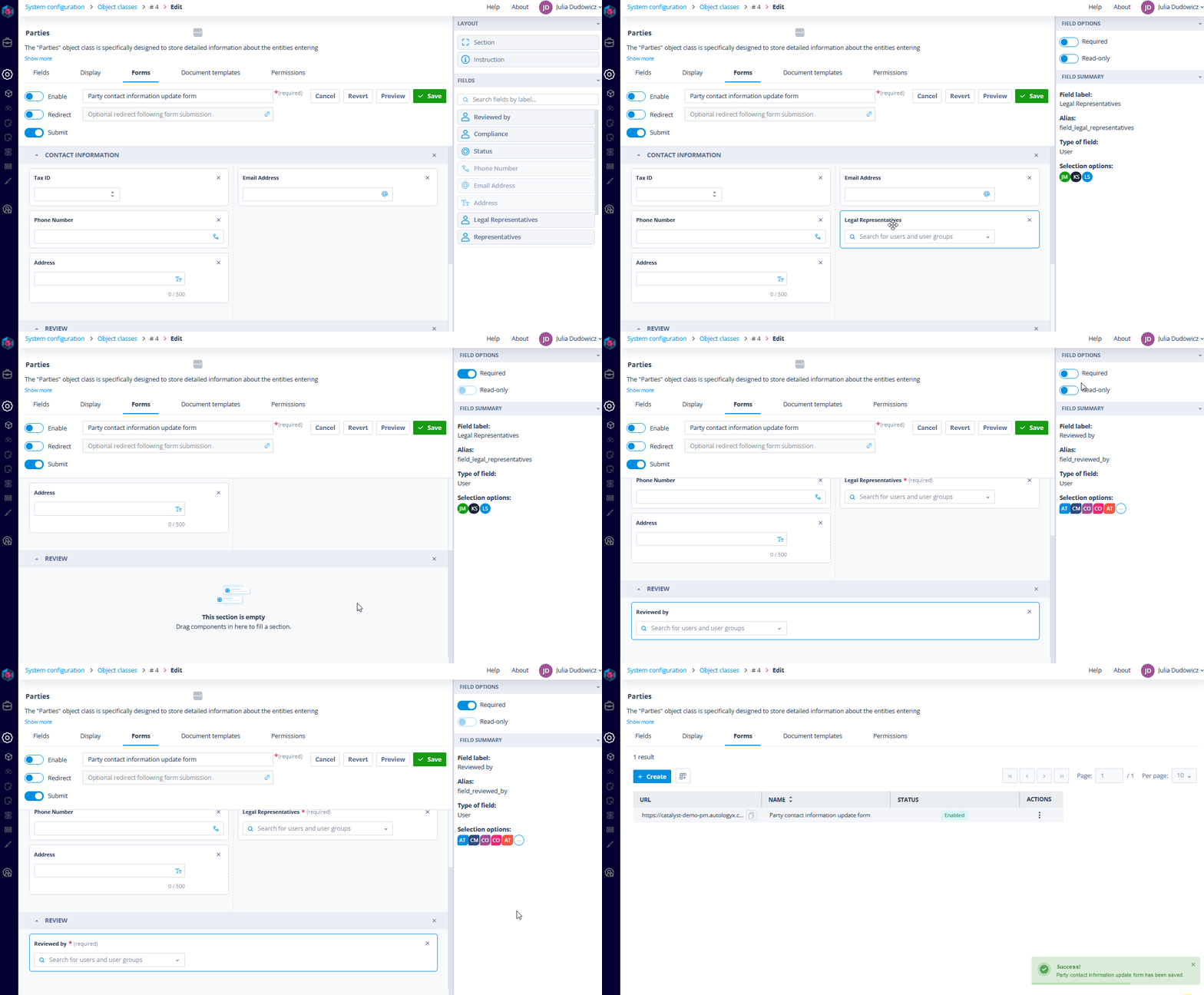
After configuring your User Type Class field, it can be applied in various parts of the system:
- Object classes display forms: including Card view, Create and edit view, and Summary view.
- Standalone forms.
- Task templates: for record update task types.
Additional field behaviour options
Once you’ve added the User Type Class field to the chosen form builder, you have the option to further customise how this field behaves:
- Required: end-users must make a selection before they can save or proceed with the record.
- Read-only: the field can only be populated or modified via automation through Sequencer, preventing end-users from changing it manually. This is ideal in scenarios where user or group assignments are determined by predefined business logic and should not be altered.
Summary
The User Type Class fields feature is all about precision and control. It empowers you to define exactly how end users can interact with records. By incorporating both individual users and User Groups into your workflows, you can create a more flexible, efficient, and secure system.
Stay tuned to explore how these features can transform your daily operations - in our next article , we’ll dive deep into how end-users can interact with these fields when creating and editing records or managing tasks.