
Groups in User type fields
After configuring your User Type Class field, it’s time to explore how end-users can interact with these fields within records and tasks.
The User Type Class field is more than just a selection tool - it’s a dynamic, interactive element that adapts to the specific configurations you’ve set.
How it operates across different scenarios
1. Groups with syncing group members
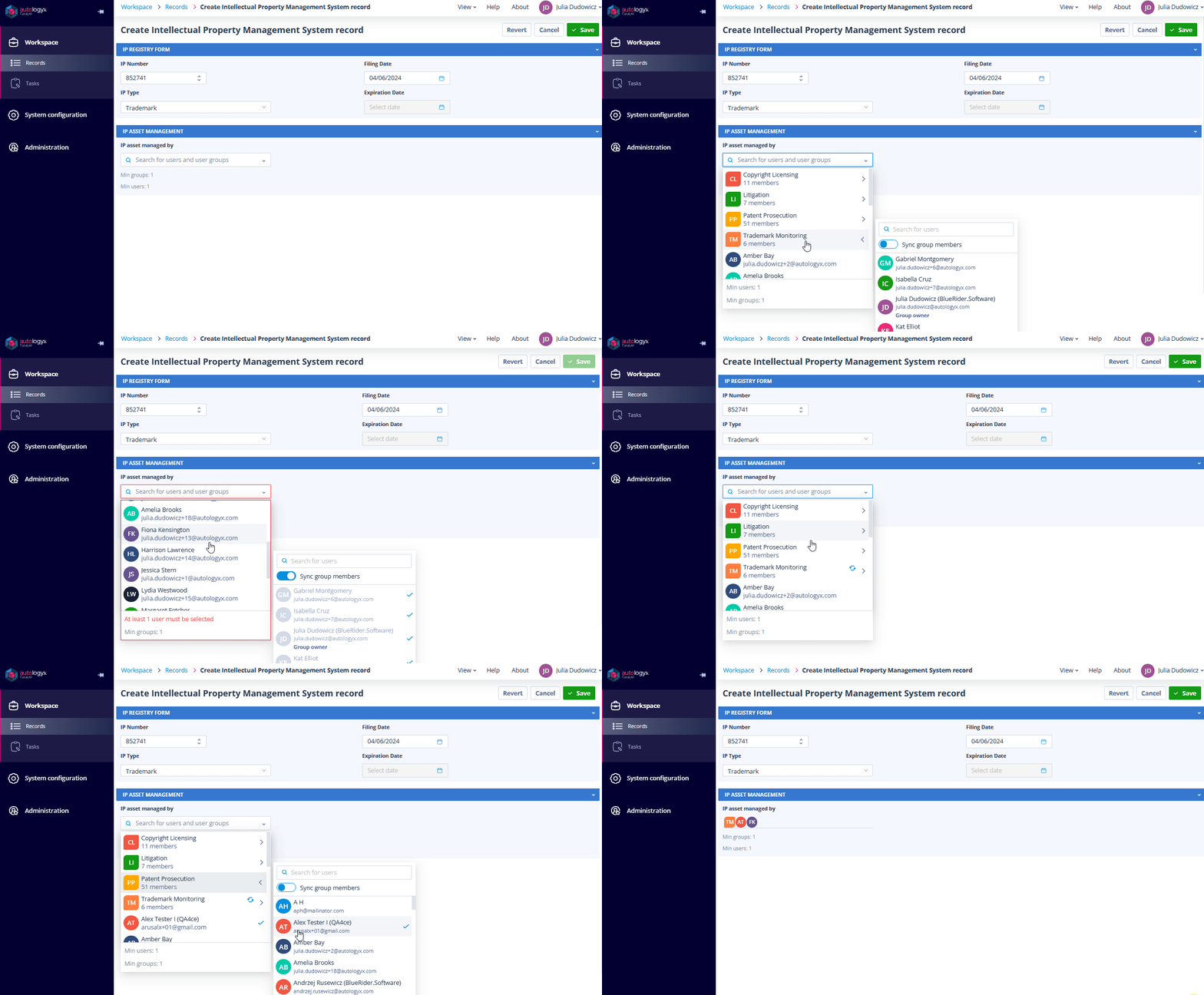
If the Class field was configured with User Groups and the option to “Allow syncing group members”, end-users will see the available User Groups listed in the field.
Each group can be expanded to reveal its members, and there will be a toggle labelled "Sync group members."
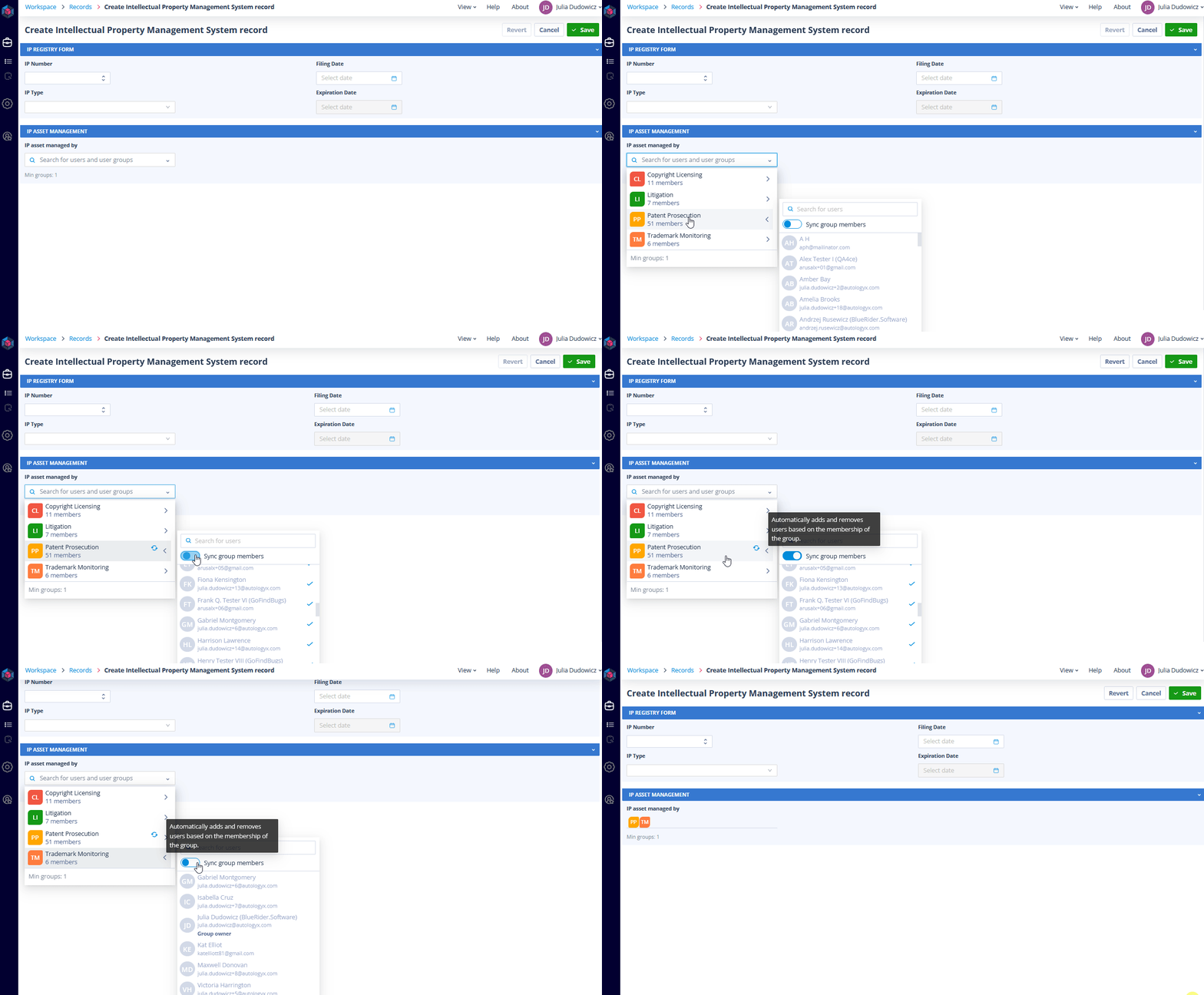
Selecting a group with this option means the entire group will be treated as a single entity. Whenever the field is utilised - whether for assigning permissions, tasks or simply tracking responsibilities - the group’s members are automatically synced and included in the action. This ensures that all group members are involved, making it ideal for scenarios like compliance reviews, where ensuring full team participation is critical.
When a group is chosen with the sync option, it will be marked with a special sync icon in the list. If the user decides to change their selection, they can simply return to the field and toggle off the sync option, removing the group from the field.
2. Groups with selecting individual members
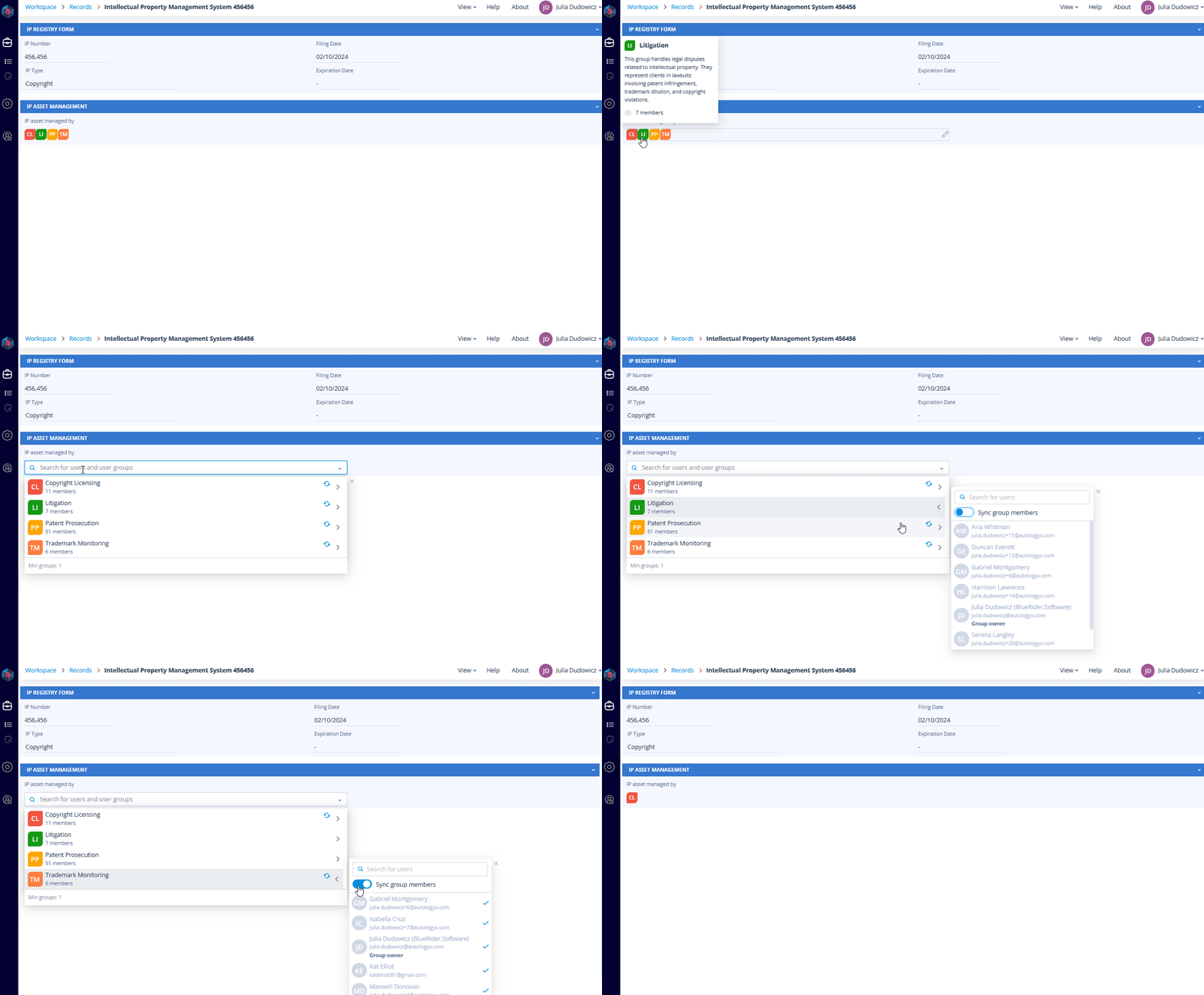
If the Class field was configured with the option to “Allow selecting individual members”, end-users interacting with the field will see the User Groups available for selection. However, instead of a sync option, they can pick specific members from within the group.
Each group will be displayed with a list of its members, and there will be a "Search for users" search bar to help quickly locate the desired individuals, which is particularly useful in large teams. Once a member is selected, they will appear with a checkmark in the list and be added to the main selection list in the field.
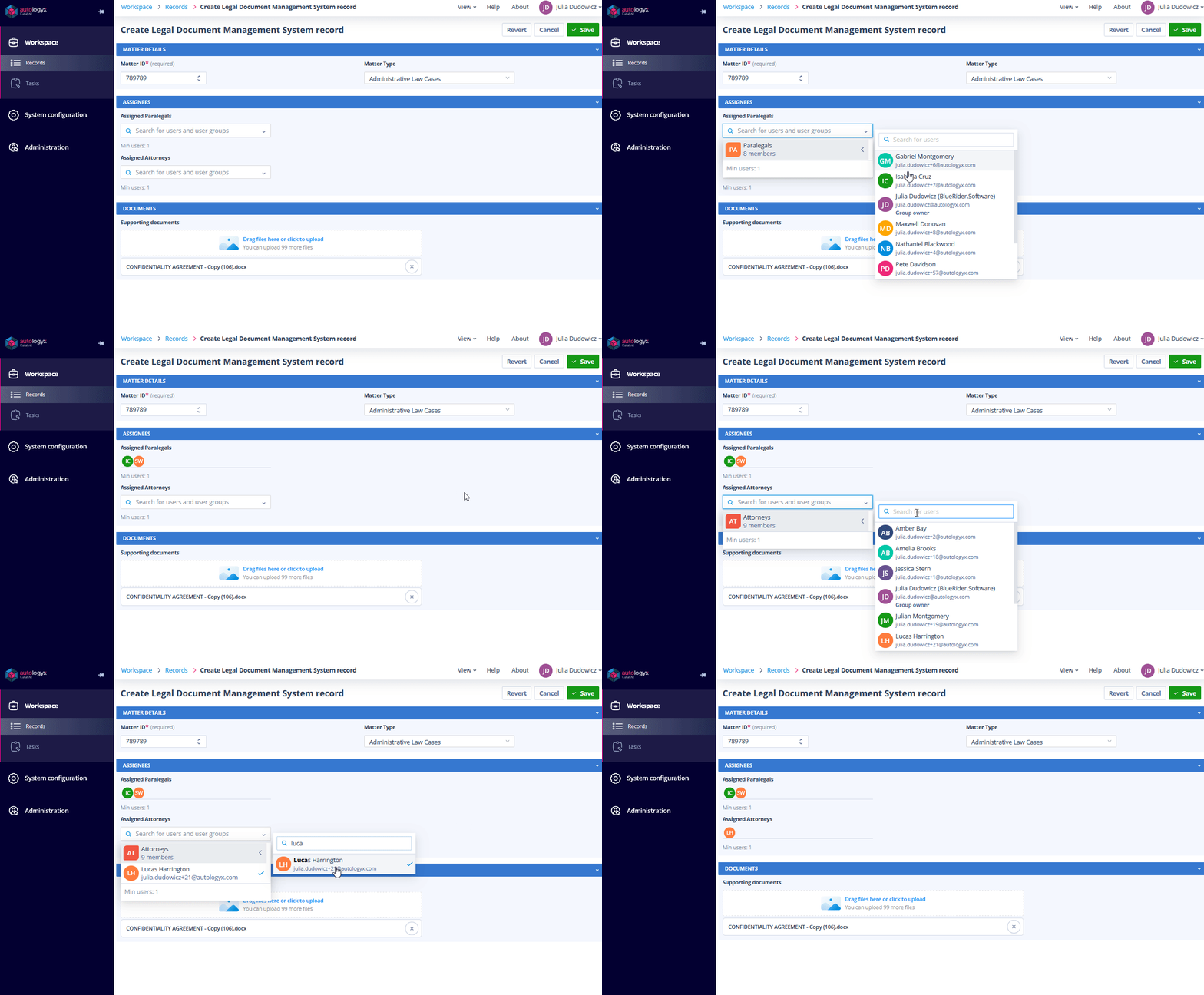
To remove a selected member, the user can simply click on their name either in the main list or within the group member list.
This setup is ideal for managing detailed financial audits where specific expertise is crucial. For instance, during a complex financial audit, you might need only a forensic accountant and a tax specialist from the finance department to examine intricate financial statements and tax compliance issues. By selecting individual members, you can ensure that only those with the requisite expertise are involved in the review, streamlining the process and enhancing the accuracy of the audit results.
3. Groups with both: sync and individual members selection
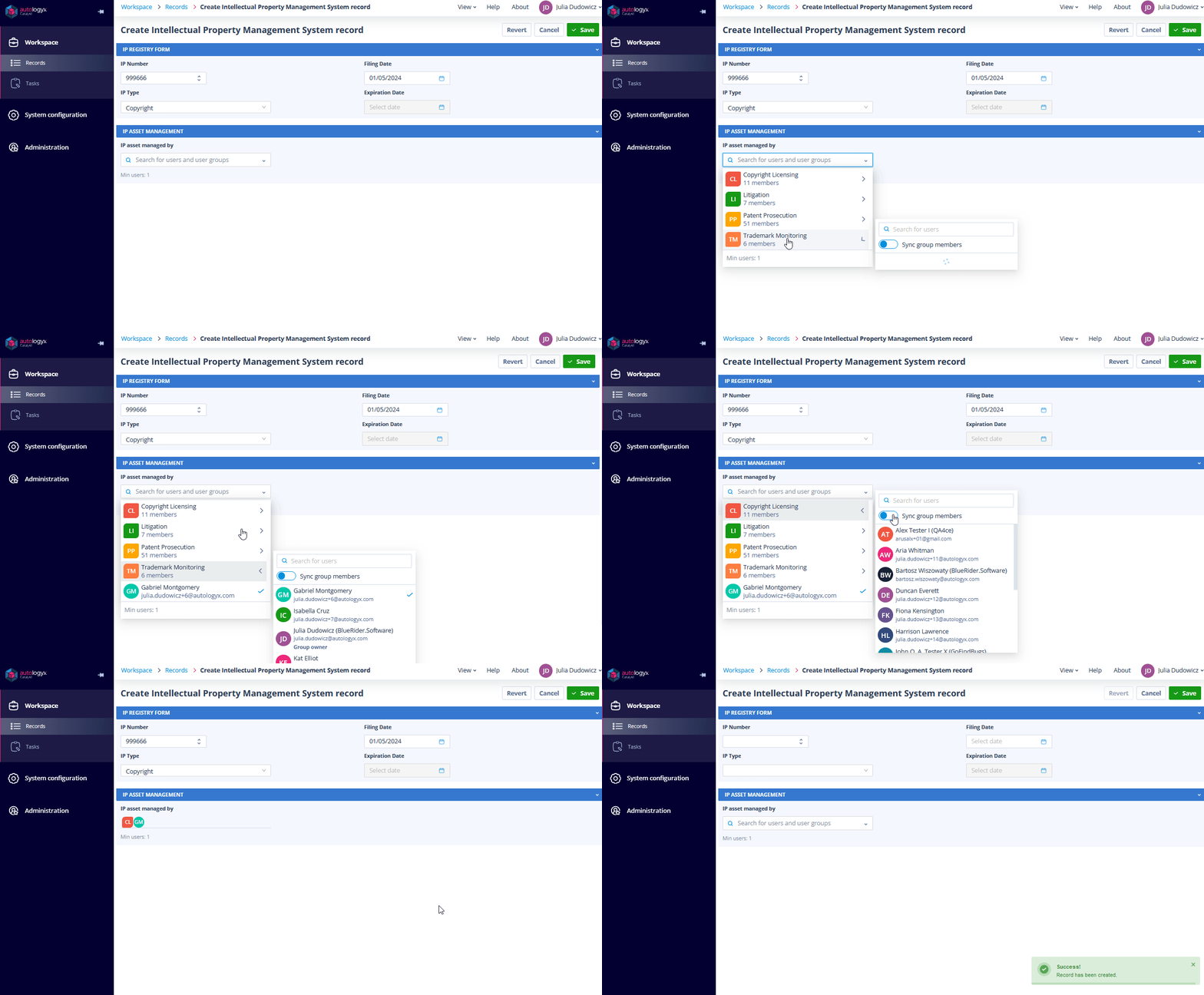
For Class fields that were set up with both “Allow syncing group members” and “Allow selecting individual members”, end-users get the best of both worlds. They can choose to sync an entire group or select individual members from that group.
Groups selected with the sync option will be indicated with a sync icon, while individually chosen members will be listed under their respective groups with checkmarks. This dual option is highly versatile, making it suitable for dynamic team setups, where certain projects might require the full participation of one group but only select members from another.
4. Combining individual users and groups
The most advanced configuration allows for selecting both individual users from outside of groups and User Groups, with options for syncing groups or selecting specific members. In this scenario, the field will display individual users alongside available User Groups, offering maximum flexibility.
End-users can choose to involve key individuals for direct responsibility while also engaging entire teams or specific team members as needed. This configuration is perfect for scenarios where both broad group involvement and specific individual expertise are needed. For example, in a legal review of a complex case, you might need to ensure that the entire legal team is notified while specifically selecting key attorneys who will be responsible for detailed parts of the review.
Selection requirements and limits
Regardless of the configuration, it’s essential to remember that fields can also be set as required. This means that, depending on the Class field’s setup, end-users must make a selection - be it individual users, group members, or entire groups - before they can save or proceed with the record.
Additionally, if Minimum or Maximum user/group selections were defined, users will be guided to select within those constraints. If a minimum number of users or groups is required, the user must meet that threshold to create or edit the record. Conversely, if a maximum limit is set, the system will prevent the user from selecting more than the allowed number of options, ensuring compliance with predefined rules.
Use in tasks
The flexibility of the User Type Class field extends beyond record creation and editing. It also seamlessly integrates with task management, particularly in record update tasks. If the User Type Class field is added to a task template, users assigned to complete these tasks will interact with the field in the same way they do within records. This consistency across records and tasks ensures that your workflows remain streamlined and intuitive, whether you’re managing data entries or overseeing task completion.
This feature's flexibility makes it applicable in any sector, from legal to finance, allowing organisations to tailor their processes with precision. This intelligent approach to user management scales effortlessly across your workflows, turning complex access patterns into simple, maintainable structures.