
The Loop actor
Legal operations are driven by lists: batches of contracts, file sets pulled from document management systems, arrays of matters from CRM exports. The Loop actor turns those lists into real, repeatable work - one item at a time, fully controlled and auditable. Use it to send each contract to DocuSign, create a tailored summary for every matter returned from Salesforce, or route iManage documents through an AI classifier that tags risk and files the result automatically.
Below you’ll find what you can connect it to, how to prepare your data, the filtering tools you get, how execution works for different downstream actors, and practical notes on error handling and merge fields. Read on to see how to turn lists into reliable workflows.
Loop actor configuration
You can attach a Loop actor to one of three sources:
- Document Picker: Loop over every selected document. Use this when users upload files or pick record-attached documents.
- API Call (JSON array output): Loop over an array returned by a tested API Call. Important: the API Call must be tested first. Only tested calls will populate into the Loop configuration.
- Local Variable: Loop over an array stored in a local variable. Again, the variable must be present and tested/saved so the Loop can read its structure.
JSON Explorer - fast, visual array selection
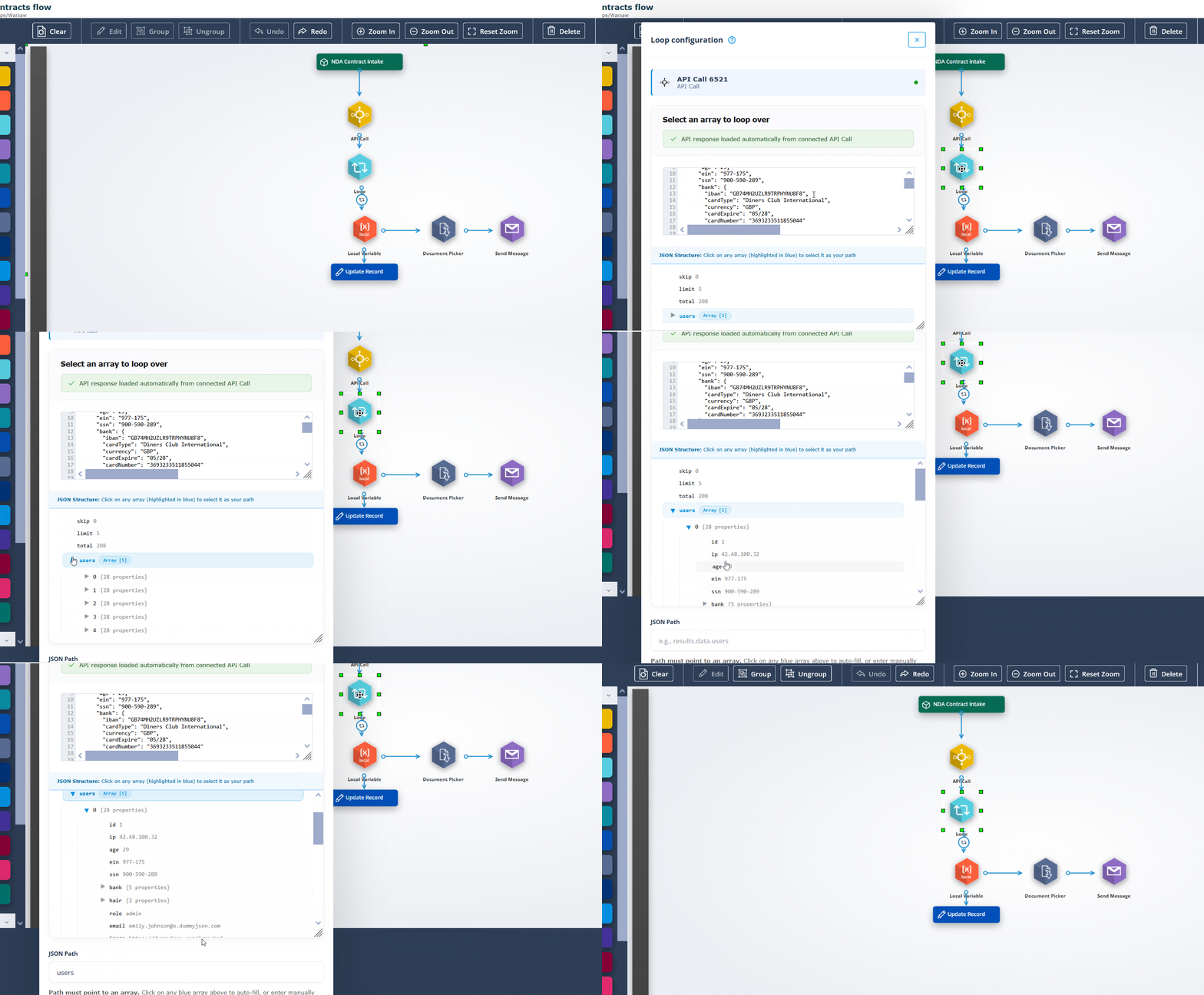
When a tested API Call or Local Variable is connected, the Loop configuration loads the response and displays a readable JSON panel with a tree view below. Arrays are highlighted; click an array node and the JSON Path field fills automatically.
This visual approach keeps things safe and simple - no manual JSON pasting, no malformed paths. It makes it easy, even for users without technical training, to work with data coming in from services like Salesforce, iManage, or contract intelligence tools and to loop through each item without second-guessing what’s going on under the hood.
Filters (API Call & Local Variable)
Once your array is selected, you’ll often want to narrow the scope; maybe you only want to loop through open matters or documents of a certain status.
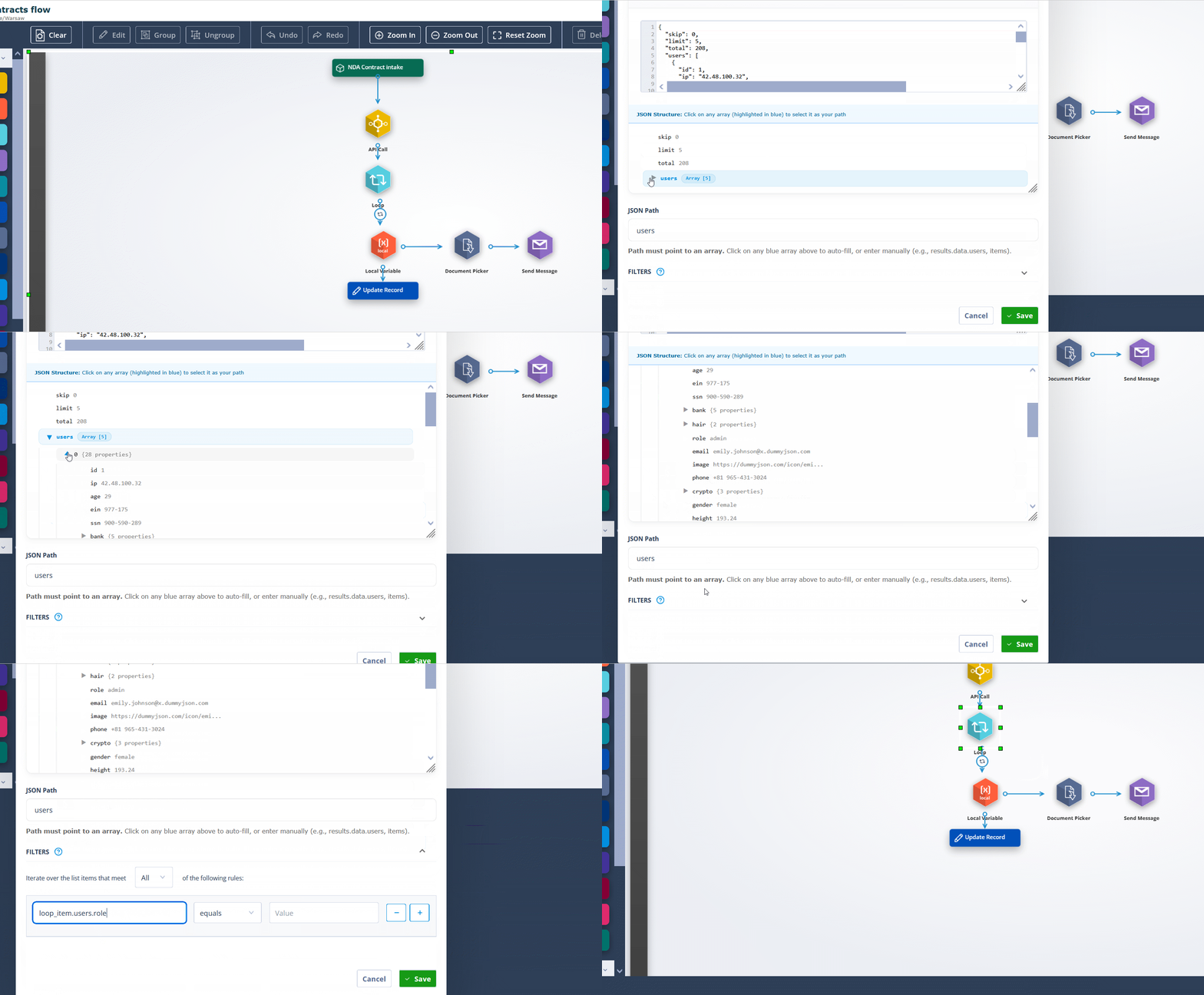
For sources based on API Calls or Local Variables, the Loop actor lets you add filter conditions to refine what gets processed. Just define a property path (e.g.loop_item.status), choose a comparison operator (equals or not equals), and set the target value. Multiple filters can be combined using either “all following rules” or “any following rules” logic.
This is particularly useful when working with CRM exports, compliance systems, or dynamic data sources where only a subset of records require follow-up. With filtering in place, your loop stays focused and efficient, running only on the data that actually matters.
Trigger types - how Loop connects to the rest of your flow
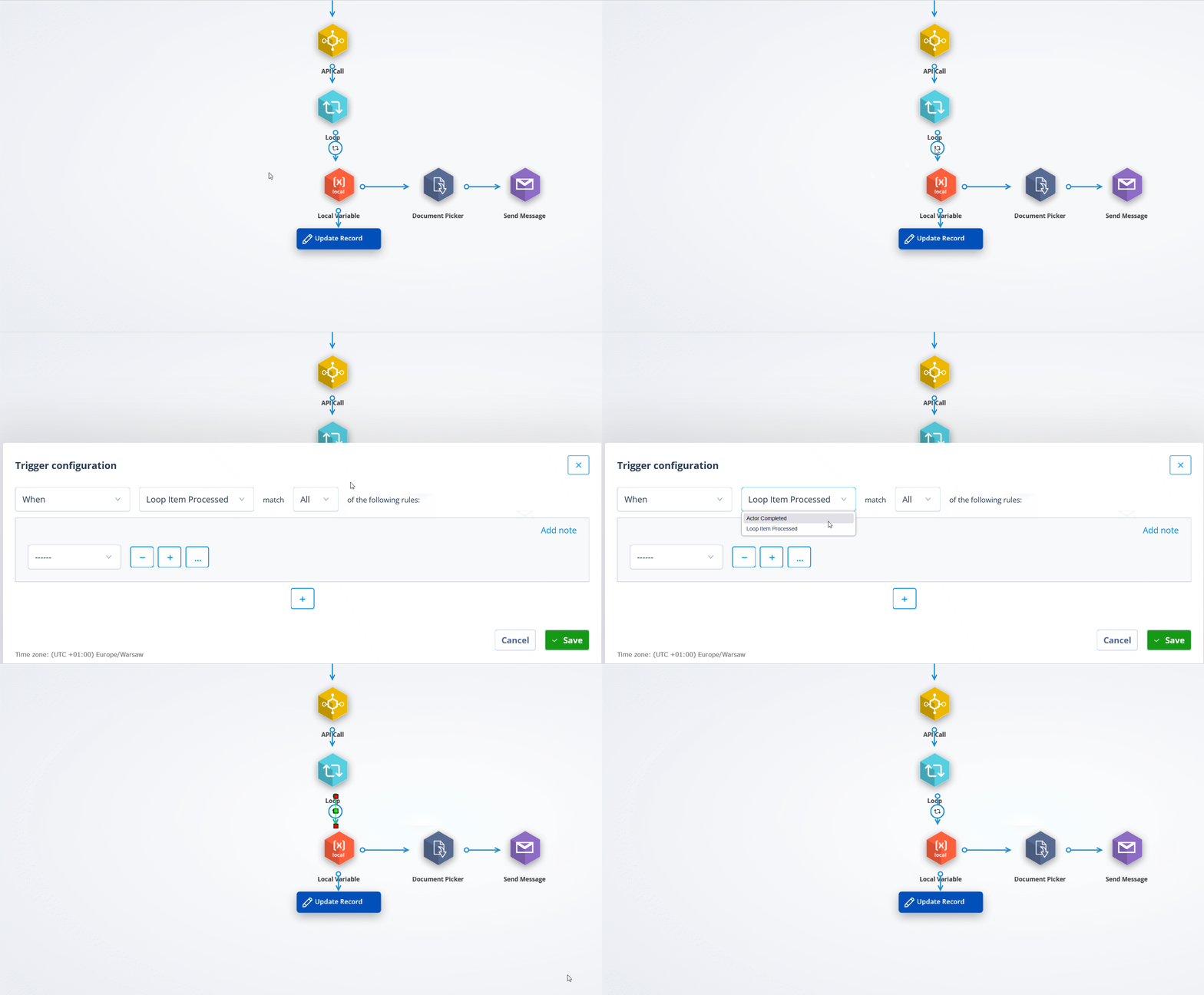
The Loop actor exposes two trigger behaviours that control downstream orchestration:
When Loop Item Processed
This trigger runs for each item. The Loop takes the next item, routes it down every connected branch that uses this trigger, waits for those branches to complete, then proceeds to the next item. Use it for per-item actions: one envelope per contract, one document per AI enrichment task, or creating one task per matter.
When Actor Completed
This trigger fires after the entire loop finishes processing all items, that is, when all item-level branches have completed. It’s useful for a final summary, audit log update, or a single notification once the batch is done. Note: if branches include time-based delays, those delays will not hold up the Actor Completed trigger.
Execution behaviour
While configuring a Loop actor is straightforward, it’s equally important to understand what actually happens when your loop runs: how data moves, what each iteration looks like, and how it behaves based on its source.
General execution rules
- Sequential iteration: Loop always processes the array in strict order: item 1, then 2, then 3, etc.
- Parallel branches per item: If multiple branches start with When Loop Item Processed, all of them execute for each iteration.
- Failures skip only the current item: If an iteration fails at any point (e.g., an API call returns an error), the Loop skips that item and moves to the next one.
- The “When Actor Completed” trigger only fires after all loop-driven branches finish. But it does not wait for time-delayed triggers inside those branches.
Depending on whether your loop is connected to a Document Picker, API Call, or Local Variable, each item flows slightly differently through the system. Here’s what to expect in each scenario.
Looping over documents (Document Picker source)
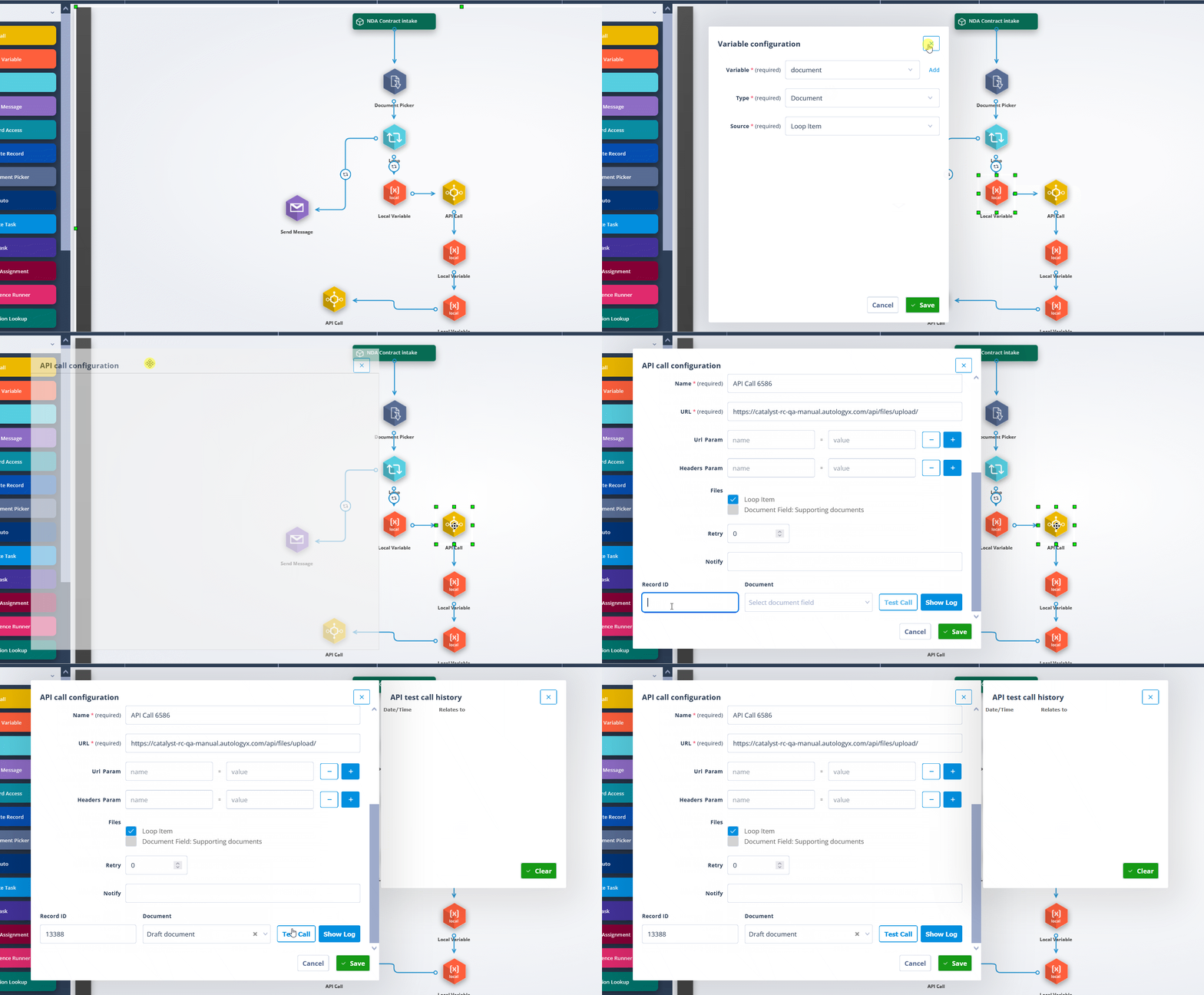
Each document selected becomes its own loop_item, giving you access to its metadata in the next actor. This setup is perfect when you need to send documents individually, for example, triggering one DocuSign envelope per contract, or routing each file through an AI review pipeline.
Loop items that represent documents carry a standard document object structure. For example:
{
  "id": 9698,
  "name": "CONFIDENTIALITY AGREEMENT.docx",
  "size": 32272,
  "uuid": "81984d91-184d-4dc7-873a-df24cbec85fd",
  "mimetype": "application/vnd.openxmlformats-officedocument.wordprocessingml.document",
  "context\_id": "675fb09c-d42e-4bad-bf40-78783a867436"
}
Document objects always have the following properties:
- id - Unique numeric identifier for the document in the system database
- name - Original filename of the uploaded document, including its extension
- size - File size in bytes representing the total size of the document
- uuid - Universally unique identifier (UUID) used for referencing and retrieving the document
- mimetype - MIME type specification that defines the document format
- context_id - Security token that ties the document to a valid context in the platform; included as a security measure to ensure document references cannot be forged via merge-field manipulation
In practice:
- The file itself can be attached to any other actor that allows it, for example, in the Send Message or API Call actor.
- Document metadata is exposed via merge fields like
{{loop_item.name}}.
Looping over data from an API Call
APIs often return large, structured datasets - think of a list of matters from Salesforce, contacts from your compliance system, or document metadata from an external DMS. Looping lets you treat each of those entries as its own processing unit.
When your JSON includes something like:
{
"matters": [
{"id": "M001", "status": "active"},
{"id": "M002", "status": "archived"}
]
}
You select the matters array in the Loop actor configuration, and each object becomes a loop_item.
This lets you:
- Pass individual records to an API Call actor (e.g. one API request per matter)
- Feed details into a DocAuto actor (e.g. generate a cover sheet per active case)
- Combine with Filters to only loop through, say, active or incomplete items
Looping over data from a Local Variable
Sometimes you don’t fetch data from an external service; you already have it stored locally in a variable. As long as the value is an array, the Loop actor treats it the same way as any API response.
Each entry becomes a loop_item. From there, you can:
- Generate a document per client with DocAuto
- Send custom messages using
{{loop_item }}merge field - Trigger tasks, approvals, or downstream logic per entry
Merge field: {{loop_item}}
At the core of every looped step is the {{loop_item}} merge field - your handle on the data being processed in the current iteration. It only becomes available in actors directly downstream from a Loop actor, and always references the loop that precedes it.
It appears in the merge field dropdown as "Loop Item" and automatically reflects the shape of the source data.
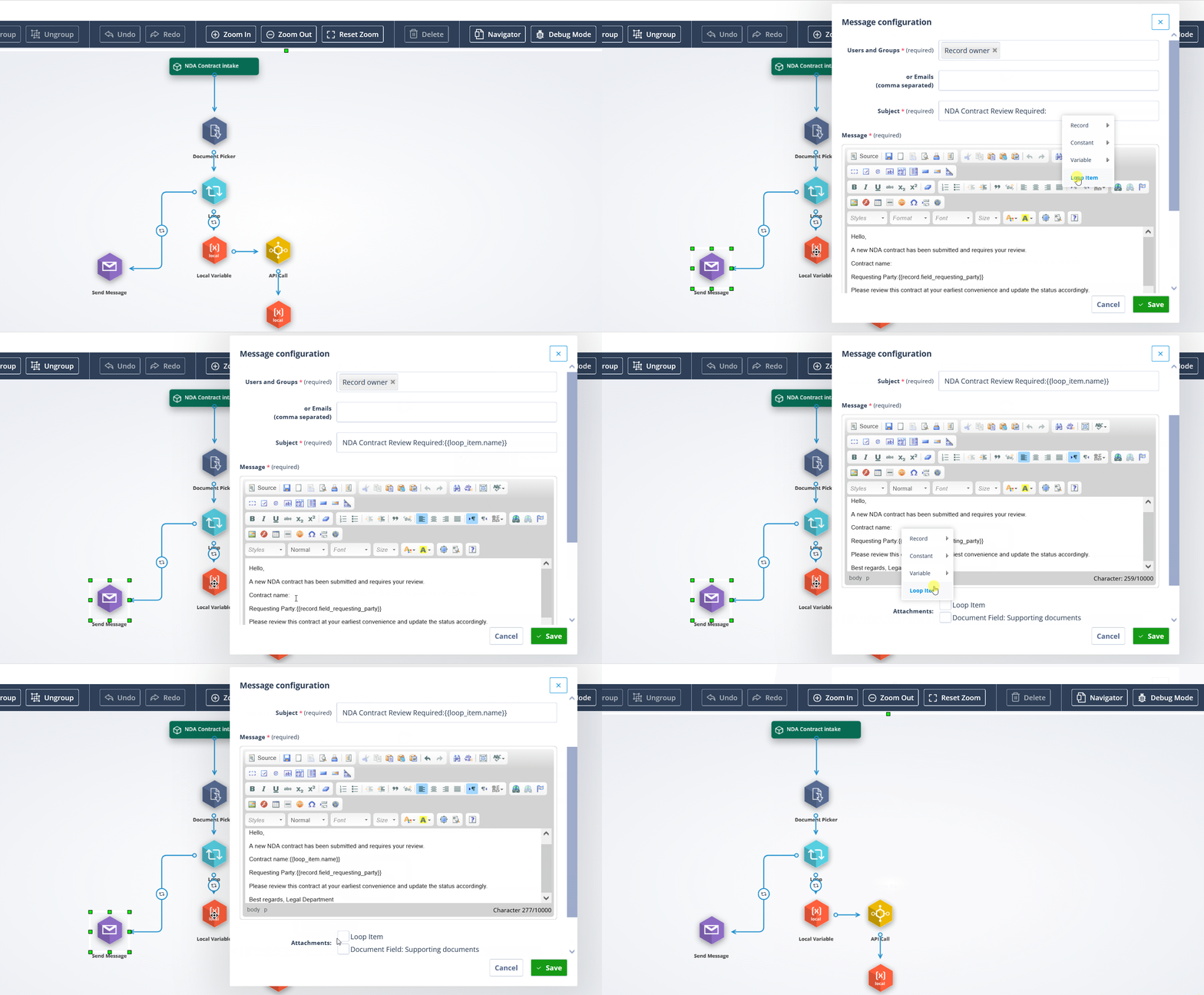
For document-based loops (from Document Picker), the structure is the same as the one that the document object has in the Document type variable.
You can use values like {{loop_item.name}} to personalise filenames, API requests, or messages.
For JSON-based sources like API Calls or Local Variables, the loop_item reflects the shape of each object in the array. Nested fields are fully supported, so you can reference deeply embedded properties using standard dot notation, such as {{loop_item.case.matter_number}} or {{loop_item.contacts[1].email}}.
You can apply {{loop_item}} in:
- API Calls → in request body or parameters (e.g.
{{loop_item.matter_id}}) - Send Message → use in message body or file name (
"Attached: NDA for{{loop_item.client_name}}") - Local Variables → extract or transform values (
{{loop_item.type}}) - Doc Auto → for dynamic templates (
Matter Overview -{{loop_item.title}}``) - AI Actors → in prompts or context (
"Analyze the risk level for{{loop_item.counterparty_name}}")
Keep in mind: if the actor isn’t connected to a Loop actor upstream, {{loop_item}} will be empty.
Summary
Legal workflows rarely revolve around single files or individual matters - they’re driven by lists. Dozens of contracts queued for signature. Client records fetched from Salesforce. Matter updates pulled from iManage. The Loop actor enables you to act on each item in those lists without repetitive configuration or brittle branching logic.
Sending out a batch of NDAs for signing, generating a unique summary per client engagement, or syncing only those records that meet specific criteria - the Loop actor handles each item individually. It understands your data structure, filters what matters, and provides granular control over how and when each item passes into the rest of your Catalyst workflow.
And because it integrates seamlessly with all core actors from API Calls to AI enrichment and Doc Auto - you’re free to build automations that match the complexity of legal operations, without compromising on clarity or reliability.
The outcome: consistency at scale, precision without friction, and automations that adapt to your data rather than forcing the reverse.