
Document Assembly Using the .docx Merge Field
Use the .docx merge field to merge one or more .docx documents into a master .docx document.
This is useful when you need to create document packs, insert heavily formatted annexes, or maintain shared clauses in one central location while reusing them across multiple templates.
When to use this
Use the .docx merge field when you need to insert complete .docx documents into another .docx document. Common examples include:
- creating document packs for review, audit, transaction filing, or signing;
- pulling large clauses, annexes, schedules, or terms into contracts and other legal documents;
- maintaining content centrally so that it can be reused across multiple templates without updating each template individually.
The inserted documents must be held in fields on the record or on a related record.
This feature is not intended for image files. Use the image merge field when you need to merge images into a document. Images must be stored in document fields on the record, or on a related record, where the master document will be generated.
For smaller conditional clauses, consider using the Jinja2 template language supported by Catalyst. Jinja2 IF statements and other functions can conditionally include content directly in a document template. The .docx merge field is better suited to larger or more heavily formatted content, especially where the same content is reused across many templates.
Before you start
Before configuring a .docx merge field, check the following:
- The master document must be a
.docxdocument. - The inserted document must also be a
.docxdocument. - The inserted document must be stored in a document field on the record or on a related record.
- The master document can be generated by the Sequencer or manually from the template in the record side panel.
- The merge field must include an index, such as
[0], even if the field contains only one document. - If the document field may be empty when the master document is generated, use an IF statement to avoid returning unwanted empty content.
.docx merge field syntax
There are two ways to merge .docx content, depending on whether you want the content inserted within the current paragraph or to replace the paragraph entirely.
Inline merge
Use an inline merge when you want the .docx content inserted within the paragraph where the merge field sits.
{{ record.field_annexes[0].embedded }}This places the .docx content within the paragraph where the merge field appears. Use this when embedding content into a block of text, or where paragraph breaks are controlled outside the inserted document.
Paragraph replacement
Use paragraph replacement when you want the inserted .docx content to replace the entire paragraph where the merge field appears.
{{ p record.field_annexes[0].embedded.inline }}This is useful when:
- you want to preserve the exact formatting from the inserted
.docxcontent; - you are embedding long content, such as multi-paragraph annexes;
- you want to avoid nesting block elements inside another paragraph.
Example use case 1: Create a trade document pack
Scenario
A deal has a buyer and a seller, and your client is the buyer.
At a specific point in the workflow, several documents must be generated and reviewed before they are passed to the relevant parties for signing. The file handler reviews these documents as one combined document called the Trade Document Pack.
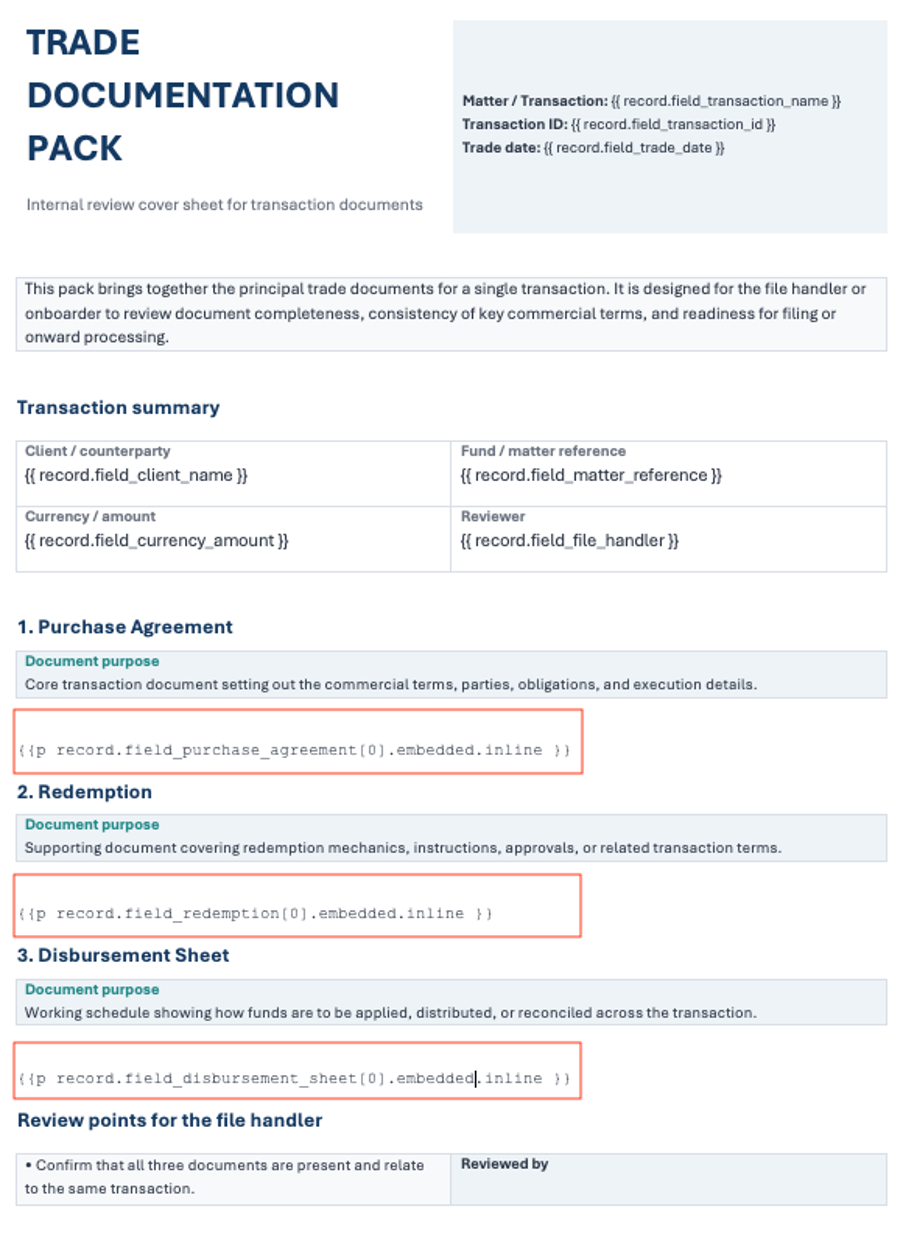
The Trade Document Pack includes three documents:
- Purchase Agreement
- Redemption Document
- Disbursement Sheet
Configuration
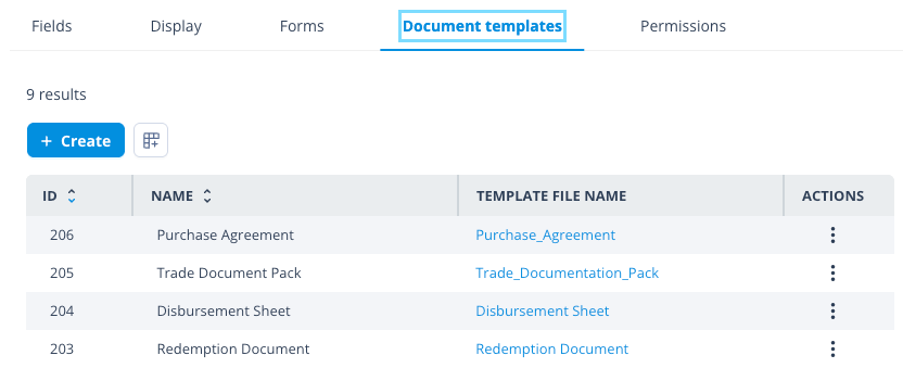
All four documents have been created as templates on the object class.
The Trade Document Pack includes record merge fields where the other three documents will be stored on the record after they are generated.
The documents you merge into the master document do not have to come from templates in Catalyst. They may also have been saved to fields by:
- an intake form completed by your client;
- a task completed by a user;
- a GET request to a third-party system;
- a record created by the file uploader or an import script.
For example, when a document is received by Catalyst through a GET request, it can be sequenced through a DocAuto actor so that record merge fields are applied.
Sequence
In this workflow, the Purchase Agreement and Redemption Document have already been generated and filed to the record fields in a previous sequence.
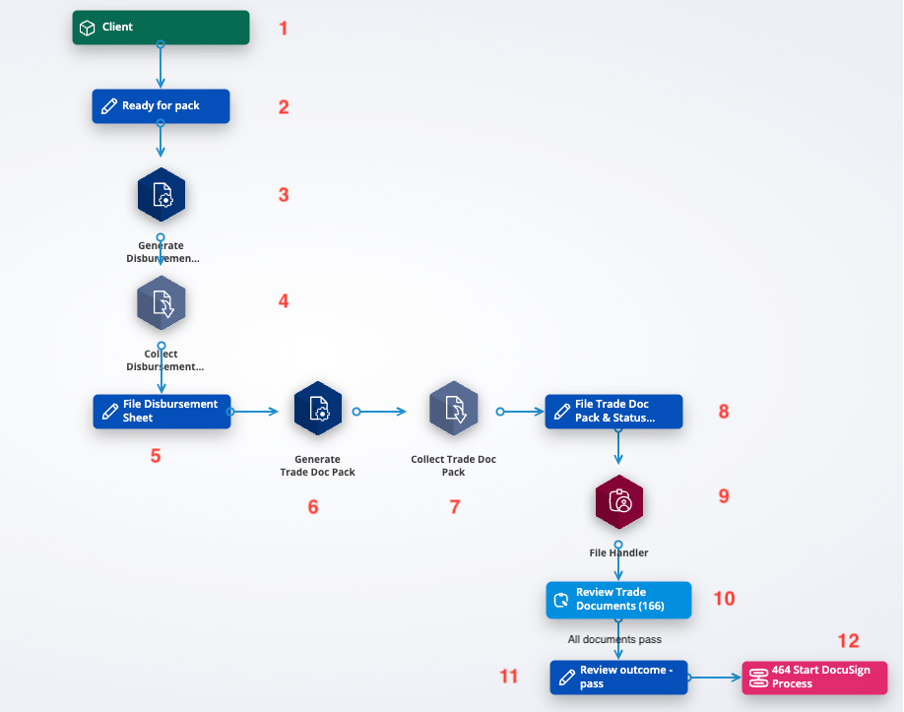
- The sequence object class is Client.
- An Update record actor updates the record status to Ready for pack.
- A DocAuto actor generates the Disbursement Sheet from the template and merges record data into the document.
- A Document picker actor collects the generated Disbursement Sheet.
- An Update record actor files the document on the record in the Disbursement Sheet document field.
- At this stage, all three documents required for the pack are ready to collate. A DocAuto actor generates the Trade Document Pack. Record data, including the three documents, is merged into the master document.
- A Document picker actor collects the generated Trade Document Pack.
- An Update record actor files the document on the record in the Trade Document Pack document field and updates the status to Ready for Review.
- A Task assignment actor assigns the next task to the file handler.
- A Create task actor creates a task from the Review Trade Documents task template.
The document pack can be opened in the side panel viewer.
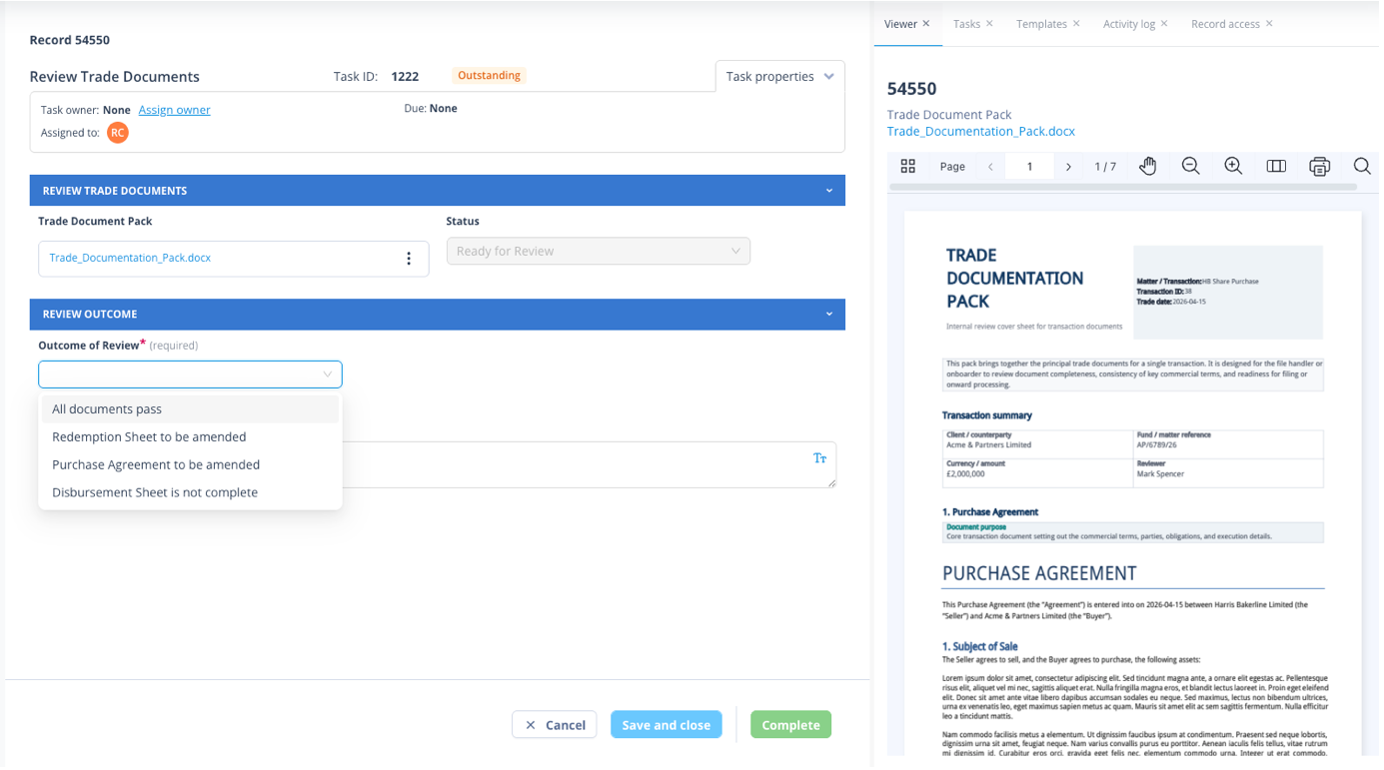
The document can also be downloaded for review.
The Purchase Agreement document is merged into the Trade Document Pack, together with the other two documents.
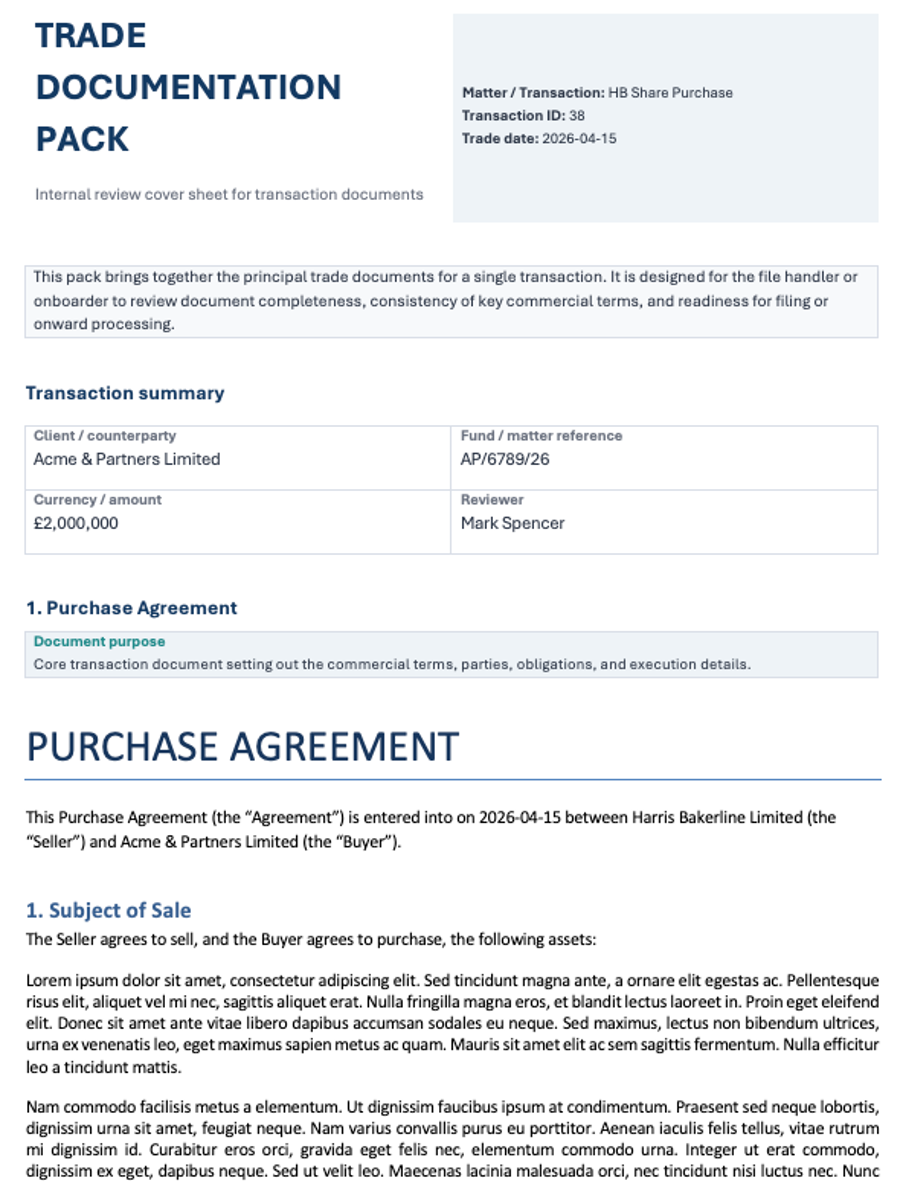
If the review outcome is that all documents are acceptable, the next steps are:
- An Update record actor updates the status to Review outcome - pass.
- A Sequence runner actor activates the next part of the process, where the documents are sent to DocuSign for signing.
Example use case 2: Include current Terms of Business in an agreement
Scenario
A boilerplate document called Terms of Business must be attached to every Client Services Agreement.
The Terms of Business document is stored in iManage. It may change from time to time, but the current document is always available from the same location. Other third-party document repositories, or a separate Catalyst object class, can be used in the same way to maintain a single current version of the document.
To make sure that each Client Services Agreement contains the current Terms of Business, the Terms of Business document is pulled into a field on the record immediately before the Client Services Agreement is generated.
Template configuration
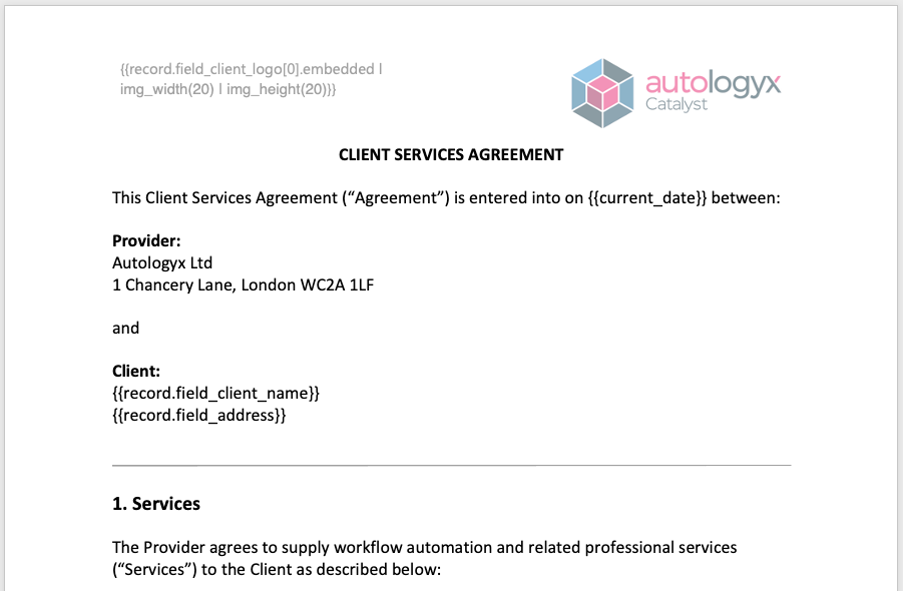
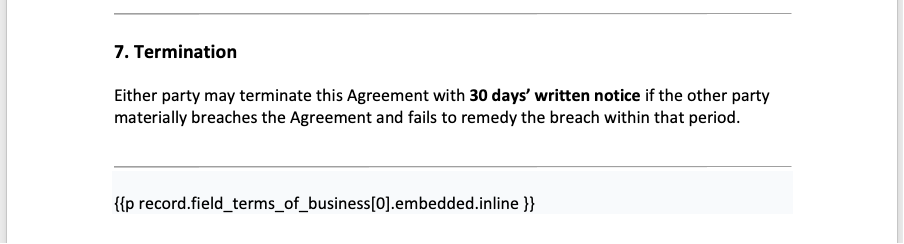
The Client Services Agreement contains the following merge fields:
- In the document header, an image merge field includes the client logo.
- Towards the end of the document, the
.docxmerge field includes the Terms of Business.
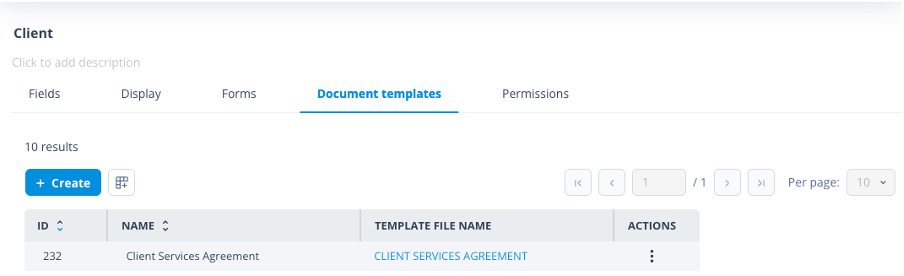
The Client Services Agreement has been created as a template on the object class.
Sequence
This workflow can be divided into four functions:
- getting the current Terms of Business from iManage;
- saving the Terms of Business to the field on the record;
- generating the Client Services Agreement, including the merged Terms of Business;
- saving the Client Services Agreement and starting the DocuSign process.
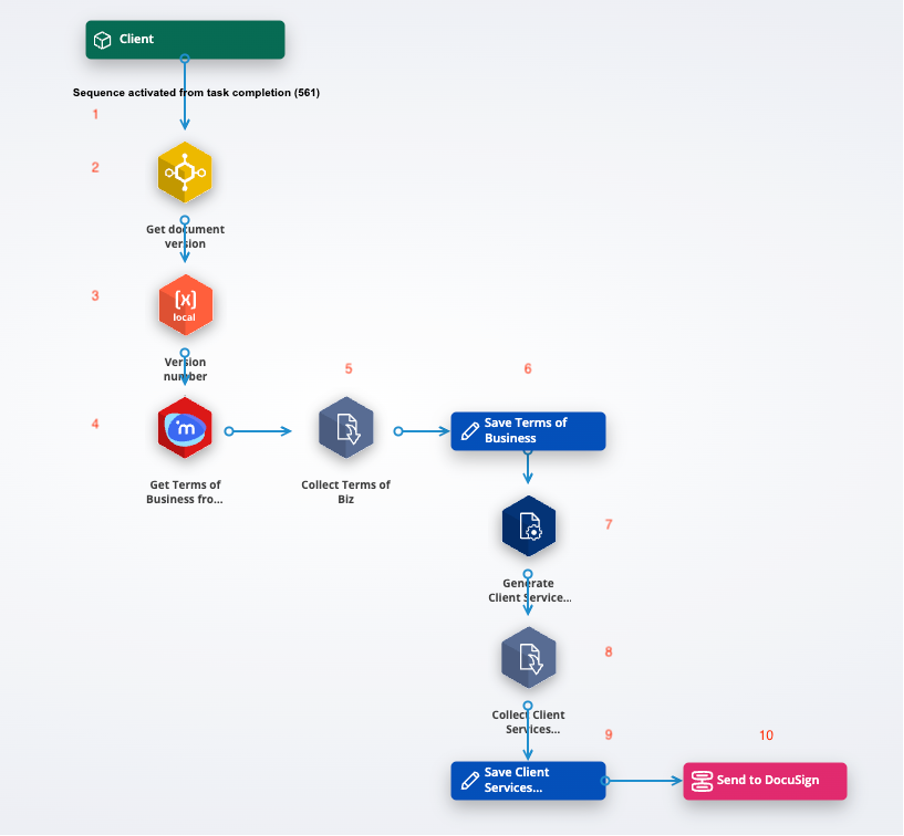
- The sequence is activated from another sequence when a user completes a task.
- An API Call gets the document version number. At this stage, the document number is already known and forms part of the API Call URL, but the document version number is not yet known.
- A Local Variable stores the document version number.
- A second API Call sends a GET request. This time, both the document number and the version number are included in the URL so that the API Call can return the most recent version of the Terms of Business.
- A Document picker actor collects the Terms of Business.
- An Update record actor files the Terms of Business on the record in the Terms of Business document field.
- A DocAuto actor generates the Client Services Agreement from the template and merges record data into the document.
- A Document picker actor collects the Client Services Agreement.
- An Update record actor files the document on the record in the Client Services Agreement document field.
- A Sequence runner actor activates the next part of the process, where the Client Services Agreement is sent to DocuSign for signing.
Depending on the process, the Client Services Agreement could also be included in a review task, as in the first scenario. It could also be emailed to the client for review before being sent to DocuSign.
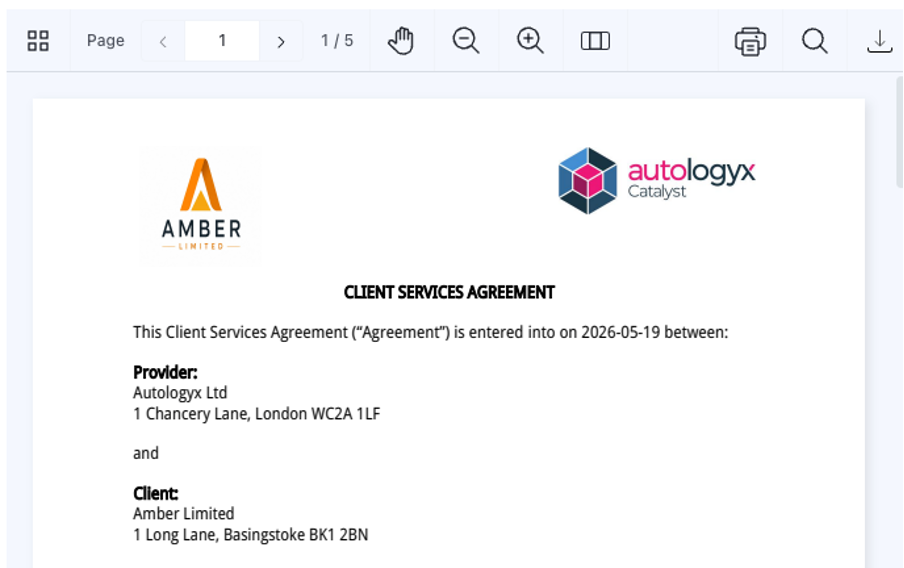
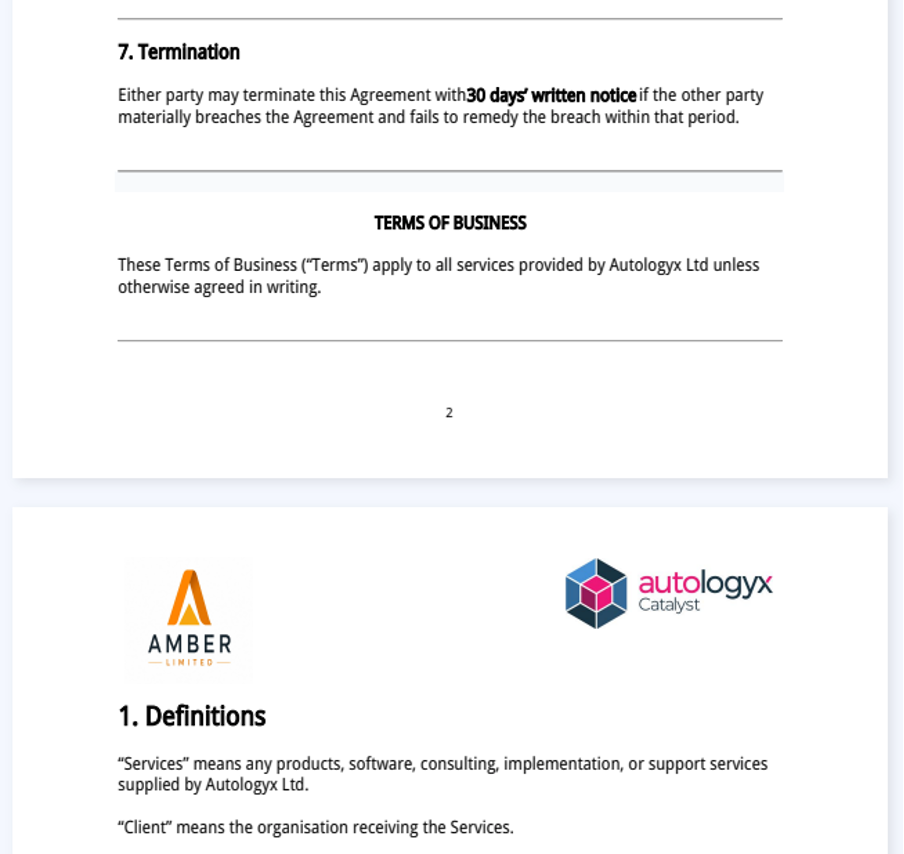
The following screenshots are taken from the document viewer on the record.
The image merge field has merged the client logo into the top left of the document header.
The Terms of Business have been merged into the Client Services Agreement.
Handling optional .docx merge fields
If there is any possibility that a document merge field may be empty when the master document is generated, include an IF statement.
{% if record.field_data_security_clause %}
{{ p record.field_data_security_clause[0].embedded.inline }}
{% endif %}
This prevents the merge field from trying to merge content from an empty field.
Things to remember
- The
.docxmerge field works only in document templates. - The feature supports only
.docxfiles. - An index is always required. If your field holds only one document, you must still specify
[0]. - If you refer to an index that does not exist, such as
[2]where the field has only one file, the merge field returns an empty string. - Use an IF statement where the document field may be empty at the time the master document is generated.
- Use the image merge field for image files rather than the
.docxmerge field. - Use Jinja2 conditional logic for smaller conditional clauses that do not need to be stored as separate
.docxdocuments.