
Edit Object class - configure displays
Once an Object class has been created, you are asked whether you would like to add fields for it now. If you choose to do this straight away, you will be taken to the Edit Object class page.
There are actually 5 tabs which can be configured: Fields, Display, Forms, Document Templates and Permissions. However, you will need to create fields to be used in the Display tab before you can create your 3 views. Fields are also required before you can configure Forms and Document Templates.
Note that when you visit the Display tab for the first time, the Card view is enabled and will contain the field which has been chosen as the Identifier. If no field has been marked as such, the ALX ID will be used instead.
In the below screenshot, Mortgage Application Number is the Identifier. As it is auto-selected in the Card view, it is greyed out in the Fields menu on the right.
Both the Create and edit view and the Summary view are disabled by default.
It is important to understand where each of the 3 views will be used in the system so that you can make best use of the available fields for each view and show useful data once Object records have been created.
Card view
This view is given as an alternative to the traditional list view in the Object record list.
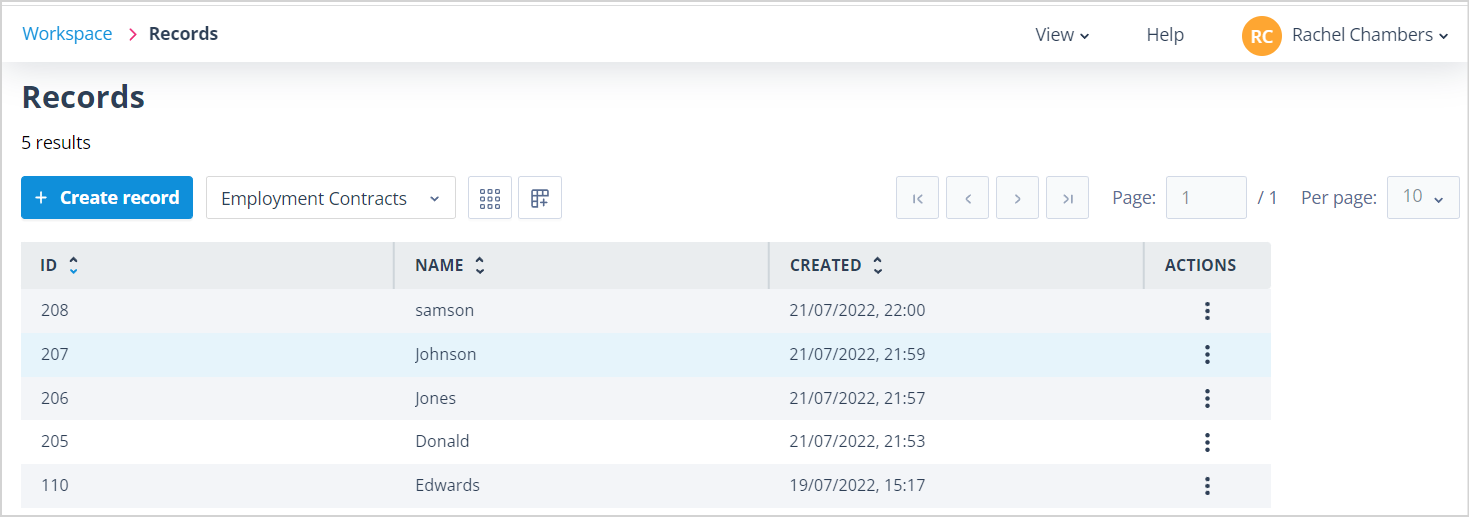
The list view is like all other lists, with records shown in alternating white and grey rows, with a selected record in blue.
| The list has an additional icon for Card view. When the User hovers over the icon it will display, "Switch to card view". | mceclip4.png |
Card view is displayed as below.
The Card view is designed to provide key details which can be edited in what is effectively a snapshot view.
However, each record has an "Open" icon in the top left-hand corner which will allow you to open it to view the full details and edit, depending on your permissions.
| When in card view, the list view icon allows the User to switch to list view. | mceclip3.png |
Create and edit view
Here you are essentially configuring a form which will allow Users to create and update Object records. This form will be presented when:
- the + Create record button is used from the Records list
- a User double clicks on a Record in the Records list
- a User selects "Open" in the Record Actions menu
- a User clicks "Open" in the Card view
Summary view
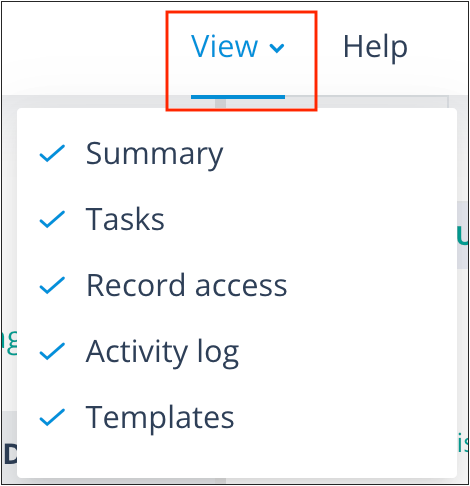
The Summary is shown in the right-hand panel when a User selects or opens a record in the list or card view.
| If the Summary is not displayed in the side panel, click View in the top right hand side horizontal menu. Click on Summary so that a blue tick is displayed to the left. View will close and the Summary will appear in the panel. | 1206e.png |
It is useful when clicking through records in the list or card view to have the Summary open in the side panel so that you can view the essential data without having to open each record individually.
It is for information only and is not editable.
Configuring the displays
The premise for configuring each view is exactly the same.
Double click on the view or select Configure in the Actions menu. This will take you to the edit display screen for the particular view. Here you will find a form builder made up of the canvas in the middle section and the available Components for selection in the side stack. Components are generally in three sections: Layout (not Card view), Fields and Properties.
Components can be dragged and dropped into sections on the canvas. Once the component is in place, click on it to open the properties or options panel where you can configure it as required.
CLICK HERE for section describing formbuilder, components and fields.
The Card view
The Card view has only one section; you will not be able to create any further sections. However, you can select 2 or 3 columns for the Section. In addition, when configuring the Card view there is no Instructions component, so the Layout section is not shown.
You will be able to select a Column ratio which will determine the width of each column in the Section. You will also have the ability to set spacing around the fields and within the field, the same as for the other views.
In the Create and edit view
The User will be able to configure numerous Sections containing 1, 2 or 3 columns. They will be able to use Conditional Visibility for additional Sections to be displayed on the basis of previous field values.
In the below form, the Section entitled "Details Regarding Interest" is shown only on the basis of the selection in field "Mortgage type" being "Interest only".
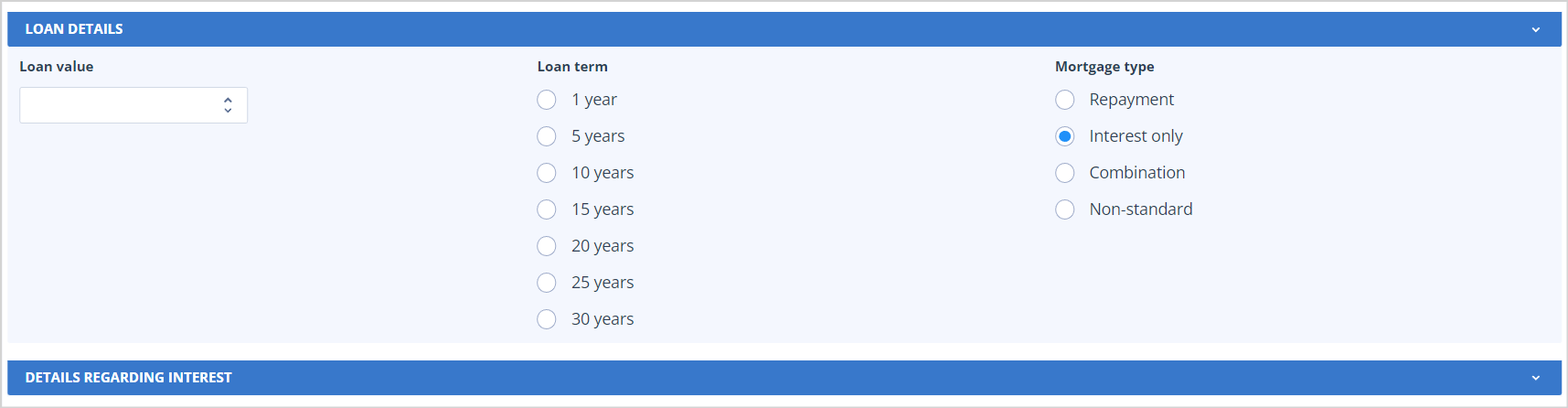
| It is important to remember to Enable the display once you have configured it. | mceclip6.png |
There is a Preview button next to Save on the right-hand side so that the User can check how the form looks. Note that Sections which are conditionally displayed will not show unless the dependent field(s) have been populated correctly.
Click the Exit preview button to return to the display configuration.
The Summary view
The Summary view can contain numerous sections but there is a limit of 2 columns, as the area where this view is displayed in the side panel is much narrower.
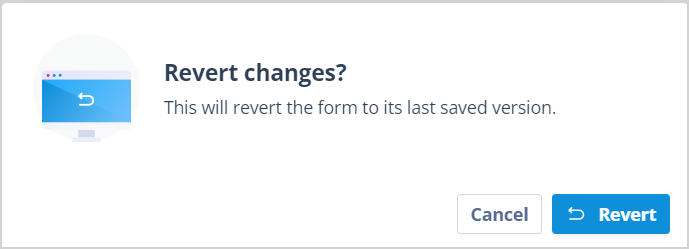
| Each view has a Revert button which will only be enabled when a view has been saved and is then amended. When clicked the User will be asked to confirm the revert action or to they can choose to Cancel. | mceclip0.png |
If a User makes a change to the Object class Fields, eg creates a new field, amends or removes an existing field, those changes will be reflected in all three views under the Display tab:
- Newly added fields are shown in the Components panel
- Deprecated fields are removed from the form (if applicable) and from the Components panel
- Changes to field Labels are updated in the form or panel depending where they reside
Useful info
- All Object class fields are available for selection in all views.
- System fields are available to be displayed in all views. These fields are: ALX ID, Created date/time which records when the Record was created, Updated date/time which shows when the Records was last edited and Owners which will display the Avatars of all Users who are Owners of the record (not Card view).
- The Card view can contain only one section with up to 15 fields.
- Card view is enabled by default but Create/edit and Summary views must be enabled for use.
- A maximum of 100 sections and 200 other components (instructions, fields and properties) can be added to the Create and edit view.