
Edit Object class - Remove fields
Permissions required
To remove fields from an Object class, you must have one of the following:
- A Super admin account type
- Be an Owner of the Object class
- Have a Role with the Object class Edit permission enabled on the Data Model tab
- Have a Permission set for the specific Object class with the Object class Edit permission enabled
Remove a field
To remove a field: find the field on the Fields list and select Remove from the Actions menu.
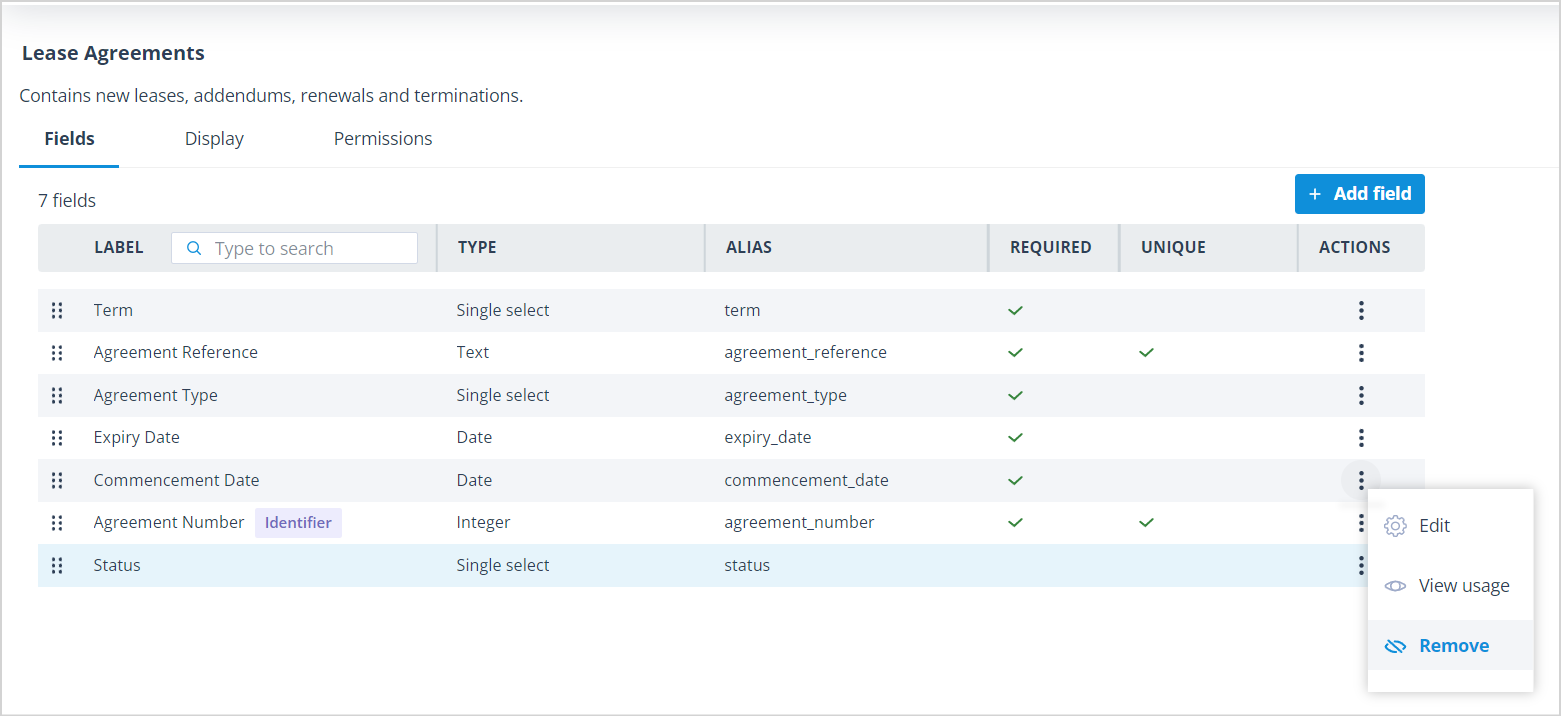
A warning message is displayed to the User, as shown below.
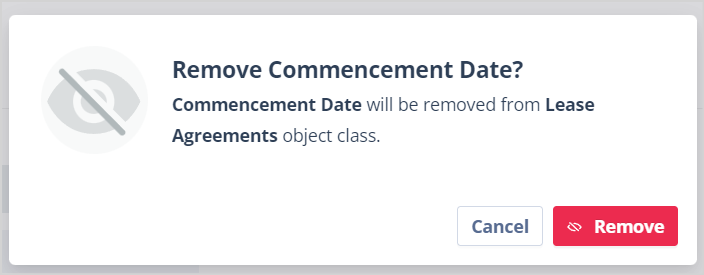
- If this action was unintentional and you select Cancel, the modal will close and you will remain on the Fields list.
- If you select Remove and the field is not populated in any Object records or used in any task templates for the Object class, you will see the green success toast message on-screen.
- If the View usage or Edit panel was open when the field was removed, it will be automatically closed.
If the field is in use
If you select Remove and the field is populated in any Object records or used in any task templates for the Object class, the modal below will be displayed.
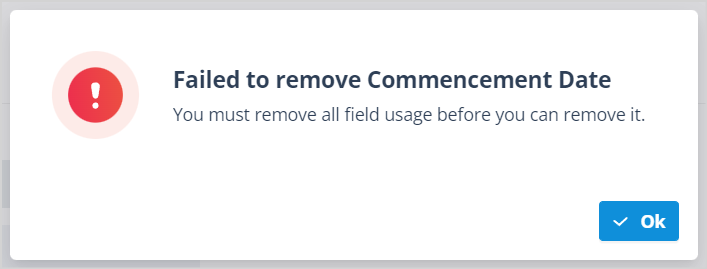
When you click OK, the modal will close and the View usage panel will open. This provides a summary of where in the system the field is in use:
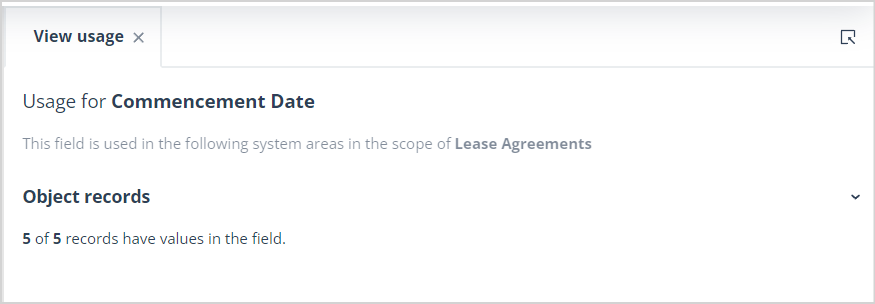
In the screenshot above, the field to be removed is in use only by 5 Object records. Only when these field associations have been removed will you be able to remove the field itself.