
Editing a Standalone Form
Permissions
Users with one of the following will be able to edit a standalone form:
- Super admin account type
- Config admin account type with a Role which allows them to edit object classes
- Owner of the object class
- Permission set allowing them to edit the object class
Edit a standalone form
Navigate to the appropriate object class and click the Forms tab.
Either double-click the row of the form you wish to edit, or select Edit in the Actions menu.
Once the form is opened, it will display as it was last saved, but without any object class fields which have since been deleted from the object class. If any field names have been changed, these will be displayed with the new field names.
Available edits
The following edits can be made:
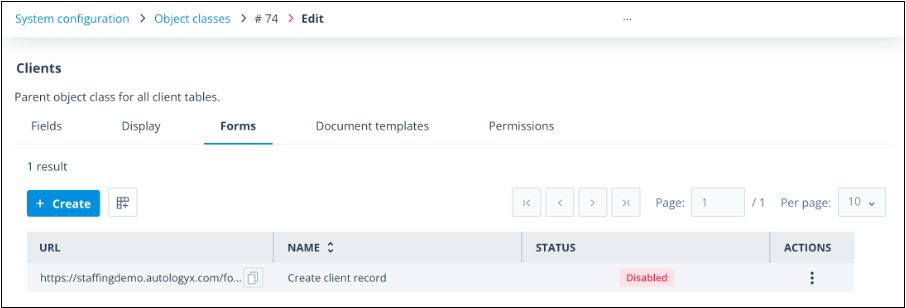
- Disable the form. If you do this, make sure that you have removed the link to the form if being hosted outside of your Catalyst application. Ensure that users are informed and that alternative arrangements have been put in place for the creation of records, if required. In the Forms list, the Status of the form will show as Disabled:
If a user clicks the link to the form, they will be shown the below message:
- Change the form name. You must remember that this is a required field, so cannot be left empty, and the form name must be unique in the scope of the object class.
- Change the Redirect. You can enter a new URL for the page the user will be shown once the form has been submitted.
- Remove the Redirect. In this case, the user will see the default confirmation, as below, on submission of the form:
- Disable Submit. This will remove the submit button from the form. Users will still be able to create records if the form is used on the landing page in an Element - which has its own submit button - or, in an Element with the iframe to a third-party system.
Change layout and content
In addition, the layout and content of the form can be changed as follows:
- Change section names
- Add or remove sections
- Add, change or remove conditional logic
- Add, change or remove instructions
- Add or remove fields
- Change field input types
- Enable/disable the Required option on a field
- Enable/disable the Read-only option on a field
Preview, revert, and cancel
Use the Preview button at the top right-hand side to check that the form looks and performs as you want.
Two other buttons in this location are useful while creating and editing the form:
- Revert - clicking this will remove any unsaved changes and revert the form to its last saved state.
- Cancel - clicking this will return the user to the Forms list.
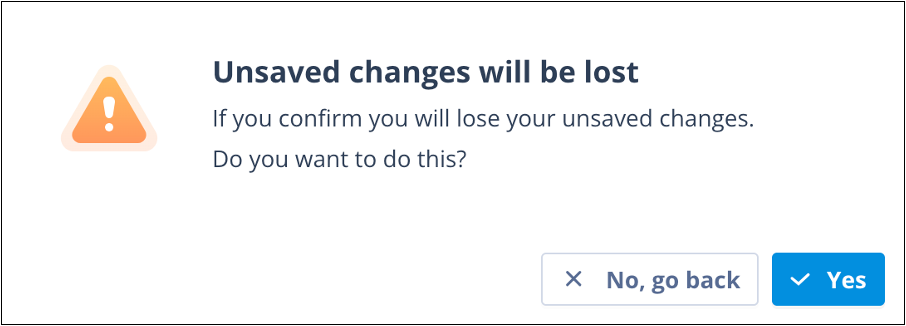
If changes have been made and not saved, in either case, the user will be required to confirm the action.
| Revert | Cancel |
| revert.png | cancel.png |
Remember to save and test your changes.
Having saved the form, you will be taken to the Forms list under the Forms tab.
Useful info
- Changes made while editing the form will take effect on newly opened forms. Forms in use when changes have been saved will not be affected.