
Explanation of Class Permissions
When in Edit mode, one of the tabs on an Object class is Permissions.
The Permissions tab contains sub tabs for:
This article is designed to explain what each of the options in a Class permissions set means.
A Class permissions set includes permissions pertaining to the Object class itself, all Object records within the class, and all Tasks assigned to records in the class.
Default owner permissions
The Object class Owners' Permissions are set by default and are fully enabled. These cannot be edited.
The User who created the Object class will immediately become an Owner and, as such, they can add further Owners and additional sets of Permissions to which Users can be added as Assignees.
A user with a Super admin account type can also create and edit permission sets.
The below screenshot shows the default Owner permissions and a permission set for Mortgage Handlers which is much less permissive.
A User with the Mortgage Handler Permissions shown below will:
- not have access to the Object class configuration
- be able to View the Object class usage, ie see how many records exist, which Task templates are available, and which Sequences have been created for the Object class
- be able to see and edit all records in the Object class
- be able to see and complete all tasks assigned to all records in the Object class
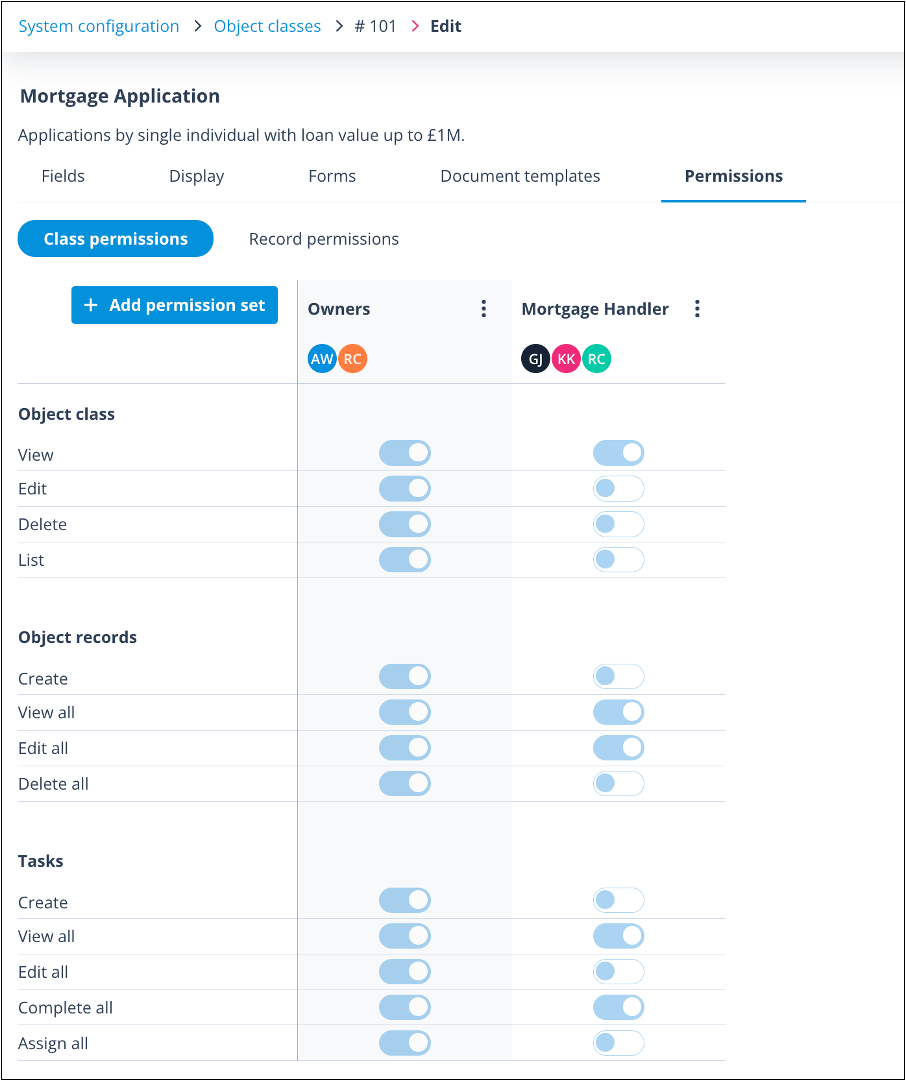
Summary of Class permissions and what they mean
In the below screenshots, a User has been given the Mortgage Handler Class permissions.
| Object class | |
| Screenshot 2024-08-06 at 15.18.19.png | VIEW This permission is designed to be granted with Object records Create, View all, Edit all and/or Delete all. Note that when any of the Object records permissions are applied, the View permission in the Object class is auto-enabled. If granted alone, the User will see no benefit. |
| With the above permissions (and no Record permissions), the User can view, edit and create records. Note, they have not been granted any task permissions, hence no results on the Tasks tab. Screenshot 2024-08-06 at 15.24.04.png | |
| Screenshot 2024-08-06 at 15.47.14.png | EDIT This permission requires that the List permission is also granted. Object classes will appear in the main menu under System Configuration. The User will be able to add and amend Fields and edit all 3 views under the Display tab. They will be able to create/edit Forms and Document Templates. They will be able to view the Permissions tab but not edit any of the configuration or add assignees, and they cannot create new permission sets. |
| This permission is useful for an internal user type who is limited to config admin for only the specific object class. Screenshot 2024-08-06 at 15.43.01.png | |
| Screenshot 2024-08-06 at 15.51.59.png | DELETE As above, this permission requires that the List permission is also granted. The User will have Object classes in the main menu under System Configuration. The Object class will be displayed in the list. The User will be able to delete the Object class but not be able to edit it! |
| Screenshot 2024-08-06 at 15.49.13.png | |
| Screenshot 2024-08-01 at 15.27.59.png | LIST The User will have Object classes in the main menu under System Configuration. The Object class will be displayed in the list. If the User does not have the View all Object record Class permission or is not an Owner or Assignee of a record, there will be no options in the Actions menu. However, if any of these are true, they will see the option to View usage (as below left). The Object class will also appear in the User's Record list, irrespective of whether they have any Record access permissions (as below right). |
| Screenshot 2024-08-01 at 15.23.32.png | Screenshot 2024-08-07 at 16.38.54.png |
| The List permission is useful when granted at parent level (Mortgage Application) together with the Create and Edit permissions but can be left out of the child Object class permissions (Lender and Properties) so that child records are not available to the User in the Records list. | Screenshot 2024-08-07 at 16.43.55.png |
| Below the User has a Permission set with the Object class List permission enabled for Mortgage Application, hence it can be seen in the Records list. The User's Permission sets for Properties and Lenders does not have List enabled. However, from a Create Mortgage Application form they can create or select Properties and Lenders records because they have the Object records permissions Create and View all enabled. | |
| Screenshot 2024-08-07 at 15.42.56.png | Screenshot 2024-08-07 at 15.49.40.png |
| The Edit and Delete permissions cannot be applied without the View permission. This will automatically enable if either Edit or Delete is enabled. | |
| Object records | |
| Screenshot 2024-08-06 at 16.04.57.png | CREATE This will allow the user to create Records in the Workspace for this Object class. They will become the Owner of any Records they create and as such will be able to edit and delete them as well as complete all their Tasks, ie they will have full Object record permissions. However, they will not be able to view, edit or delete any Records for which they are not the Owner or for which they have not been assigned a Record permissions set. |
| In the below screenshot, the Mortgage Handler is the Owner of the record. Screenshot 2024-08-06 at 16.07.39.png | |
| Screenshot 2024-08-06 at 16.14.56.png | VIEW ALL The User will be able to see all the display views for all the Records in the Object class in the Workspace. They will not be able to edit any data (other than where they are the Owner or where they have Record permissions) and they will not be able to create any new Records. |
| Screenshot 2024-08-06 at 17.57.25.png | |
| Screenshot 2024-08-06 at 18.01.45.png | EDIT ALL With this configuration, the User will be able to see all the display views for all Records in the Object class in the Workspace. In addition, they will be able to edit those Records but they will not be able to create any new Records. |
| Screenshot 2024-08-07 at 17.01.08.png | |
| Screenshot 2024-08-06 at 18.12.26.png | DELETE ALL With the Delete all permission enabled, Users will be able to select Delete in the Actions menu of all Records and thus permanently remove then from the system. With this configuration, they can view records but cannot Edit them, and they cannot Create records. |
| Screenshot 2024-08-06 at 18.14.43.png | |
| The Edit all and Delete all permissions cannot be applied without the View all permission. If either is enabled the View all permission will be automatically enabled. None of the Object records permissions can be applied without the View permission in the Object class being enabled. | |
| Tasks | |
| Screenshot 2024-08-07 at 10.47.51.png | CREATE Tasks are not created from the Task list. The User will need Record access in order to create a Task from a Task template. In the "normal" user interface, only Task templates with the Task creation mechanism set to Manual will be available. When the Create permission is enabled, all other permissions in this section are automatically enabled. |
| Screenshot 2024-08-07 at 10.49.54.png | |
| mceclip10.png | VIEW ALL The User will have access to Tasks under their Workspace. The Record Identifier will be blanked out for records where the User is not the Owner, or for which they have not been assigned a Record permissions set. Therefore, this permission is more likely to be granted together with Object records/ View all. The Action menu for each Task will contain an option to View. The User will be able to View all Tasks but will not be able to Complete or Delete those where they have no further permissions. |
| In the screenshot below, the User is the Owner of record ID 728 but has no record permissions for the others. Screenshot 2024-08-07 at 11.17.03.png | |
| Screenshot 2024-08-07 at 14.56.49.png | EDIT ALL This permission will make no obvious change to the normal User experience as tasks are not editable from the user interface. However, it will allow a User to make PATCH API calls to edit the Due Date of a Task associated to a record. However, this type of User is most likely to have a Config Admin account type and a Role which allows them to create sequences. |
| Screenshot 2024-08-07 at 11.19.23.png | COMPLETE ALL The User will have access to Tasks under their Workspace. The Action menu for each Task will contain an option to Complete. However, without record access the Record Identifier will be blanked out! Therefore, it is likely that Object records/ View all will be granted at the same time. The User will be able to Complete all Tasks but will not be able to Delete them. |
| Screenshot 2024-08-07 at 11.20.40.png | |
| Screenshot 2024-08-07 at 14.47.10.png | ASSIGN ALL This permission will also allow the User to View and Complete all Tasks as these permissions are auto-enabled with Assign all. It allows the User to make themself or another User the Owner of the task. This action is done by selecting Complete in the task Actions menu which will open the task. In the top section, a Task owner can be selected or changed by clicking the Assign owner or Reassign ownership link, respectively. If the User has record access, this action can also be completed from the record side panel/Tasks tab. |
| Screenshot 2024-08-07 at 14.54.31.png | Screenshot 2024-08-07 at 14.53.31.png |
| When Edit all or Complete all is enabled View all is automatically enabled. When Assign all is enabled, View all and Complete all are automatically enabled. |
Important: If a User is granted more permissive Class permissions than Record permissions, these will override the Record permissions. For example, a User is given Class permissions which include Complete all Tasks but their Record permissions only gives View all Tasks, they will be able to Complete all Tasks for records to which they are assigned.
Useful info
- Each Object class can have up to 10 Permission sets and 100 Owners.
- Each Permission set can have up to 100 Assignees.