
Object class field types: uses and attributes
All Object class fields must have:
- a Label; this is the field name
- an Alias; this is used for distinguishing the field in data and analytics ie for reporting purposes; it is also used in merge fields and in API requests and responses
- a Type; this will determine how it is presented and what data can be captured in it
Field types summary
There are a number of different types of field which can be configured. These can be summarised as follows:
- Text - Essentially a freeform field which will allow the User to enter alpha numeric values and symbols. This field type is useful for capturing undefined data but not recommended for use in management reports. Validation allows you to specify a maximum character length.
- Integer - Used to capture data in whole numbers. Note that zero at the start of a number will be removed so this field type is not recommended for capturing bank account numbers or phone numbers (we have a Phone field type for that). Validation allows you to set a Minimum and Maximum value.
- Decimal - Used to capture numbers with a decimal place. Note however, that zeros after a decimal place are removed. Validation allows you to set a Minimum and Maximum value.
- Checkbox - A useful field type for capturing acknowledgement, affirmation, confirmation or acceptance of statements. Examples: “Acceptance of Terms”, “I dispute the amount shown on the claim form”, “Consent to act as Director”, "Worked for us previously”.
- Single select - Used to present a list of options from which only one must be chosen eg Term, Sector and Status or any other data with pre-determined options. You can choose to present this list as radio buttons or a dropdown list.
- Multi select - Similar to Single select but presents a checkbox list of options from which more than one selection can be made. Used to capture information such as "Risks", "Pre-existing conditions", "Equipment" or more than one option from any list of choices. Validation allows you to set Minimum and Maximum selections allowed.
- Email - Used to record email addresses. Catalyst will look for email address format (prefix@domain.xx) eg no spaces, including an @ symbol, dot (.), etc. A unique value can be forced in the context of the Object class.
- Phone - Used to record telephone numbers but these do not have to be in phone format (ie with the preceding country code, without the initial 0 and without spaces). Again, a unique value can be forced in the context of the Object class.
- Date - Used to record dates. A calendar is presented to the user from which a date can be selected. Alternatively, the date can be typed into the field. A Today option is provided which will populate today's date.
- Date/Time - Records date and times together in one field. Useful for appointments, events, etc. A Now option is provided which will populate today's date/current time. 12 and 24 hour clock formats are available depending on the User's preferences.
- Time - Used to record time in either 12 hour format with AM and PM options or 24 hour format, depending on the User's preferences. Has a "Now" feature which will record the current time.
A time field presents in 24 hour format when the User's language preference is English (UK): 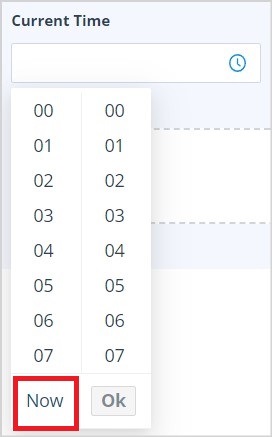 | A time field presents in 12 hour format with AM and PM options when the User's language preference is English (USA): 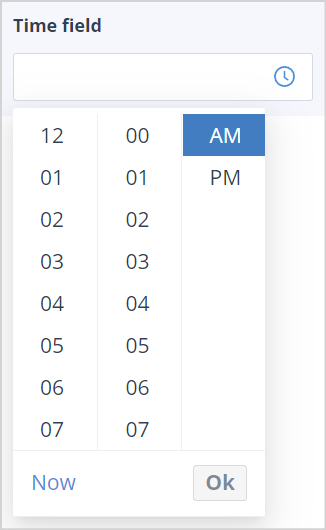 |
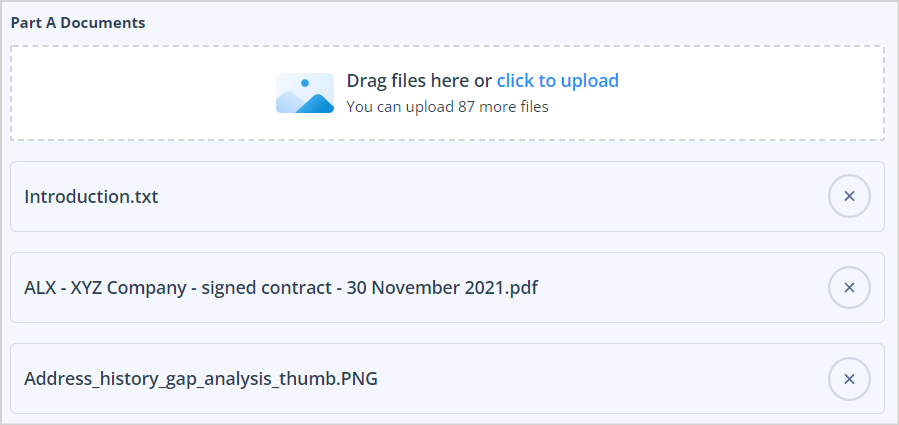
- Document - Used to upload documents. A maximum of 100 files can be uploaded to one document field. In the field configuration you can set the maximum number of files allowed. Initially in the upload view the maximum number of files will be shown and as files are uploaded to the field the number will count down.
 |  |
- User - This field can be configured to include up to 100 individual users and 10 user groups (each of which can contain up to 1,000,000 users). Users with a 1-time completion account can be added.
Configure the User field
To configure the User field, click into the field in the Selection Options section.
The Users tab is displayed as the default. Users will be listed in alphabetical order by First Name.
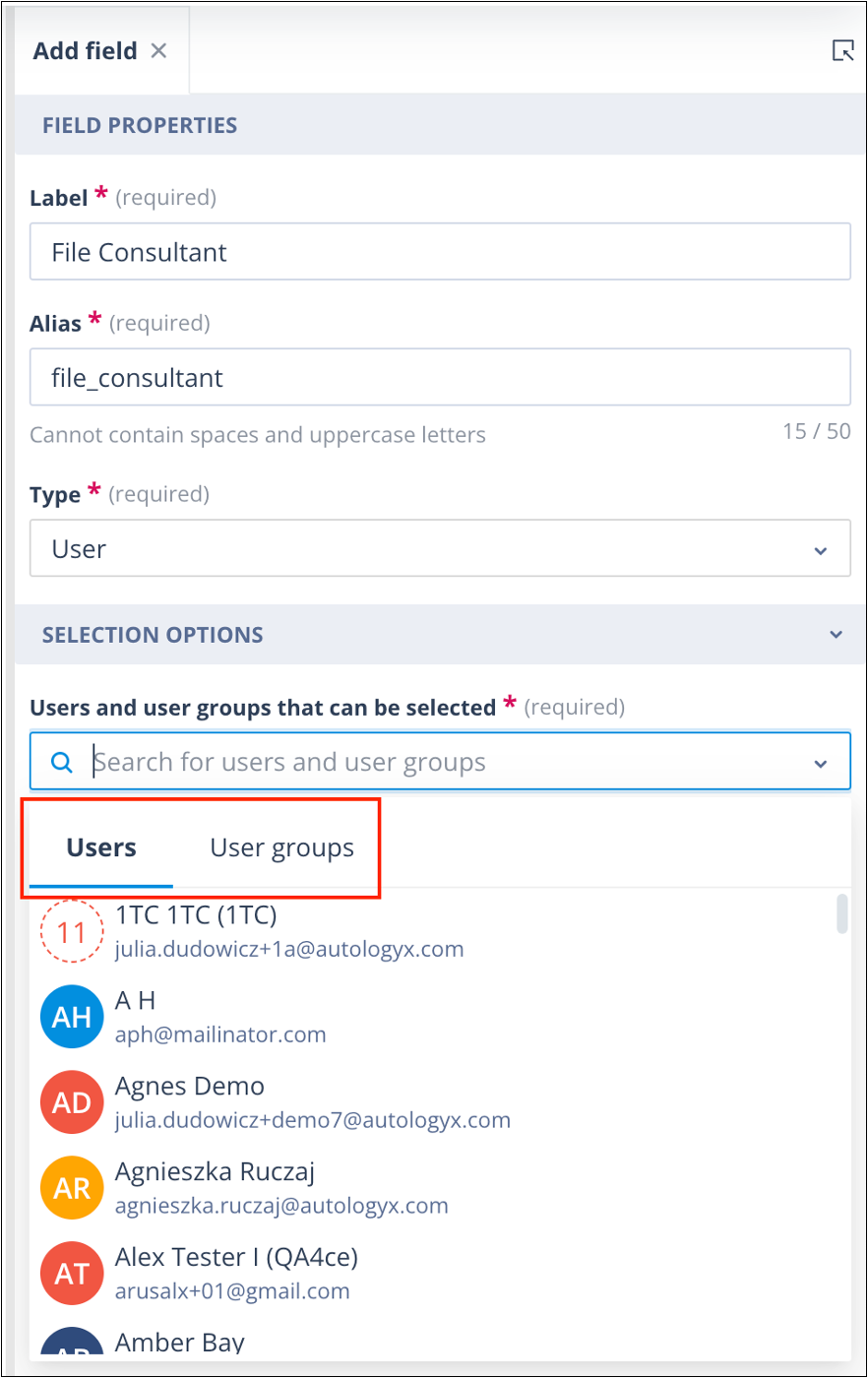
If you stay on the default "User" tab, you will be able to select the required users by clicking on their tile(s). They will be marked as "Already selected". Screenshot 2025-01-30 at 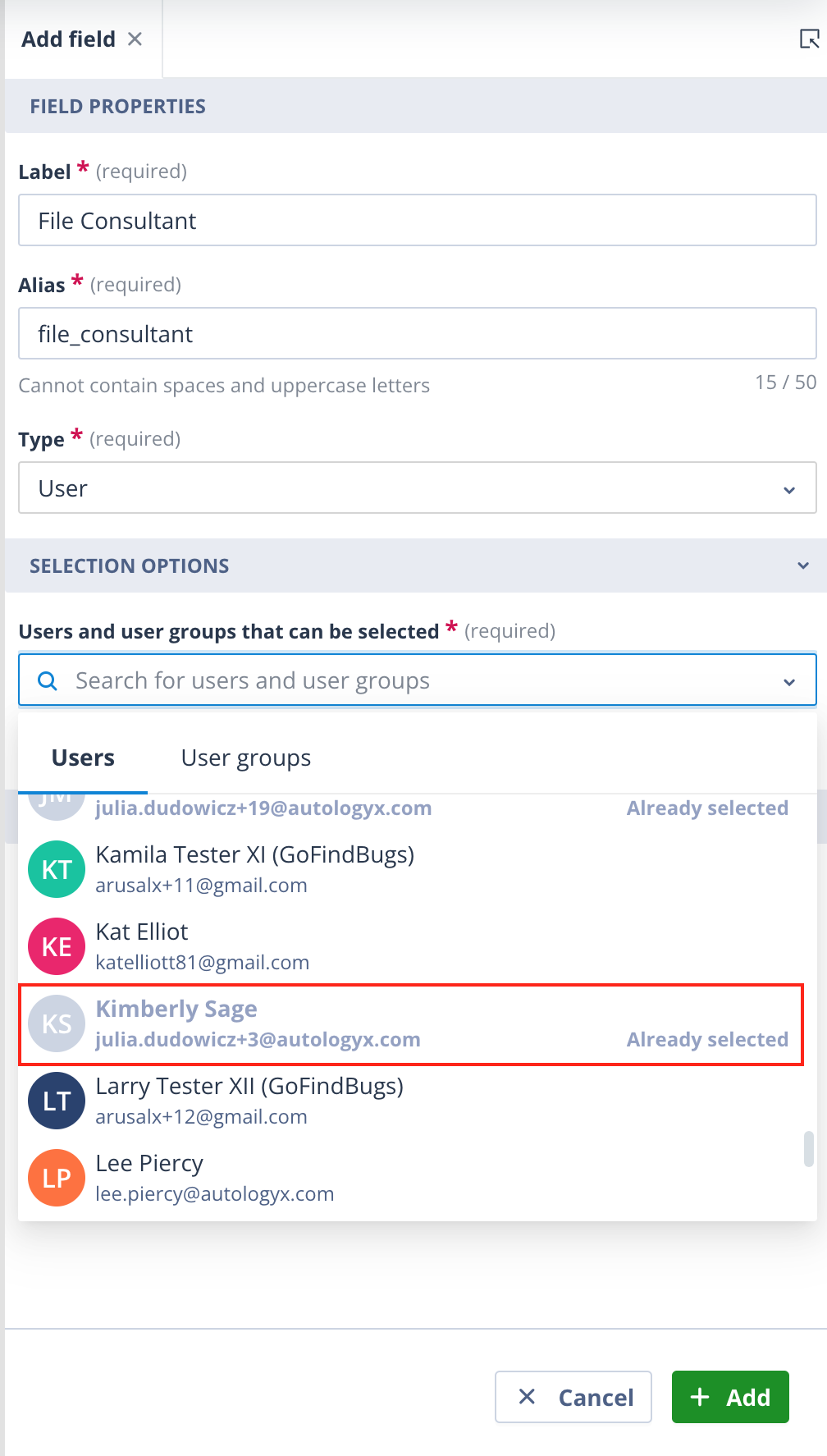 Click out of the modal. The avatars of the first five added users appear followed by a generic avatar for additional users. When this icon is clicked, the details of those users will be displayed. Screenshot 2025-01-30 at Click out of the modal. The avatars of the first five added users appear followed by a generic avatar for additional users. When this icon is clicked, the details of those users will be displayed. Screenshot 2025-01-30 at 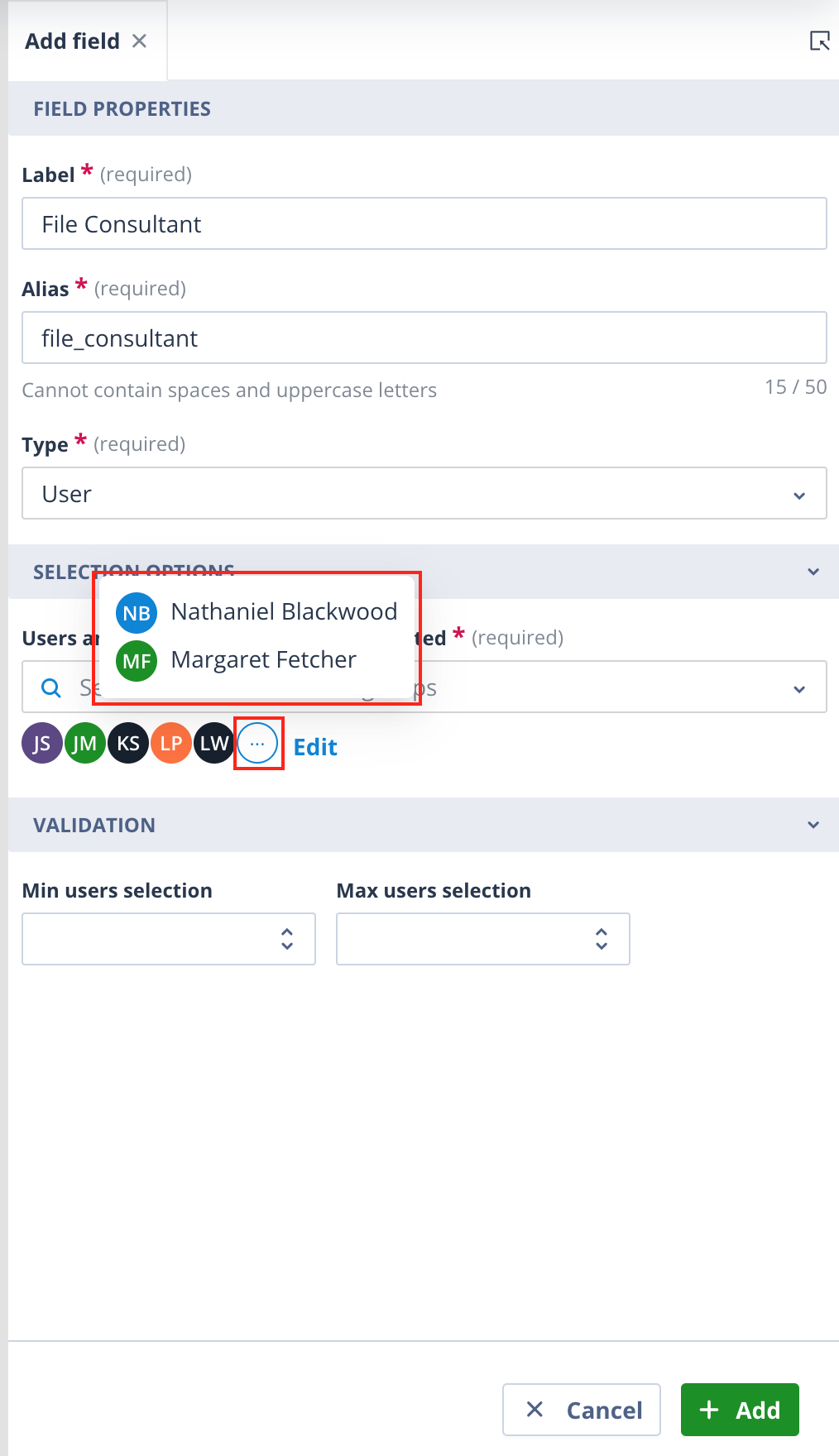 Alongside the avatars, an Edit link is provided. Clicking this will allow you to remove any users added in error. Screenshot 2025-01-30 at Alongside the avatars, an Edit link is provided. Clicking this will allow you to remove any users added in error. Screenshot 2025-01-30 at 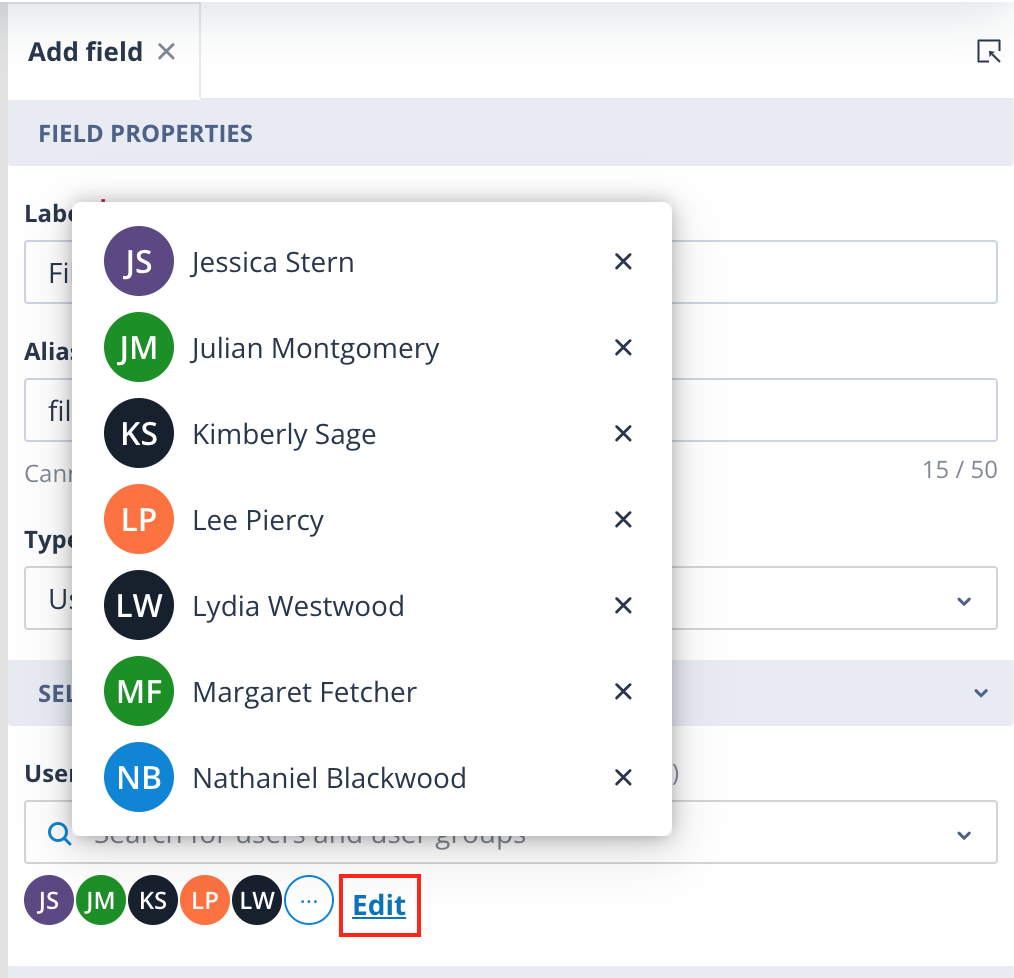 The Minimum and Maximum selections can be set to restrict the number of selections on the record create/edit forms. The Minimum and Maximum selections can be set to restrict the number of selections on the record create/edit forms. | If you move to the User groups tab, you can select up to 10 User groups by clicking on their tile(s). They will be marked as "Already selected". Screenshot 2025-01-30 at 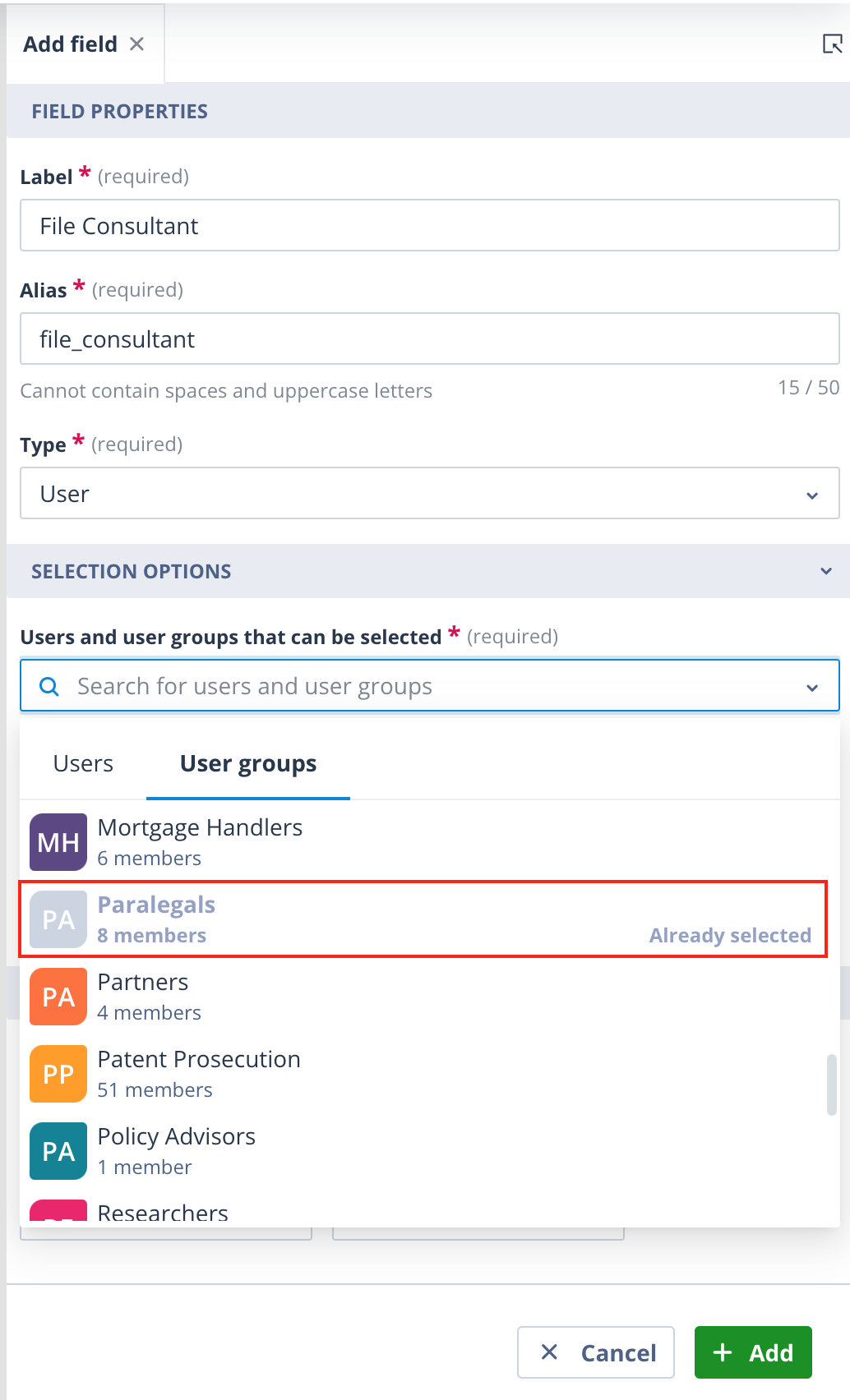 Click out of the modal. The user group avatars will be displayed to the far left ie before the individual user avatars. Screenshot 2025-01-30 at Click out of the modal. The user group avatars will be displayed to the far left ie before the individual user avatars. Screenshot 2025-01-30 at 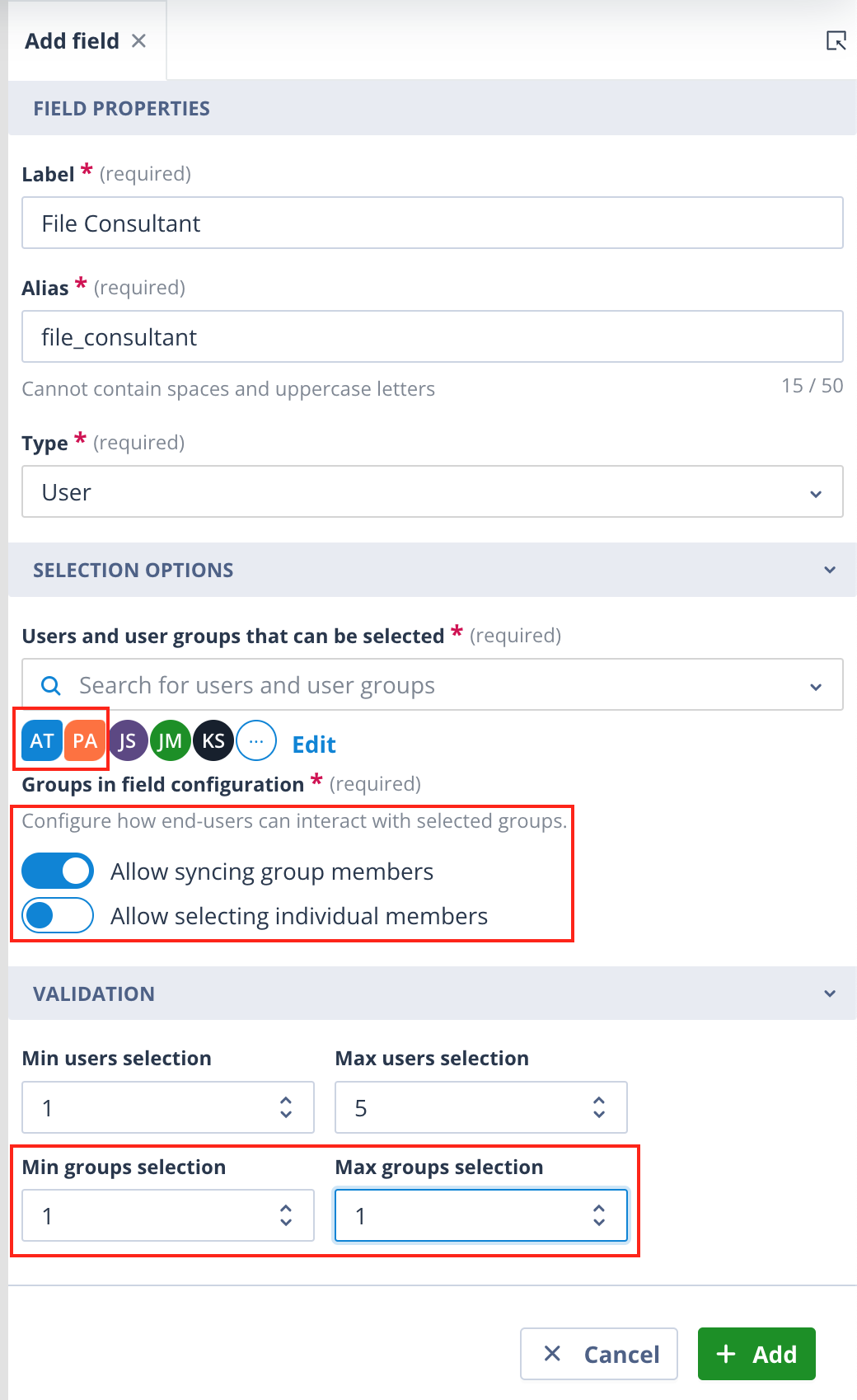 If the Edit link is clicked, the user groups will be at the top of the list. Again, any added in error can be removed. When you select User Groups in a Class User Field, you need to decide how end users will interact with them. You can enable one or both of these options: - Allow Syncing Group Members: Selecting this option means that end users can choose the entire group as a single entity. The group’s members will be automatically synchronised whenever the group is utilised, ensuring that no one is left out. - Allow Selecting Individual Members: With this option, end users can select specific members from the group, providing more granular control over who is in selected. Again, the minimum and maximum number of groups allowed for selection can be set. If the Edit link is clicked, the user groups will be at the top of the list. Again, any added in error can be removed. When you select User Groups in a Class User Field, you need to decide how end users will interact with them. You can enable one or both of these options: - Allow Syncing Group Members: Selecting this option means that end users can choose the entire group as a single entity. The group’s members will be automatically synchronised whenever the group is utilised, ensuring that no one is left out. - Allow Selecting Individual Members: With this option, end users can select specific members from the group, providing more granular control over who is in selected. Again, the minimum and maximum number of groups allowed for selection can be set. |
Click Add to save the field configuration. A green success toast message will confirm the save and the field will be added to the top of the Fields tab on the Object class.
On the create/edit record forms, the Minimum and Maximum selections allowed is shown for both groups and users.
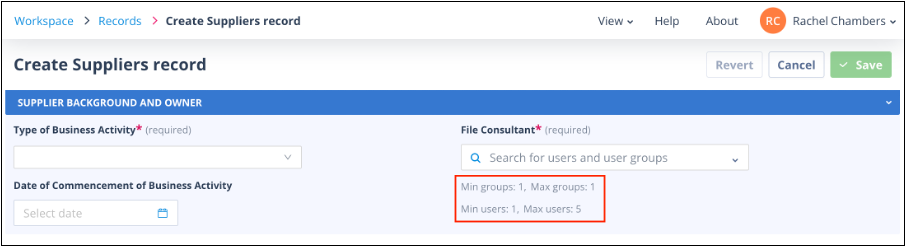
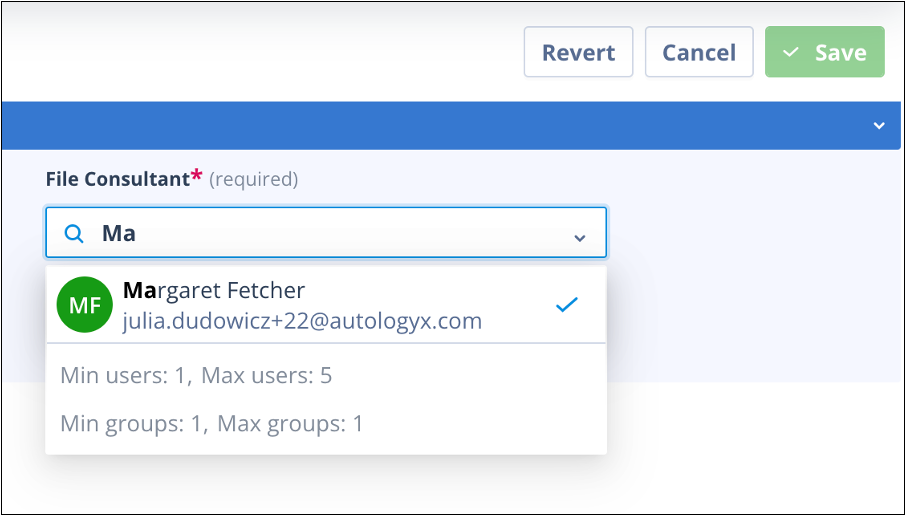
When the end User clicks into the field they can type to search for a user or group, or scroll down the list and click on users/groups to select them.
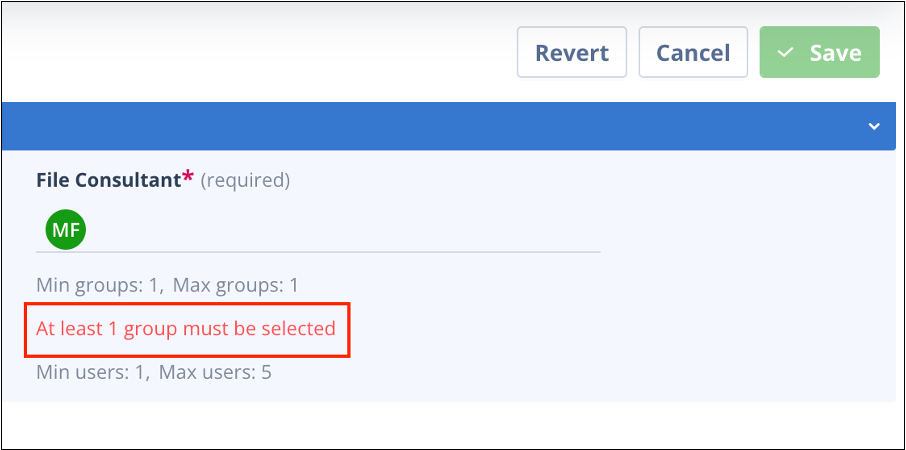
Having made selections, if these do not match the minimum requirements, the on-screen validation will show this and the Save button will remain disabled.
If user group selection was configured on the field with "Allow syncing group members" enabled, and the end User selects a group, a second model will display as below. Enable Sync group members.
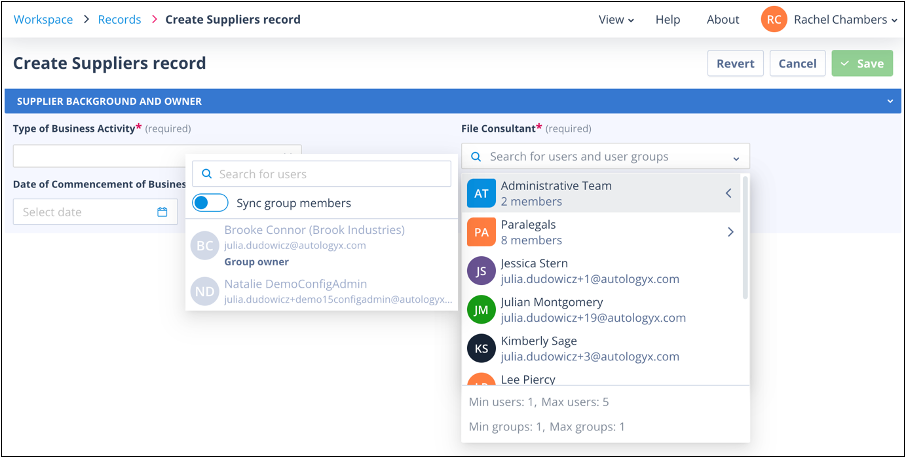
| This will select all members of the group and the synced icon will appear on the user group tile. | 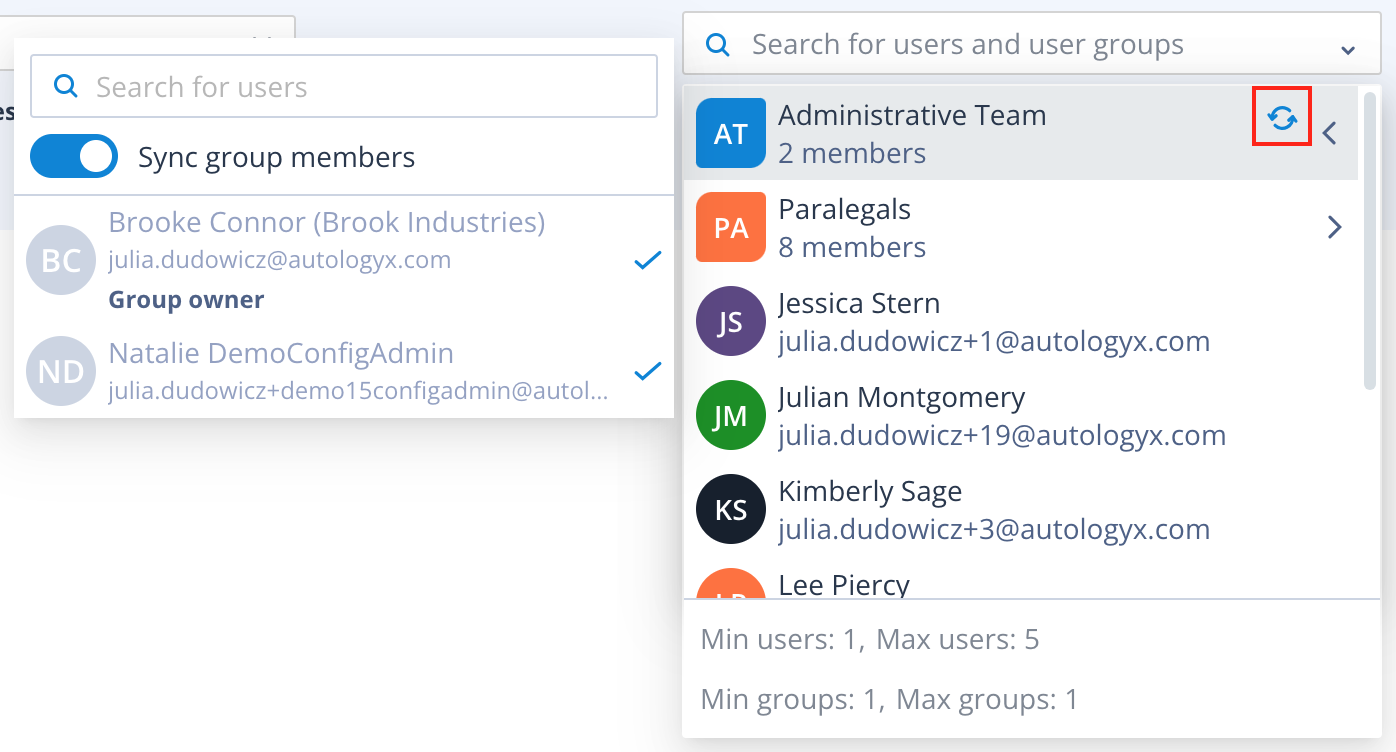 |
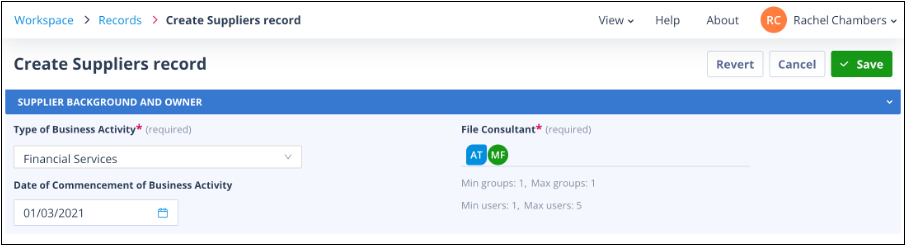
The icons of selected user groups will appear to the left of individual user icons on the record field.
If user group selection was configured on the field with "Allow selecting individual members" enabled and "Allow Syncing Group Members" was disabled, when a user group is selected, the end User will be able to select individual members from the group.
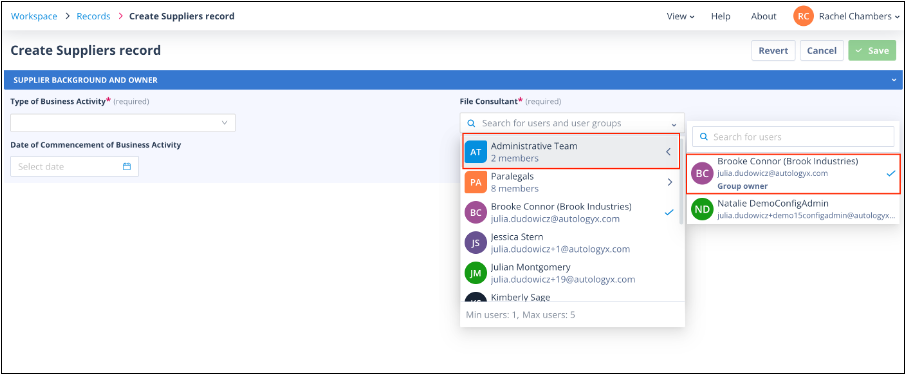
The avatars of these users will appear as they normally would for any individual user.
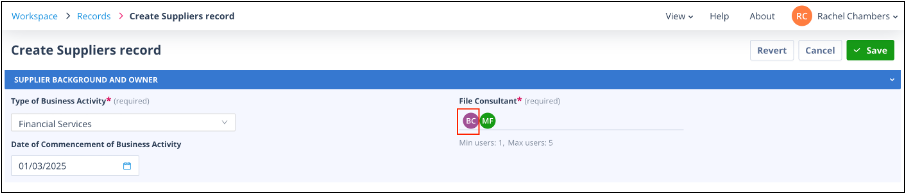
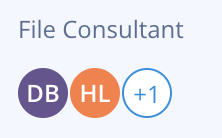
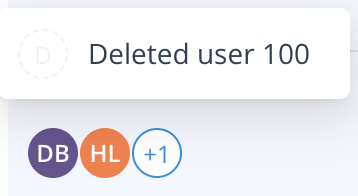
If a User has been selected on a Record form and is subsequently deleted from the system their avatar will be removed and replaced by the +1 avatar which when clicked on will show the ID of the deleted User.
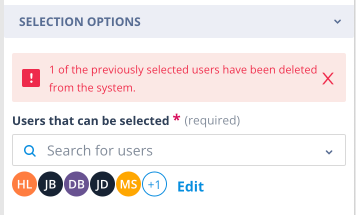
Following deletion of a User who had been one of the available selections in a User field, the Edit field mode will show a warning to inform the Administrator that a User has been deleted.
 |  |  |
- URL - Used to capture URLs for websites, forms, etc. This field has front-end validation which means that the form will not save if the entry does not contain the correct format.

| In record edit mode, card view and summary view, the URL field presents as a clickable link. The page will open in a new tab on your browser. | 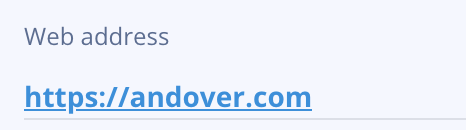 |
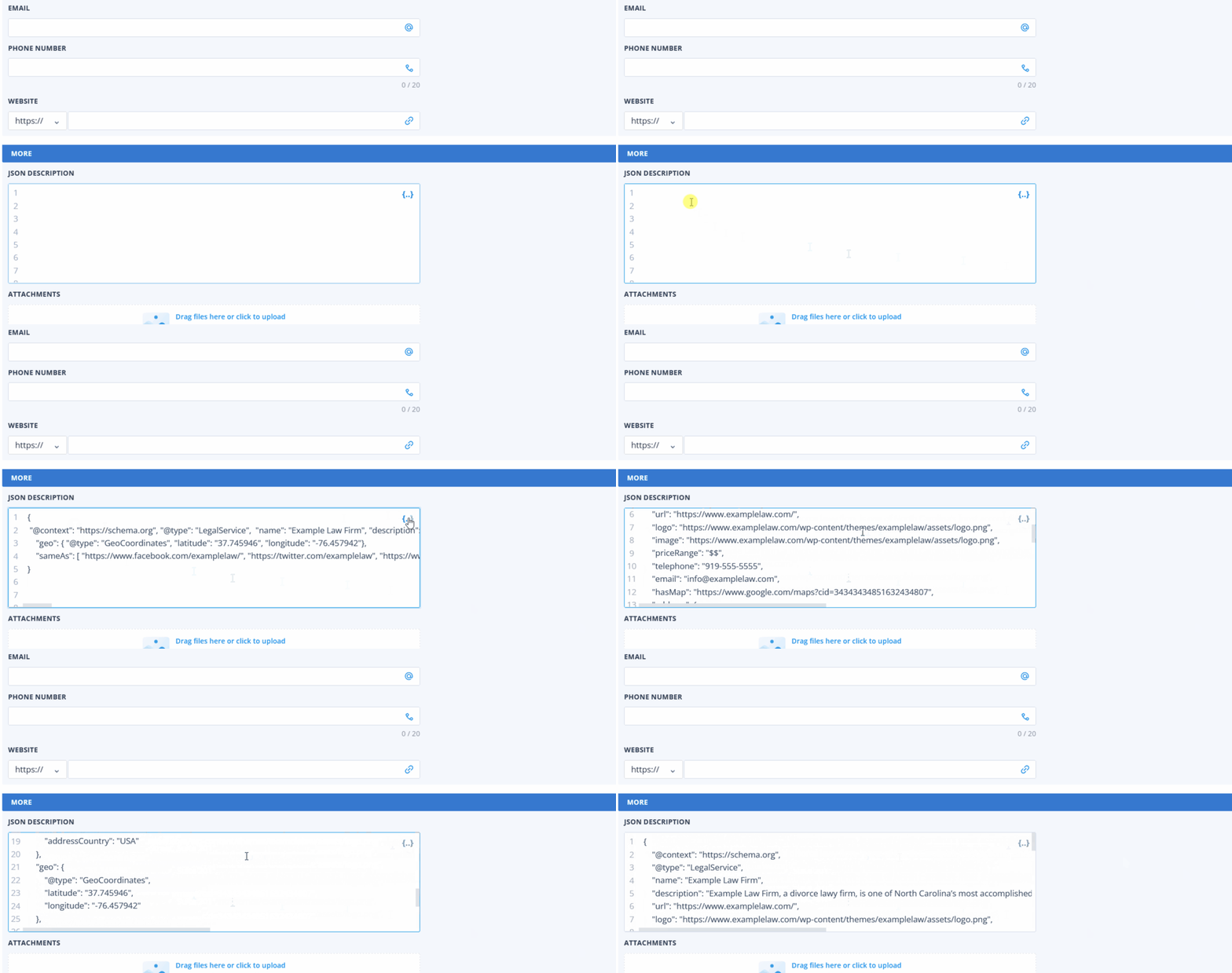
- JSON - Allows you to store complex data structures within a single field. On the record form the field displays with a beauty JSON icon which will format it making the data easier to read.
Field attributes overview
The below table provides an overview of field attributes for each each field type.
| Field type | Has options | Default Value can be set | Force unique value | Min/Max input | Use as Identifier |
| Text | X | X | Y | Y | Y |
| Integer | X | Y | Y | Y | Y |
| Decimal | X | Y | Y | Y | X |
| Checkbox | X | X | X | X | X |
| Single Select | Y | Y | X | X | X |
| Multi Select | Y | X | X | Y | X |
| X | X | Y | X | Y | |
| Phone | X | X | Y | X | Y |
| Date | X | X | X | X | Y |
| Date/Time | X | X | X | X | Y |
| Time | X | X | X | X | X |
| Document | X | X | X | Y | X |
| User | Y | X | X | Y | X |
| URL | X | X | X | X | Y |
| JSON | X | X | X | X | X |
Further notes
Default value - this allows you to present a default or suggested value in the field when used on Record forms and views.
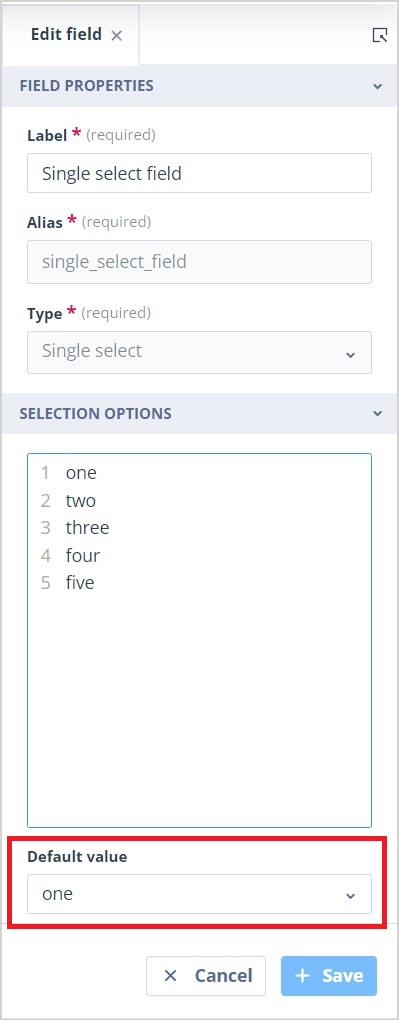 | In the case of a Single select field, the radio button for the default option will be selected/populated. default_value_2.jpg default_popuated.jpg |
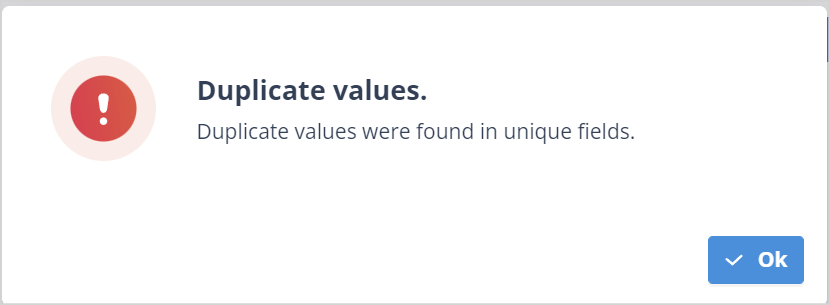
Unique value - enabling this feature will ensure that no two Records in the Object class can have the same value in the field. It acts as a de-duplication tool. If a User enters a value which already exists on another Record and tries to Create/Save the Record an error is shown against the field and the Duplicate values warning modal is displayed:
 |  |
Min/Max input will differ dependent on the field type. So for instance, in a Text field this relates to the number of allowed characters, in a Multi select field to the Minimum and Maximum number of selections allowed, and in a Document field to the maximum number of files allowed.
Identifier - only one field in an Object class can be used as the identifier. If no field is given this property the Autologyx ID Number will automatically be used as such.

The field marked Identifier will be shown in the:
| - top left hand corner of the card view | 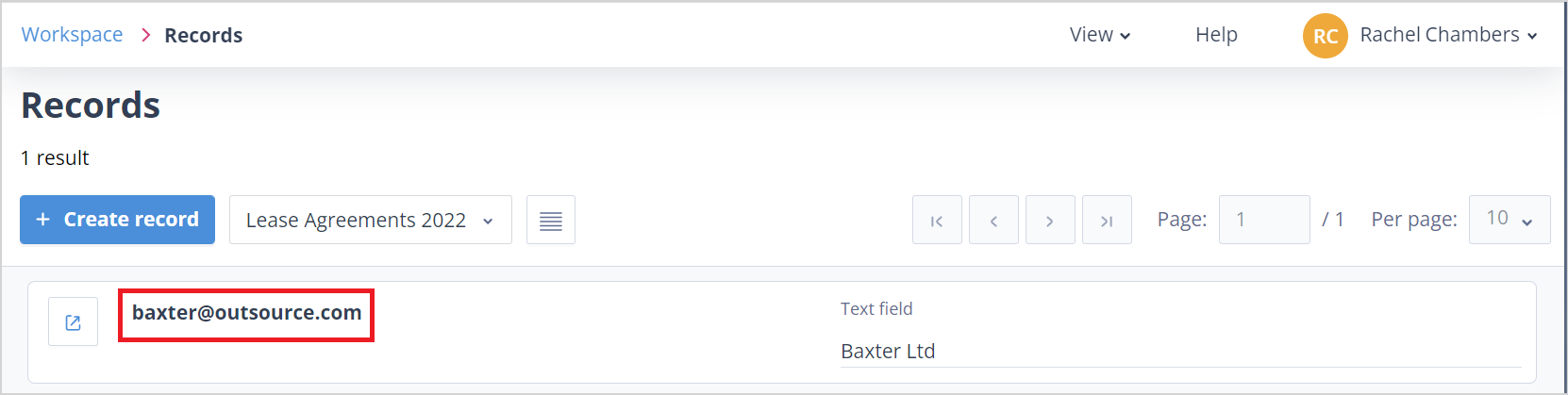 |
| - top of the Tasks, Templates, Activity log and Record access panels | 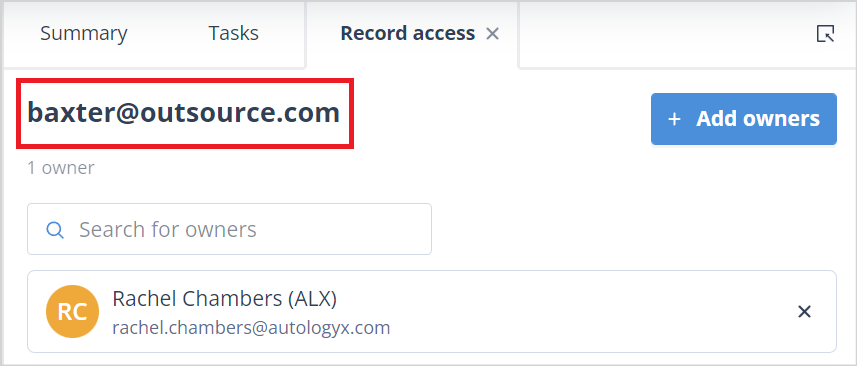 |
Useful info
- Single and Multi select fields can contain up to 100 options.
- The maximum number of characters a field Label may contain is 100.
- The maximum number of characters a field Alias may contain is 50.