
Record Access Actor
What does the Record Access actor do?
The Record Access actor manages control of record access and ownership. It handles two critical aspects of record data management: record ownership and record access via permission sets.
It is worth noting at this point that a user who manually creates a record will become the record owner by default. The record owner has full permissions for that record, including the ability to delete it. Therefore, a common use of the Record Access actor is to remove or override ownership immediately after record creation.
How do I use the Record Access actor?
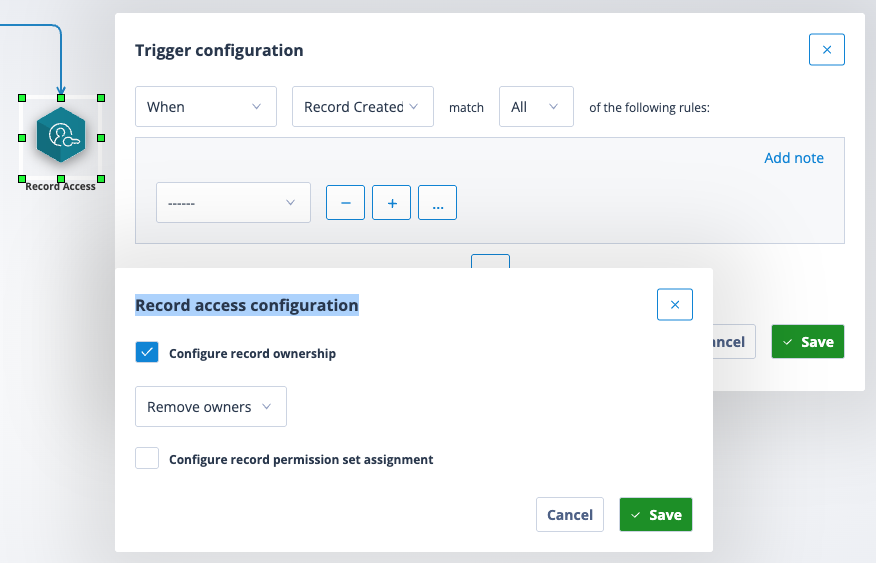
Click, drag and drop the Record Access actor onto your sequence workspace.
Right click on it and select Configure. The Record access configuration modal will open.
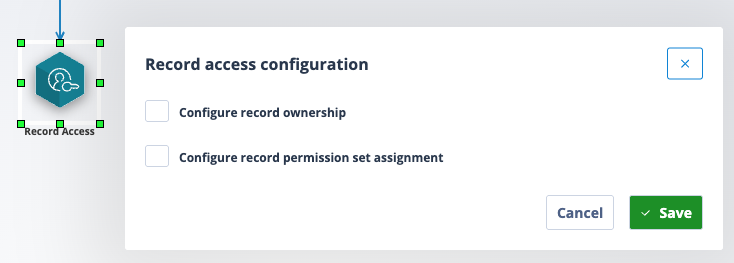
The modal gives you two options:
- Configure record ownership
- Configure record permission set assignment
You can use the same actor to configure both types of access or deal with only one, as required.
Configure record ownership
Check the box to configure record ownership. A single-select field will offer you 3 options:
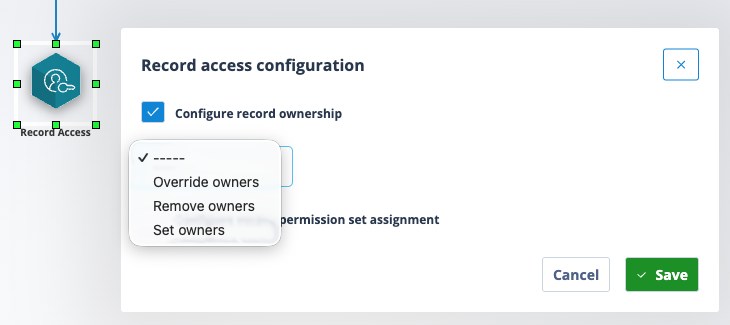
Remove owners
This will do exactly as it says and remove the record owner, resulting in this user losing record ownership permissions. They will then need class permissions or a record permission set to be able to access the record, unless they have a Super Admin account type.
No further configuration is required for this option.
Override owners
This option will remove the existing owner and allow a replacement owner to be set.
Set owners
This option will allow an owner to be set where the record does not already have an owner.
Override owners and Set owners
Having selected Override owners or Set owners, the display will allow you to choose to do this By user or By field.
By user
Tick the box and start typing the name of the required user. The user list will filter accordingly.
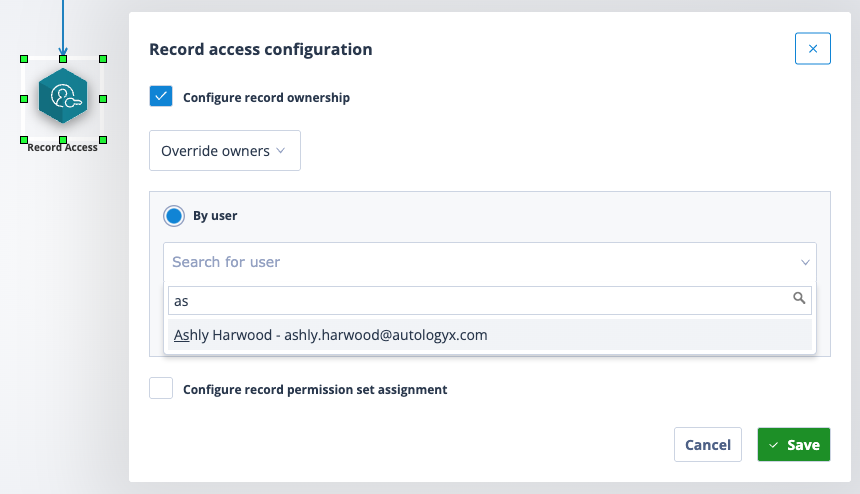
Click on the required user to select them. You can, of course, scroll through the list if you prefer. You will only be able to select one user.
By field
Tick the box and click into the Search for field drop-down.
All user type fields associated with the sequence's object class will be shown.
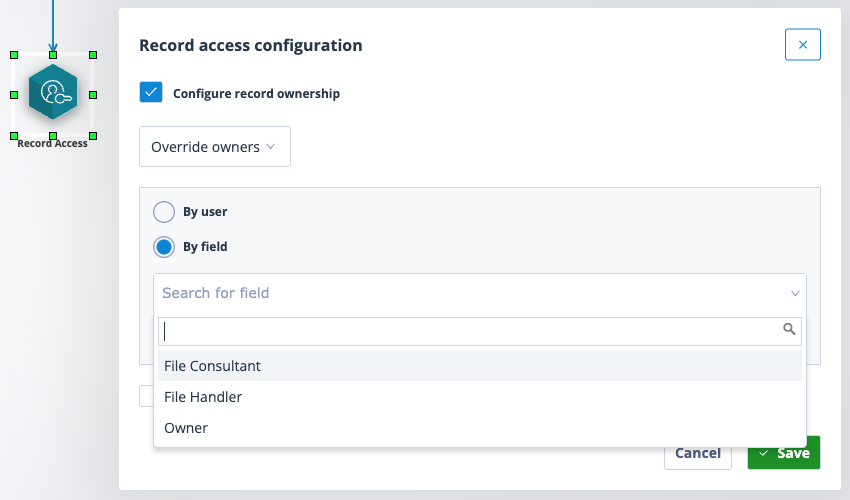
This is a single selection; only one field can be chosen. Click on it and save the configuration.
By default, only one owner can be assigned to a record. If the field selected for ownership contains more than one user for a record, the actor will complete execution but not update the ownership. This ensures that the sequencer flow continues while respecting system constraints.
Configure record permission set assignment
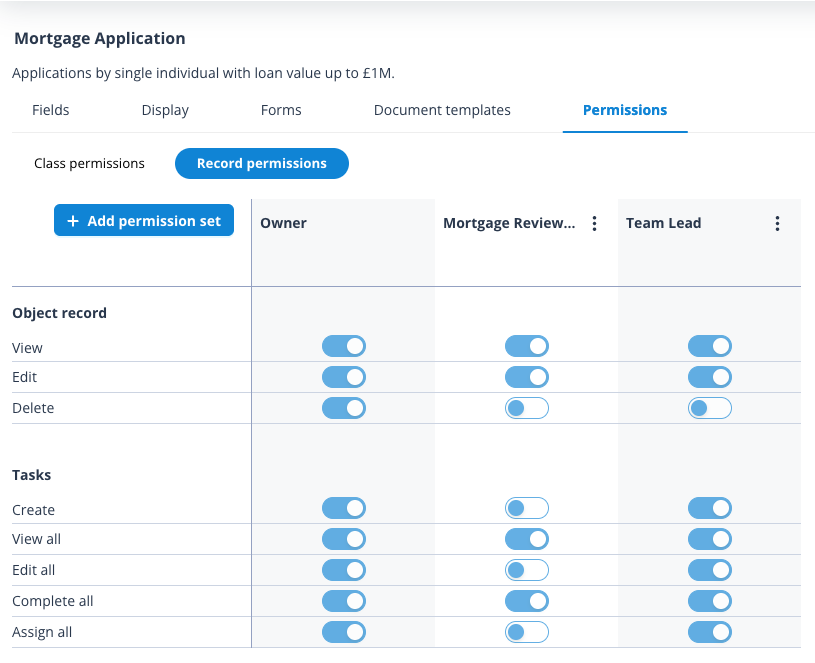
Before you can configure record permission set assignment, the sequence's object class must have at least one record permission set configured.
The screenshot below shows that two record permission sets have been configured - Mortgage Reviewer and Team Lead.
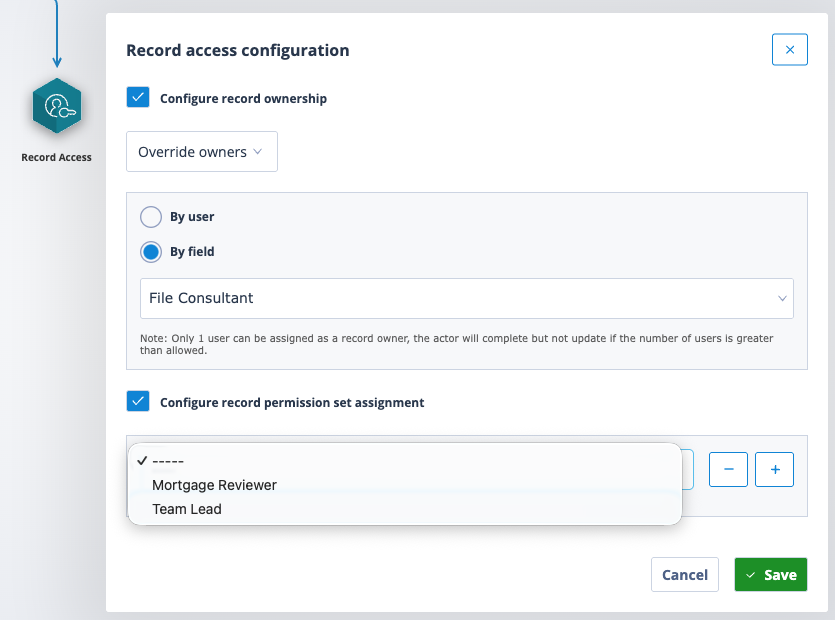
The Record Access actor can now be used to control assignment and removal of these permission sets for any records which trigger the actor, for single or multiple users.
Click into the drop-down and the available permission sets will be displayed.
Select one permission set and a further drop-down will provide 3 single-select options:
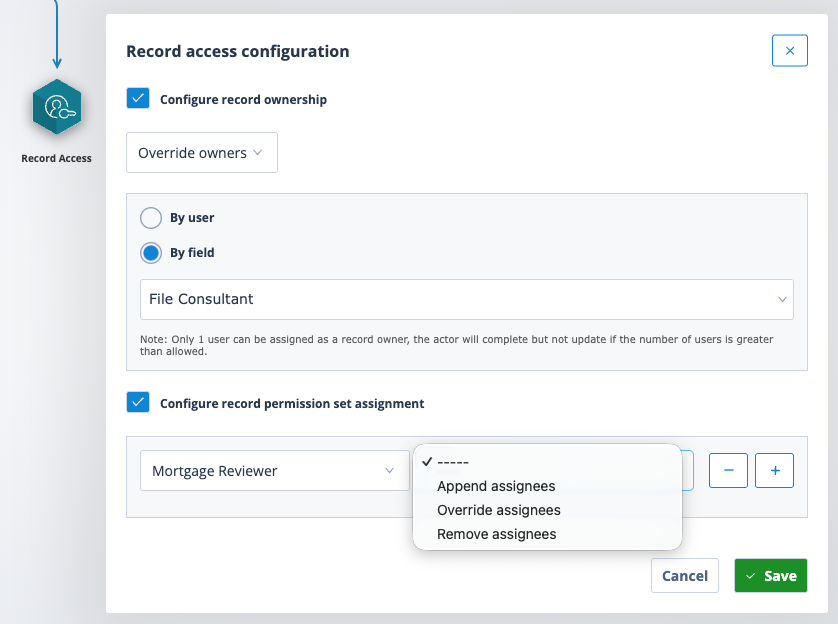
Append assignees
This option will add the selected users to the chosen record permission set. Existing assignees are preserved.
Override assignees
This option will remove existing assignees from the record permission set and replace them with the users selected here.
Remove assignees
This option will remove existing assignees from the record permission set.
Append assignees and Override assignees have the same configuration single-select options: Users, User groups and Field.
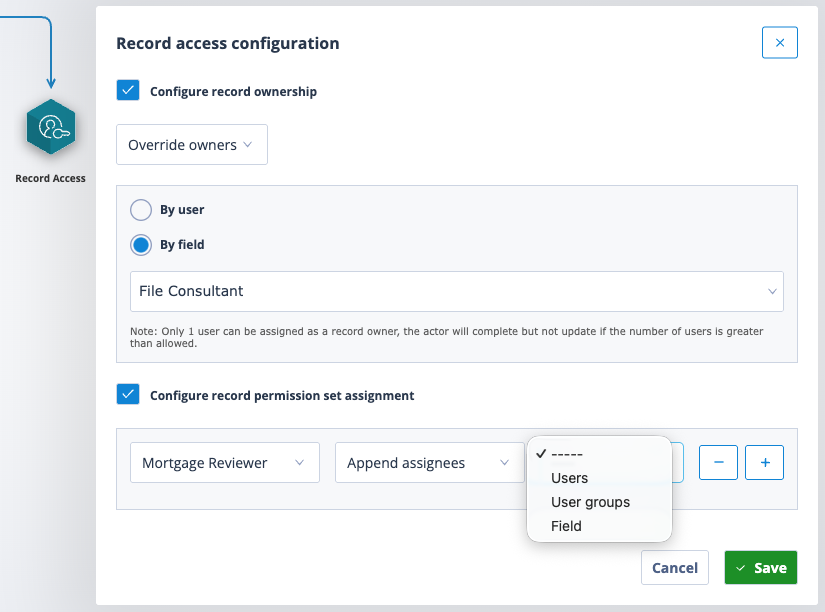
Users
Having selected Users, click into the Search for users field and start typing the name of the required user. The user list will filter accordingly.
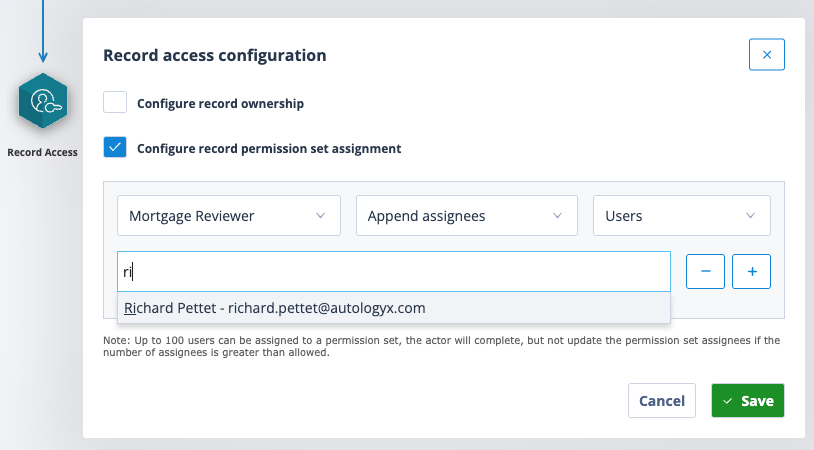
Click on the required user and either save the configuration or, if more than one assignee is appropriate, start typing again. You can, of course, scroll through the list if you prefer.
Continue selecting users and save the configuration.
User groups
Click into the Search for user groups field. All system User groups will be available for selection.
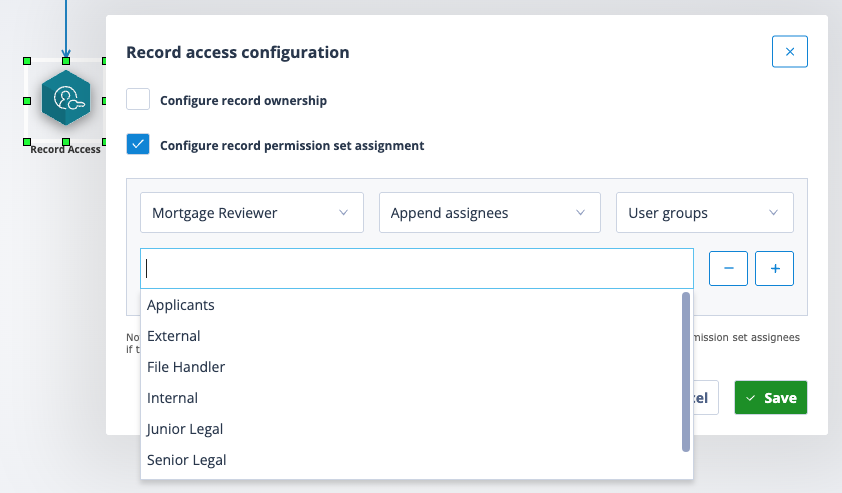
Click on each required User group to select it and save the configuration.
Field
Click into the Search for field drop-down.
All user type fields associated with the sequence's object class will be shown.
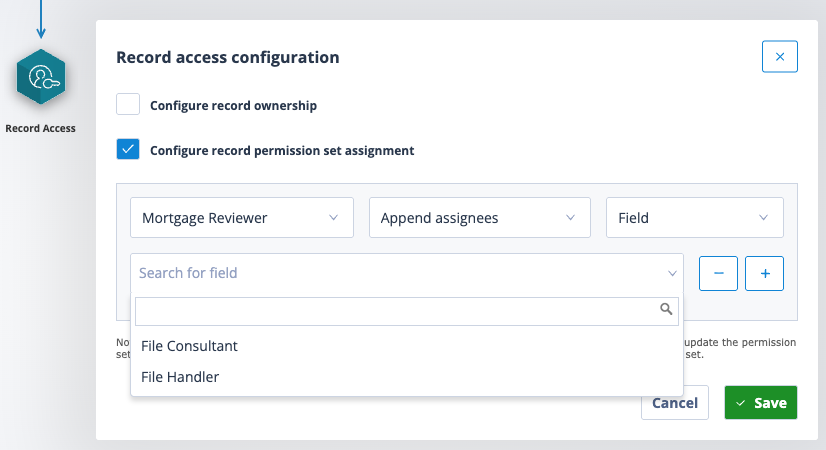
Unlike the other two options, this is a single-select field. Click on the required field name to select it and save.
Remove assignees has all of the above configuration options plus Remove all.
Remove all
Remove all will remove record access from all users other than the owner, if one is set.
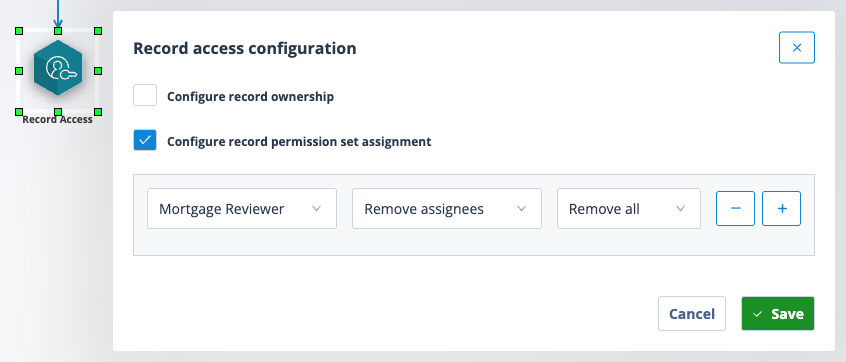
Remember: save your configuration and label the actor with something meaningful.
| Right click on the actor and select Properties. Enter the new label in the Name field and save. | Screenshot 2026-04-16 at 17.21.03.png |
| The new label will appear under the Record Access actor. If the label is too long it will be truncated but can be viewed by hovering over the name. | Screenshot 2026-04-16 at 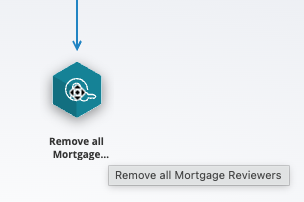 |
While you can configure multiple setups for the same permission set, each configuration must stick to a single action. For instance, you cannot simultaneously append and override assignees for the same permission set.
The Record Access actor processes these configurations sequentially from top to bottom, so the configuration shown in the screenshot below is logical and acceptable:
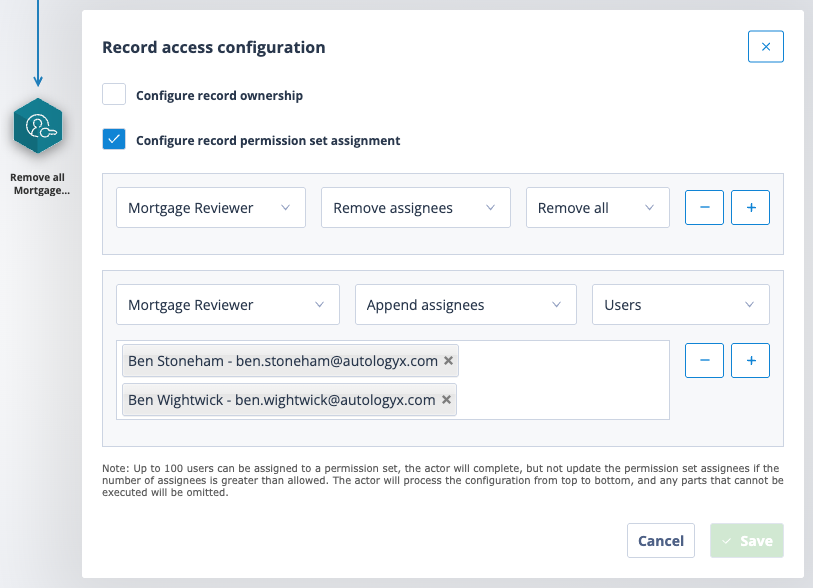
Any part of the configuration which cannot be executed, eg exceeding limits, will be completed but will not update the record or permission set.
If your sequence's object class is in a relationship with other object classes and you want to ensure that ownership and/or record assignees are the same for parent, child, grandchild, etc, you will need to do this via cascading sequences using Relation Lookup and Sequence Runner actors. In addition, you will need to configure matching record permission sets on all related object classes.
Useful info
- A record can have only one owner.
- Each record permission set can accommodate up to 100 users and 10 user groups.
- Each User group can have up to 1,000,000 users.
- One-time completion users cannot be assigned to a permission set.