Update Record Actor
What does the Update Record actor do?
The Update Record actor can be used to update one or more fields on a record at any point in your workflow. It will update any field type other than a user field.
How do I use the Update Record actor?
Drag and drop the Update Record actor onto your sequence.
Right click on the actor and select Configure.
Click into the Set Field area. All available object class fields will be displayed in alphabetical order. User fields will not be included.
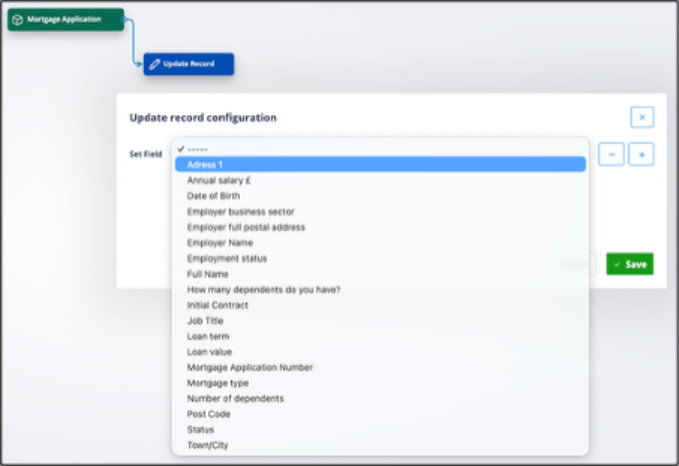
Select the field you want to update.
Choose how to set the field value
- Static value to enter data
- No value/default to blank the field or set it to Null
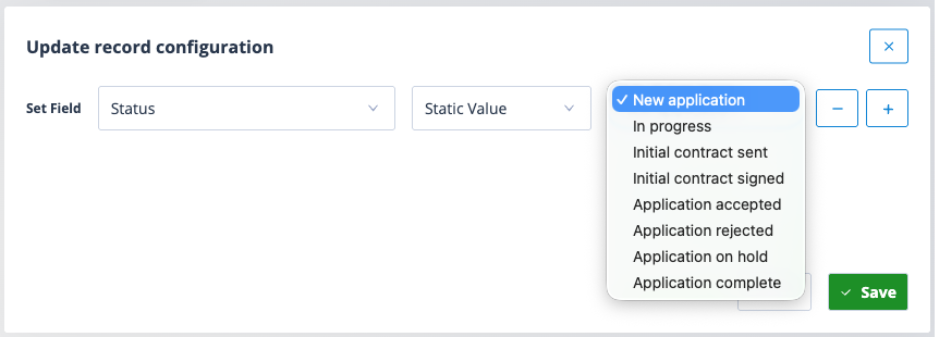
In the screenshot below, the field Status is being updated. It is a single select field. All options are shown and one can be selected.
If you want to update more than one field with the same actor, simply click the + button to reveal a new configuration row.
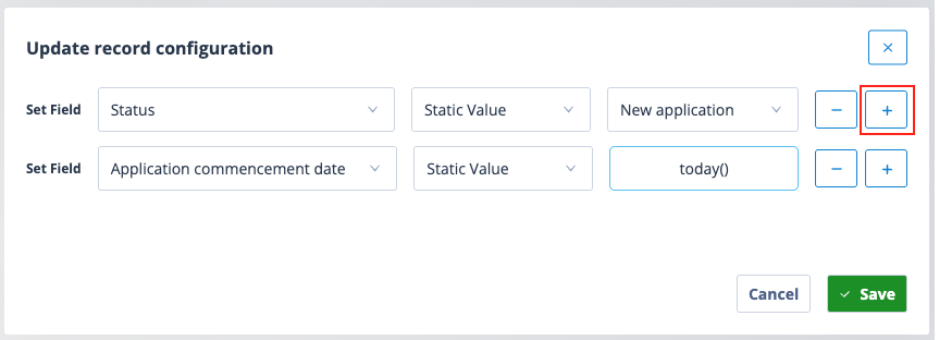
Finish configuration
Save the configuration.
It is good practice to label all actors to allow other users to gain a better understanding of what your sequence is doing. Right click on the Update record actor again and select Properties.
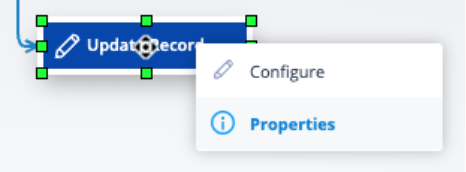
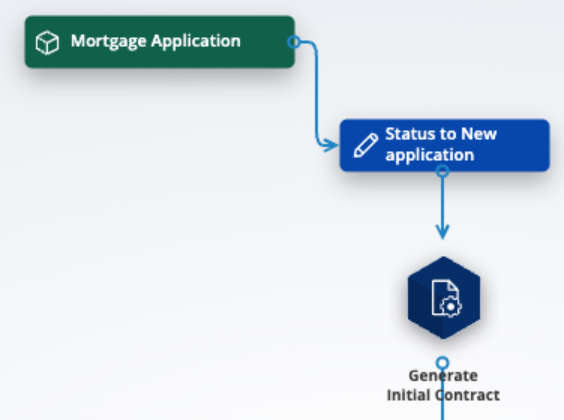
In the Name field overwrite Update Record with something to explain its use. Click Save. The new label will appear in white text on the actor.
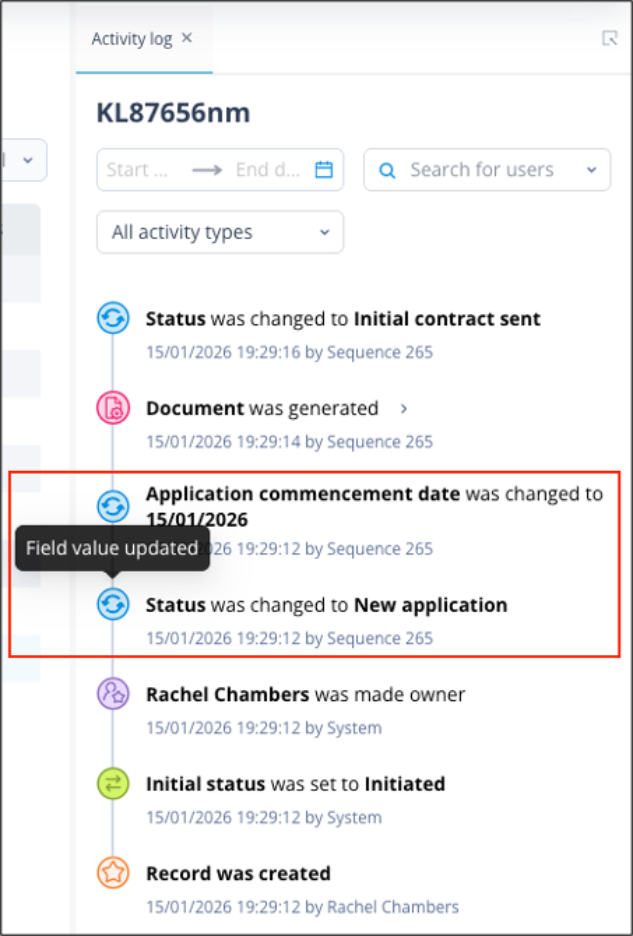
Activity log
All updates made by the Update Record actor will be recorded in the record Activity log as a "Field value updated" type. These will be date/time stamped and show the sequence ID.
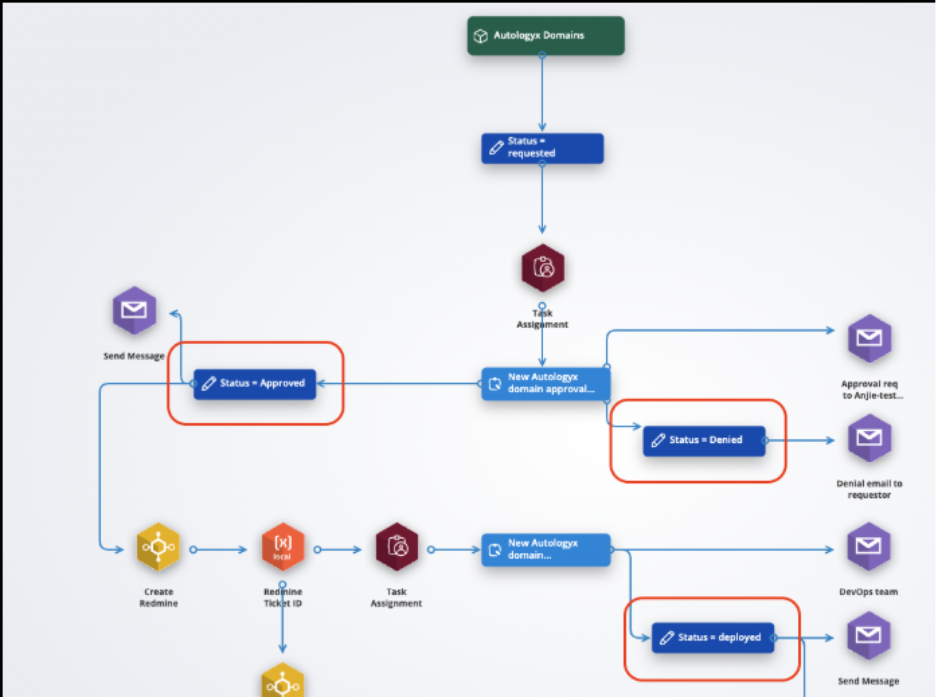
In the workflow below, you can see that a status field has been set in various stages of the process to Approved, Denied and Deployed.