
A guide to using the Relation Lookup and Sequence Runner actors together
Before you can use the Relation Lookup actor, your Catalyst system must have a relational model defined.
Find out more about the relational modeller and how to create one.
For the purpose of this article, we will use the relational model shown below:
| Employee Management is the root parent object class; it has one child object class called Employees. A record in this class can have none, one or more Employees records related to it. More than one Employee Management record can contain the same child record. | |
| Employees is the middle object class of three levels in the model. Its parent is Employee Management and its child is object class, Employment Contracts. A record in this class can have none, one or more children (Employment Contracts) related to it. More than one record can contain the same child record. | |
| Employment Contracts is the child of Employees and grandchild of Employee Management. A record in this class has no children. |
The scenario is that at some point in a sequence which is running against the Employee object class, we need to identify all Employment Contracts of the type PAYE.
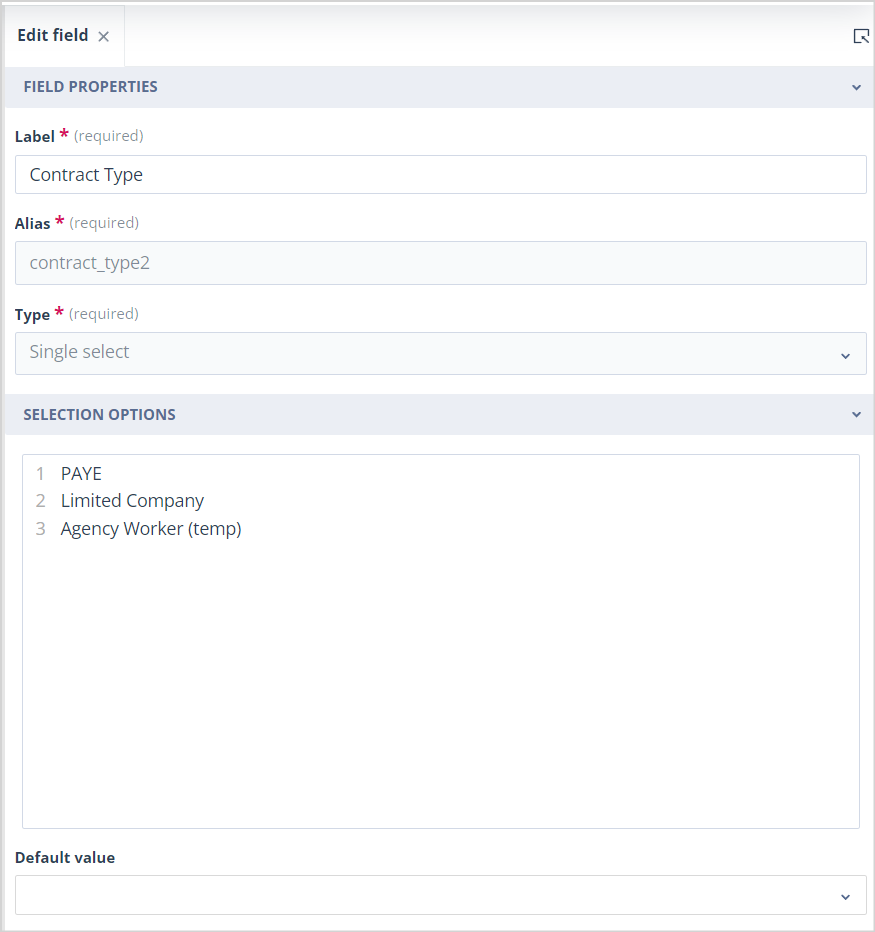
"Contract Type" is a single select field on the Employment Contracts object class. It has three options, these are: PAYE, Limited Company and Agency Worker (temp), as shown below.
We can use a Relation Lookup actor in the Employee sequence to find the required Employment Contract records.
However, as we want to assign a task for a user to review these contracts, we first need to prepare the sequence for object class Employment Contracts.
Create the Employment Contracts sequence
From the main navigation menu, click System Configuration. Then click Sequences.
In the Sequences list, click the +Create button.
Enter the sequence properties: name; a description, if required; select the Employment Objects class, and if appropriate add one or more default task assignees.
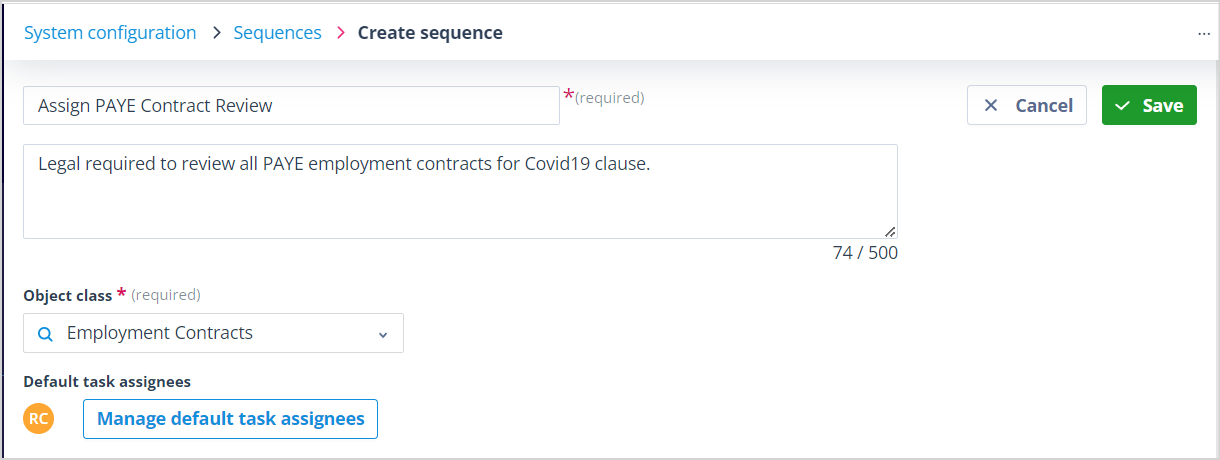
Click Save. Your sequence will appear at the top of the sequences list. It will be paused by default.

Either double click on the row for your newly added sequence or, in the Actions menu, select Edit design.
The sequence canvas will be blank other than the Employee Contracts object class being shown at the top:
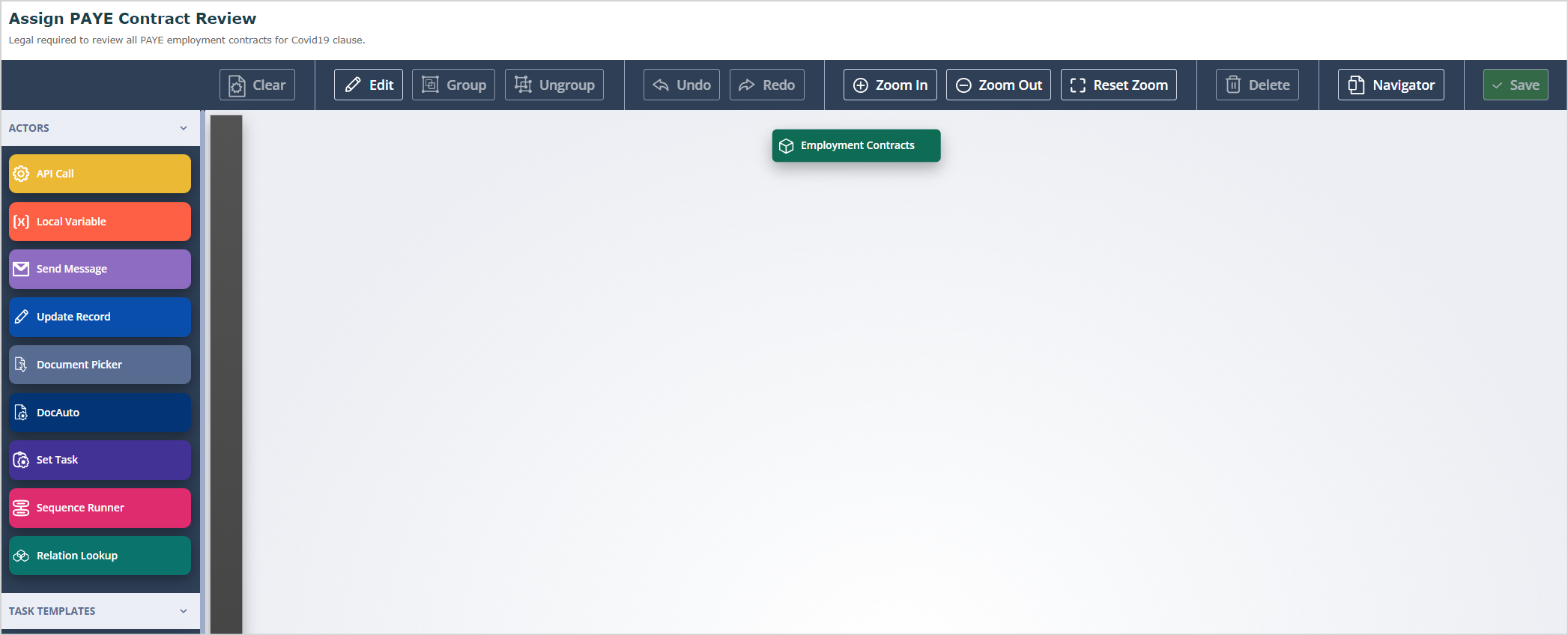
Click Edit in the horizontal menu at the top of the sequence.
Select the Create task actor from the left-hand menu and drop it onto the canvas; right click on it, select configure and select the required task template; save.
Drag a trigger connector from Employment Contracts to the task actor. The Trigger configuration will open.
In the second field from the left, select "Sequence Activated".
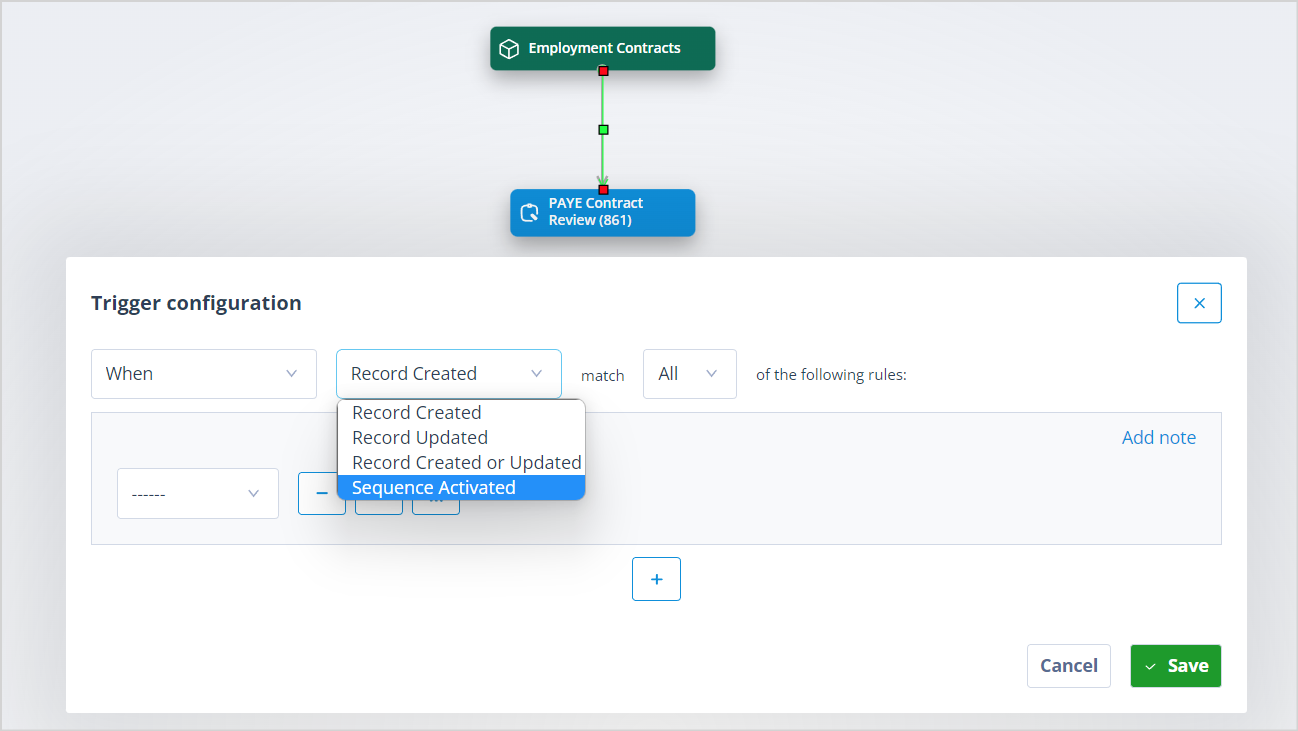
This means that when we activate this sequence from the Employees sequence via the Sequence Runner actor, the selected task will be created for all Employment Contracts records which match the conditions we configure in the Relation Lookup actor.
Click Save in the trigger configuration dialog box, then click Save in the vertical menu at the top of the sequence.
When you see the "Sequence saved successfully" confirmation, you can click OK and navigate away from the sequence.
Configure the Employees sequence
Go back to the sequences list and double click to open the Employees sequence in which you want to perform the lookup to the Employment Contracts object records.
Click Edit.
Drag and drop a Relation Lookup actor onto the canvas. Drag a trigger connector from the sequence object you wish to connect it from.
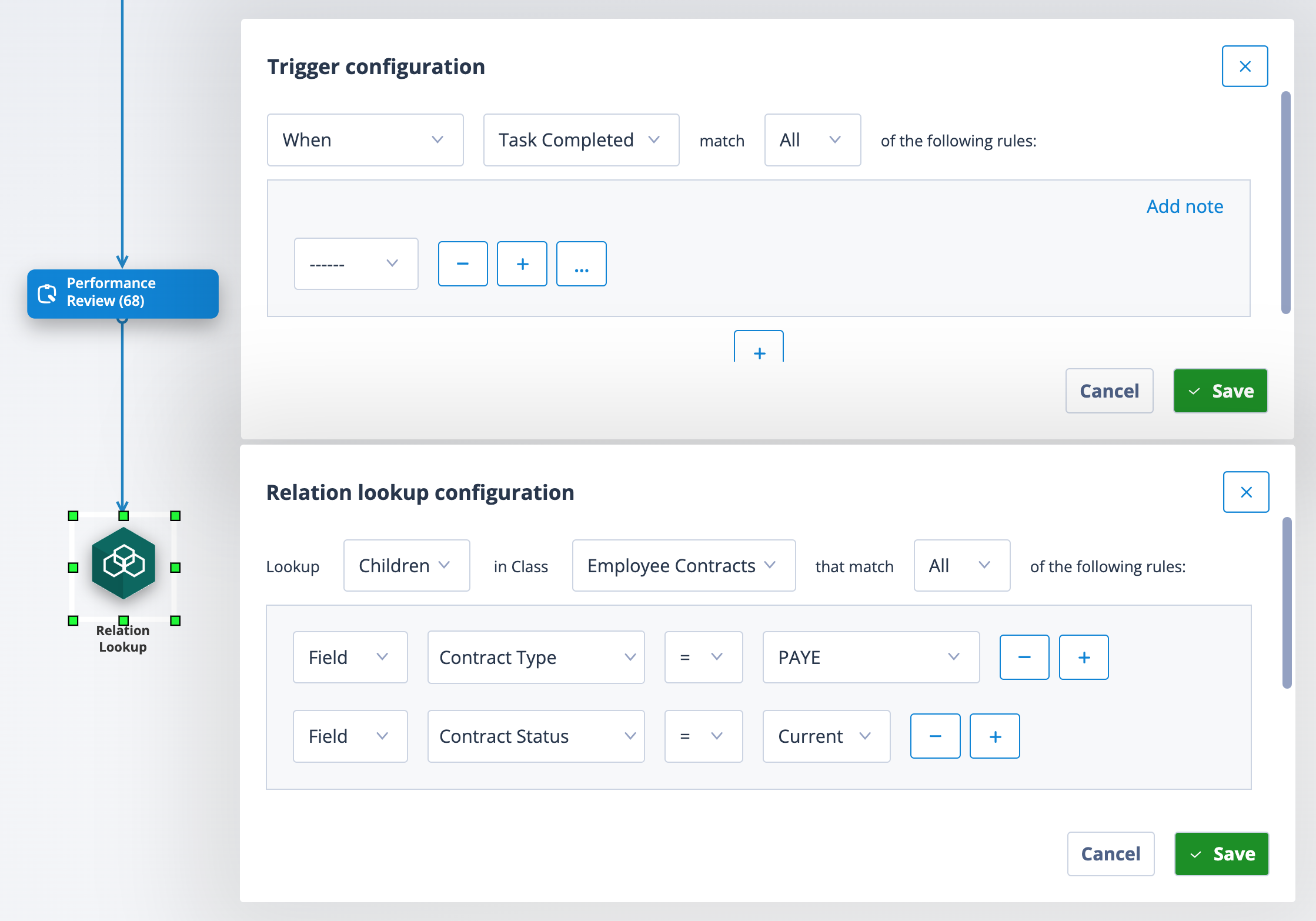
In this case, it is being triggered on completion of a task called "Performance Review".
Right click on the Relation Lookup actor and select Configure.
The Relation lookup configuration dialog box will open. Here you have the option to lookup Children or Parent records.
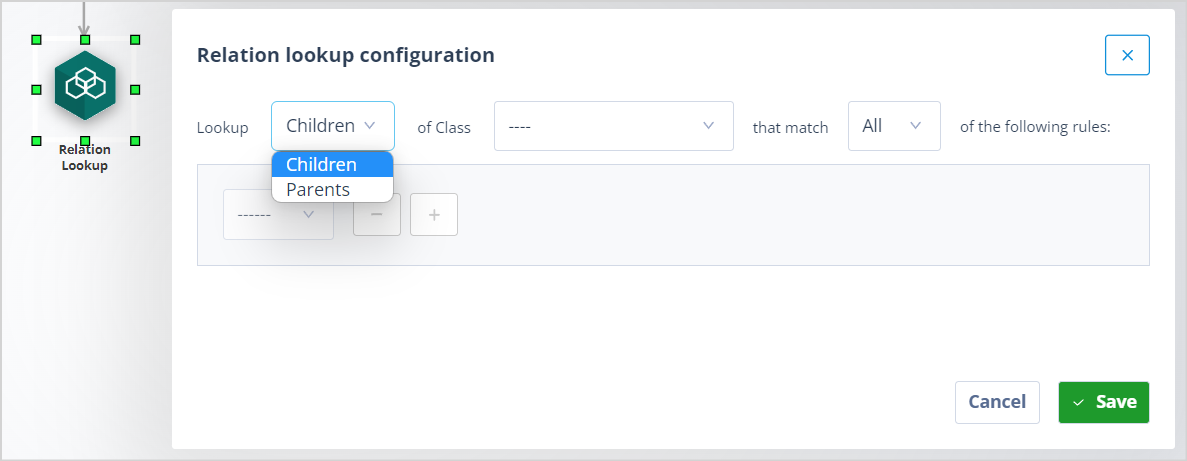
In this case we are only interested in the children records - Employment Contracts. Having selected this object class, the supplementary conditions we require are:
- Field Contract Type = PAYE, AND
- Field Contract Status = Current
The latter condition will ensure that we are not looking for old or archived Employee Contracts records.
Save the configuration.
Add and configure the Sequence Runner
Next, drag and drop a Sequence Runner actor onto the canvas and take a trigger from the Relation Lookup object to the Sequence Runner.
To prevent unnecessary processing, the trigger can reference matched records. You should set this at greater than 0 unless you for instance want the sequence to run where there are 3 matching child records or some other matching condition.
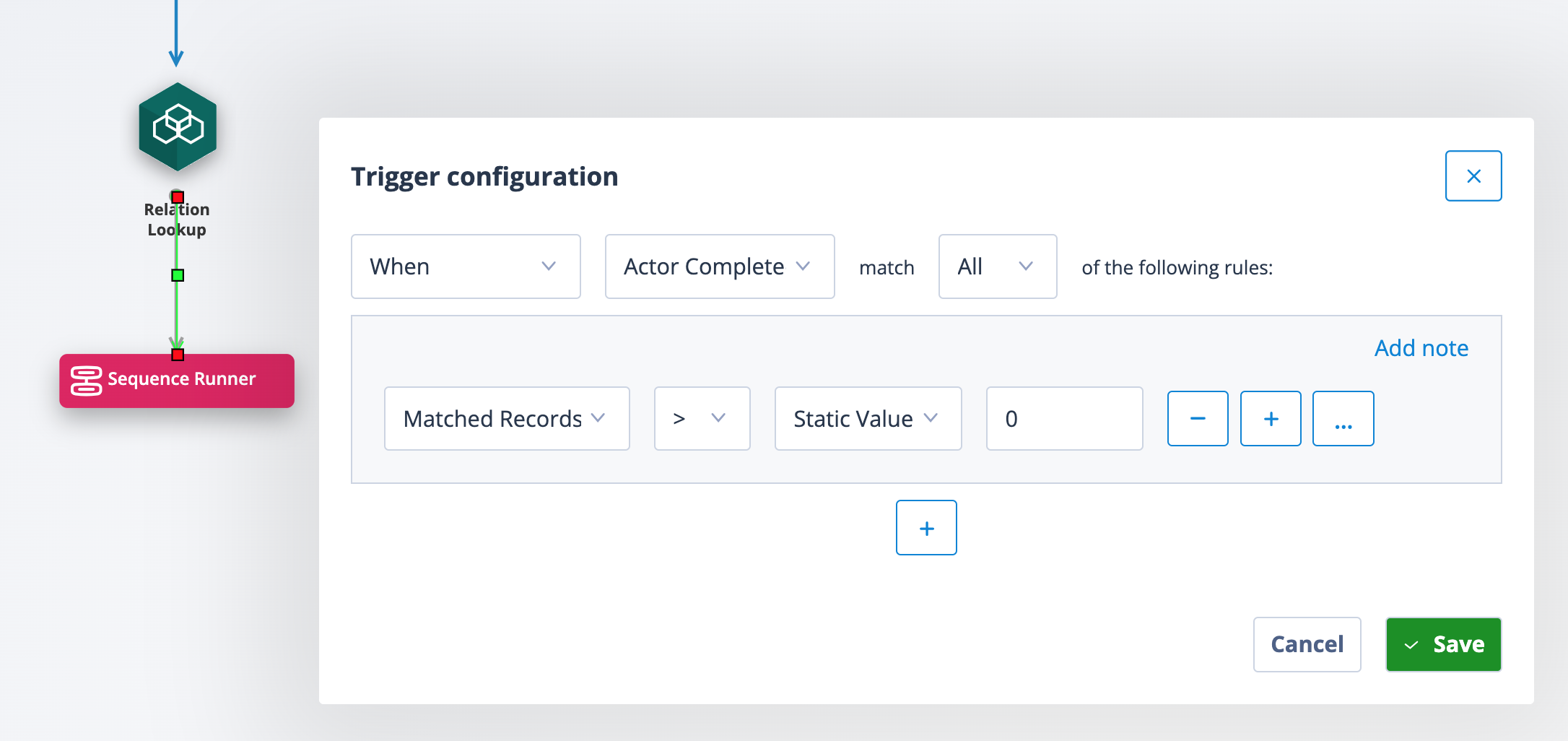
In this example, the sequence will continue only if the number of found matched records is greater than zero.
We have to remember that our relational model allows for:
- No children
- 1 child
- Multiple children
In this specific relational model it is most likely that one of the first two possibilities will be found:
- No children found because the current contract for an Employee is not of type PAYE
- 1 child found because there is a current contract of that type
So, having stipulated that matched records must be greater than zero will mean that the sequence will not continue to the Sequence runner and activate the PAYE Contract Review where there is no contract of this type.
Next, right click on the Sequence Runner object and select Configure.
The Sequence runner configuration dialog box will open.
There are two fields:
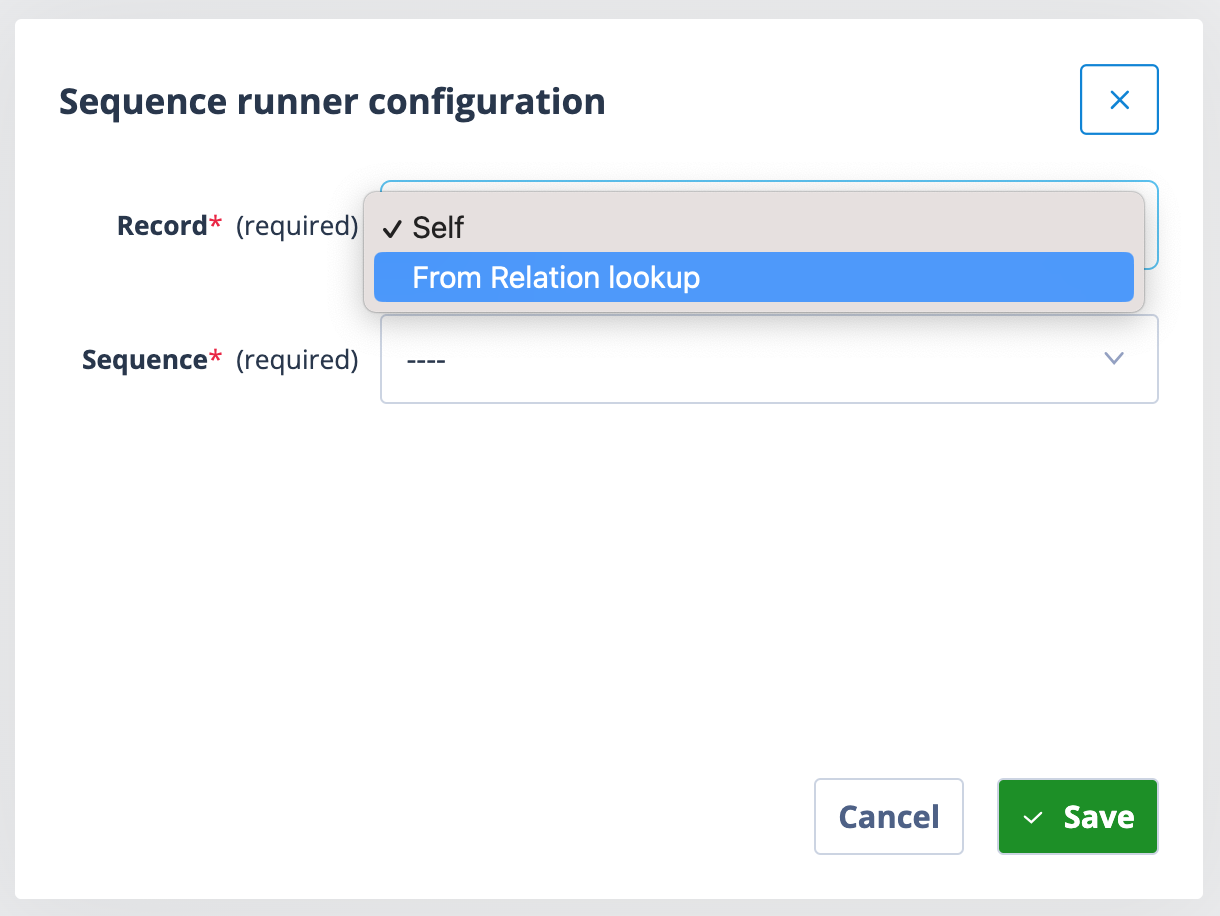
Record: here you have a choice of Self or From Relation lookup.
Self - is chosen when you want to use the Sequence runner to activate a sequence for the object class in which this actor is being configured. Details about this use case can be found in a later article.
From Relation lookup - this is used when the Sequence Runner actor is connected from a Relation Lookup actor, as in this scenario.
Sequence: the choices in this field are determined by the selection made in the Record field. The choices will be the names of sequences with a starting trigger of "When sequence activated" and which relate to either the current sequence (self) or the parent or child object class configured in the Relation Lookup actor.
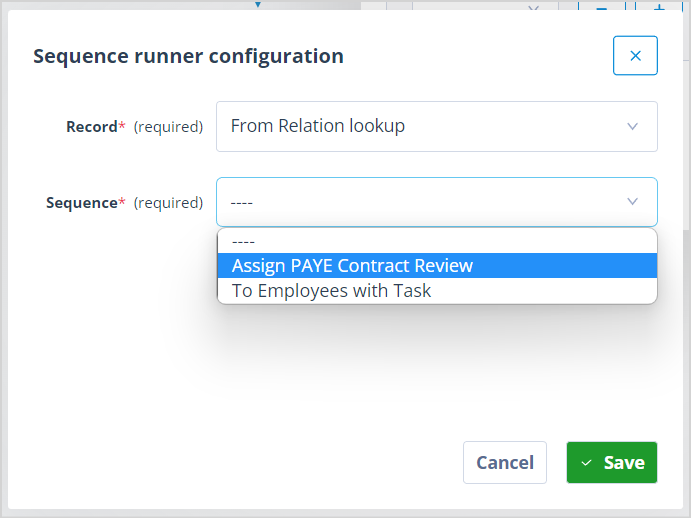
Click Save on the dialog box and Save on the sequence itself.
Resume both sequences
In order to ensure that your sequences can run as you want them to, you must go to the Actions menu for each one and select Resume.
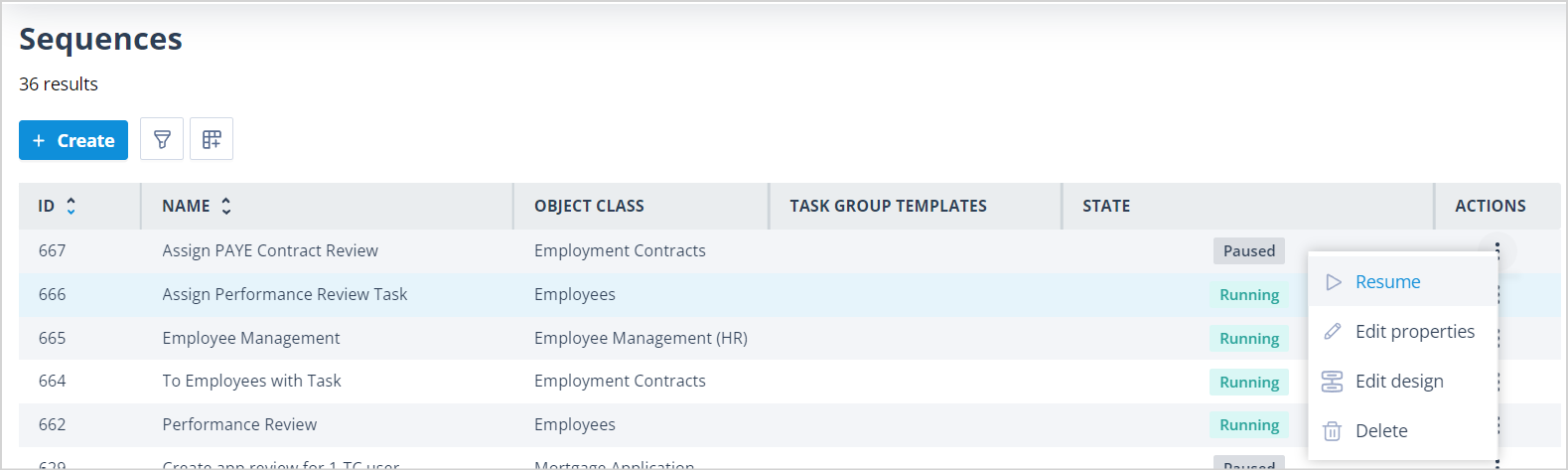
The sequence State will change to Running, as below.

Example outcome
We can see this process working by starting with an Employees record which has the Performance Review task already assigned.
Record ID 1697, Sid Vicious is one such Employee record.
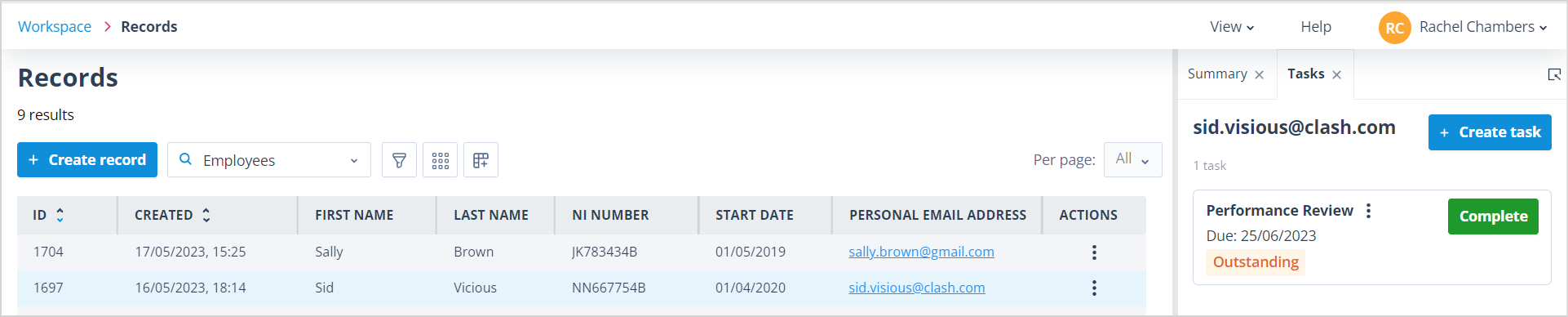
Having checked the Employment Contracts records, we can see that he has a PAYE type contract, and there are no tasks assigned against the Employee Contract record.
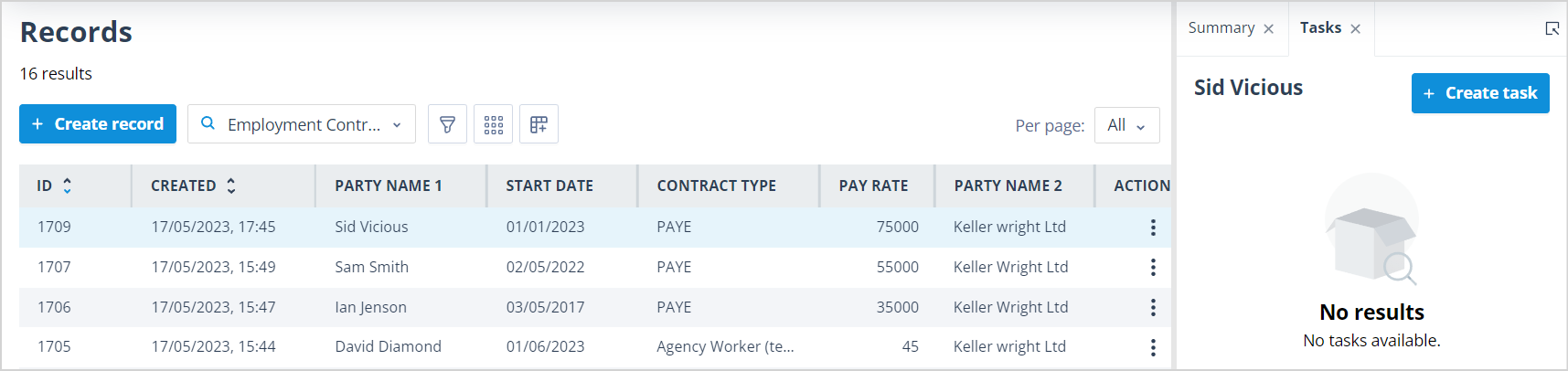
If we complete the Performance Review task against Sid Vicious' Employee record:

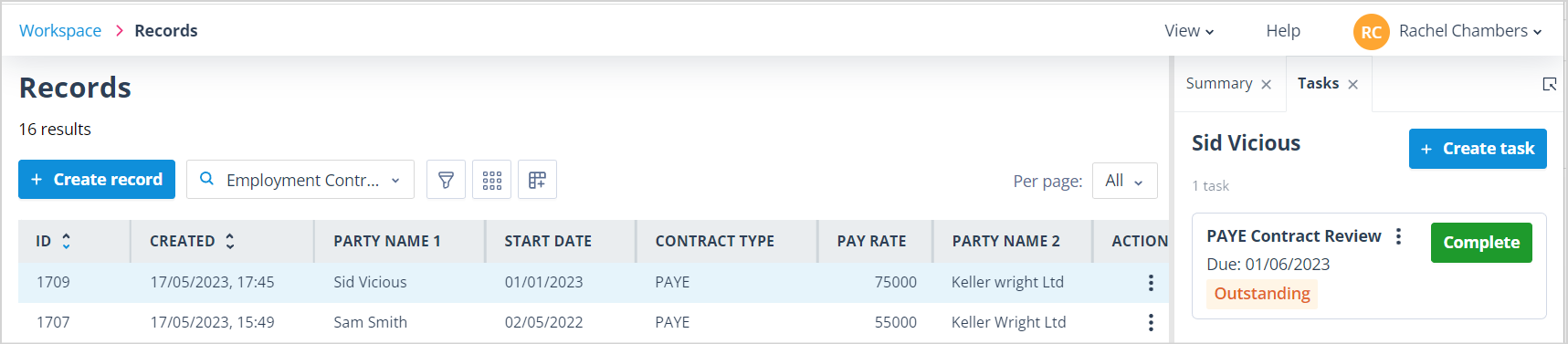
and check his Employee Contract record, we will see that the PAYE Contract Review task has been assigned:
View an article which explains how you can use the sequence runner for one object class.