
Adding conditions for Sequence commencement
The methods for activating a sequence are described HERE.
However, in many instances you will want to add extra conditions so that the workflow is applied only to relevant Records, in other words a subset of the Object class.
After you have established the appropriate starting condition, open the dropdown on the second line of the trigger configuration:
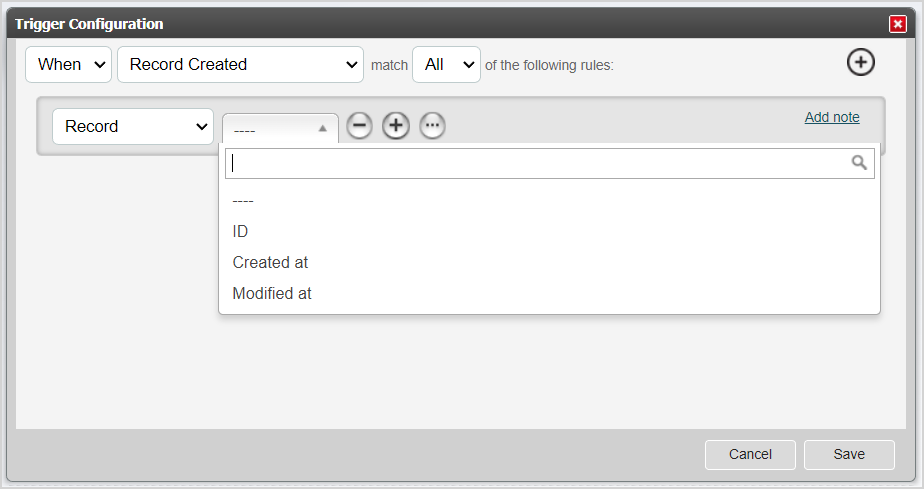
There are 7 options. These are easier to understand if you look at the available options in the next field once you have selected one of them.
RECORD
For instance, RECORD has the following 3 options:
ID - this relates to the Record ID number applied on creation of the Record. The operators in the following dropdown allow you to add conditions such as:
Record ID > (is greater than) 789
Record ID = 151
Created at - this relates to the date/time stamp applied to the Record on creation. The operators allow you to add a condition such as:
Record Created at (date/time) < (is less than) 14/08/2022 00:00
Modified at - this relates to the date/time the Record was last updated.
FIELD
FIELD gives you access to all the Object class fields. After you have searched for and selected one, in this case Employment status which is a single-select field, you can then select = or != (not equal to) a value.
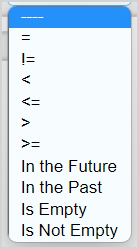
So the following trigger condition will only activate the next item in the Sequence when a Record is created and the value in the Employment status field is "Employed - full-time".
The operators will change for different field types, and depending on your configuration another field will be displayed for you to select or enter a value:
| Text field | mceclip6.png |
| Decimal and Integer field | mceclip7.png |
| Date field | mceclip8.png |
TASK
TASK - this option allows you to set a value for a specific attribute of a Task. Start typing the Task name into the search bar at the top of the selection to easily find the required one.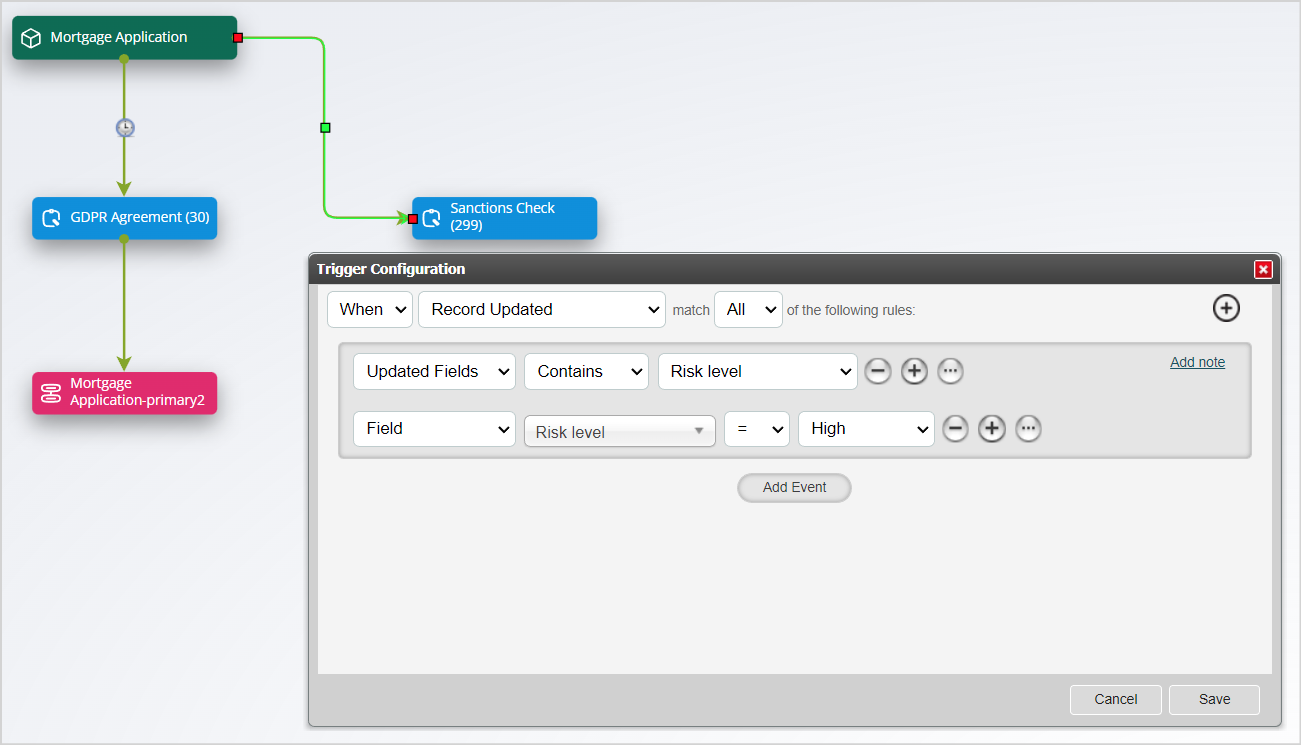
The available attributes are:
- Created - relating to whether this Task has been created for the Record
- Creation Date - relating to the date the Task was created for the Record
- Completed - relating to whether the Task has been completed for the Record
- Completion Date - relating to the date the Task was completed for the Record
- Expiry Date - relating to the date the Task is due to expire for the Record
- Status - relating to the current status of the Task for this Record eg Not created, Outstanding, Overdue or Completed
TASK GROUP
TASK GROUP - this option allows you to set a value for the State of a Task Group. Start typing the Task group template name into the search bar at the top of the selection to easily find the required one. Available States are Not assigned, Not started, In progress and Completed.
VARIABLE
VARIABLE allows you to reference data in the Variables on your Sequence, like the below:
The operators will vary depending on the type chosen in the Variable configuration.
UPDATED FIELDS and PREVIOUS FIELD VALUE
The final two options are often used together:
- UPDATED FIELDS
- PREVIOUS FIELD VALUE
Both give access to the Object class fields so that you can reference which field or fields have been updated and what the current value of the field is. In the below example, the Sequence will create the Sanctions Check Task when a Record is updated AND
- the updated field is Risk level AND
- the field Risk level is equal to the value High
You can make use of many of these additional trigger conditions anywhere in your Sequence so that, based on field data, the response to a Task which has already been completed, or the State of a Task, you can create different routes for subsets of Records.