
Creating a Sequence
Prerequisites
In order to create a Sequence you must have the following:
- A Super admin account, or a Role where the system permission under the Sequencer tab has been enabled for Create and you are an Owner of the Object class
- The Object class configured for which you are to Create the Sequence
In addition, it would be useful to have the User or Users set up who are to be the default task assignees. However, you can return later to Edit the Sequence properties and add or amend these.
Create a Sequence
Sequences can be created from the Sequences list. Click the + Create button and the page will display as below:

Complete the required fields
Sequence Name is a required field, with a character limit of 100, in which a unique value must be entered. You will see the non-unique name error if you try to use a name which already exists.
Description is optional. Here you can add internal notes about the sequence eg to describe in what instance it is used, what process or sub-process it contains, etc. This can be useful information for Users who have access to Edit the Sequence but who were not responsible for creating it. You'll note that this field has a character limit of 500.
The Object class field is mandatory. If you click into it and do not make a selection, the Field is required error will be shown.
It is a searchable select field in which you will be able to choose one Object class.* The Sequence will run against Records in this Object class when the starting conditions have been met and the Sequence status is running.
Add default task assignees
Default task assignees can be selected and will be used every time a Task is created by the sequence.
| When the Manage default task assignees button is clicked, the Manage default task assignees panel will open in the right of the screen. You will note that the Default task assignees counter is on zero. | 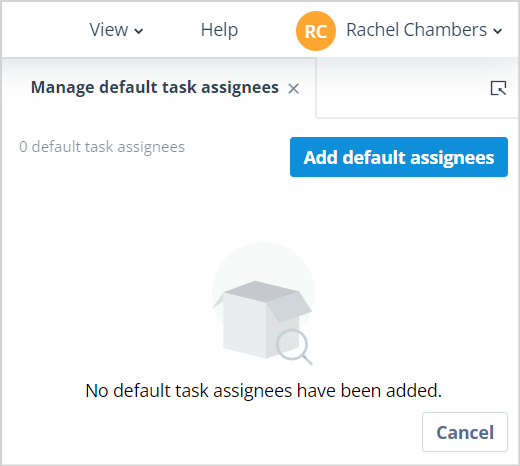 |
| Click Add default assignees, a search field will be presented. Start typing the first or last name of the first assignee; the list will filter to the matching Users. You can also search by email address as this too is a mandatory field when creating Users. | 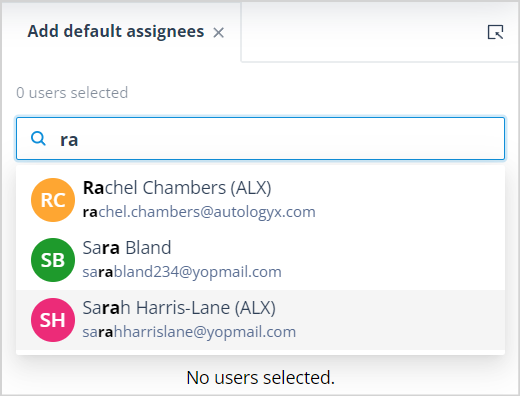 |
| Click on the User tile to select them and then click Add. Continue adding Users until all those required have been selected. Users already selected will be greyed out, unavailable for selection and the Already added label will appear alongside their email address. | 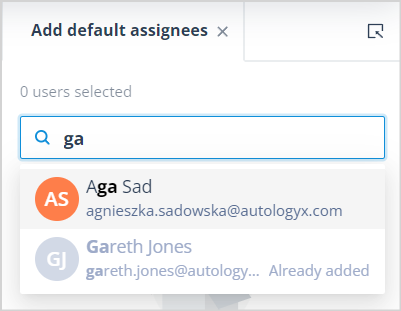 |
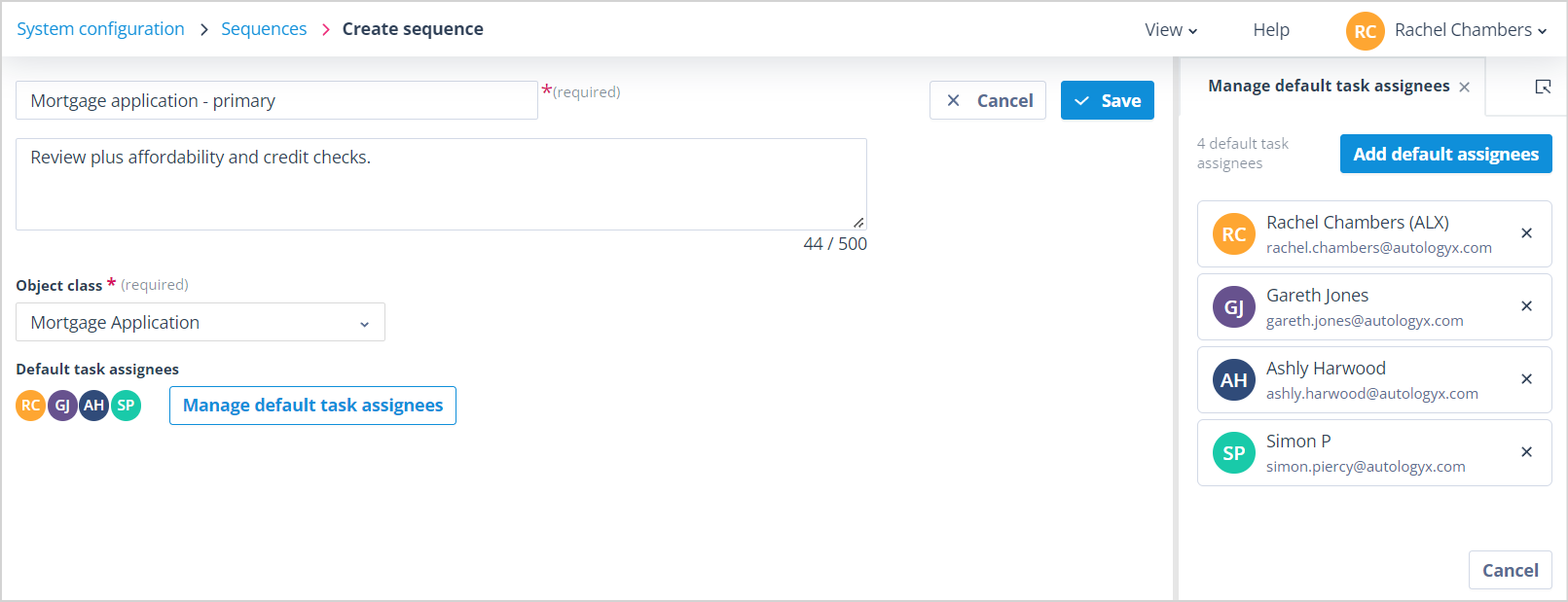
You will note that the panel now displays the number of Default task assignees and the Avatars of those Users can be seen in the main content area to the left of the Manage default task assignees button.
A User can be removed from the list by clicking the X in his/her tile and the Default task assignees counter will decrement.
Save the Sequence
| The Cancel button, in the top right hand side, will allow the User to abort the creation of the Sequence. If clicked, the usual Unsaved changes will be lost warning modal will be displayed. If you confirm Yes, you will be taken back to the Sequences list. If you select x No, go back the create page will remain open so that you can continue. | 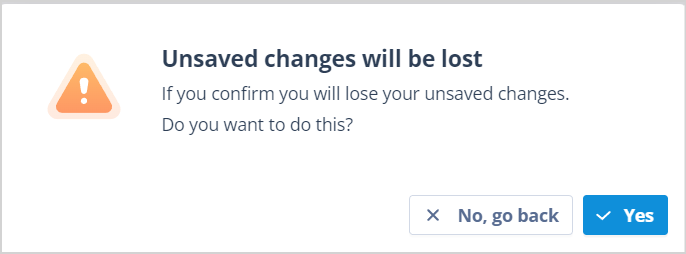 You will also see this warning if you navigate away from the page. You will also see this warning if you navigate away from the page. |
Save will be disabled until all mandatory fields have been populated.
When Save is enabled and clicked the green success toast fly in will be displayed. You will be taken to the the Sequences list. Unless you have applied filtering or sorting to your Sequences list the newly created Sequence will appear at the top of the list. It will be in a Paused state.
| The Actions menu for your Sequence will now contain 3 options. Please see related articles for information on: - Edit properties - Edit design | 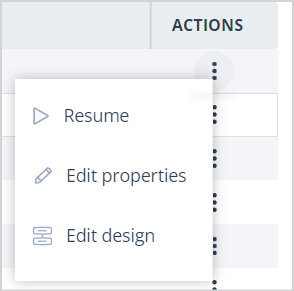 |
Useful info
- *Super admin Users will have access to all Object classes while Users with a Standard account type and Role permissions which allow them to Create Sequences will only be able to select Object classes for which they are an Owner. If they are not the Owner of any Object class, the below error message will be displayed and the Object class field will be disabled as will the Save button:
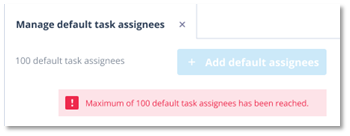
| 2. The maximum number of Default task assignees that can be selected is 100. If you reach this number an error message will inform you and the Add default assignees button will be disabled. | |
- The maximum number of Sequences you can create is 1,000. If this number is reached the Create button will be disabled.