
Navigation and Menus
When you go into the Edit design option of the Sequence Actions menu for the first time, you will be presented with a blank workflow. Before you start building your Sequence, it is useful to familiarise yourself with the navigation and menus.
Sequence-specific menu
On the left-hand side, you'll find the Sequence-specific menu. This consists of the following sections:
Actors
There are 4 Actors:
| mceclip0.png | API call - this actor allows us to integrate with third party systems. It is used to send and receive data. In ALX we also use API calls to copy data from one Object class to another. In order for ALX to send data to a third party system it must have the required endpoints and authentication model to allow the autologyx system to consume them. This will allow data to be passed between the systems. |
| mceclip1.png | Local variable -variables are used to store information to be referenced and utilised in the ALX platform. This can be for: - Storing static values like a URL that can be populated into a target field - Merging data into messages and document templates - Extracting data from an API call with a JSON payload return |
| mceclip2.png | Send message - here you can configure a bespoke email to be sent to one or more recipients. These are useful throughout the workflow in order to keep everyone updated. |
| mceclip3.png | Update record - used to update Object record fields to certain values. The value can be extracted from a variable on the Sequence. |
Actors can be clicked on and dragged onto the workflow area of the Sequence when you need them. When you right-click on the Actor, you will be able to configure it as required.
Sequences
If there are any Sequences which have been configured for the same Object class and which have the starting condition When Sequence activated, their Names will appear here. Again, you simply need to click and drag onto the workflow and connect when required.
Task templates
These will be Task templates which have the Task creation mechanism set to Automatic. Task templates of the Task type Update object records will be filtered to those where your Sequence Object class was selected in the template.
Task group templates
Again, these will be filtered only to the relevant Object class if they contain Task group templates of the Update object records type. Task group templates which are not limited in this way will appear in the menu of Sequences for all Object classes.
Horizontal action menu
The horizontal menu across the top contains the following action buttons.
It is worth spending a little time getting to know the menu functions before you start building your Sequence.
Clear
Only enabled when, in Edit mode, you have made changes to the Sequence. This will clear all the changes since the Sequence was last saved. You will be presented with a confirmation modal as shown:
| If you select OK the changes made since the last Save will be removed. If you select Cancel the modal will close and changes will persist. | mceclip4.png |
Edit
When you select Edit design in the Actions menu of a Sequence, you are taken to the design screen. However, the Sequence will be in Save mode. In order to make changes, you must click Edit to be taken into Edit mode. When a change has been made, the Save button will become enabled.
Group/Ungroup
This feature allows you to click on the workflow and drag your cursor over several objects, thereby selecting them, as shown on the left. Click Group and you will be presented with a modal in which to Name the Group, as shown on the right:
| mceclip5.png | mceclip6.png If you select OK the objects will be grouped as shown below. If you select Cancel the grouping modal will close and no changes will be made. |
Click Ungroup to remove the grouping. Grouping is useful from a UI perspective in that you can put your Workflow into subject-specific sections which are easier to follow. It also allows you to create a number of Tasks at one time without having to put them in a Task template.
Undo/Redo
This feature allows you to undo or redo the changes made since the last Save.
Zoom In/Zoom Out
To decrease/increase the size of the workflow space by making the placed objects increase/decrease in size.
Reset Zoom
This will return the frame size back to the default.
Delete
This button is disabled until an object is selected. Click Delete to remove the selected object from the Sequence workflow.
Navigator
This tool is particularly useful when you have a very long or very wide workflow on the Sequence. Click Navigator and an “Outline” modal appears on the top right-hand side of the workspace. Click, drag and drop the blue outline into the position on the Sequence you wish to view/work on. Click Zoom Actual to return to the default layout.
Save
This button is disabled until a change is made when the User switches to Edit mode.
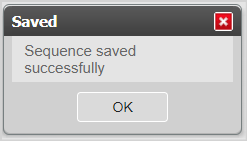
| When a Sequence is successfully saved the Saved modal will display. You must click OK before you can enter Edit mode again and make further changes. | mceclip8.png |