
How do I create a task group template?
Prerequisites
In order to create a Task group template you must have one of the following:
- A Super admin account
- Be the Owner of an Object class
- A Role where the system permissions under the Task configuration tab for Task Group Templates have been enabled for create and a Permission set which allows you to View the Object class
And:
- The Object class(es) configured for which you are to create the Task group template
- The Tasks configured which you will add to the Task group template
Create a task group template
Task group templates can be created from the Task group template list. Click the + Create button and the page will display as below:
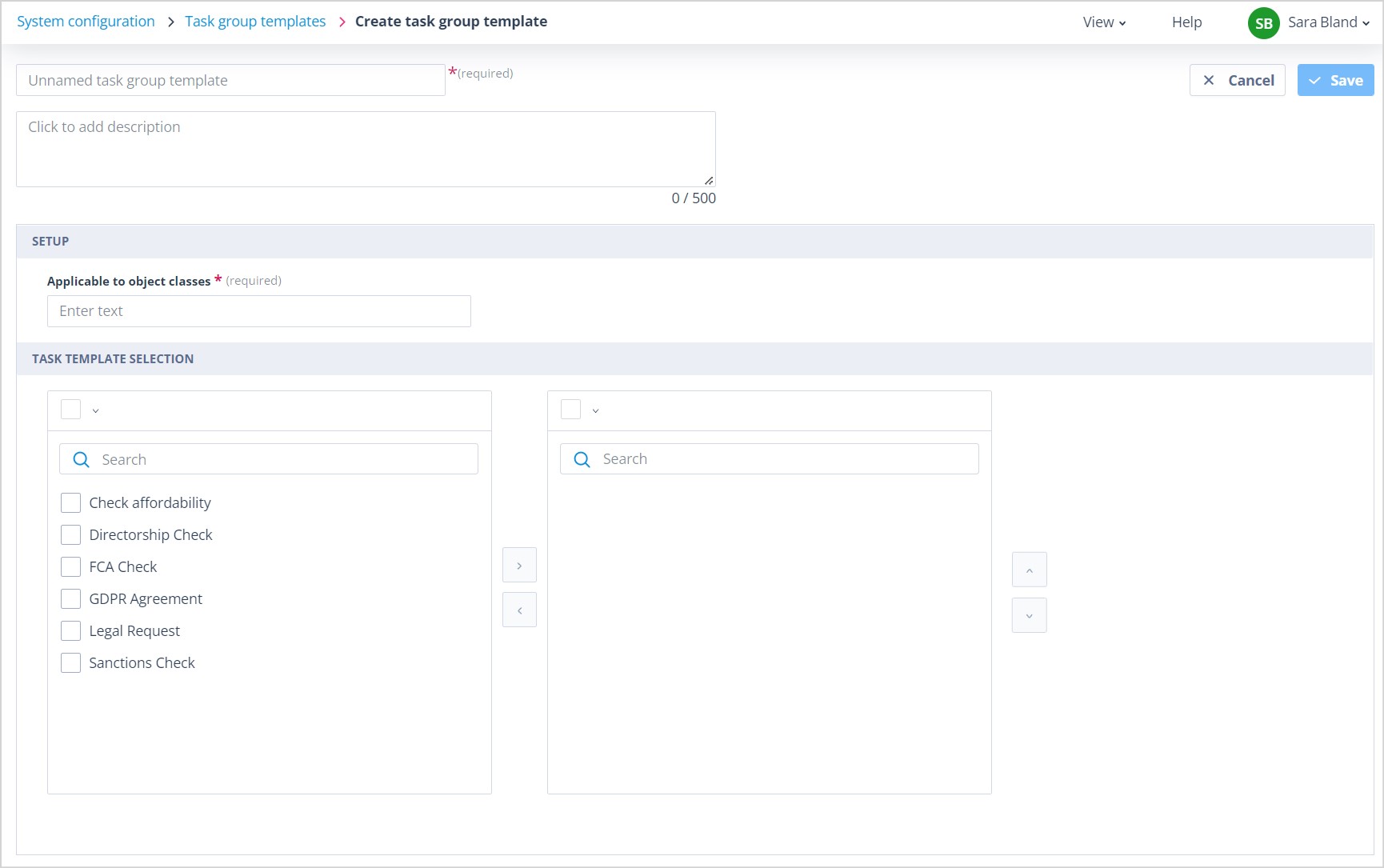
Complete the basic details
The Task group template must be given a Name as this is a mandatory field. The name must be unique.
Next is the optional Description field. Here you can add internal notes about the Task group template, for example to describe in what instance it is used to create Tasks.
Select the applicable object class
The user must then select the Object class(es) for which this template can be used.
Applicable to object classes is a searchable multi-select field. When no Object class has been chosen, all Task templates of the Update object records type are filtered out of the Task template selection field. The same thing will happen if more than one Object class is selected.
If you intend to include a Task of the Update object records type, you should select only the Object class to which the fields in this task belong. In this instance, once the Object class has been selected, Task templates of the Update object records type for any other Object class will not be available for selection and you will not be able to add another Object class when you have selected a Task template of this type. At least one Object class must be selected as this is a mandatory field.
Select task templates
The Task templates available will be filtered only to those for which the Task creation mechanism is Automatic. One or multiple Task templates can be added by selecting them and then using the left to right arrow. However, bear in mind that if you are creating the Task group template for more than one Object class, you will not be able to include Task templates of the Update records type.
If you are in the process of configuring the Task group template for one specific Object class and you have included tasks of the Update object records type, then remove the Object class, the Update object record type tasks will be removed automatically.
Save the template
Having selected the required Task templates, click Save. The Save button will only be enabled when all mandatory fields have been populated.
Unless you have applied filtering or sorting to your Task group template list, the newly created template will appear at the top of the list.
On Save, the green success toast message will appear on-screen to confirm.
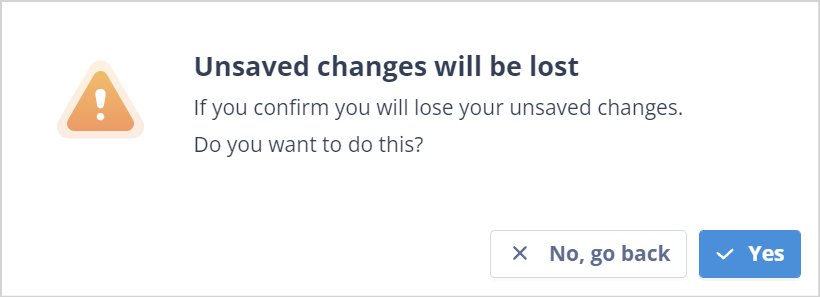
| Next to the Save button in the top right hand corner is the Cancel button. This can be used to abort the creation of the template. The Unsaved changes will be lost warning will be displayed. If you confirm Yes, you will be taken back to the Task group template list. If you select x No, go back the create page will remain open so that you can continue. | mceclip0.png You will also see this warning if you navigate away from the page. |
Useful info
- You can have up to 10,000 Task group templates in your system.