
Editing a Task template
You will be able to edit a Task template only if you meet one of the following requirements:
| - You have a Super admin account type - You have a Role with the Edit Task templates permission enabled under the Task configuration tab | mceclip1.png |
Open the edit screen
Double-click the row for the Task template you need to edit, or select Edit in the Actions menu. Either option will take you to the Edit screen.
Fields you can edit
The fields that can be edited in a Task template are limited. These fields are:
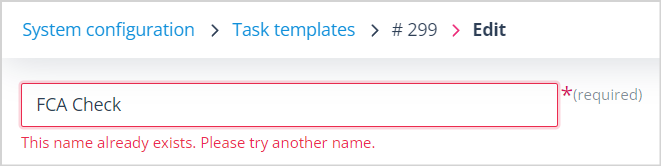
- Task template Name. Because this is a mandatory field, you will not be able to remove it. Whatever you change it to must constitute a unique value; otherwise, you will see an error message:
Description. This can be amended or removed, as it is an optional field.
The Response form
- adding and removing fields
- adding, amending and removing options in select fields
When making the above changes, you need to be mindful of whether an existing field or field value is used in a Sequence trigger. If you remove it, you will break your workflow.
- changing the Input type for Single select and Text field types
- changing the precision, min and max values in a Numeric field
- adding, amending or removing a field description
- changing the Required value
- increasing/decreasing the number of files allowed in a File upload field (but no more than 10)
Lifecycle and expiry. The Task template can be changed from:
- "This task is completed just once" to "This is a task that should expire", and an expiry timeframe can be set
- "This is a task that should expire" to "This task is completed just once"
Effect of changes
Any changes made while in Edit mode will only be reflected in Tasks created from the Task template after Save. Existing Tasks will not be amended.
Fields you cannot change
You will not be able to change the following:
- Task type
- Task creation mechanism
- Object class - for Task type Update objects records
- The Response form - Field type
These fields are disabled, so cannot be changed.