
7. How to retrieve the signed document and store within Catalyst
This section assumes that you have read section 5, about capturing the envelope status.
Retrieve the signed document
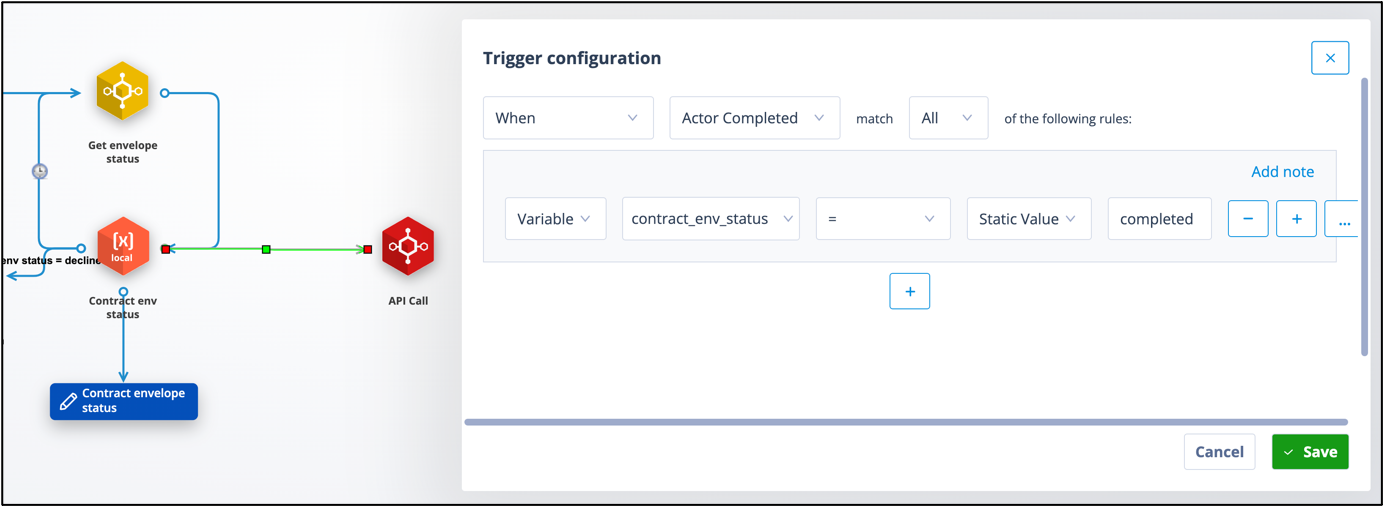
Take a trigger from the local variable which is storing the envelope status and connect to a new API Call actor.
The trigger configuration will be “When Actor completed” but with an additional condition referencing that the variable envelope status is “completed”, as shown below.
This API call will be used to retrieve the signed document when the envelope status is completed. It is a GET request using JSON Data. Having selected your DocuSign auth object, give the API call an appropriate name.
The URL is the same as for creating the envelope, with the addition of /{{variables.Variable}}/documents/ID/. In this case: https://demo.docusign.net/restapi/v2.1/accounts/3ee6ec79-6dd7-409e-84f0-f8dxxxxxx/envelopes/{{variables.contract_env_id}}/documents/1/
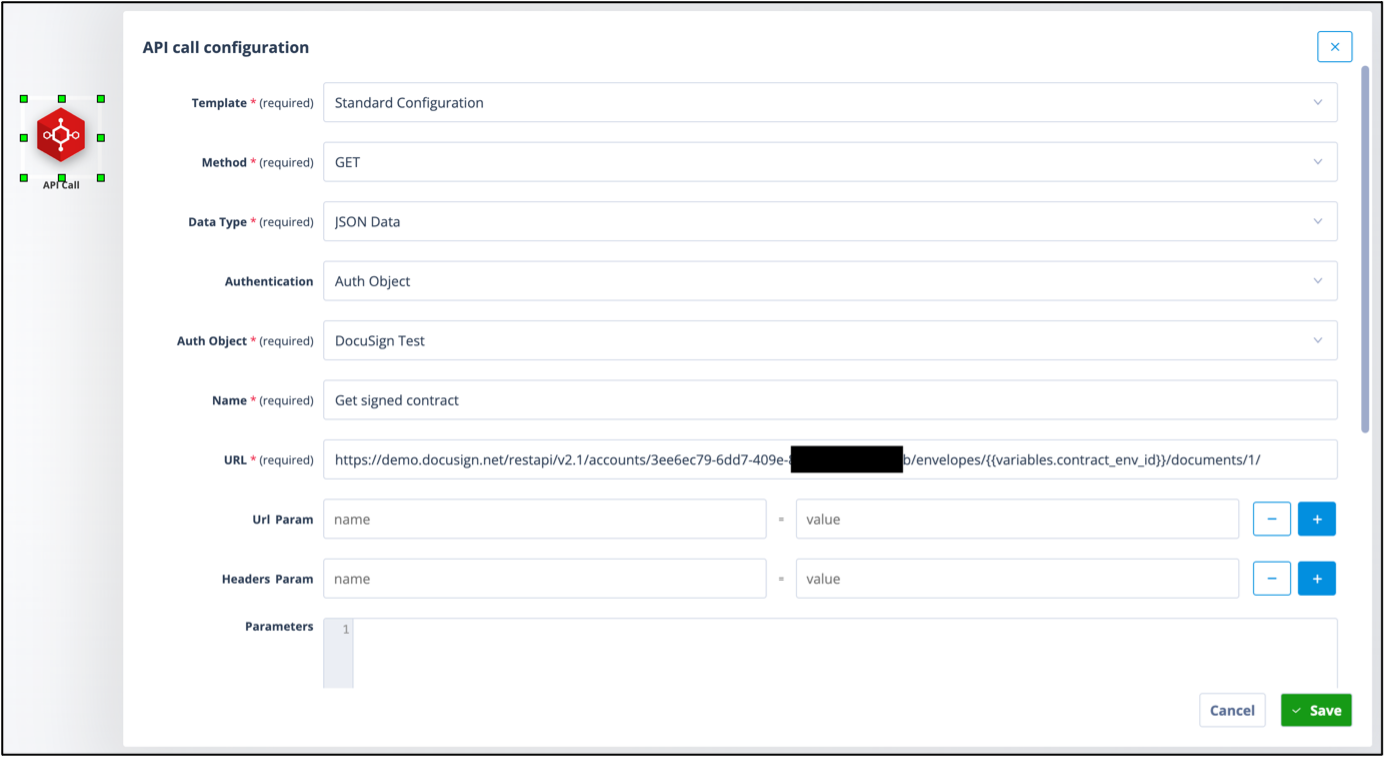
The DocuSign envelope in this example has only one document.
Remember: the original envelope creation API call included details of the contract document only, as shown below.
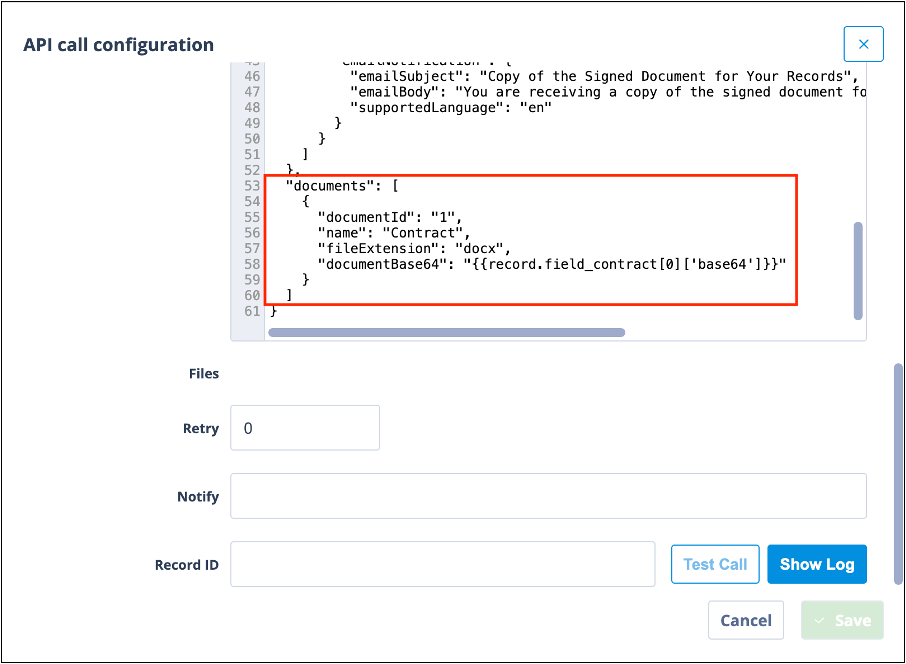
The “1” in the URL is the ID of that document.
Pick the retrieved document
Take a trigger from the API Call actor and connect to a new Document Picker actor. The trigger configuration will be “When Actor completed”.
Right click on the Document Picker actor and select “Configure”.
In the Source field, select “API Call document”.
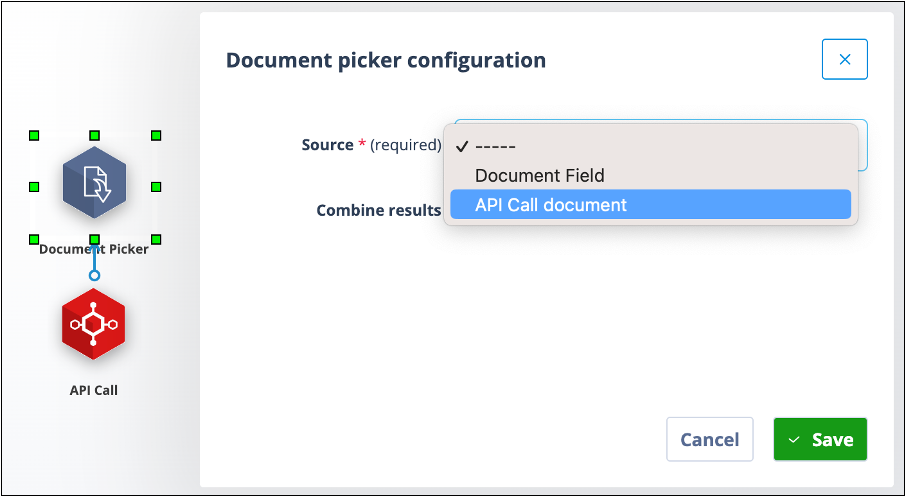
Important: at this stage, note the check box, “Combine results”, in the Document Picker configuration.
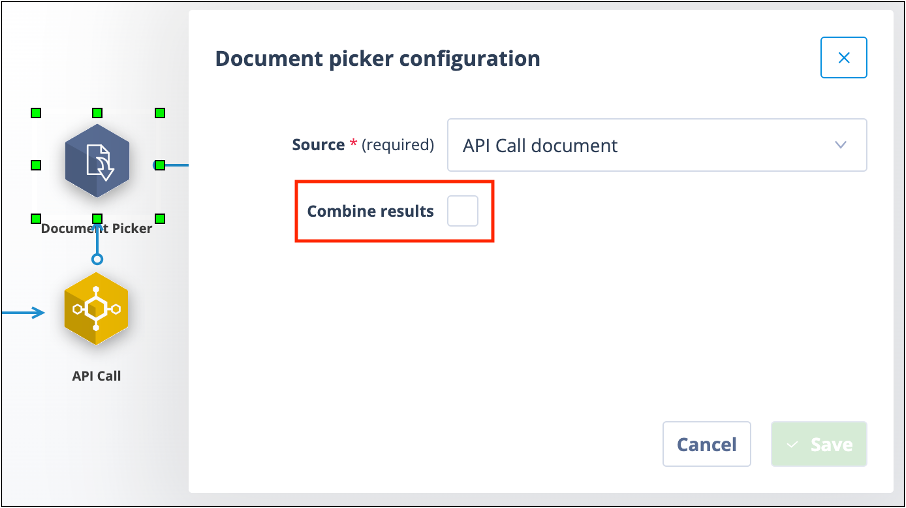
If enabled (checked), the document picker will pick up all the documents in the sequence path leading to it. If not enabled (unchecked), the document picker will only pick the document from the immediately preceding sequence actor.
For example, in the sequence workflow below:
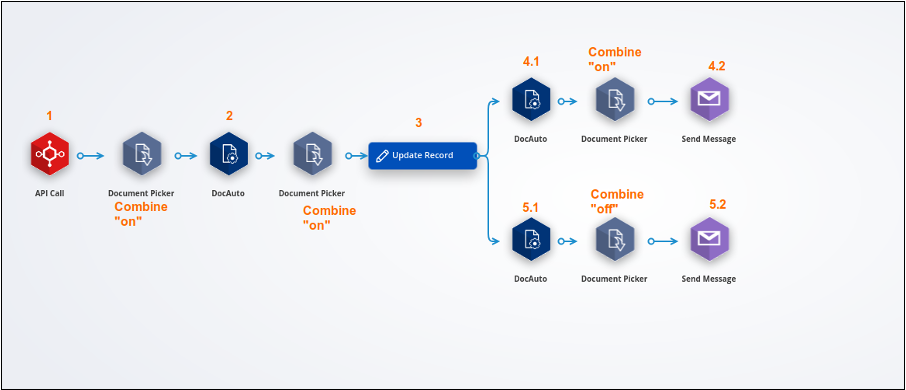
The Update Record actor labelled 3 will update the document field with documents generated by:
- the API call actor labelled 1
- the DocAuto actor labelled 2
because both the preceding Document Pickers have “Combine results” on.
The Send Message actor labelled 4.2 will contain attachments from:
- the API call actor labelled 1
- the DocAuto actor labelled 2
- the DocAuto actor labelled 4.1
because all three of the preceding Document Pickers have “Combine results” ticked, ie ON.
The Send Message actor labelled 5.2 will contain an attachment only from the DocAuto actor labelled 5.1 because the Document Picker immediately preceding this Send Message actor has “Combine results” unticked, ie OFF.
Store the document on the record
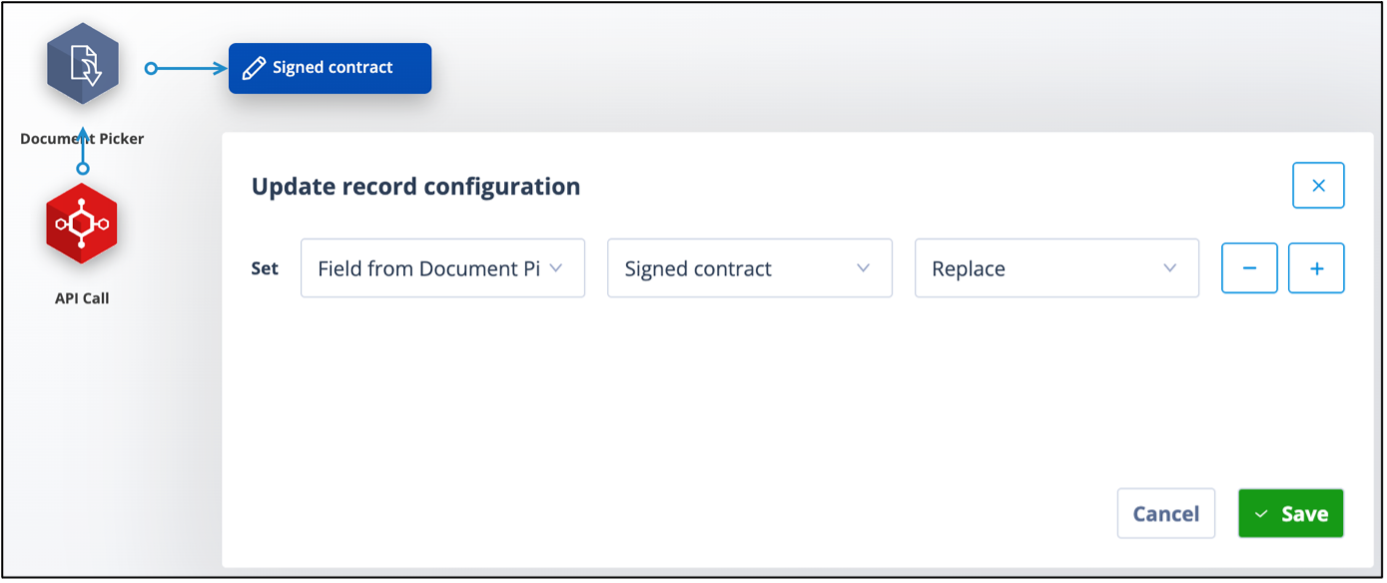
Take a trigger from the Document Picker actor and connect to a new Update Record actor. The trigger configuration will be “When Actor completed”.
Right click on the Update Record actor and configure it to take the document from the picker and add or replace, as appropriate, in the required Document type field.
If your DocuSign envelope contains more than one document which you want to retrieve, you will need to configure separate API Call, Document Picker and Update Record actors for each one.
View or use the retrieved document
The retrieved document can be attached to an email, as shown.
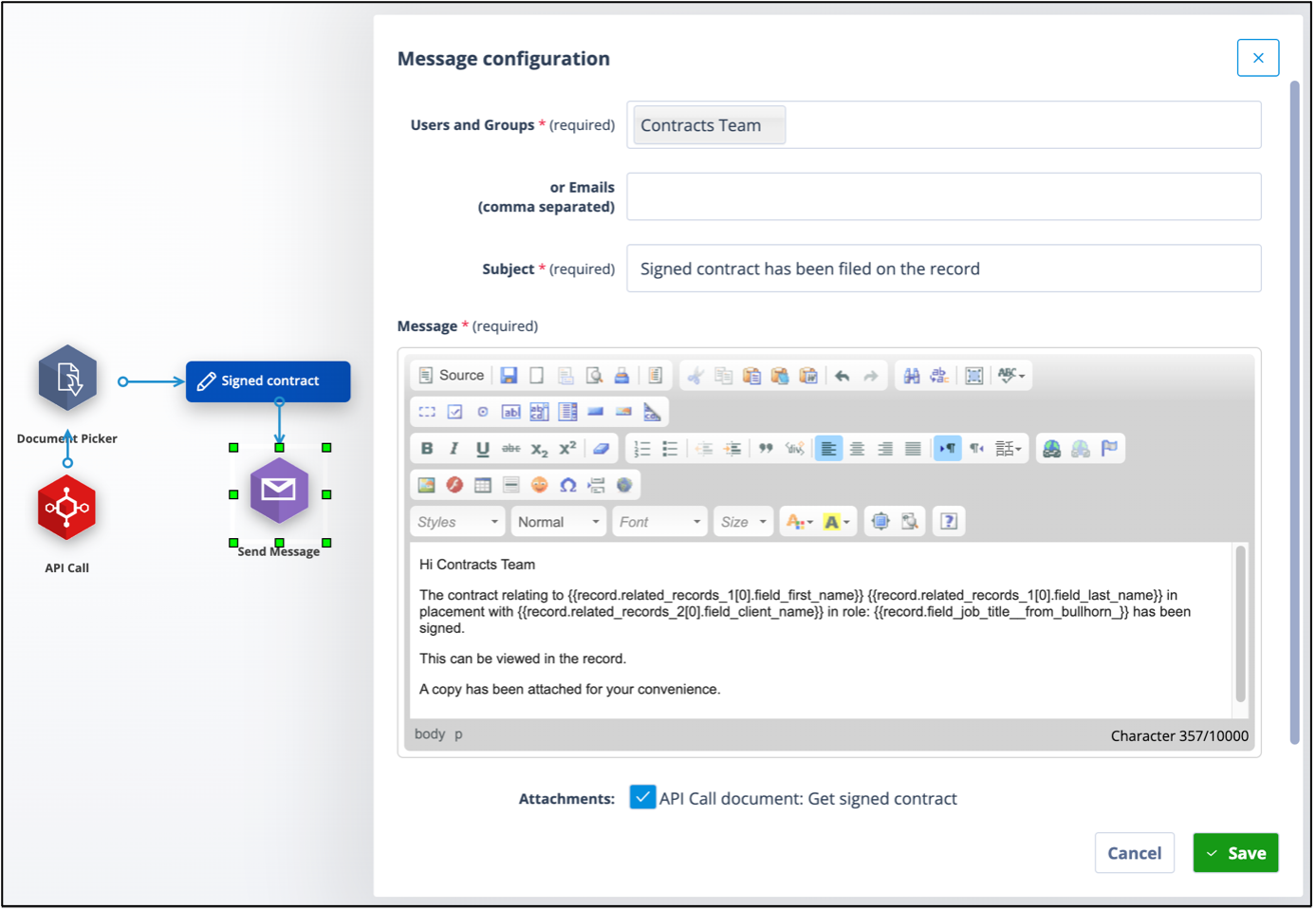
It can be viewed in the field from the Records list.
Best practice
Best practice: when creating workflow in a sequence, it is helpful to label your actors. Simply right click and select “Properties”.
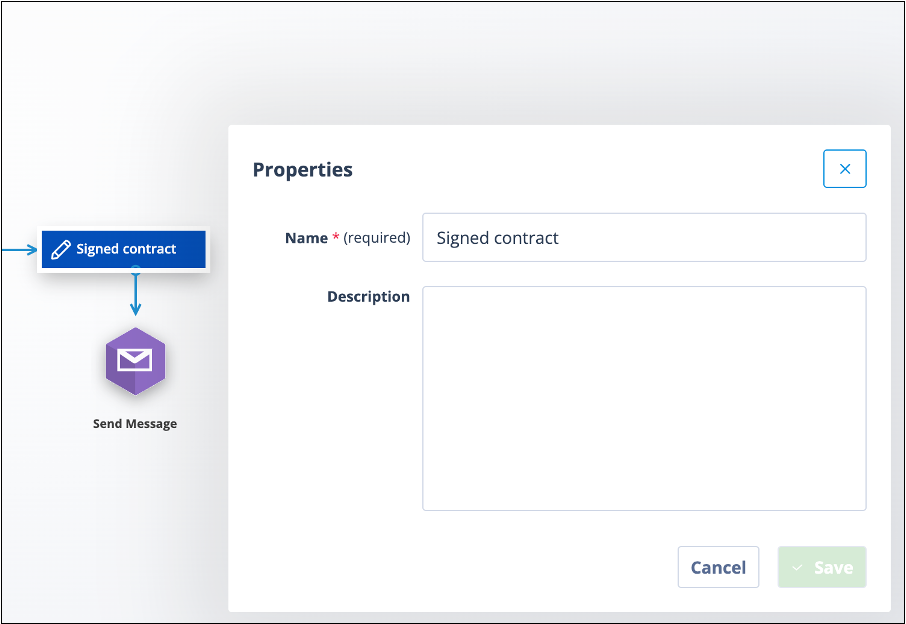
This will provide you with a free-text box, labelled “Name”, in which to enter a description for the actor. Doing this will mean that your sequence is easier to understand when other users have to refer to it or make amendments at a later date.