
Manual generation of a document from a template
Having created a document template with manual generation enabled, the template name will appear in the Templates tab of the side panel for each record in the object class.
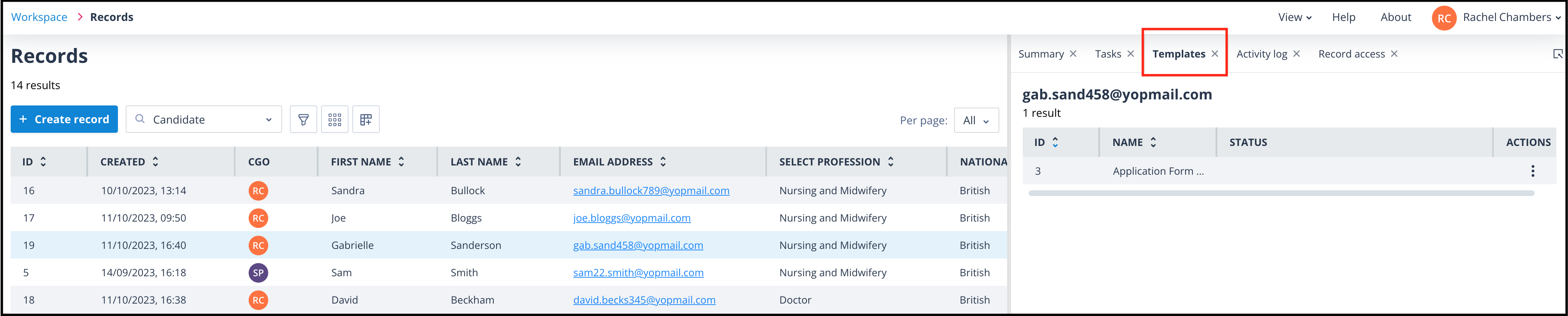
Actions menu options
The template has an Actions menu with two options:
Generate and download document
If you select Generate and download document, the template will be generated for that record.
Once downloaded, the icon for successful download will be displayed in the status field.
However, if for any reason the document cannot be generated, the status will remain blank. If this happens, you will need to check your template for incorrect merges or IF Statements, etc.
Generate and save to field
If you select Generate and save to field, you will be presented with a list of the Document type fields in the Object class.
Scroll to the required field and click it. Then click Select field.
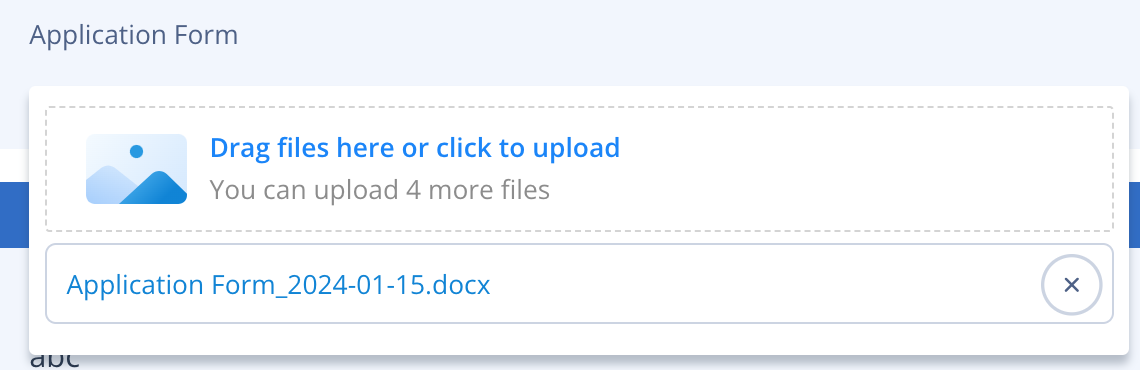
The document will be generated, downloaded, and saved to the field. On the record, the document will be shown in the field as below:
| Screenshot 2024-01-15 at 22.31.05.png | Screenshot 2024-01-15 at 22.30.52.png |
Repeat manual generation
Manual generation of a document from a template can be repeated any number of times. This feature is particularly useful if record data is constantly changing and updated documents are required at irregular intervals.