
Creation of a Manual Task for an Object Record
Tasks can be created for Object records in two different ways:
This article explains how to create Manual Tasks from the Workspace.
Manual Tasks are created from a Task Template where the Task creation mechanism is set to Manual. This means they can be created on an ad-hoc basis from an Object record.
Manual task setup and availability
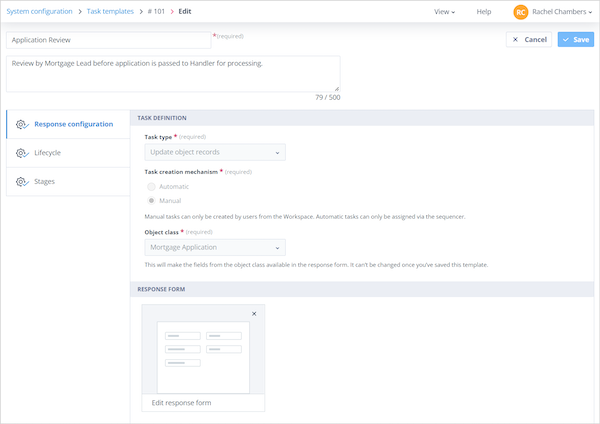
The Task Template shown below has been configured as an Update object records type.
It can only be used to create Tasks for records in the Mortgage Application Object class.
To create Manual Tasks for an Object record, the user must have one of the following:
- a Super Admin account type
- Object class Owner access
- a Permission Set for the Object class that allows them to create Tasks
If these conditions are met, the user sees the + Create task button in the Tasks tab of an Object record.
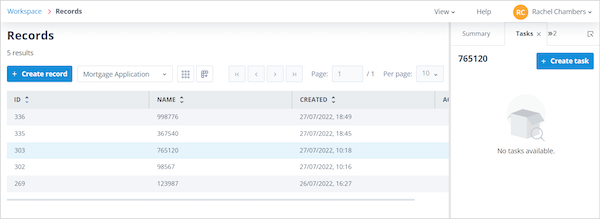
In this example, no Tasks have been created for Record ID 303. The selected record is indicated by the highlighted row in the Records table.
The Mortgage Application Number is displayed in the top-left corner of the Tasks tab because this field was selected as the Identifier on the Object class.
Create a Manual Task
To create a Manual Task, click + Create task.
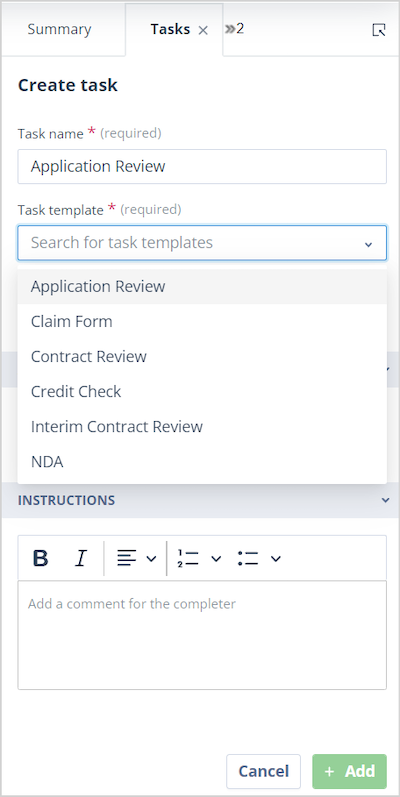
The Create task screen opens in the Tasks tab and is split into three sections:
- Task details
- Assignment of stages
- Instructions
There are three mandatory fields.
Task name
It may be useful to use the name given to the Task Template, although a more specific name can be entered if preferred.
This can be helpful because manually created Tasks can be created more than once for the same Object record. The Task name does not have to be unique.
Task template
This search-select field is used to choose the Task Template.
The field is limited to Task Templates that:
- are configured for Manual creation
- are available for the Object class containing the selected record
Task Templates are displayed alphabetically.
Complete
Use this field to select the user or users who are expected to complete the Task.
The search list is presented alphabetically, so the Task creator can scroll through it or search for a specific user.
Assign users to complete the Task
Users with Super Admin, Standard, or one-time completion account types can be selected to complete the Task.
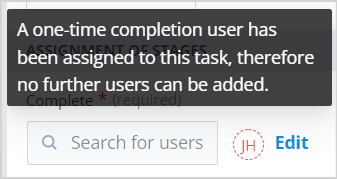
If a one-time completion user is selected, no additional users can be added.
The search field becomes disabled and a tooltip is displayed on hover.
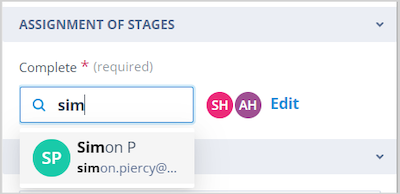
When a Super Admin or Standard user is selected, one-time completion users become unavailable for selection.
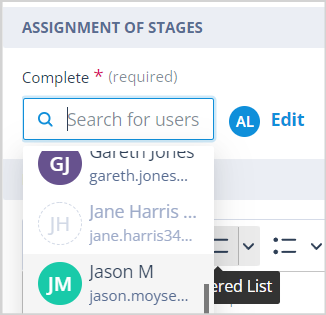
Selected users appear as avatars to the right of the search field in the order they were added.
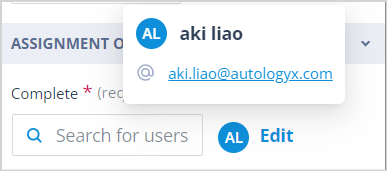
Clicking an avatar displays the user's contact details.
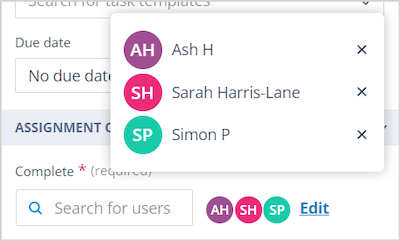
Click Edit to open a modal where users selected in error can be removed.
Click the X to the right of a user's name to remove them.
Task fields and completion view
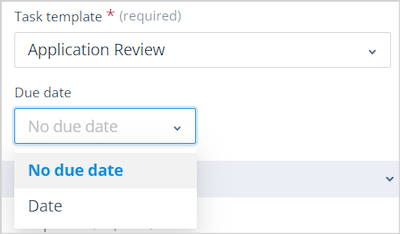
Due date
Use this field to provide a target date for completing the Task.
Click into the field and choose one of the following:
- No due date - selected by default
- Date
If Date is selected, a further field is displayed where you can choose the required date.
Past dates cannot be selected because this would make the Task immediately overdue.
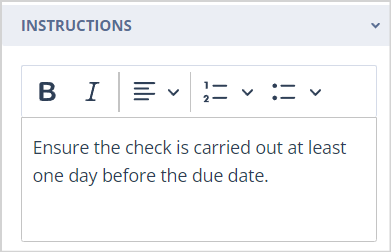
Instructions
Use this field to enter instructions specific to the selected Object record.
Task Templates are often configured with generic instructions, while this field allows record-specific guidance to be added.
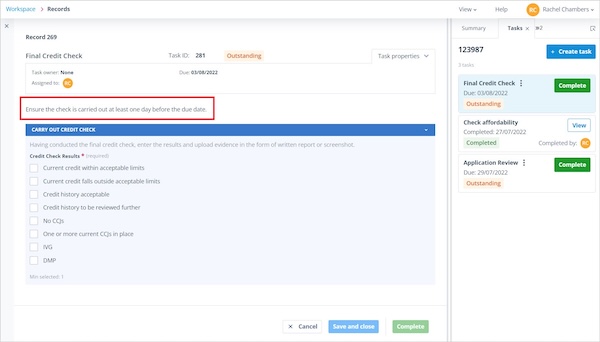
When a user opens the Task completion screen, the instructions entered during Task creation are displayed under the Task properties.
Create or cancel the Task
When the Task has been configured correctly, click + Add to create the Task for the Object record.
The + Add button is disabled until all mandatory fields have been completed.
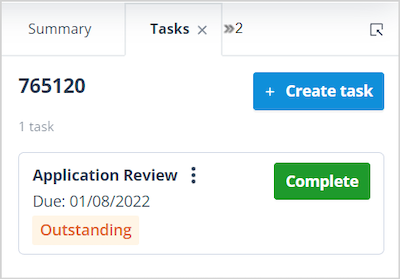
After the Task is created, it appears as a tile on the Tasks tab.
The Task counter increases accordingly.
The tile displays:
- Task name
- Due date
- Status
Initially, the status is Outstanding.
The Task is visible only to users who:
- were selected in the Complete field
- have a Super Admin account type
- are the Object class Owner
- have a Permission Set containing Tasks > View all
To cancel Task creation, click Cancel in the bottom-right corner of the Create task screen.
The Create task screen closes and the tab returns to the existing Tasks view.
Things to remember
- The maximum number of users that can be assigned to complete a Manual Task is 100.
- If the Task creator changes the selected Task Template before the Task is created, any data entered in the other fields remains.
- The Instructions field has a character limit of 9,000.
- One-time completion users cannot be assigned alongside other users.
- The + Add button is disabled until all mandatory fields have been completed.