
Builds and migrations
The Admin Portal provides an overview of your Catalyst builds and the migrations carried out between them. You can use it to review build details, inspect system limits and find the status and history of migrations.
Understand builds and namespaces
A build is an individual Catalyst environment, such as development, test, staging or live. All builds in your organisation's namespace are available from the same Admin Portal account.
Go to Builds in the left-hand menu to see the builds in the namespace. The list identifies each build by its domain name and includes information such as when it was last migrated.
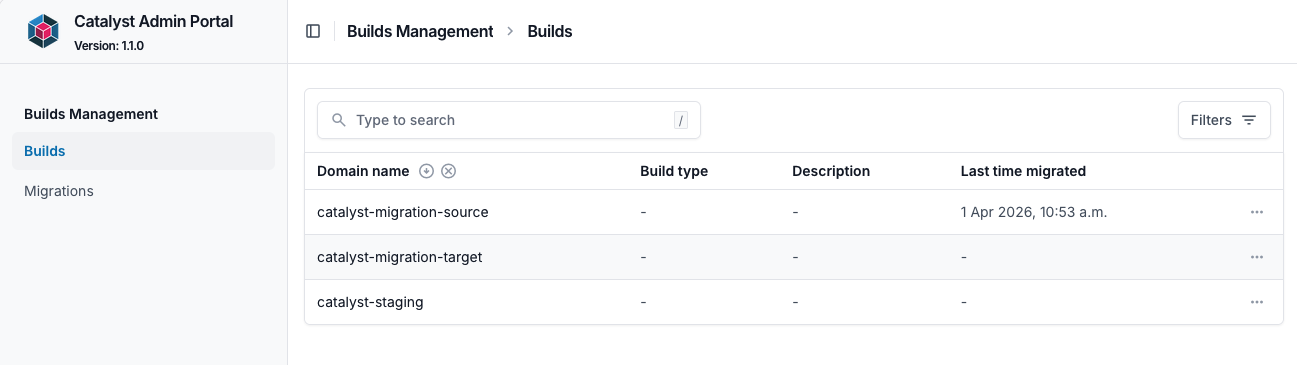
View a build and its system limits
You can view the system limits assigned to a build from its details page.
- In the Admin Portal, select Builds from the left-hand menu.
- Select the relevant Domain name to open its Build details page.
- Find System limits at the bottom of the page.
- Select System limits to expand the section and review the limits.
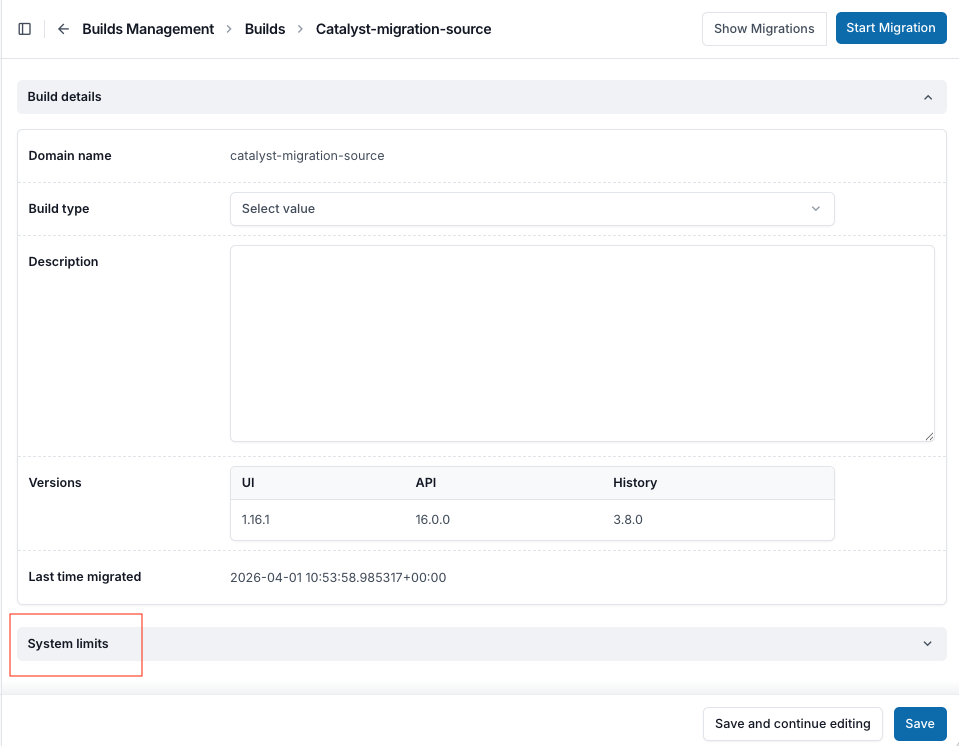
The Build details page also displays information about the build, including version information and the last migration time.
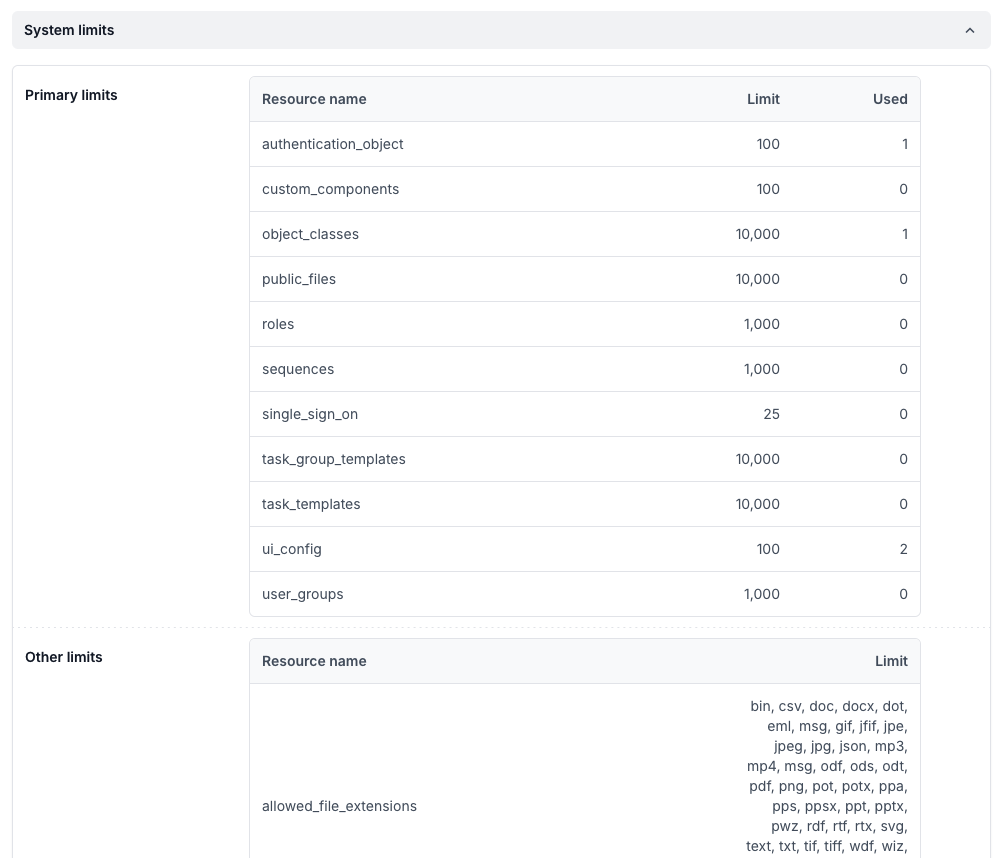
System limits are not migrated
System limits are not copied from the Source build to the Target build.
If a system limit has been changed by the Autologyx Client Value or Development team and you have checked and tested the change in the Source build, you must request the corresponding change separately for the live or other Target build.
Read the Capacity and System Limits Knowledgebase article before requesting a change to system limits.
Understand migrations
A migration copies supported configuration from one Catalyst build to another:
- Source build: The build containing the configuration to promote, commonly development, test or staging.
- Target build: The build receiving the configuration, such as staging or live.
Migrations are intended to promote configuration changes without copying the Source build's records, tasks, users or authentication credentials into the Target build.
The Target build's existing live record data is preserved, but its configuration can be created, updated or removed to match the Source build. The two environments must have compatible configuration IDs to avoid conflicts.
For the full list of supported configuration and exceptions, see Before you perform a migration.
View migration history
Select Migrations from the left-hand menu to see the history of migrations performed by portal users.
The list provides information including:
- The migration's unique identifier (UUID).
- The Source build and Target build.
- Status and Progress.
- The date and time the migration was created.
- The user who initiated the migration.
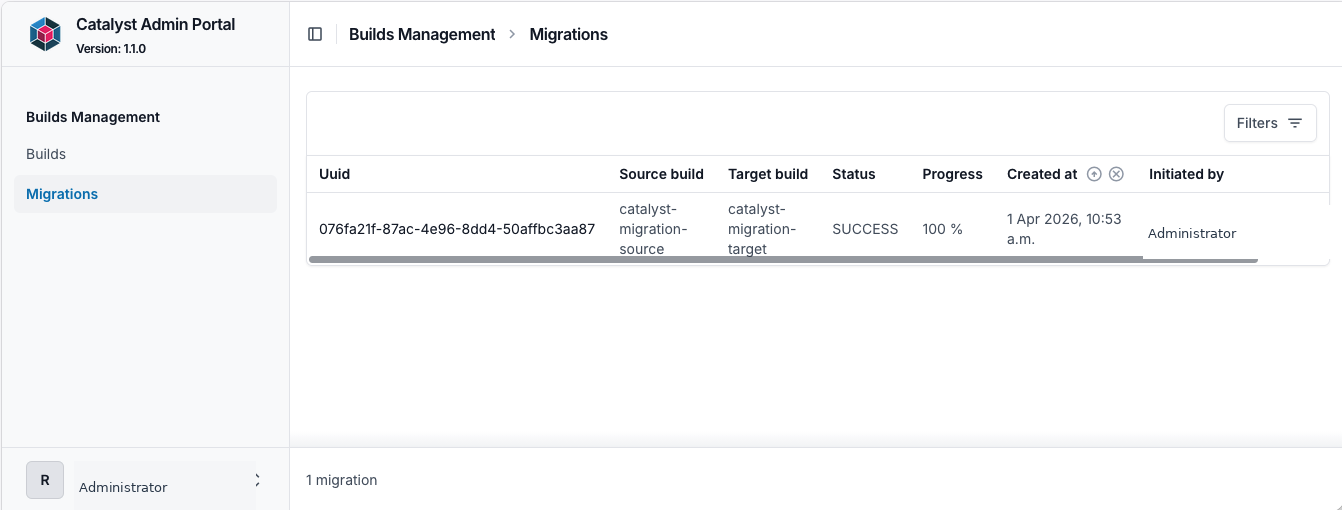
Select a migration's UUID to open its details page. This provides additional information, including the migration log, dates, and fields for Description and Comments.
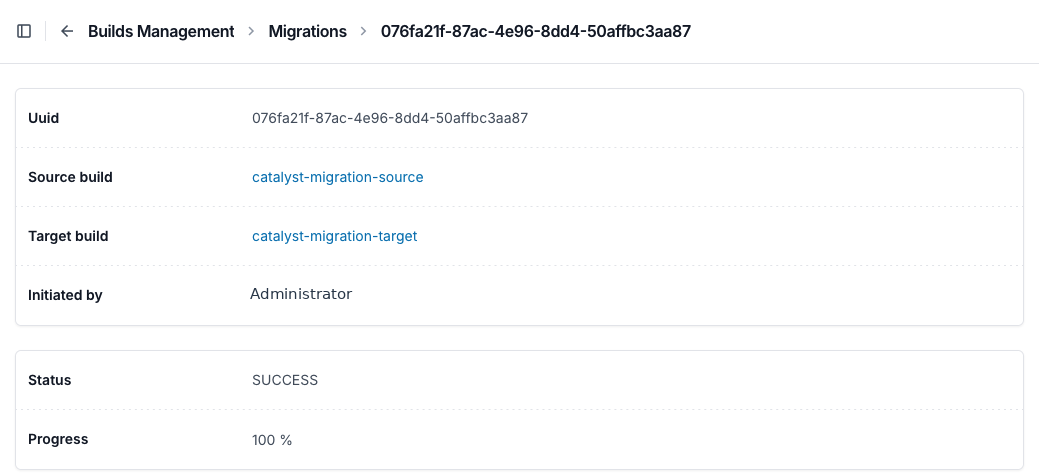
You can use the details page to review the result of a previous migration or follow the progress of one that is running. The displayed progress information updates every five minutes, so refresh the page to see the latest available status.
Things to remember
- A migration can alter live configuration and make the Target build unavailable while it runs.
- All migrations must take place outside working hours.
- Once started, a migration cannot be aborted.
- A successful migration has no rollback function and should be treated as non-reversible.
Useful info
- See The importance of IDs before migrating configuration between builds.
- Use the pre-migration checklist and procedure to start and monitor a migration.