
Performing a migration
Use the Admin Portal to promote approved configuration from a Source build to a Target build. This article covers the pre-migration checklist, the steps to start a migration, how to monitor it and what to expect if it succeeds or fails.
Warning: Once a migration starts, it cannot be aborted. A successful migration cannot currently be rolled back. Confirm both builds and all prerequisites before you select Start Migration.
Before you start
You must have an activated Admin Portal account, and you should understand which configuration is migrated and how configuration IDs are matched.
Review these articles first:
All migrations must be scheduled outside working hours because Target build downtime is expected.
Pre-migration checklist
Complete every check before starting the migration:
- [ ] Confirm the Source build contains the configuration you want to promote.
- [ ] Confirm the Target build is the correct destination.
- [ ] Confirm no users are actively working in either build.
- [ ] Confirm downtime has been agreed for the Target build.
- [ ] Confirm the migration is scheduled outside working hours.
- [ ] Confirm all required Authentication Objects already exist in the Target build with exactly matching names.
- [ ] Confirm system limits have been considered separately; they do not migrate.
- [ ] Confirm Autologyx support availability if assistance may be required.
For environments with independently created configuration, also review potential ID conflicts before proceeding. A conflicting field ID or alias can cause the migration to fail.
To start a migration
Sign in to the Admin Portal.
Select Builds in the left-hand menu.
Find the build containing the configuration you want to promote. This will be your Source build.
Open the Source build's three-dot (meatballs) menu.
Select Start Migration.
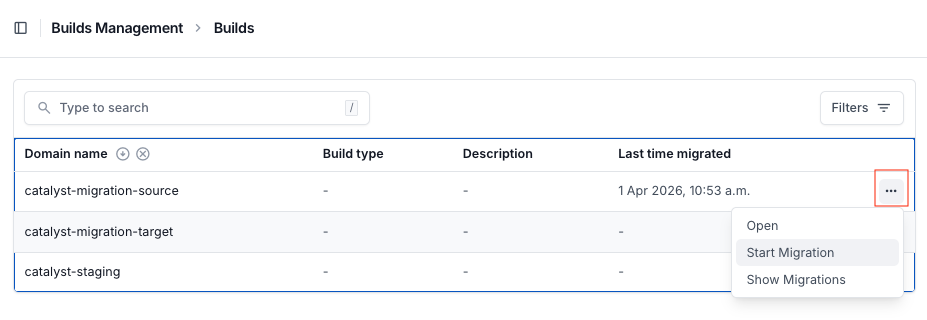
In the Start Migration window, open the Target selector. The other builds in your namespace are listed here.
Select the build that should receive the configuration. This is the Target build.
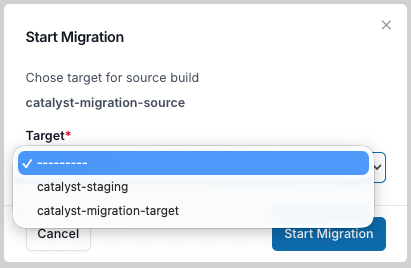
Double-check the Source and Target builds. If either is incorrect, select Cancel and make the required correction before continuing.
When the selections are correct and the checklist is complete, select Start Migration.
Final confirmation: Step 9 starts the process immediately. An in-progress migration cannot be stopped.
After you start the migration, the portal redirects you to the migration details page.
Monitor the migration
The migration details page shows the Status and Progress of the migration, along with its identifying details and log.
Add optional notes
You can record information about the migration for future reference:
- Enter a Description and/or Comments.
- Select Save to apply the changes.
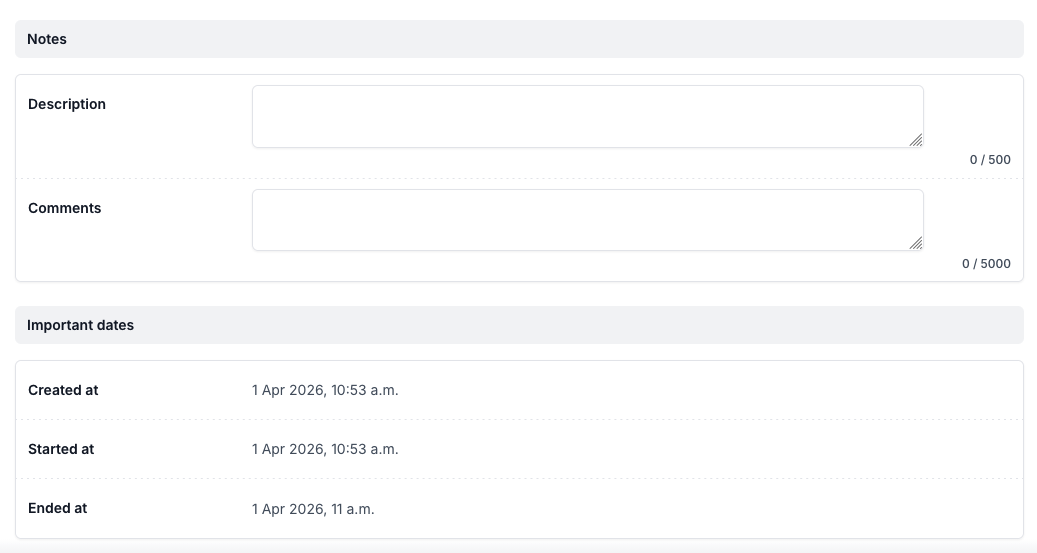
Check progress
Refresh the details page to view updated Status and Progress values. The information on the page updates every five minutes, so refreshing more frequently may not display a change.
A Status of SUCCESS and Progress of 100% indicate successful completion. You can then check the Target build to verify the promoted configuration.
During a migration
- Do not access the Source build. No user should work in the Source build while a migration is running.
- Expect downtime on the Target build. It is highly likely to be unavailable for all or part of the process.
- Do not schedule migrations during working hours. All migrations are required to run outside working hours.
- Do not attempt to stop the process. Once initiated, a migration cannot be aborted.
If a migration fails
Before migration begins, the migration process makes a temporary copy of the Target build's configuration. If the migration fails at any point, the process uses that saved configuration to rebuild the Target build as it was before the migration.
This failure recovery is different from undoing a successful migration. If a migration fails, review the migration details and log, and contact Autologyx for help where needed. Resolve the cause before trying again.
If a migration succeeds
When the migration details page shows Status SUCCESS and Progress 100%, verify the resulting configuration in the Target build.
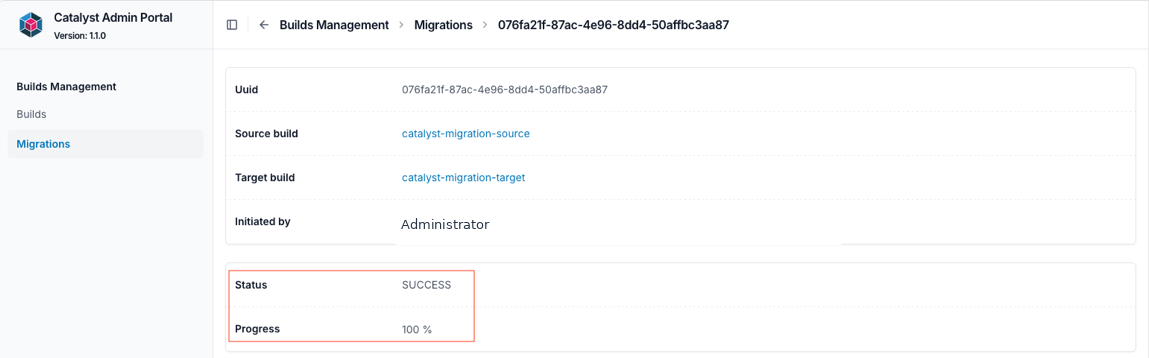
A successful migration must be treated as non-reversible. There is currently no rollback functionality for a successful migration.
Remember that supported configuration has been promoted, but records, tasks, user accounts, group membership, SSO configuration, themes, Authentication Objects and system limits have not been copied from the Source build.
Useful info
- See Builds and migrations for how to review past migrations by UUID.
- See Before you perform a migration for user assignment and user group mapping rules.
- See The importance of IDs for examples of conflicts that prevent a migration.