
Assigning tasks to 1-time completion Users
1-time completion users can be assigned both manual and automated Tasks.
Unlike other users, they do not sign in to Catalyst. Instead, they receive an email containing a secure link that allows them to complete the assigned task.
Assigning a manual task
Manual tasks are created from the Tasks tab in the side panel of an Object record.
Open the required record and click + Create task.

Select a Task Template
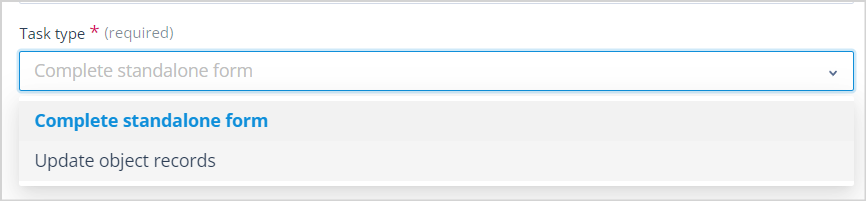
Choose the appropriate Task type and Task Template.
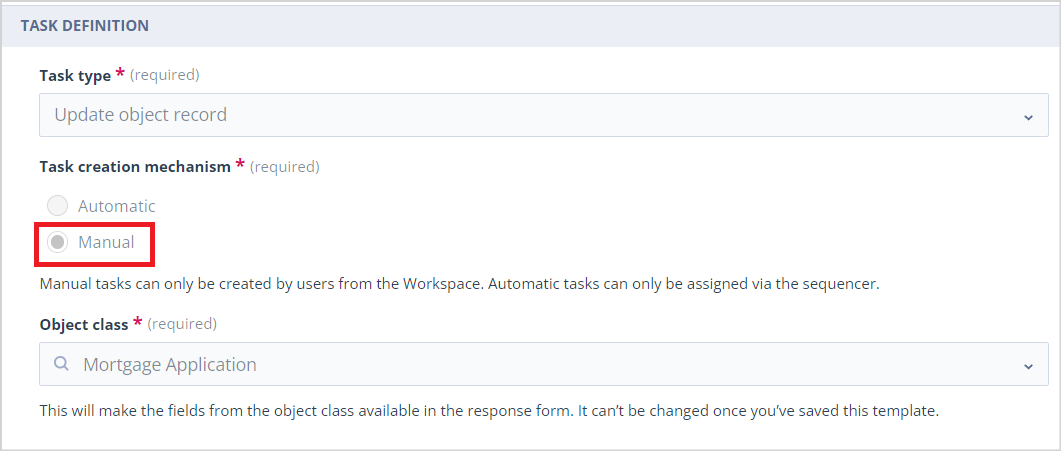
Only Task Templates configured with a Task creation mechanism of Manual are available for selection.
This applies to both:
- Complete standalone form
- Update object records
Assign the task
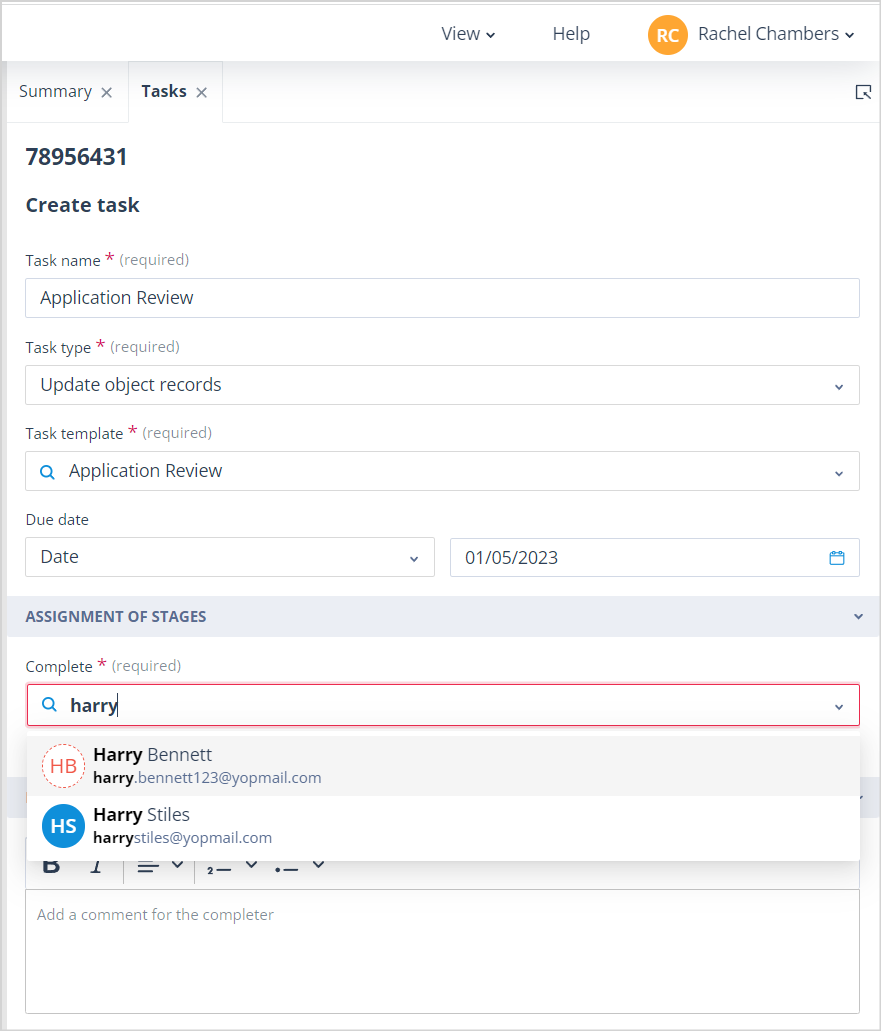
Search for and select the 1-time completion user.
In the example below, the task is assigned to Harry Bennett.
Users with a 1-time completion account are identified by the dotted circle around their avatar.
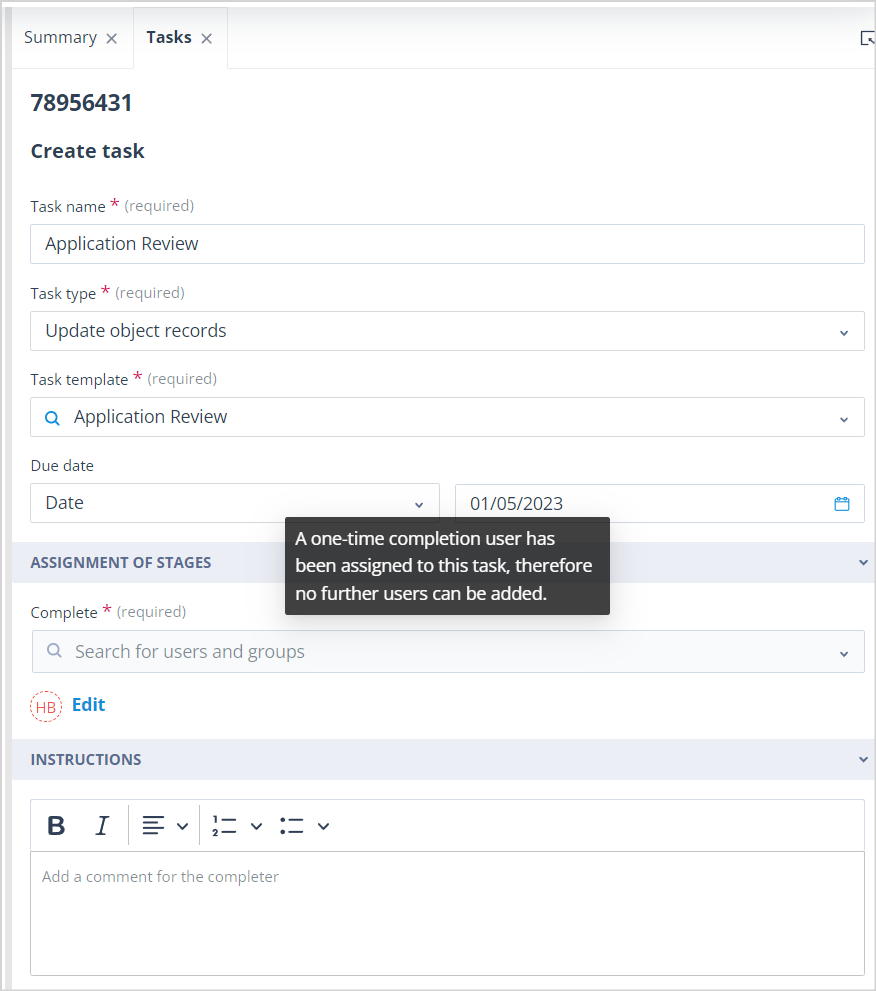
Important
Once a 1-time completion user has been selected, no additional assignees can be added.
This ensures that the task is completed only by that individual.
When the task is created, the user automatically receives an email notification containing a secure link to complete it.
For more information, see How does a 1-time completion user interact with Catalyst?.
Add additional instructions
You can optionally provide instructions that are specific to the task being assigned.
This is particularly useful for 1-time completion users because they typically have little or no experience of using your Catalyst system.
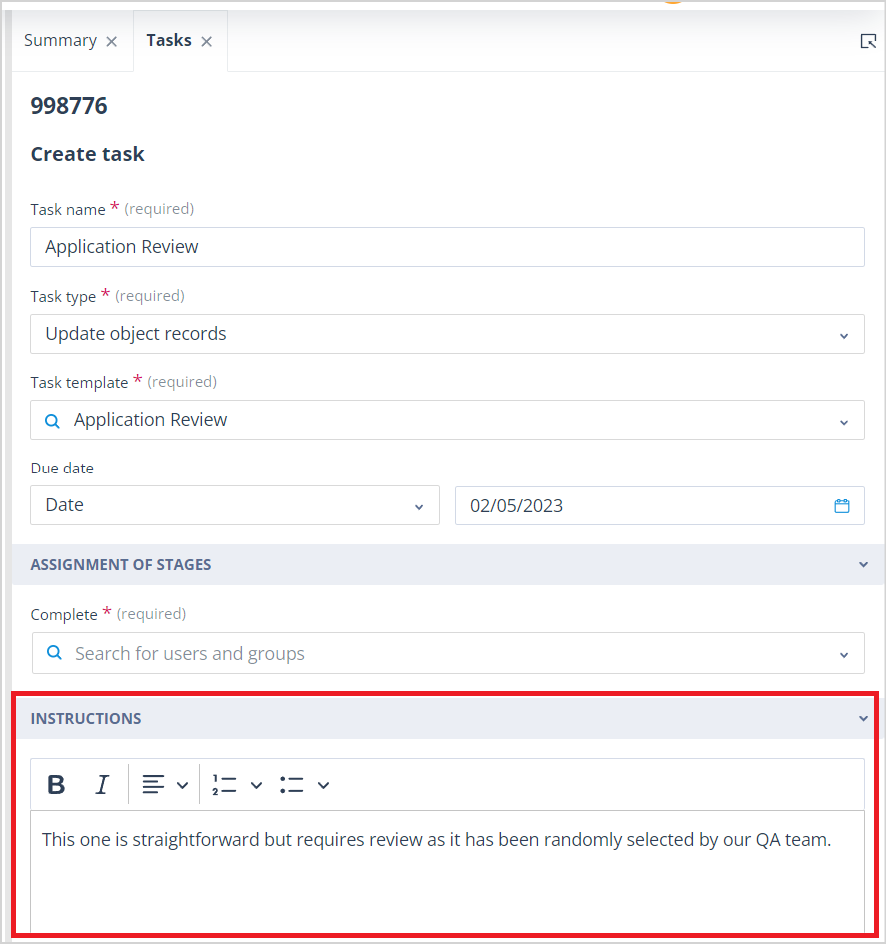
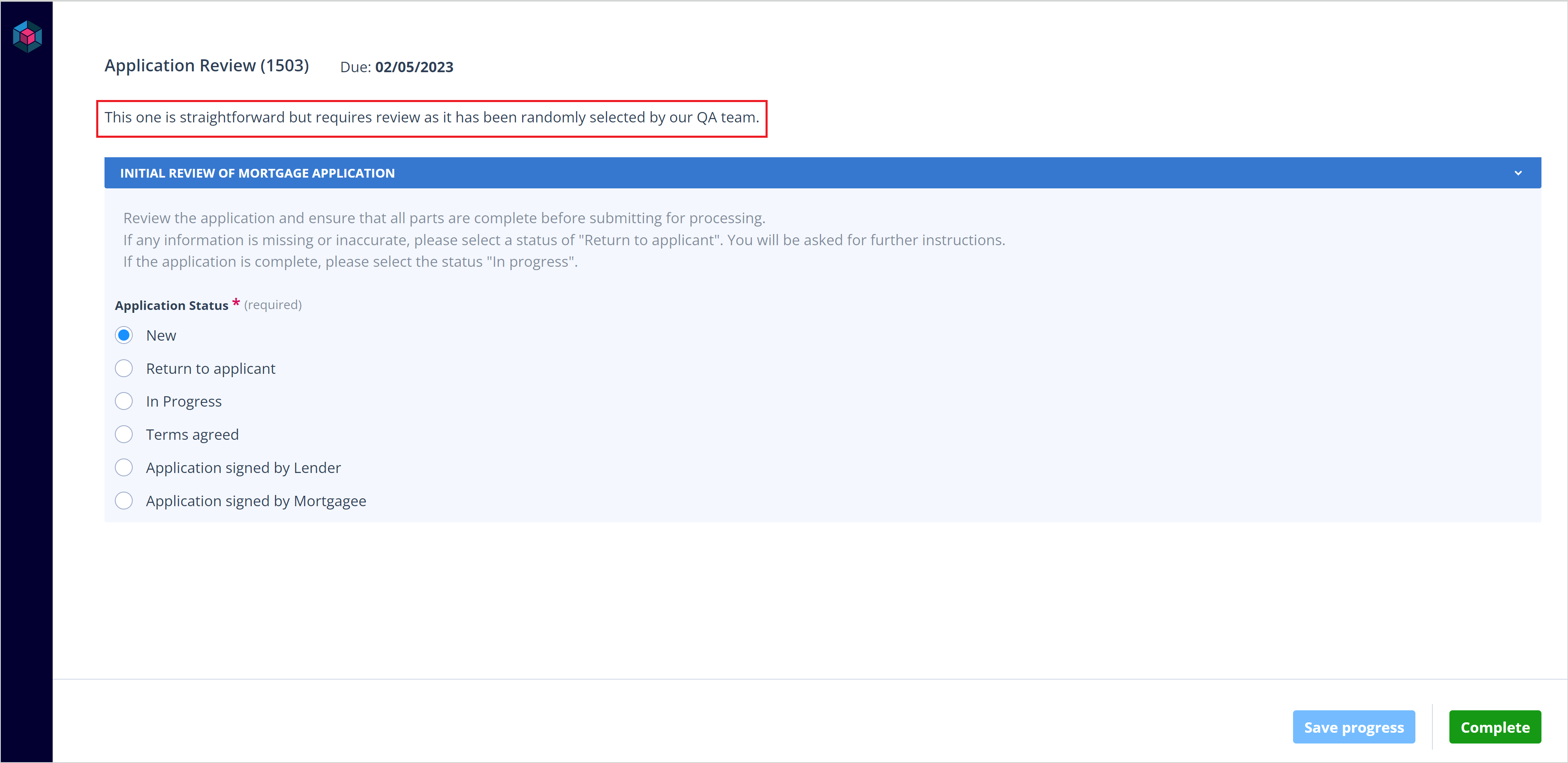
Any instructions you enter are displayed at the top of the task when the recipient opens it.
Assigning tasks from a Sequence
You cannot currently select a 1-time completion user as the default task assignee in a Sequence.
However, a Sequence can assign one or more tasks to a 1-time completion user as part of the workflow using the available task assignment configuration.
Things to remember
- 1-time completion users do not sign in to Catalyst.
- They receive a secure email link whenever a task is assigned to them.
- A task assigned to a 1-time completion user can have only one assignee.
- Additional task instructions are displayed prominently when the task is opened.
- Both manual and automated tasks can be assigned to 1-time completion users.