
What can I edit in a user account?
Only Users with a Super admin account can edit user accounts. This can be done by:
| - Clicking Edit in the Action menu for the selected User - Double clicking anywhere on the user's record from the Users list | 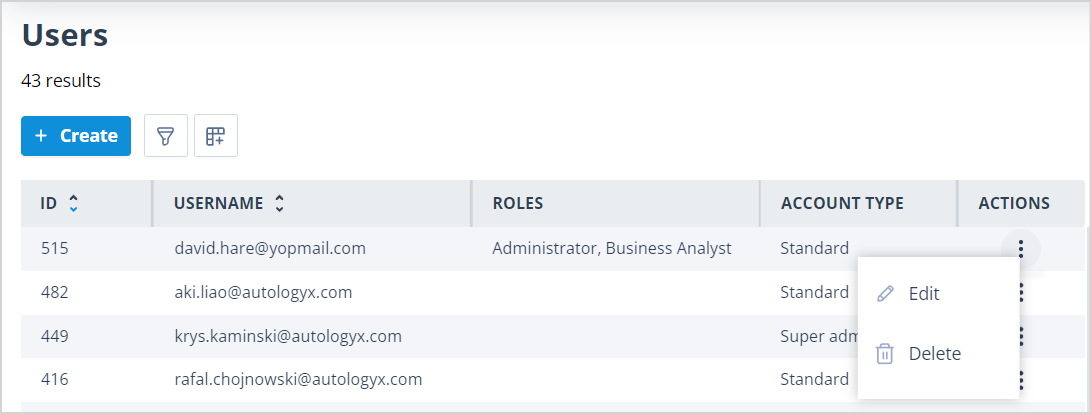 |
User Account Type
On the Edit user page, a User's account type will be highlighted with a blue outline. A User's account type can be changed if required. For instance, a User with an Internal account type could be changed to a Config admin account type, or a User with a Config admin account type can be promoted to a Super admin.
However, Internal, External, Config admin, and Super admin account types cannot be changed to 1-time completion. Note that this option is greyed out.
1-time completion account type
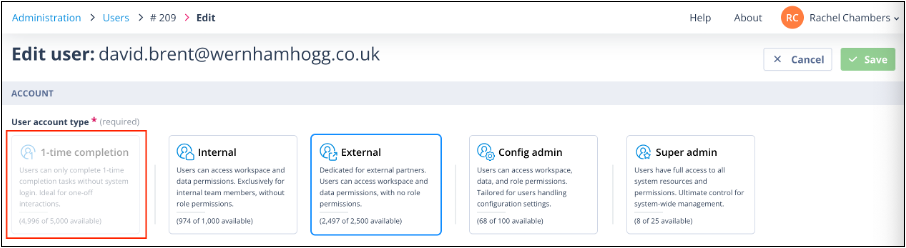
Users with a 1-time completion account type can be changed to any of the other four account types. If you do this, the Save button will be enabled. When Save is clicked, the modal asking whether you would like to send the activation email will be displayed.
Activation email options
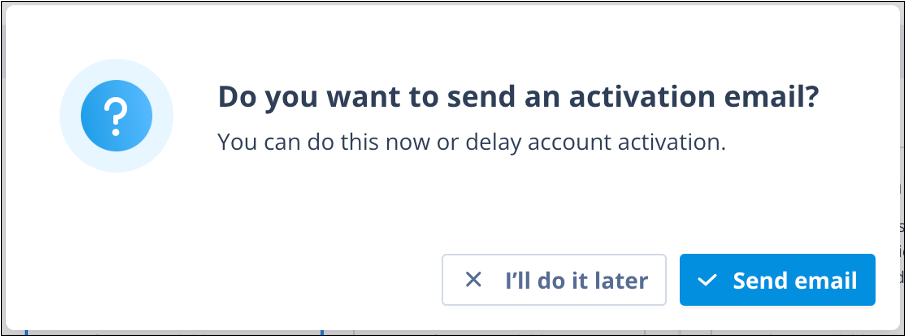
If you select "Send email", the activation email will be sent and the account Status will change to Pending.
If you select "I'll do it later", the email will not be automatically sent and the account Status will change to created.
A User cannot change their own account type.
Username
This is the email address associated with the user account. The field is required, so it cannot be left blank, and it must contain a unique value.
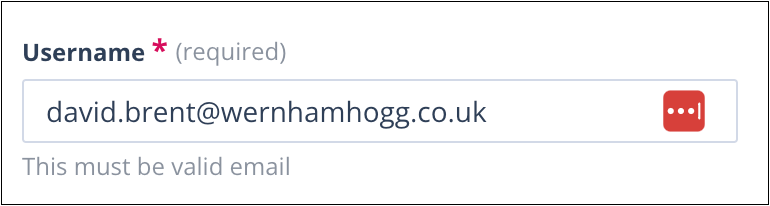
If the Username is updated, the user will be required to enter their new username the next time they log in. If they don't, the following error will be shown:
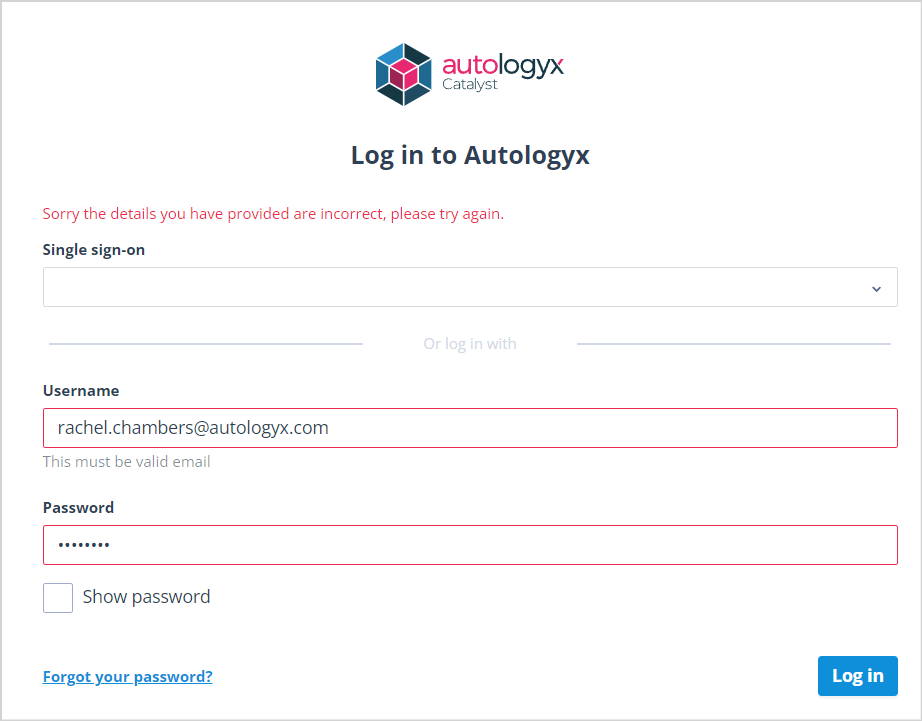
Their password will not be affected.
Password
Passwords cannot be updated on the Edit user page, but can be reset by users from the login page.
Users can update their own username and/or password by clicking their Avatar or Name in the top right of each screen and selecting My Account. In order to change their password in this area, they are required to provide their current password as part of the process.
Explanation of account Status
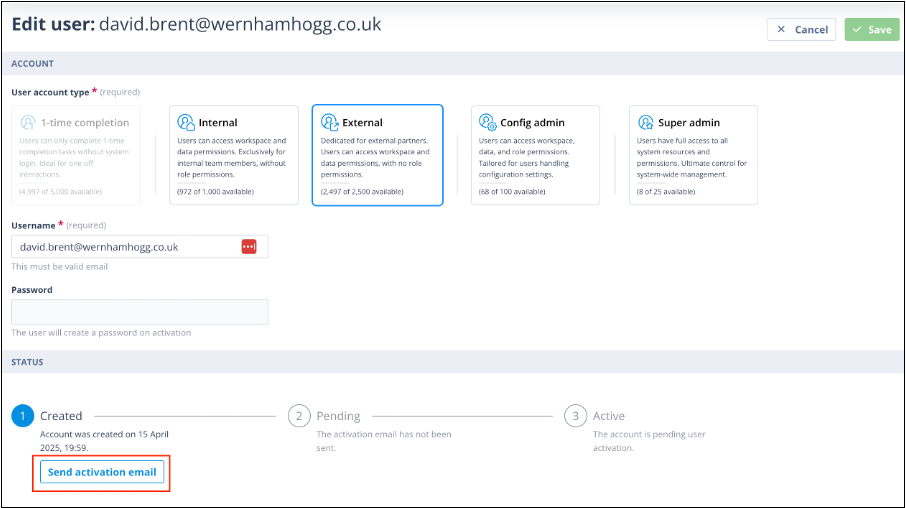
Created - the user account has been created but not activated. The account activation email has not yet been sent. The Status section of the Edit user page will show that they are at stage 1. The date/time the account was created is shown.
There is a "Send activation email" button which you can use to send the activation email when/if appropriate. NB: Users who are expected to log in via single sign-on should not have an activation email sent to them.
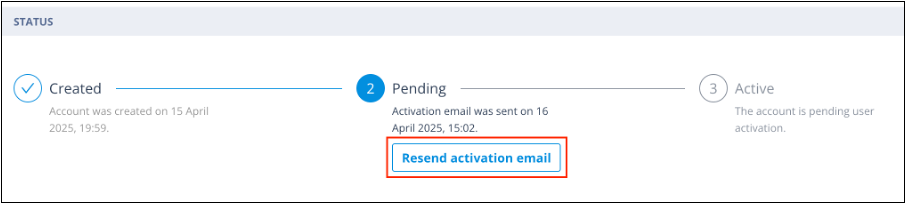
Pending - the account activation email has been sent but the User has not completed their account setup. You can see the last time the email was sent and resend it if necessary.
Active - the user has activated their account and logged in. The date/time the account was successfully activated is shown.

Roles
The Roles section is present only for Users with the Config admin account type. Roles can be added or removed as required. The Role determines a user's level of access to System configuration and Administration areas. If a Role is added or removed and the account is saved, the User's permissions will be instantly updated without the need to log out of their session. Find out more about user roles.
If the User is in the middle of creating or editing an area of the system where they no longer have permission to do so because a Role has been removed or amended, the Save button will be disabled and when they hover over it the restricted icon will be shown.
Personal Information
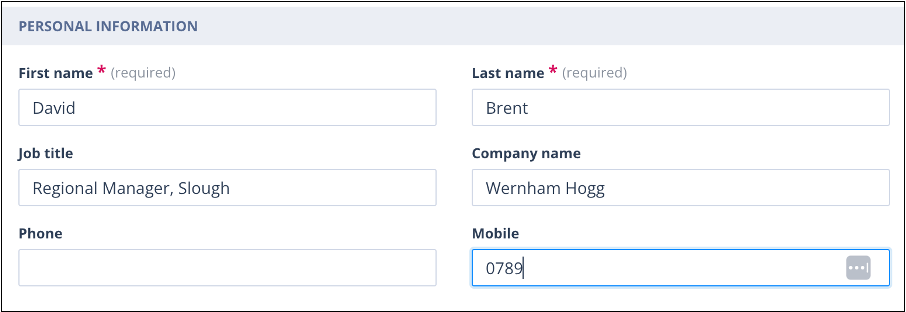
These details can be updated when required. The changes will be reflected in that User's My Account. Likewise, if a User edits their own Personal Information from their My Account page, this will update the details in the User account.
First name and Last name can be amended but not left blank, as they are mandatory fields.
Useful Info
- The maximum number of roles that can be given to a user is 25.
- Users with more than one Role will receive all permissions that are 'switched on' in any of the roles, regardless of whether they are not permitted by other roles. Care should be taken when setting these up.