
What is an Authentication object and how do I configure it?
An Authentication object securely stores the credentials required to authenticate with external systems.
Rather than embedding usernames, passwords, API keys or client secrets into individual API Calls, you can store them in a single Authentication object and reuse it wherever those credentials are needed.
This approach improves security, simplifies administration, and makes it easy to update credentials without editing multiple integrations.
Supported providers
Authentication Objects support the following authentication providers:
- Autologyx Internal
- DocuSign
- API Key
- Adobe OAuth 2.0 (Client Credentials flow)
- Box OAuth 2.0 (Client Credentials flow)
- Generic OAuth 2.0 (Client Credentials flow)
- Generic OAuth 2.0 (ROPC Grant flow)
- iManage OAuth 2.0 (Password Grant flow)
Create an Authentication object
To create an Authentication object, you must have the appropriate Role permissions and the authentication details for the provider you want to connect to.
Navigate to:
Administration → Authentication Objects
Click + Create.
A maximum of 100 Authentication Objects can be configured in your system. Once this limit is reached, the + Create button is disabled.
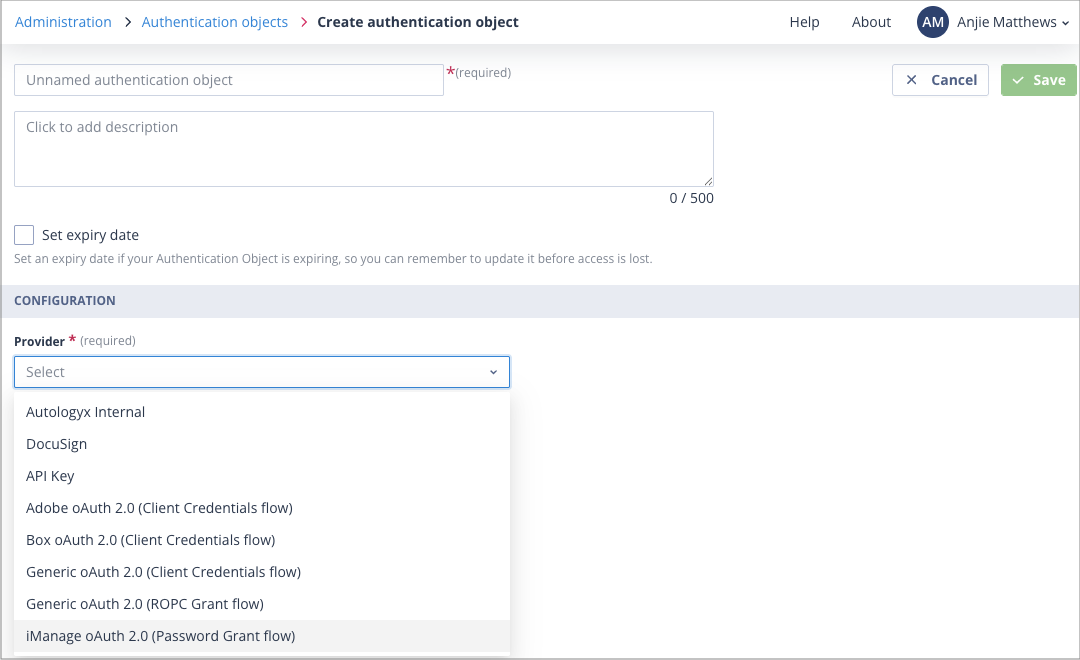
Enter the object details
Provide a unique and descriptive Name.
This is the name you'll select later when configuring API Call actors, so choose something that clearly identifies the integration or account.
Optionally, add a Description to explain the Authentication Object's purpose. Descriptions can contain up to 500 characters and are displayed in the Authentication Objects list.
Expiry dates
If the credentials expire, enable Set expiry date.
You can then:
- select the expiry date
- record what the expiry relates to
Recording expiry dates makes it easier to manage credential renewals before integrations stop working.
You can also use the Sequencer to create automated reminders as expiry dates approach.

Select the provider
Choose the appropriate Provider.
After selecting a provider, additional configuration fields are displayed. These fields vary depending on the provider being configured and must all be completed before the Authentication Object can be tested.
Validate and test
Autologyx performs validation as you enter information.
For example:
- Authentication Object names must be unique.
- URL fields must use a valid format.
- Mandatory fields must be completed before testing is allowed.

The Test Authentication Object button remains disabled until all mandatory fields contain valid values.
If the authentication test fails, a toast notification explains that the connection could not be established.

Once the authentication test succeeds, click Save.
The Authentication Object is added to the Authentication Objects list and a success notification confirms that it has been created.
Next steps
After creating an Authentication Object, you can reference it from one or more API Call actors.
For more information, see Using an Authentication object in an API call.
Things to remember
- One Authentication Object can be reused by multiple API Call actors.
- Storing credentials centrally makes them easier to maintain and update.
- Expiry dates help you manage credential renewals before integrations are affected.
- A maximum of 100 Authentication Objects can be configured in your system.