
What are Elements and what can you do with them?
Elements are custom web components developed specifically for your Autologyx platform. They allow your organisation to extend the standard functionality of the application with bespoke user interfaces, dashboards, visualisations, integrations, and interactive tools.
Once an Element has been developed, packaged and imported into Autologyx, it can be placed onto supported pages using the form builder without requiring further development.
Where Elements can be used
Elements can be added to the following areas of the platform:
This allows the same Element to be reused wherever it is needed throughout your solution.
How Elements work
Elements are hosted securely inside an IFRAME, which isolates them from the main Autologyx application.
This isolation improves security by preventing the Element from directly accessing or modifying the surrounding page.
Instead, Autologyx passes a controlled set of information to the Element using a secure messaging mechanism. Depending on where the Element is being used, this information can include:
- the logged-in user's authentication token
- user information
- the current Object Class ID
- the current Record ID
- any configuration parameters defined for the Element
Your Element listens for this information and uses it to render its interface or communicate with APIs.
Why use Elements?
Elements make it possible to tailor Autologyx to your organisation's specific requirements without changing the core product.
Typical use cases include:
- displaying dashboards and charts
- embedding third-party applications
- integrating external services
- presenting information from other systems
- creating bespoke controls or user experiences
- visualising live business data
Because Elements are independently developed, they allow organisations to deliver highly specialised functionality while continuing to benefit from standard Autologyx upgrades.
Accessing Elements
Elements are managed from:
Administration → Elements
Only users with a Super Admin account type can create, import, edit or delete Elements.
The Elements list
By default, the Elements list displays the following columns:
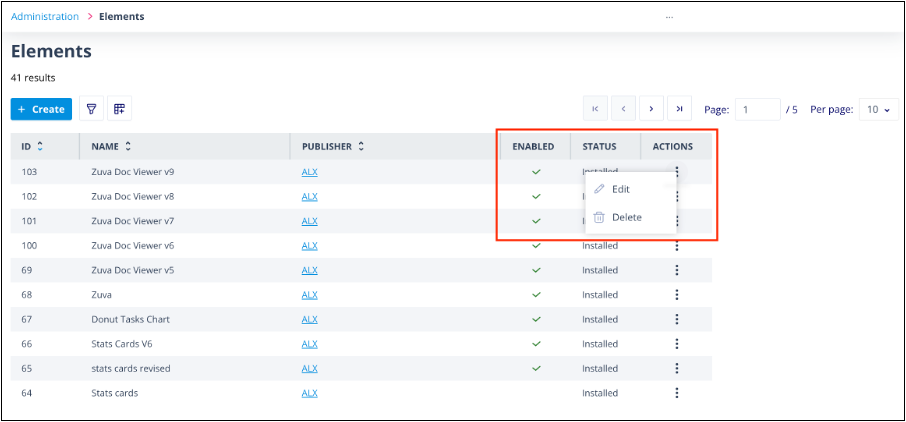
- ID — the unique identifier assigned when the Element is created.
- Name — the Element name. This must be unique.
- Publisher — the organisation that developed the Element, taken from the package configuration.
- Enabled — indicates whether the Element is currently available for use.
- Status — shows the current installation state.
- Actions — provides options to edit or delete the Element.
Element status values
During installation an Element can have one of three statuses:
- Processing — the package is currently being downloaded or installed.
- Installed — the package has been successfully installed and is ready to use.
- Failed — installation was unsuccessful. Common causes include:
- incorrect Git repository credentials
- missing required files
- invalid package structure
- configuration validation failures
Creating Elements
For step-by-step instructions on building and importing an Element, see:
Everything you need to create an Element
Things to remember
- Your Autologyx instance can contain up to 100 Elements, whether enabled or disabled.
- Element names must be unique.
- Consider including a version number in the Element name when importing updated versions.
- Elements are isolated from the main application and communicate through secure message passing.
- A single Element can be reused across multiple pages and forms.