
Editing User Group Permissions
Each User Group contains three default permission sets:
- Owners
- Members
- Everyone
Additional custom permission sets can be created, allowing a User Group to have up to 10 permission sets in total.
For an overview of User Group permissions, see User Group Permissions.
Who can edit User Group permissions?
The following users can manage User Group permission sets.
Super Admin users
Users with a Super Admin account type have unrestricted access to:
- create permission sets
- edit permission sets
- assign and remove users
- assign and remove User Groups
- delete custom permission sets
- delete User Groups
User Group Owners with a Config Admin account type
User Group Owners with a Config Admin account type can:
- access and edit the User Group
- create custom permission sets
- edit existing permission sets, except Owners
- assign and remove users
- assign and remove User Groups
- delete custom permission sets
- delete the User Group
Note: These users can normally see only users who belong to User Groups they own, unless they have also been granted the View Users permission.
User Group Owners with an Internal account type
User Group Owners with an Internal account type do not see the User Group in the Administration menu.
However, they can access it directly using a URL such as:
https://catalyst-domain-url/administration/user-groups/89
where 89 is the User Group ID.
With the correct URL, they have the same permissions as a User Group Owner with a Config Admin account type.
Editing permission sets
Each User Group permission set has an Actions menu alongside its name.
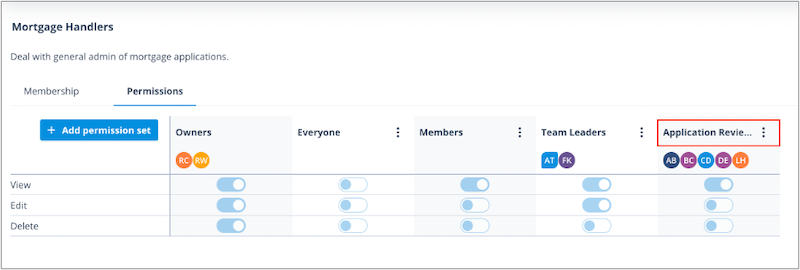
Edit permissions
Open the Actions menu and select Edit.
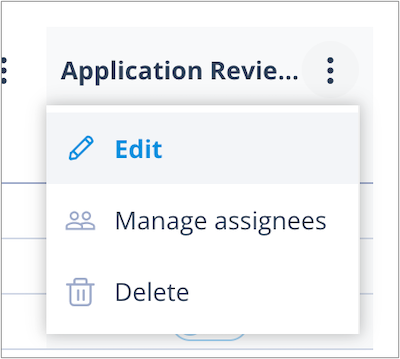
You can configure the following permissions:
- View - allows users to see the User Group, including membership and permissions
- Edit - allows users to modify the User Group name, description, membership, and permissions
- Delete - allows users to delete the User Group
After making your changes, click the tick icon to save.
A confirmation toast message is displayed and the updated permissions take effect immediately.
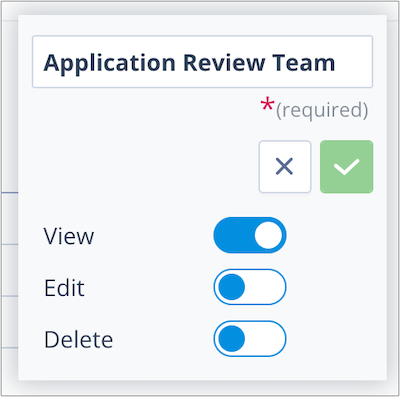
Managing assignees
Remove users or User Groups
Open the Actions menu and select Manage assignees.
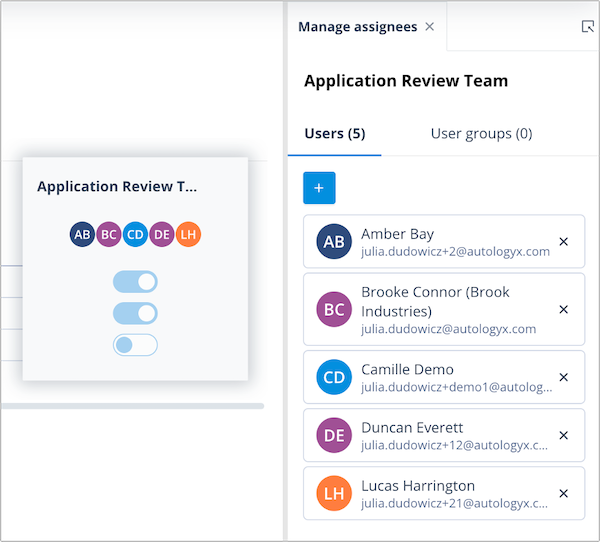
The Manage assignees panel contains two tabs:
- Users
- User Groups
The number of currently assigned users and User Groups is displayed on each tab.
To remove an assignment, click the X on the relevant tile.
A confirmation modal is displayed.
Click Yes, unassign to remove the assignment, or Cancel to keep it.
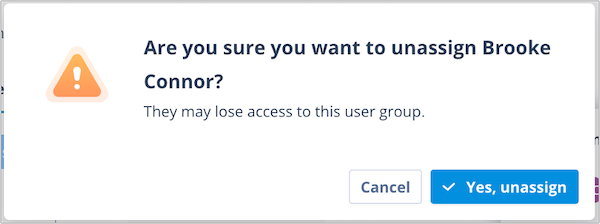
The assigned user or User Group is removed immediately and the displayed totals are updated accordingly.
What happens when users are removed?
When a user or User Group is removed from a permission set:
- permissions are revoked immediately
- users do not need to log out and back in
- a page refresh may be required before changes become visible
If the removed users no longer have the View Users permission, they also lose access to User Group membership information.
Add users or User Groups
For information about assigning users and User Groups to permission sets, see User Group Permissions.
Things to remember
- All permission sets except Owners can be modified.
- A maximum of 100 individual users can be assigned to a permission set.
- A maximum of 10 User Groups can be assigned to a permission set.
- A User Group can contain a maximum of 10 permission sets.
- Permission changes take effect immediately after they are saved.
- Users removed from a permission set lose the associated permissions immediately.