
User Group Permissions
User Group permissions determine who can view, edit, and manage a User Group.
Users with a Super Admin account type and User Group Owners can access the Permissions tab to manage default permissions and create additional User Group Permission Sets.
For information about User Group ownership and administration limitations, see Editing a User Group.
Accessing User Group permissions
Open the required User Group and select the Permissions tab.
Default User Group permission sets
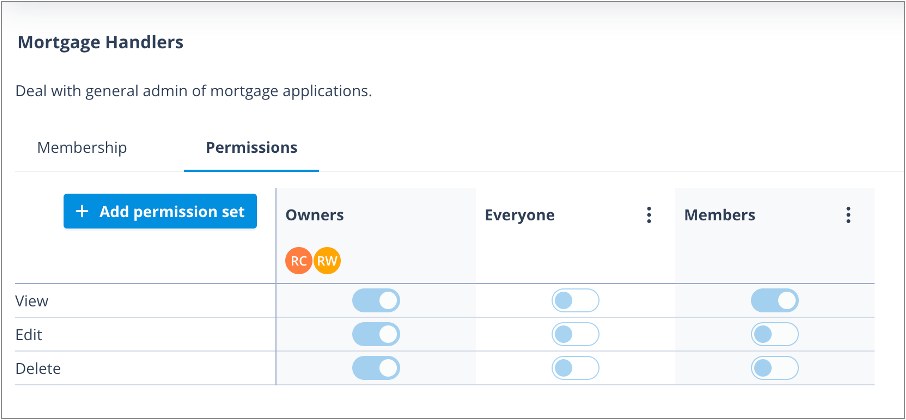
Every User Group contains three default Permission Sets.
Owners
The Owners permission set cannot be modified.
Users assigned to this set automatically receive permission to:
- View
- Edit
- Delete
the User Group.
Everyone
The Everyone permission set applies to all users in the system except 1-time completion users, who do not log in.
All permissions are disabled by default.
Members
The Members permission set applies to all members of the User Group who are not Owners.
By default, Members can view the User Group and access the Membership and Permissions tabs, but cannot make changes.
Creating additional permission sets
Additional permission sets can be created when different groups of users require different levels of access.
For example:
- a Team Leader may need permission to manage membership
- a departmental administrator may need visibility of the User Group without becoming an Owner
- a user outside the User Group may need temporary access
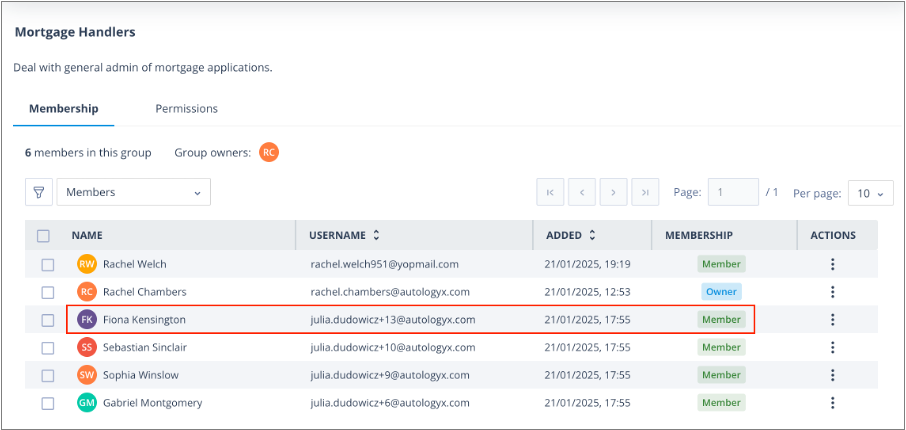
In the example below, Fiona Kensington is already a member of the User Group but requires additional permissions to perform management activities.
Create a User Group permission set
(The screenshots below were taken using a Super Admin account.)
Click + Add permission set.
Note: While a permission set is being created, the button is temporarily disabled.
Enter a name for the permission set and enable the required permissions.
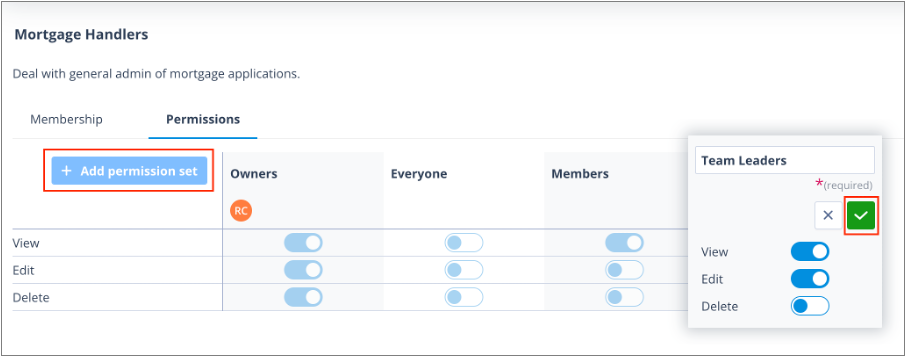
Click the tick icon to save.
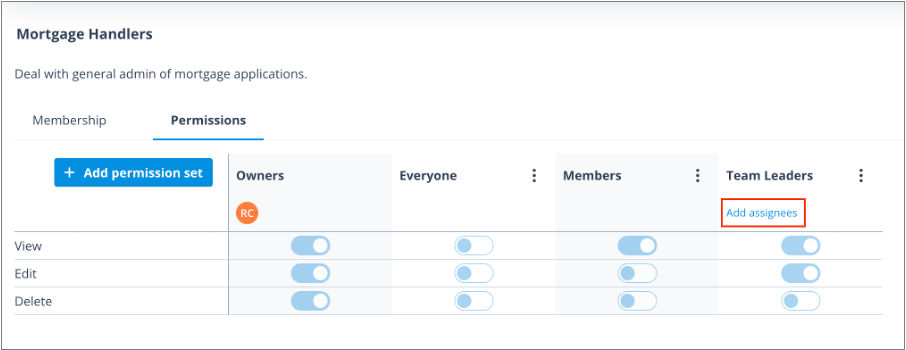
The new permission set is created and displays an Add assignees link.
Add assignees
Click Add assignees.
You can assign:
- individual users
- User Groups
Add individual users
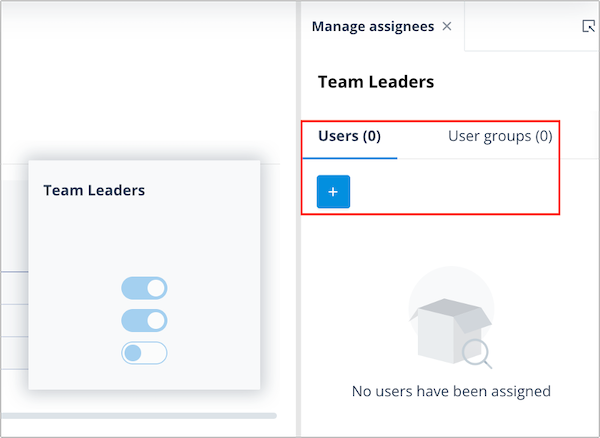
Click the Users tab and select the + button.
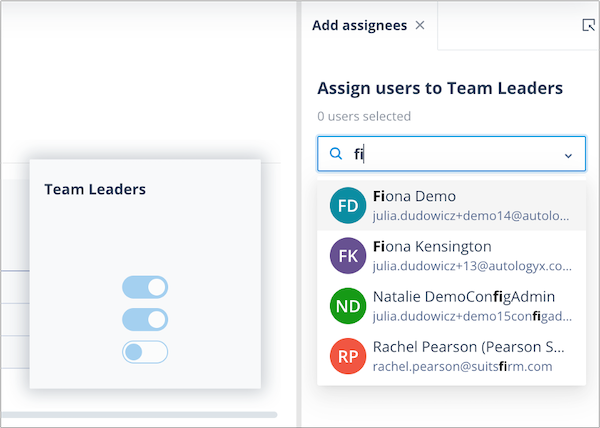
Either:
- scroll through the available users
- begin typing a user's name to filter the list
Click a user tile to select it.
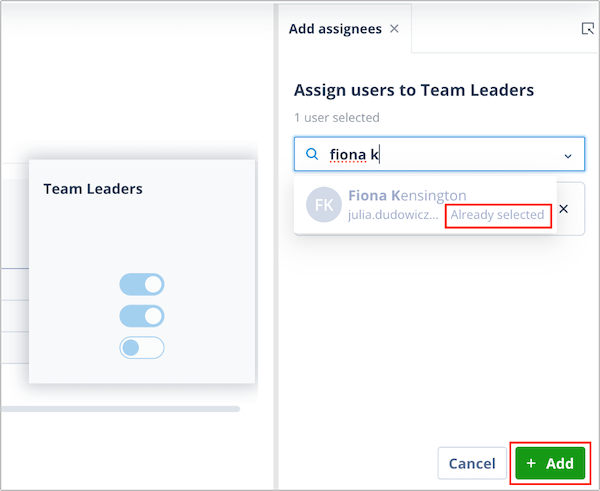
Selected users become greyed out and display Already selected.
Continue selecting users as required and click + Add.
A green success toast confirms the assignment.
Close the Manage assignees panel when you are finished.

Viewing assignees
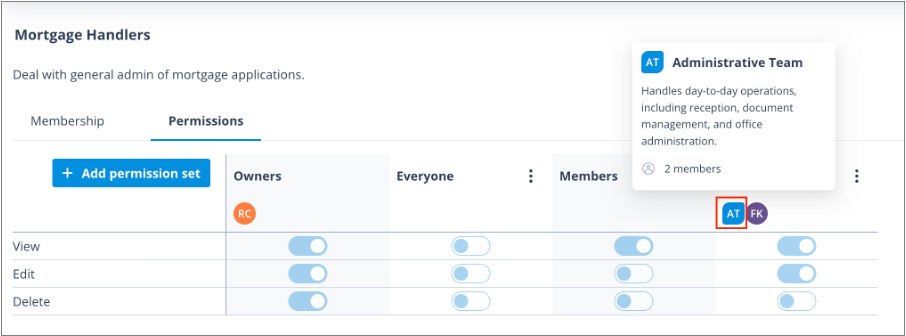
Assigned users are displayed as avatars within the permission set.
Note: Avatars are shown only for the Owners permission set and custom permission sets.
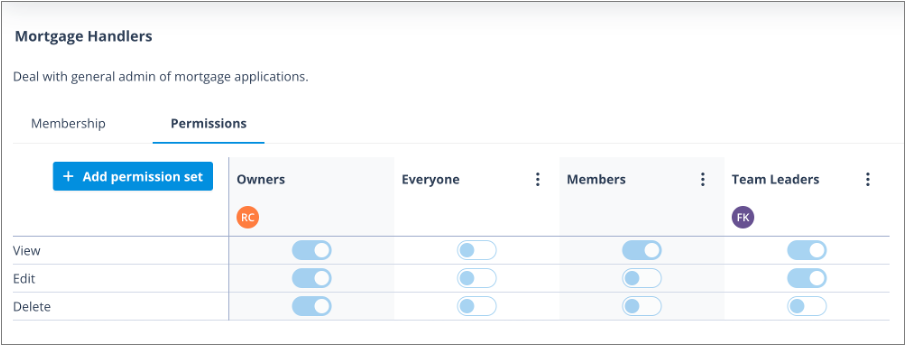
If a User Group is assigned to a permission set, the User Group avatar is displayed before any user avatars.
Selecting the avatar displays:
- the User Group description
- the number of members in the User Group
User Group avatars can be distinguished from user avatars by their shape.
Editing default permissions
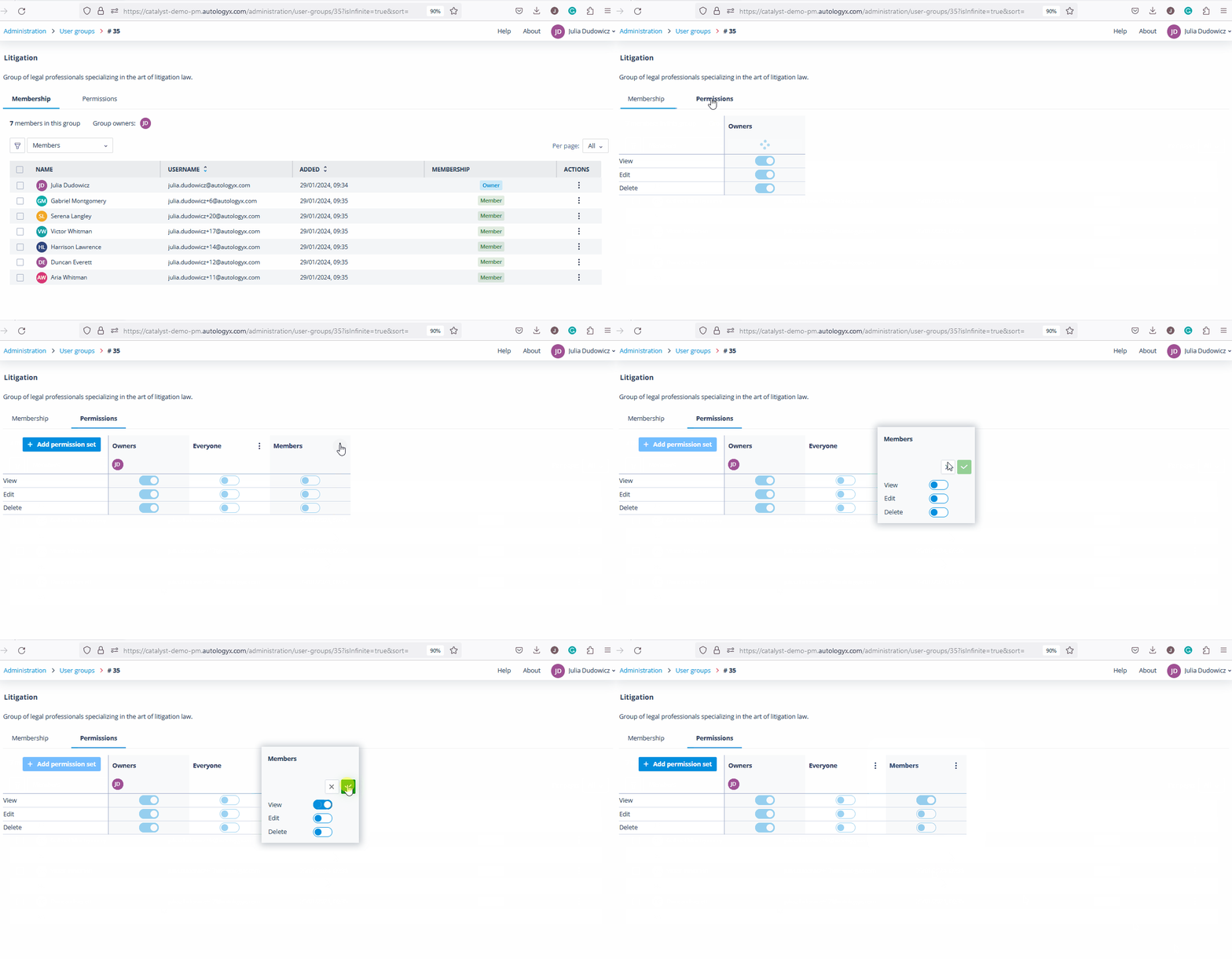
The permissions assigned to the default Members permission set can be modified.
The example below shows how Member permissions can be updated.
Important: Permissions take effect immediately when a user or User Group is assigned to a permission set.
Users do not need to sign out and back in again, although a page refresh may occasionally be required before changes become visible.
Related articles
Things to remember
- A user can belong to multiple User Groups.
- A user can belong to more than one permission set within a User Group.
- A User Group can have up to 10 Owners.
- A User Group can contain up to 1,000,000 Members.
- A maximum of 1,000 User Groups can exist in a system.
- Permission changes take effect immediately after assignment.
- The Owners permission set cannot be modified.