
Task Form fields and how to configure them
This article helps you create better Task templates by explaining the standalone field types available in Task forms and how they can be configured.
Field types available in Task Templates
There are two types of fields available in Task Templates:
- Standalone fields - available in both types of Task template
- Object class fields - available only in Task templates of the Update object record type
This article focuses on Standalone fields, which are specific to the Task template in which they are configured.
In a Task template of the Update object record type, you can use a mixture of Standalone fields and Object class fields.
Find out more about Object class fields.
Properties common to all field types
The following properties are common to most Standalone field types.
- Label - the name of the field as it appears on the form. Unlike labels for Object class fields, these labels do not have to be unique.
- Alias - automatically populated from the field label. The alias must be unique. If you have more than one field with the same label, you must append a number or change the alias. If you save without changing a duplicate alias, Catalyst automatically changes it to
new_input_#. - Required - makes the field mandatory on the Task form. The user completing the task cannot submit the form without providing a value. This option is not available for JSON fields.
- Read-only - greys out the field so the user completing the form cannot enter or change a value.
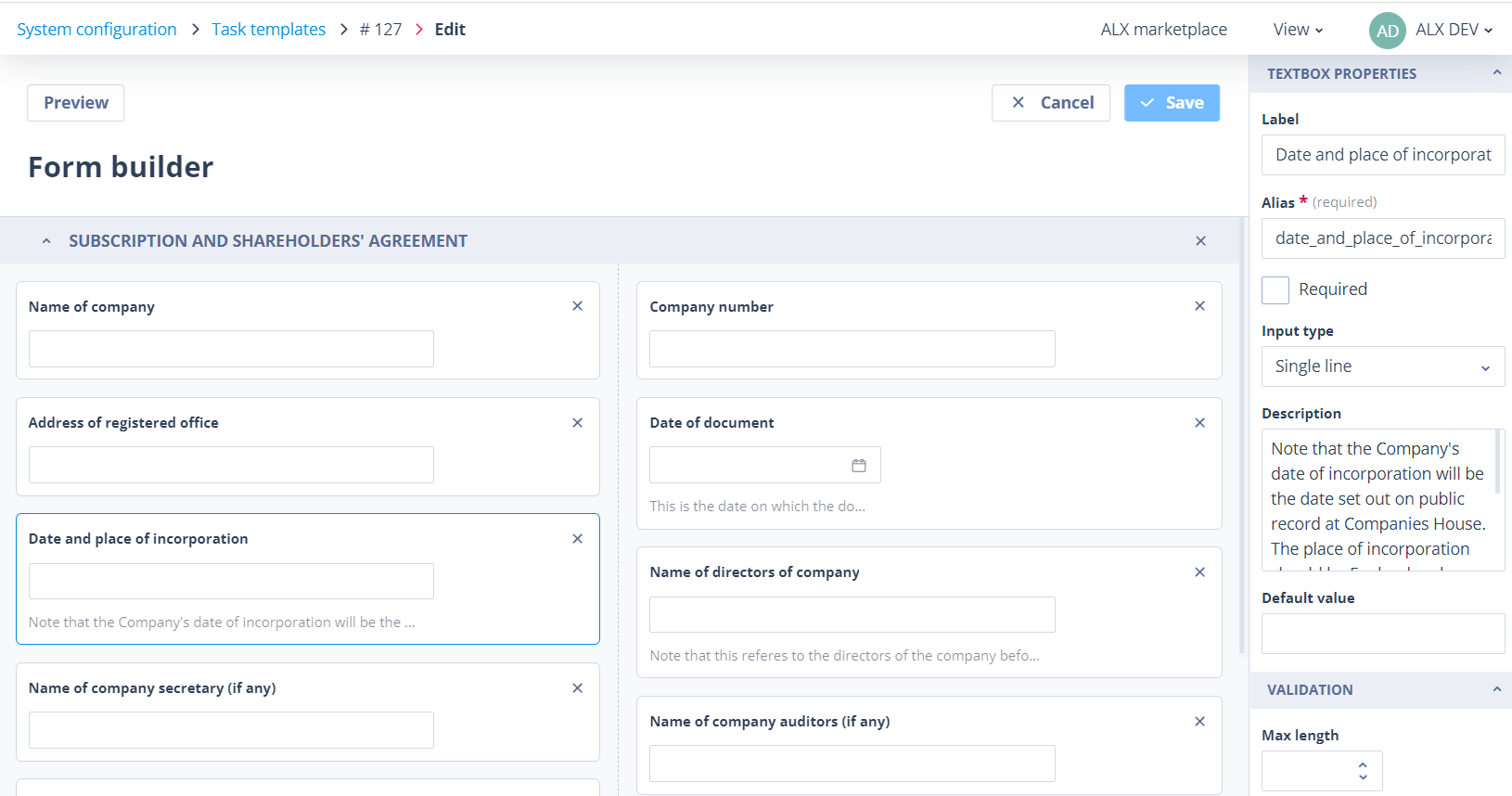
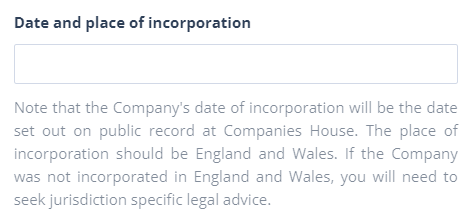
- Description - allows you to add instructional text below the field input.
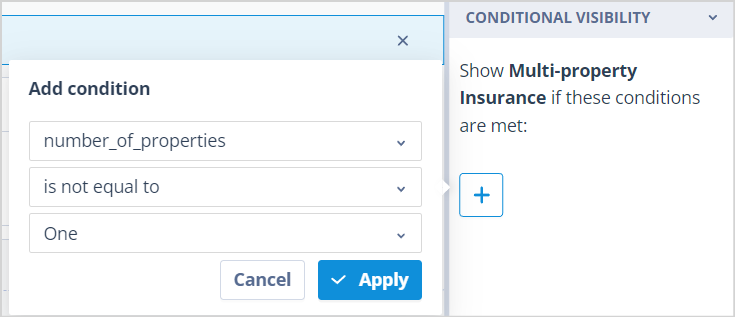
Aliases for Standalone fields in Task templates are used as keys in Task responses. They are also used in conditions for defining Conditional Visibility on form sections.
Descriptions appear below the field in the Task template configuration.
The same description is shown to the user on the Task form.
Standalone field types
The following Standalone field types are available in Task Templates.
Textbox
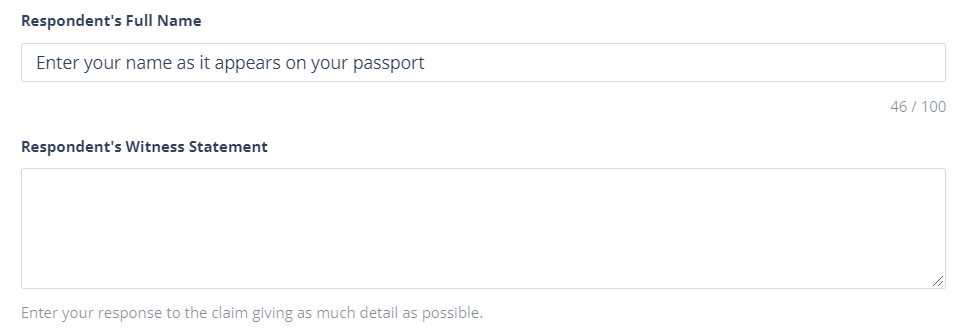
The Textbox field allows the user to enter freeform text.
It is useful for gathering non-specific information, such as a witness statement. It is less useful for management information reporting because the content entered by users may be inconsistent.
The input type can be set to:
- Single line
- Multi line
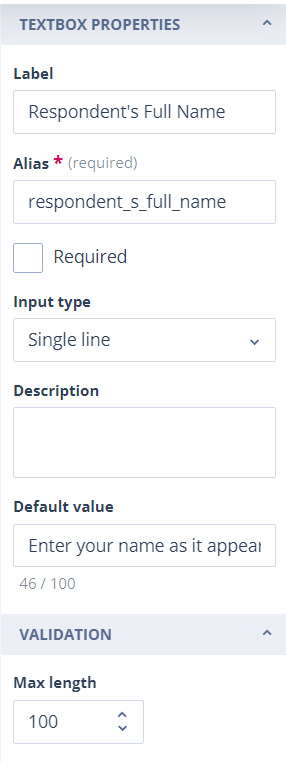
You can enter a default value, which can be overwritten by the user completing the form.
The validation options allow you to set a maximum number of characters. The validation is shown on the Default value field.
Numeric
The Numeric field type allows you to capture whole numbers and numbers with decimal places.
The Precision setting controls the number of decimal places and can be set from 0 to 10.
Validation allows you to set a minimum and/or maximum value.
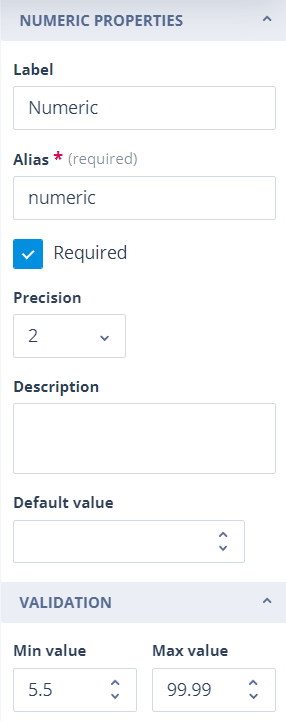
With the settings shown below, the user cannot enter a value outside the specified range.

Date / Time picker
The Date / Time picker field type has three input types:
- Date
- Date and time
- Time
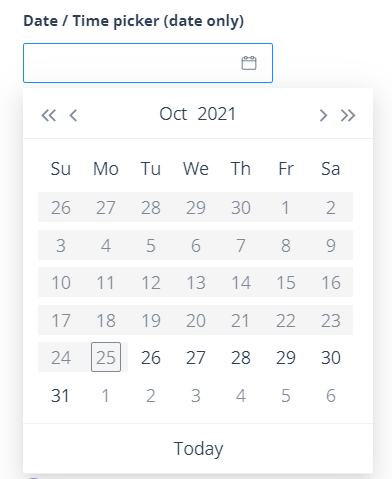
The Date input type presents a calendar widget on the Task form.
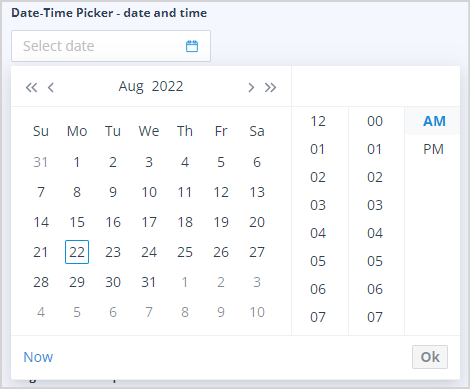
The Date and time input type presents a calendar and time picker.
If your account language preference is set to English (UK), the time picker uses a 24-hour clock. If your language preference is English (USA), the time picker uses a 12-hour clock with AM and PM options.
This is useful for meeting details and other time-sensitive event data.
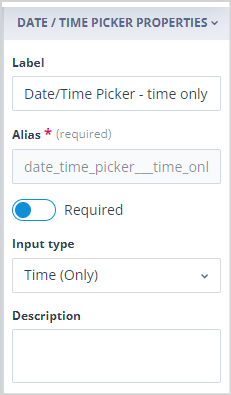
The Time input type presents a time picker using either a 12-hour or 24-hour clock, depending on the user's preferences.
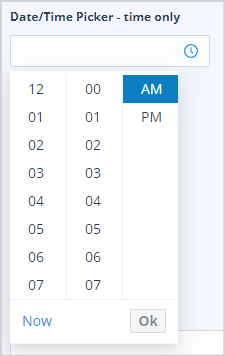
The input types that include time also have a Now option, which populates the field with the current date and time or the current time.
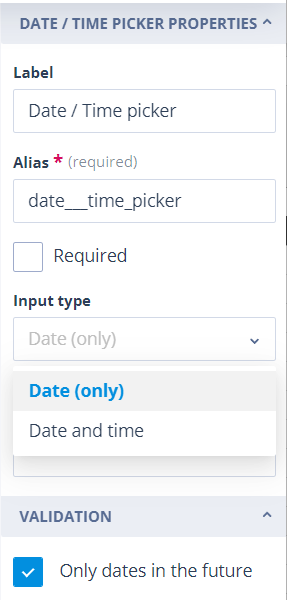
Validation allows you to specify that only dates in the future are acceptable.
Checkbox
The Checkbox field type presents a checkbox on the Task form, with the field label shown to the right.
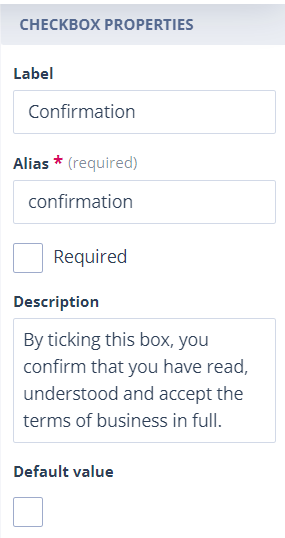
As with other field types, the Description is displayed underneath.
Checkboxes are commonly used to confirm, affirm, agree, or opt out.
If you make a Checkbox field required, the user cannot submit the Task form without ticking it.

Single select and Multi select
The maximum number of options that can be configured is 100.
Single select options can be presented as:
- radio buttons
- a dropdown list
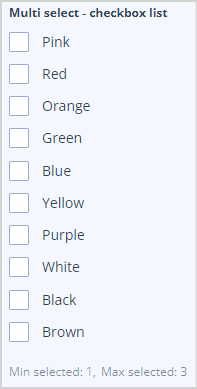
Multi select options are presented as a checkbox list.
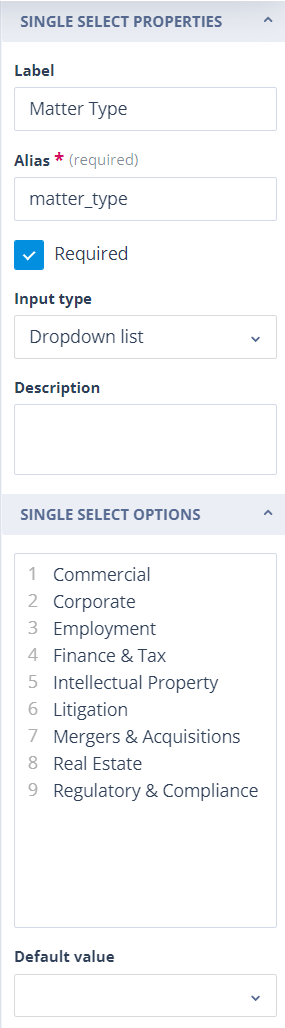
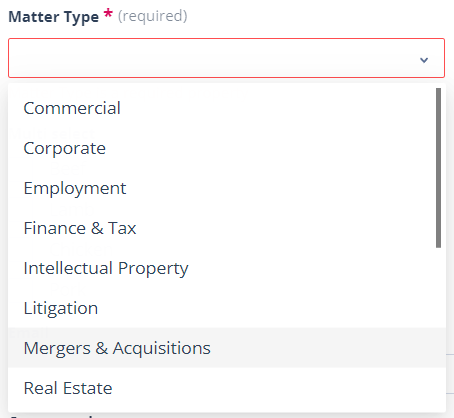
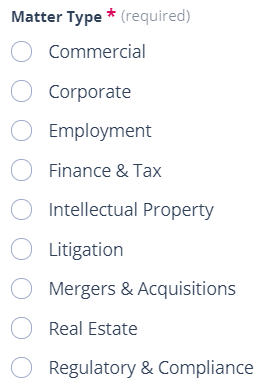
On Single select fields, you can set a default value.
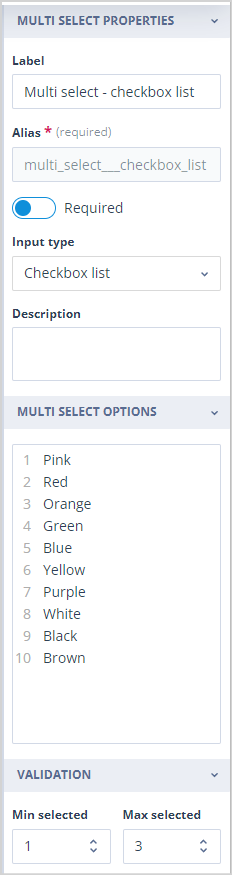
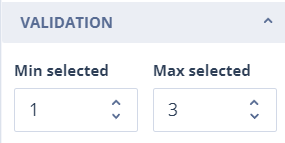
On Multi select fields, you can set the minimum and maximum number of options allowed.
Email
The Email field type is displayed on the Task form with an @ symbol at the end.
It includes built-in validation and expects a recognised email format, such as prefix@domain.xx.
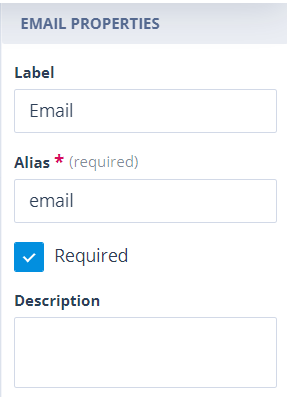
The user completing the form must correct the error before the submit button is enabled.

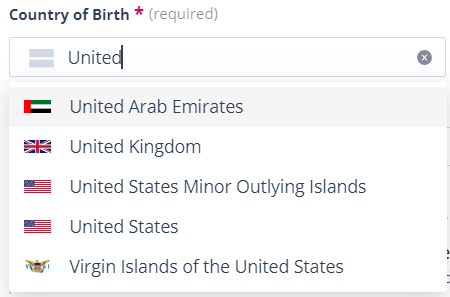
Country selector
The Country selector field presents a searchable alphabetical single-select dropdown list.
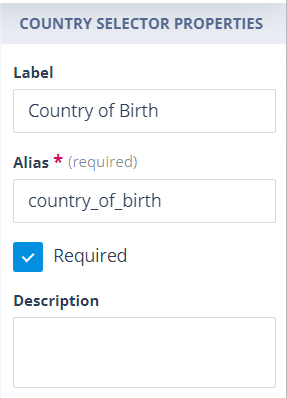
It is useful for address details and application forms.
Phone number
The Phone number field type is displayed on the Task form with a phone symbol at the end.
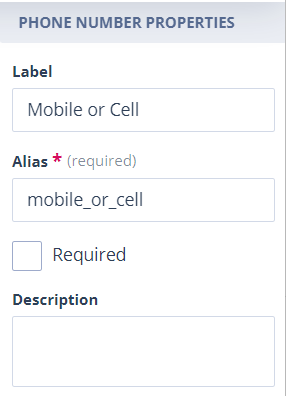
The field is restricted to 15 characters.
For example, a UK mobile number can be entered in formats such as:
+44 7890 12345607890 12345607890123456

File upload
The File upload field type is used to collect documents in a task.
The field validation allows you to set the maximum number of files that can be uploaded, from 1 to 10.
When the field is displayed on the Task form, the user is told how many files can be uploaded. Drag and drop and browse functions are supported.
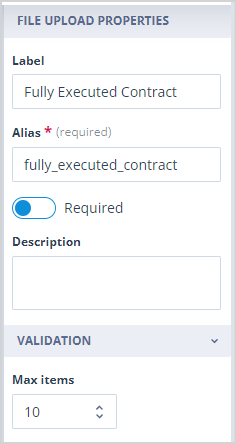
Documents uploaded in error can be removed with the delete button.

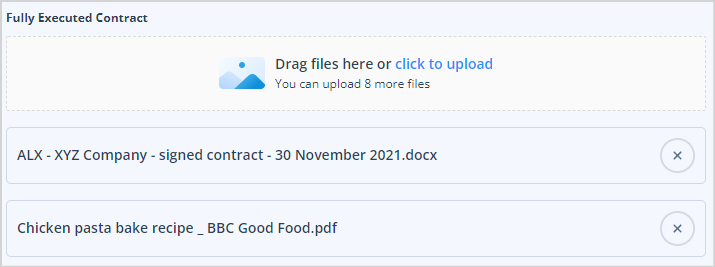
There is no restriction on file type, but the maximum file size is 50MB.
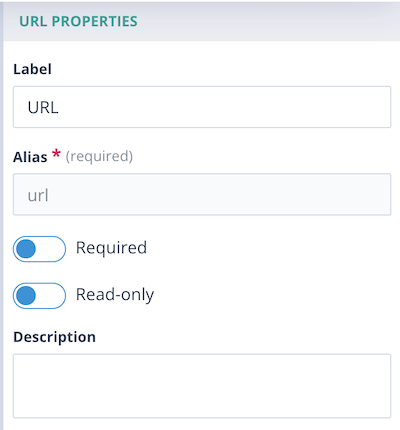
URL
The URL field type is used to capture website, form, or other web addresses.
This field has front-end validation, which means that the form cannot be saved if the entry does not use the correct URL format.

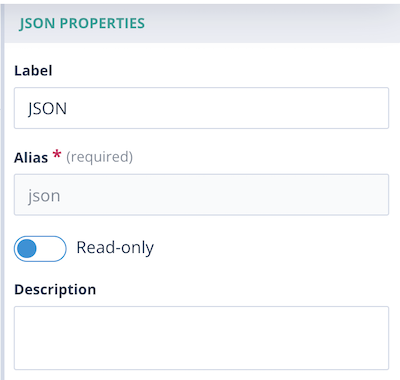
JSON
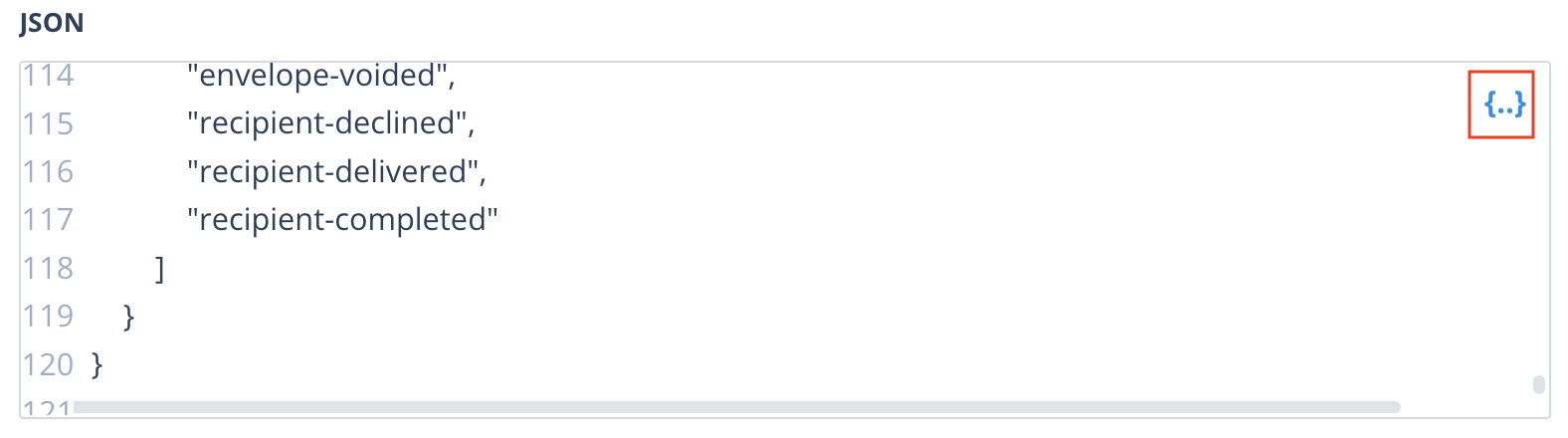
The JSON field type allows you to store complex data structures within a single field in a Task form.
Things to remember
- Each Task form can have up to 2,000 fields, which means you can create detailed and comprehensive forms.
- The system limit for Task templates is 10,000.
- Standalone field aliases must be unique within the Task template.
- Required fields must be completed before the Task form can be submitted.
- Some field types include validation rules that control what users can enter.