
Using conditional logic in a form
You may have seen our article about constructing a Task template - self contained form. These can be created with one or two fields. However, very comprehensive forms can also be constructed.
They can have multiple sections, up to three columns, numerous instructions and several different data input formats.
In addition, these forms can contain conditional logic, which allows you to change the behaviour of the form based on what the user selects or enters into a field.
Forms that support conditional logic
Conditional logic is available in the following forms:
Example: create a Subscription and Shareholders' Agreement task template form
To demonstrate this feature, we will show you the steps to create a Subscription and Shareholders' Agreement task template form.
Create the task template and call it "Subscription and Shareholders' Agreement".
Click on "Create response form".
Click on "New Section 1" and call it "Subscription and Shareholders' Agreement". Give this section two columns and leave the column ratios set at 50:50.
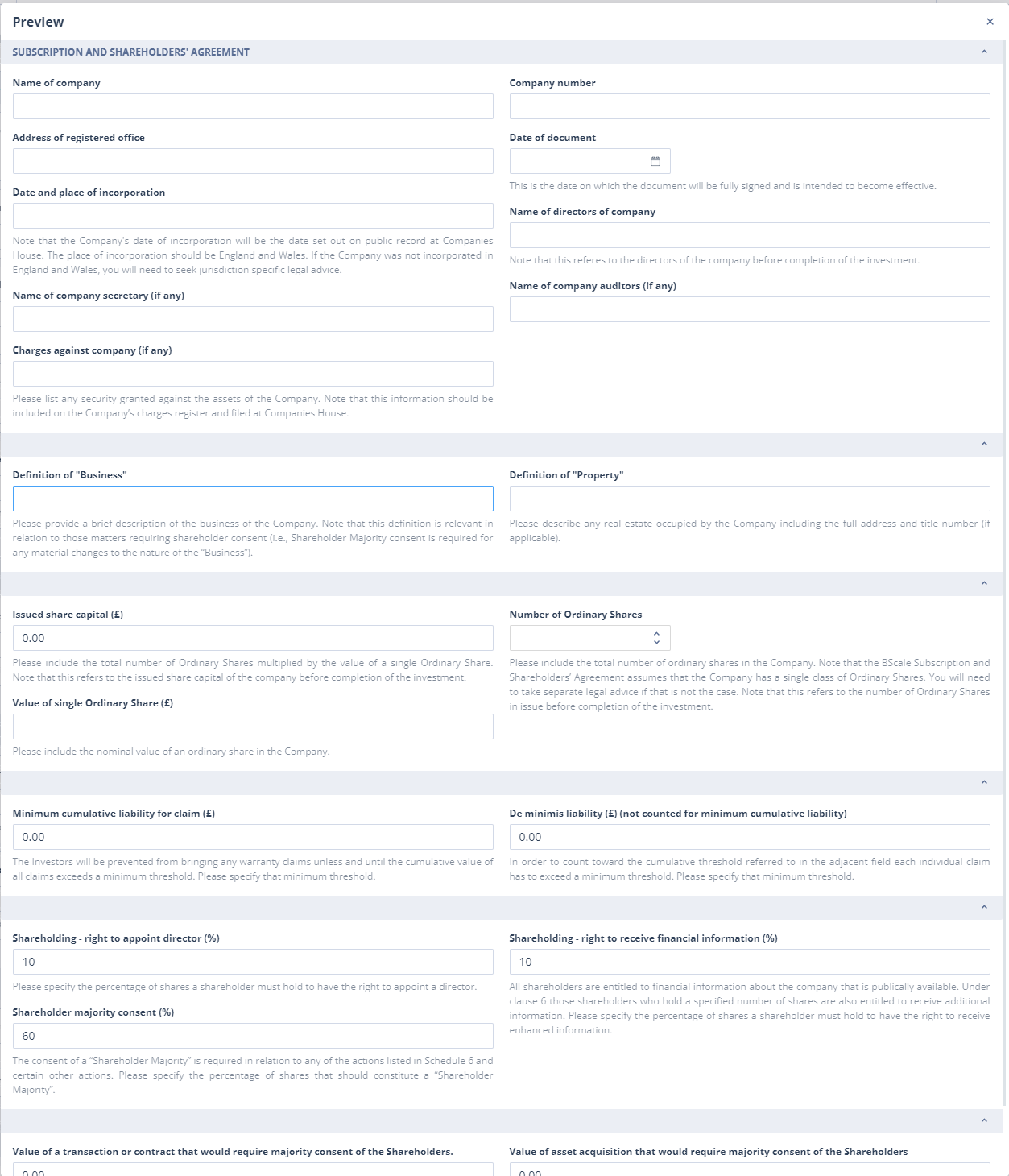
Add and configure the fields in sections which do not require conditional logic, as shown below in preview mode:
- Most fields are single or multi-line text.
- Some have default values to indicate the format required, eg a numeric field is used for Shareholding - right to receive financial information (%) and the default is entered as 10.
- The Description input in the field properties is used for any instructional text about that field.
- Sections without names are used to break up the form into specific subject areas which do not require any labelling. As an alternative, you can use the option to switch off Show this section header. This will also reduce the size of the header.
In the first section of the form where conditional logic is required, the user will be asked to enter the details of Founders. Subsequent sections will require them to enter details of Investors, individuals with Pre Completion Shareholdings and individuals with Post Completion Shareholdings.
The first step is to find out how many of each type of individual there are.
- Add a control field using a Single select field labelled "Select the number of founders". Enter options 1-4, for example.
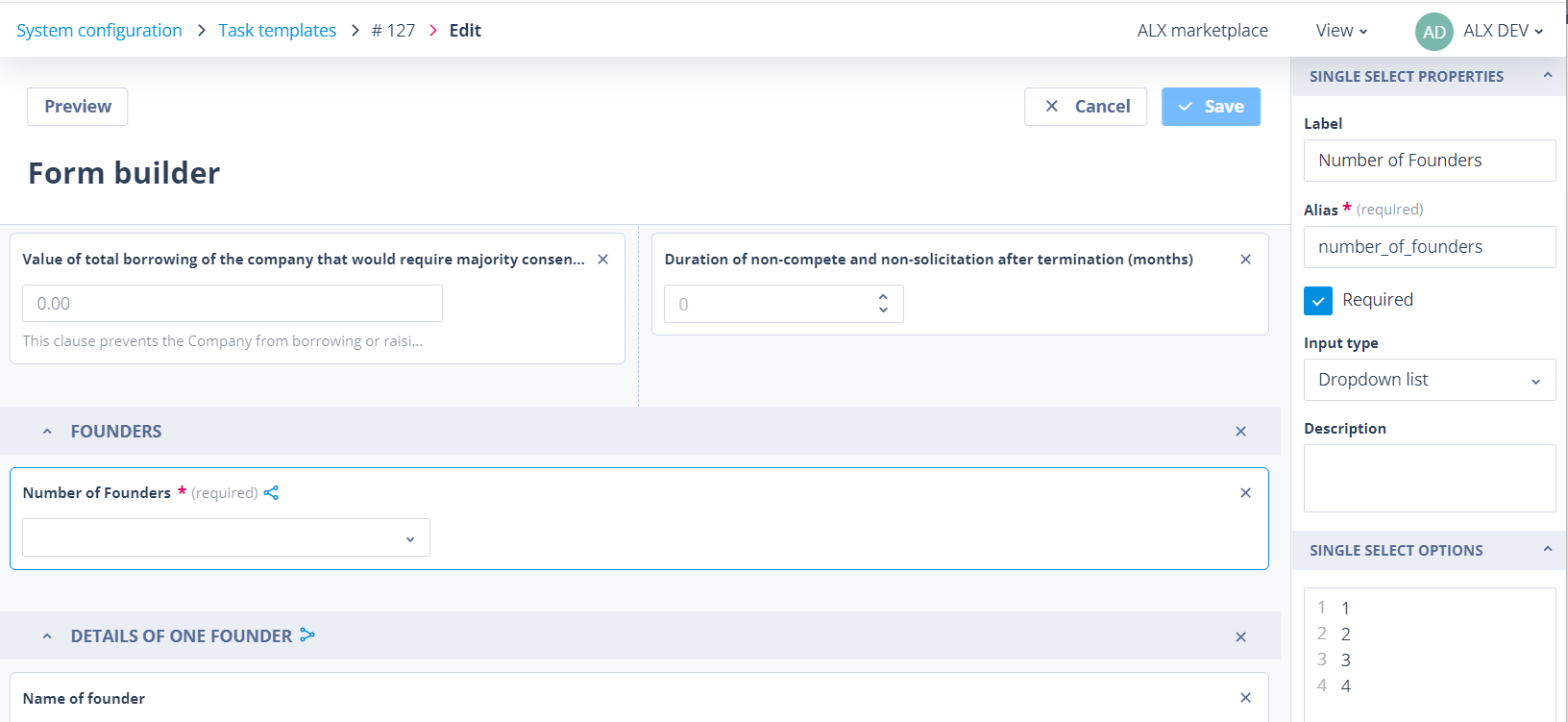
Note that the field has been made mandatory by ticking the Required option in the field properties. This is really important if you have subsequent sections which will only display on the basis of the value in a field like this one. However, do bear in mind that fields used to control conditional display do not have to be mandatory; it might not matter that the field is left blank, it just means that none of the sections using the logic from this field will be shown.
A dropdown list has been chosen over radio buttons. You can use Preview in order to check how the form will display.
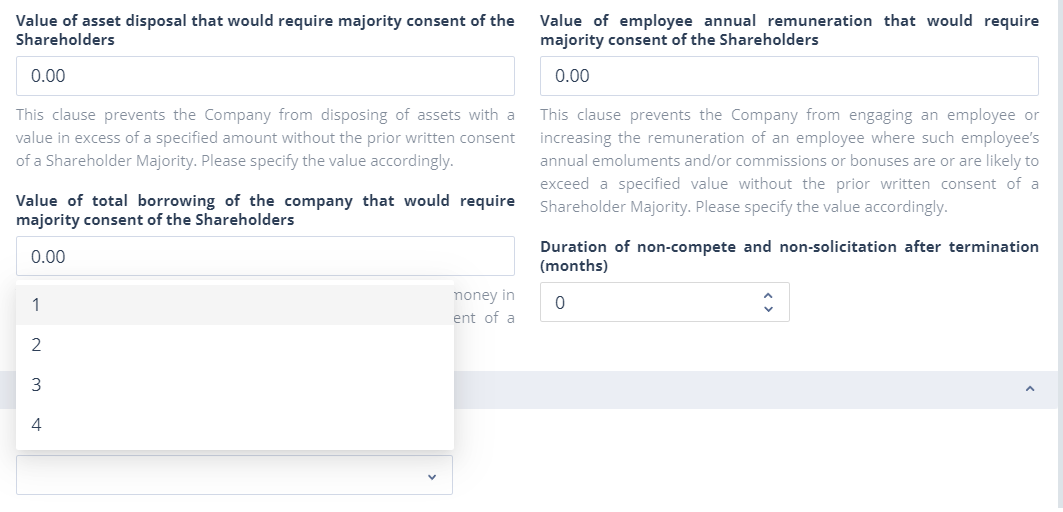
In this example, the user can select between 1 and 4 founders. This means that you must add 4 more sections to your form which include the fields where the details of 1, 2, 3 or 4 founders can be entered.
Set section conditional visibility
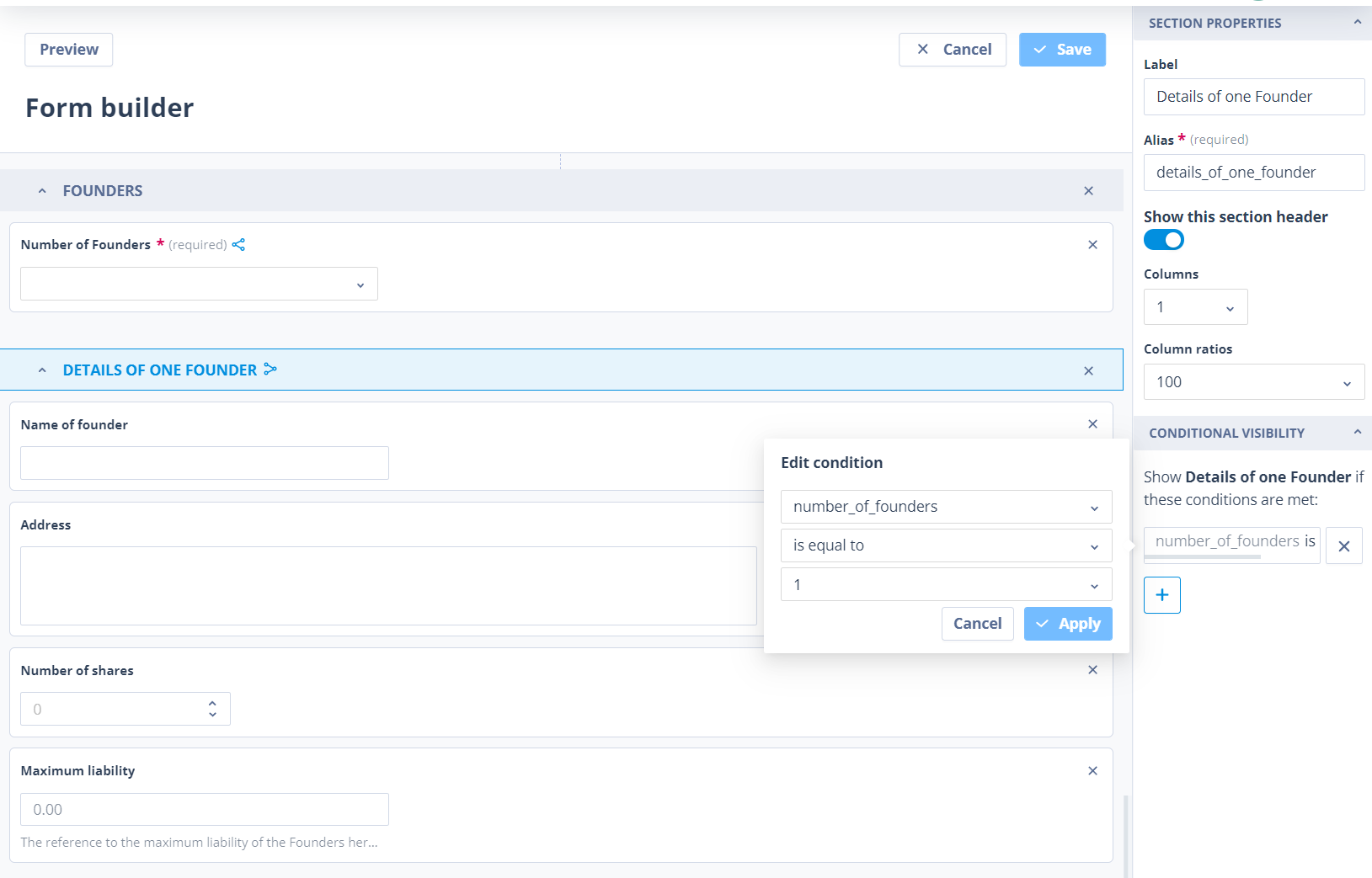
- Configure section visibility. Having done that, click on to the first of these sections. The Conditional Visibility control is at the bottom of the Section Properties.
Click the + button and find the field which will be used to control the conditional visibility - in this case, select number_of_founders. Note that the display shows you the field alias, not the field label; this is because the alias is unique, whereas the label does not have to be.
Next, select the appropriate operator. Choices are: is not empty, is equal to and is not equal to.
The screenshot below shows that the section called Details of one founder will be displayed if the field Number of Founders = 1.
You can try this out in preview mode.
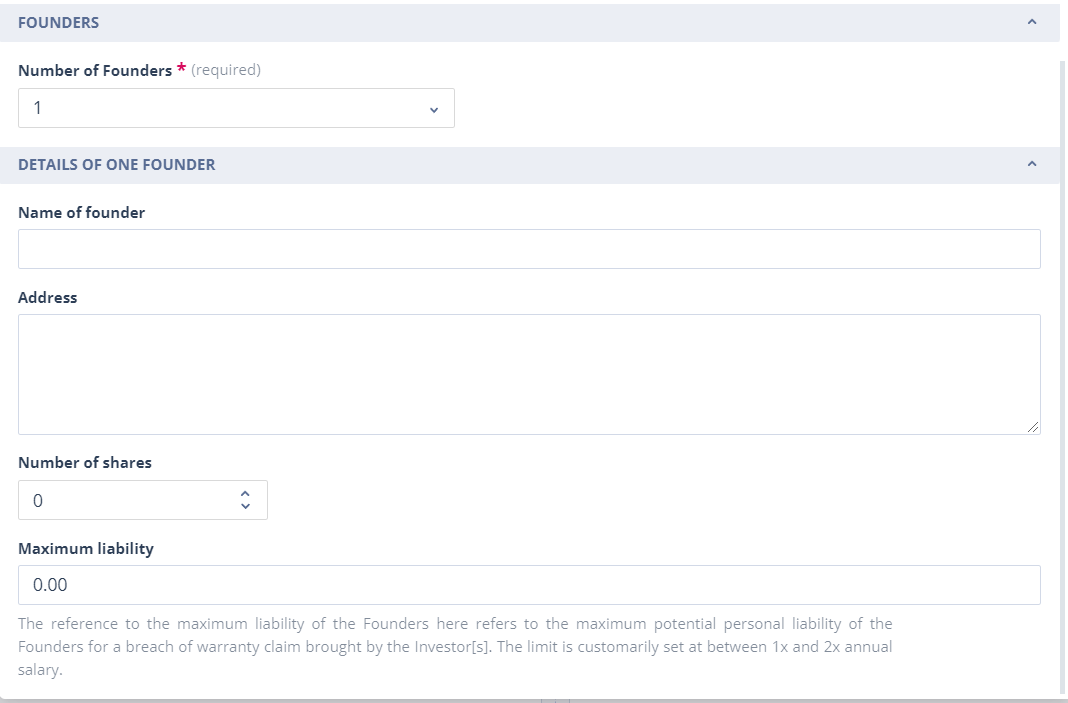
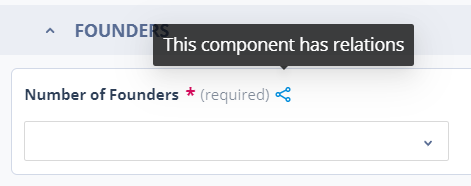
Any field which is used to control visibility of a section will contain a blue icon. Hovering over the icon will tell you that the field has relations:
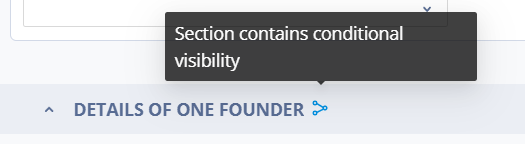
Likewise, a section which is displayed via conditions will have a similar blue icon. When hovering over this, you are told that the section contains conditional visibility:
- Repeat the logic setup for the following three sections.
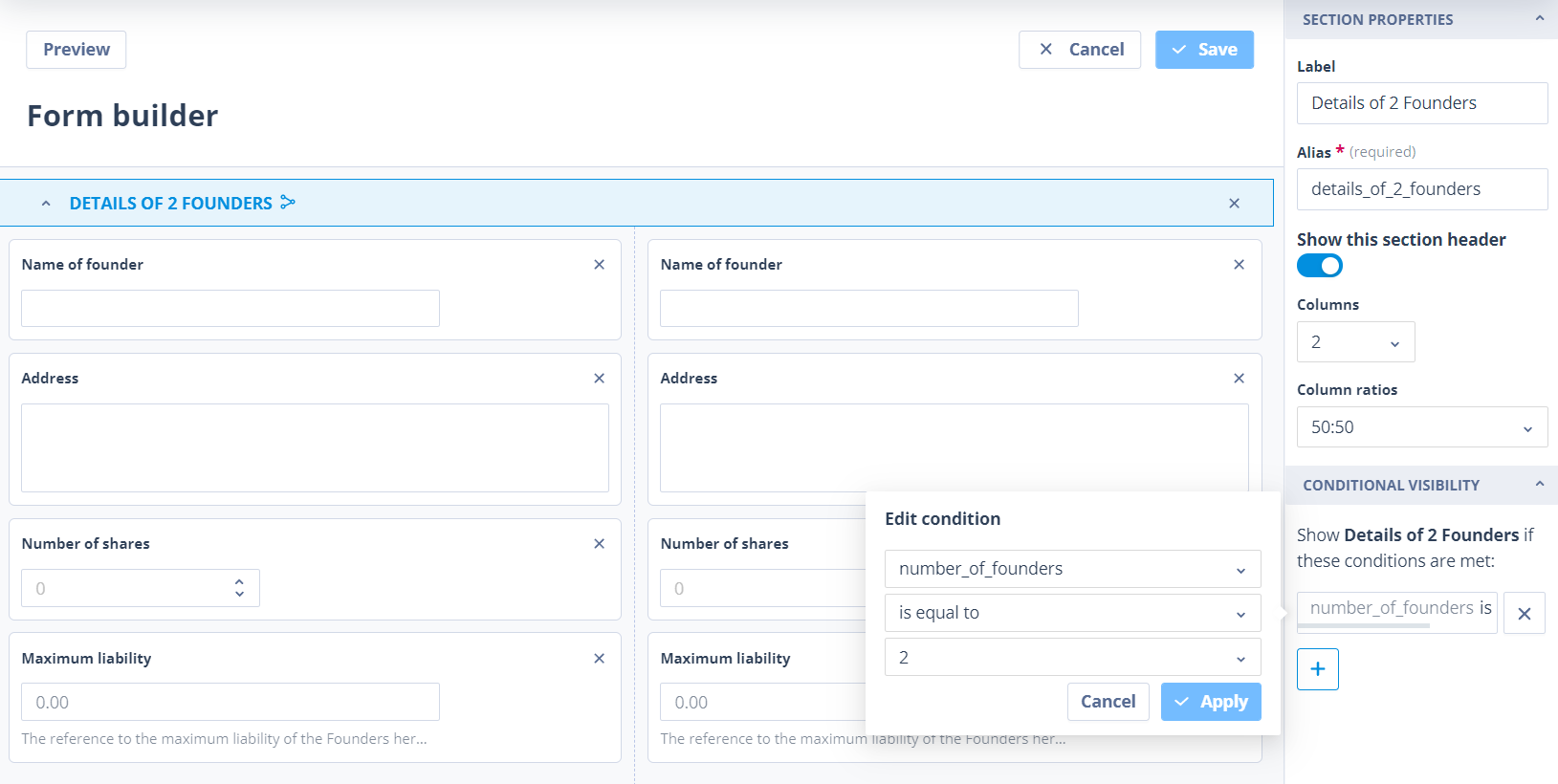
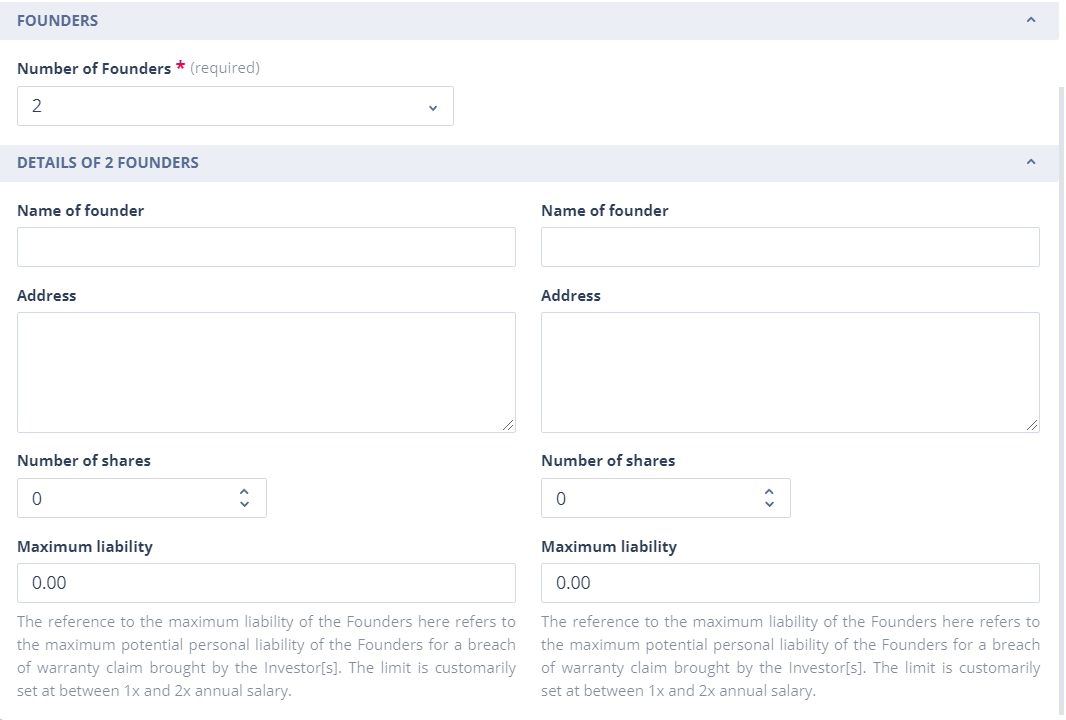
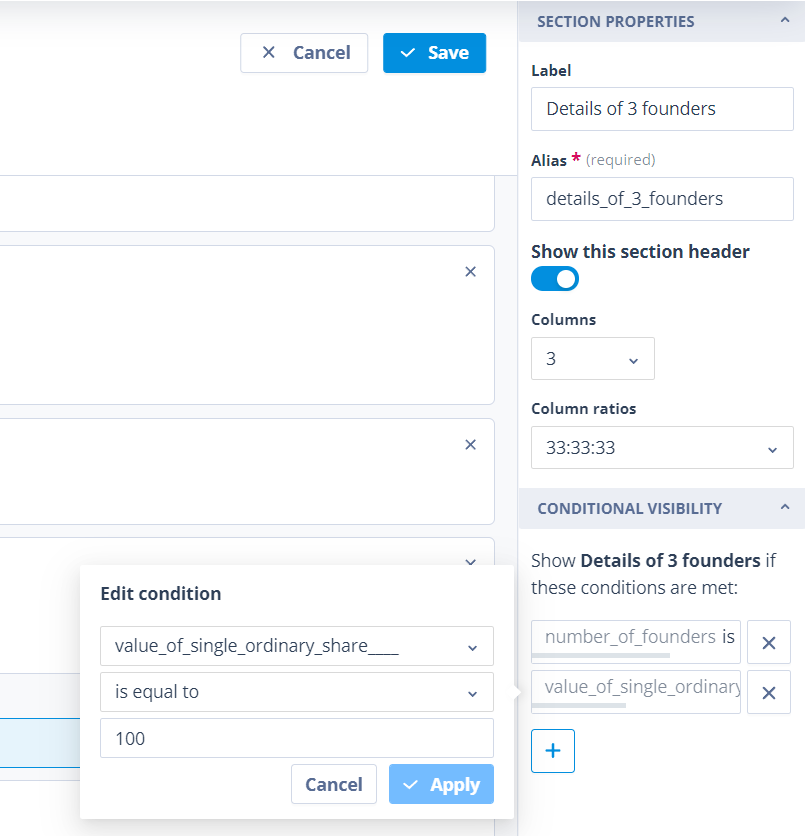
If the form requires it, you can use more than one condition to determine that a section should be displayed. Remember: these conditions are AND conditions. Therefore, if you use more than one condition, all of them must be met for the section to be displayed.
In the example shown below, the section called Details of 3 founders will only display if:
- the value in field number_of_founders = 3 AND
- the value in field value_of_single_ordinary_share = 100
Repeat for other groups and save
Repeat from point 5 for each of the other groups of people whose details must be captured - Investors, individuals with Pre Completion Shareholdings and individuals with Post Completion Shareholdings.
Configure the other task template tabs as required and save.