
Edit object class editing permission sets
To edit a Permission set, you must be one of the following:
- A User with a Super admin account type
- An Owner of the Object class
It is worth noting that other Users can view the content of the Permissions tab but cannot edit it. These are:
- Users who have a Role where the Edit permission for Object classes is enabled on the Data Model tab
- Users who have a Permission set where the Edit Object class permission is enabled
To access permission sets: navigate to the Object class, then select Edit in the Actions menu.
Click on the Permissions tab.
By default, you will be on the Class permissions section. If you want to edit Record permissions, click on this section instead.
You will not be able to edit Owners' permissions in either section, as these are set to fully enabled.
Owners can be added or removed from the kebab menu on the Class permissions/ Owners' Permission set, while Assignees can be added or removed in the same way from other Class permission sets.
Owners and Assignees for Record permissions are not managed here. They are managed against individual records in the class.
| 1i.png | 1j.png |
Manage Owners
Selecting this option will open the Manage owners side panel where the User can:
- Add owners
- Remove Owners, inluding themself
| In the event that an Owner chooses to remove themself the adjacent warning is shown. The Owner can confirm or cancel. If the Owner proceeds and has a Super Admin account the Manage Owners panel will remain open, their tile is removed from the Manage Owners panel and the Owner counter is decremented. If the Owner is a Standard User with Edit class permissions, the Manage Owners panel will close and the Permissions tab content becomes read-only. If the Owner is a Standard User without Edit class permissions, the Manage Owners panel and Edit Object class page will close and the User is redirected to the Landing page. | mceclip1.png |
| In order to add Owners, the current Owner or Super admin User must click the blue Add owners button. | mceclip2.png |
| This will allow them to search the Users and select those who are to become Owners of the Object class. Click the green + Add button in the bottom right of the panel. The green success toast will be displayed on-screen. Close the panel to finish the process. | mceclip3.png |
As Owners are added or removed, the number of Owners shown in the Manage Owners panel and the Owners column on the Object class list will increase or decrease accordingly.
Manage Assignees
Users can add and remove Assignees of other Class Permission sets in the same way. The kebab menu for these Permission sets has 3 options.
Select Manage assignees. The Manage assignees panel will open on the right hand side.
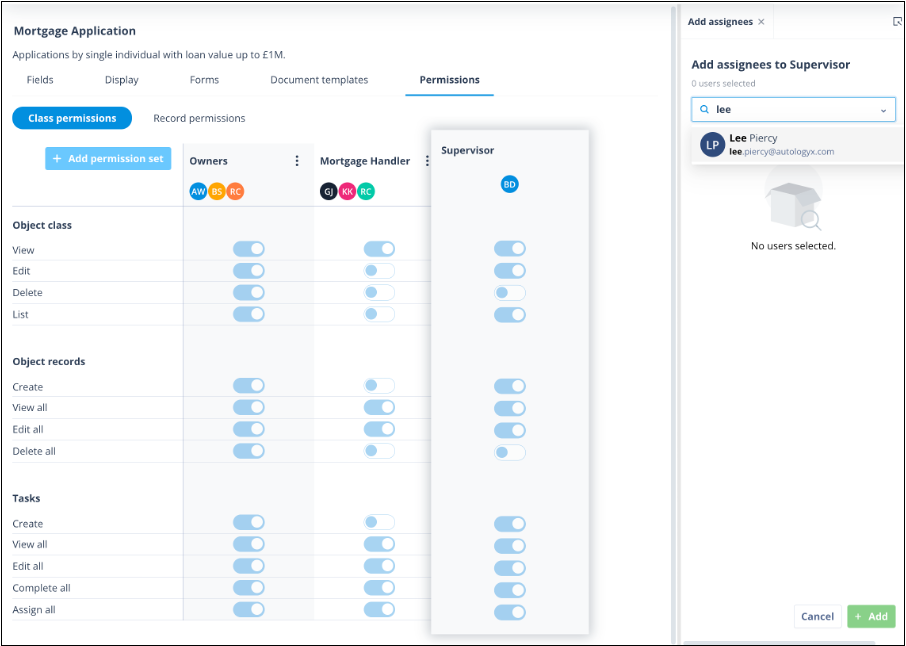
An Assignee can be deleted by clicking the X in their tile.
| A modal will be displayed asking the User if they are sure. Selecting Cancel will close the modal. Confirming Yes, remove will mean that the User is removed from the Permission set. The number of Assignees will alter accordingly. The removed User will immediately lose the associated permissions. | Screenshot 2024-08-01 at 19.30.07.png |
Click + Add assignees to give additional Users these permissions.
Start typing in the search field so that the list filters to match the parameters entered.
| Click on the User name. The User name will grey out and "Already selected" will be displayed to the right of it. Continue adding the required Users, then click the green + Add button in the bottom right of the panel. Close the panel to complete the process. The newly added User(s) will immediately have the associated permissions. Click Here for more information on creating Permission sets. | Screenshot 2024-08-01 at 19.36.18.png |
The other options in the kebab menu for both Class and Record additional permission sets are:
Edit - which will allow the User to change the permissions for the Object class or Object records and/or Tasks associated with the records.
Selecting this option will open the Permission set modal. The permissions can be changed. So for instance, in the example of the Mortagage Handler Permission set, the Delete all permission under Object records has been given in error, as has the Assign all permission under Tasks.
| mceclip5.png | Disable the wrongly assigned permissions. Click the green tick button and the amended Permission set will be saved. mceclip7.png Users will immediately lose the removed permissions. |
- Delete - which will allow the User to delete the Permission set. A warning modal will be displayed like this:
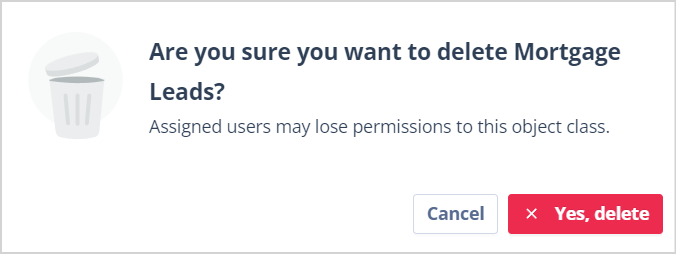
The User can opt to Cancel, which will close the modal and return the Permission set to the resting position.
If they choose to confirm, Yes delete, the warning modal closes and the Permission set is deleted from the Permissions table. The Assigned Users will have their permissions for the Object class or Record removed immediately.
Useful info:
- Each Object class can have up to 10 Permission sets.
- Each Permission set can have up to 100 Assignees.
- Avatars of Owners and Permission set Assignees are always shown in alphabetical order.