
Edit Object class - creating Class permissions and add/remove Assignees
Overview
When in Edit mode, one of the tabs on an Object class is Permissions.
In order to be able to create a Permissions set, you must be one of the following:
- A User with a Super admin account type
- An Owner of the Object class
The User who created the Object class will immediately become an Owner.
The Owners' Permissions are set by default and are fully enabled. These cannot be edited.
However, the Owner can add further Owners and additional sets of Permissions to which Users and/or User groups can be added as Assignees.
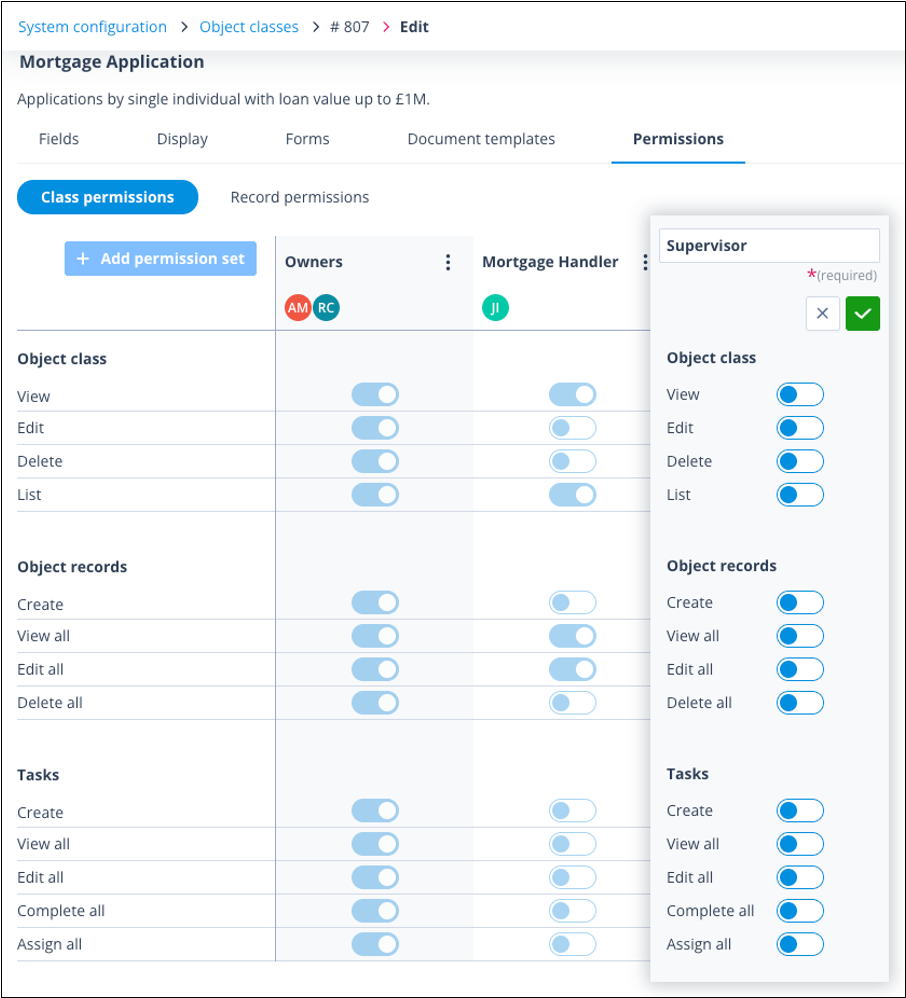
Click on the Permissions tab. This is defaulted to Class permissions. You will see the Owners and any other Permission sets which have already been created ie Mortgage Handler, shown below.
Click HERE for an explanation of Class Permissions.
Add a new Class permission set
To add a new Class permission set: ensure you are on the Class permissions tab, then click the + Add permission set button.
A new modal will be presented where a name for the Permissions set must be entered. All permissions are defaulted to disabled until the Owner enables those which are required.
Having enabled the required Permissions, click the green tick button.
A green Success toast message will be seen onscreen.
The Permission set will be created and there will be a link to Add assignees.
Add assignees
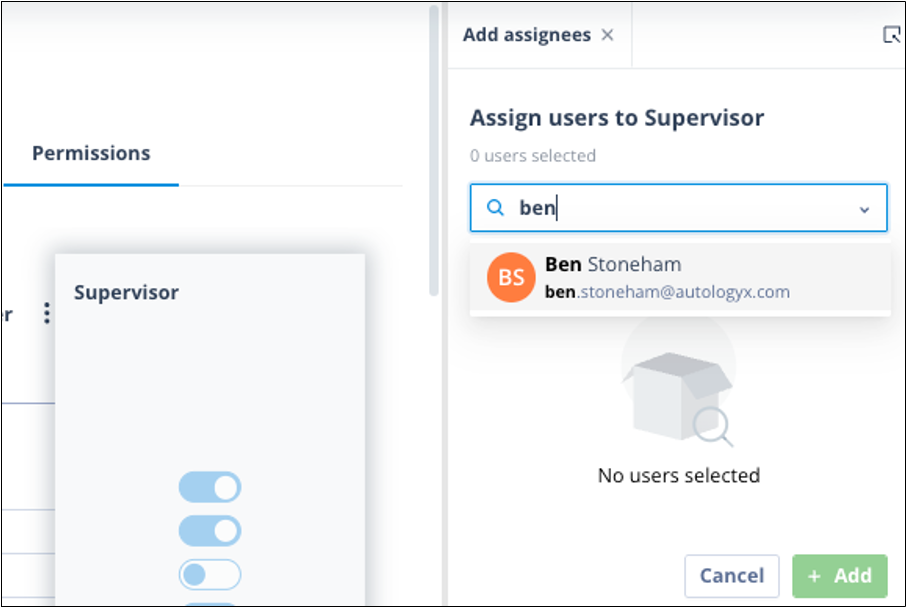
To add assignees: click the Add assignees link and the Manage assignees side panel will open.
Note that there are two tabs so that you can select and add individual users and/or User groups.
Add individual users
To add individual users: stay on the Users tab and click the + button.
You will now be able to search for Users whom you wish to give these permissions.
As you start typing, the list of available Users will be filtered to those matching the search query.
Users with a 1-time completion account type will not be shown as they cannot be given class permissions.
Click on each User. Their name will grey out and adjacent will be displayed, "Already selected".
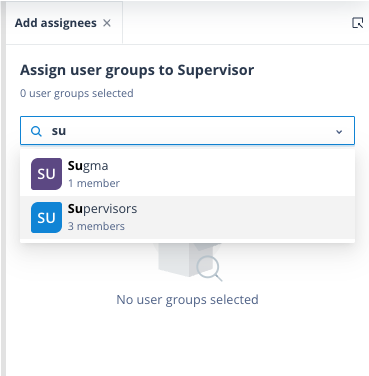
When you have selected all required Users, click out of the search field. Users will be listed as shown below.
Click the + Add button in the bottom right hand side of the panel.
You will see a green toast Success message.
Add User groups
To add User groups: click onto the User groups tab and click the + button.
Search for and select the required User group(s), then click the green + Add button.
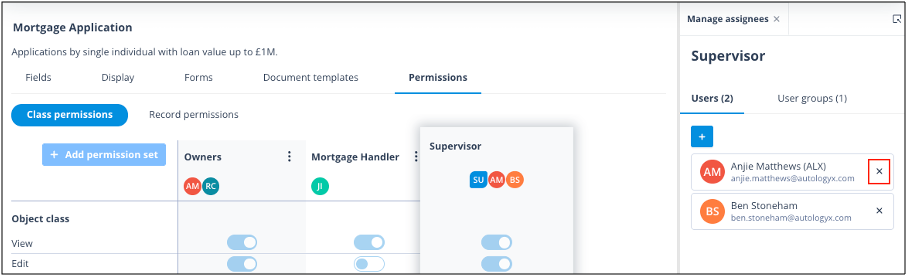
The number of Users and User groups added will be shown in brackets.
Click Close in the bottom right hand side of the panel.
Assignee avatars will be shown at the top of the new Permission set; User groups first (squared), then individuals (round). Users will have the defined permissions immediately irrespective of whether individual or in a group.
Remove assignees
To remove assignees: click the kebab menu on the appropriate Class permission set and select Manage assignees.
The Manage assignees side panel will open. It is defaulted to the Users tab.
The assignees are listed in alphabetical order by first name. The User's avatar, last name and username are also shown.
| Simply click the X on the right hand side of the User you wish to remove. The confirmation modal will be displayed. If you click Cancel, the User will remain in the assignees list. If you click Yes, remove, the User will be removed from the list and the total number of assignees will reduce accordingly. |
User groups can be removed in the same way from their tab.
When you have removed the unwanted User(s)/User group(s), click Close.
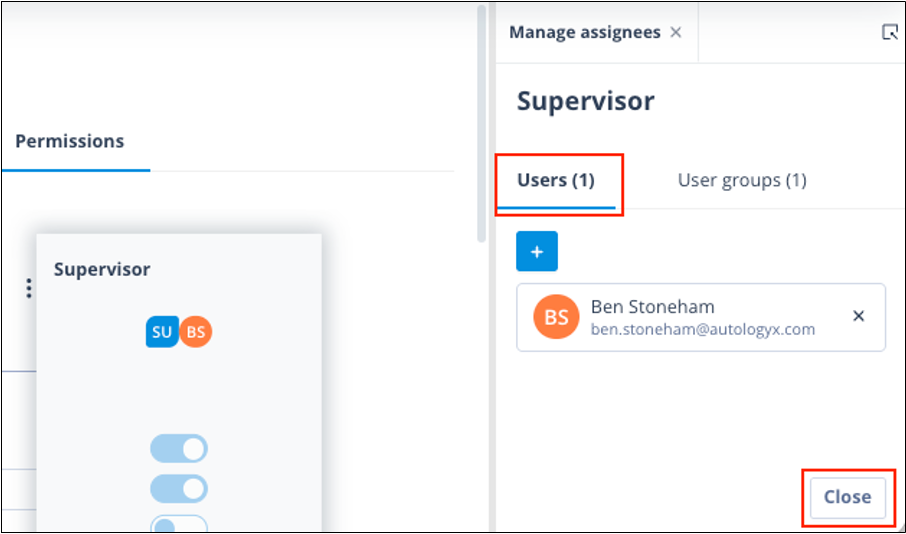
The side panel will close and the Permission set will be saved with the remaining Users and User groups' avatars shown under the Permission set Name.
The removed Users will immediately lose the permissions associated with the Permission set.
Related information
Record Permission sets are created in the same way. However, Owners and Assignees of these Permission sets are managed against individual records.
Click HERE for an explanation of Record Permissions.
Click HERE for more information about Editing Permission sets.
Useful info
- Each Object class can have up to 10 Permission sets.
- Each Permission set can have up to 100 Assignees.
- Each Permission set can have up to 10 User groups.