
Editing Object class fields
If you need to change a field Label or remove some of the options from an Object class single or multi-select field, for instance, you can do this from the fields list within the Object class.
Permissions
To edit Object class fields, you must have one of the following:
- A Super admin account type
- Be an Owner of the Object class
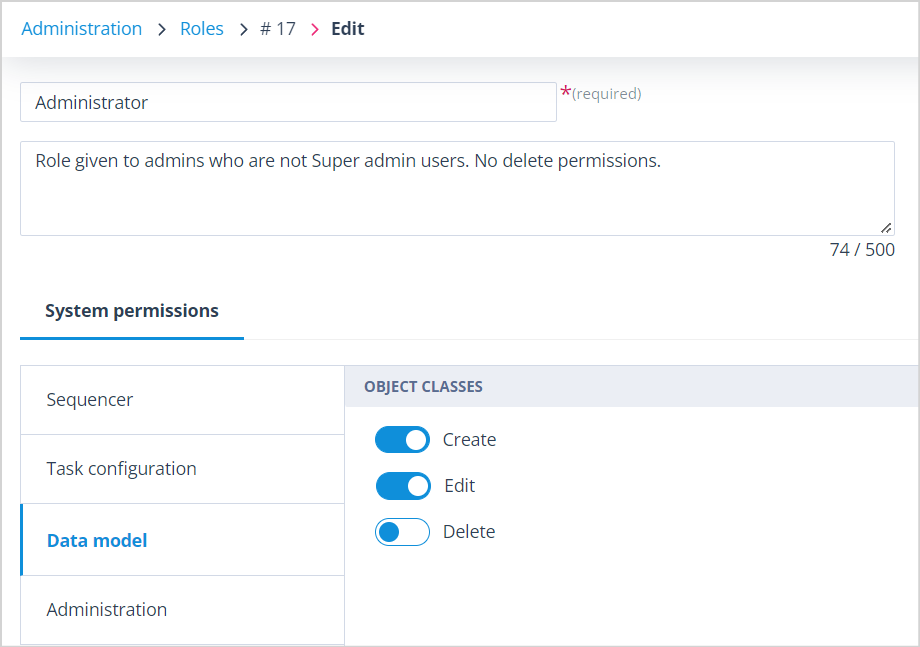
- Have a Config admin account type and a Role with the Object class Edit permission enabled on the Data Model tab
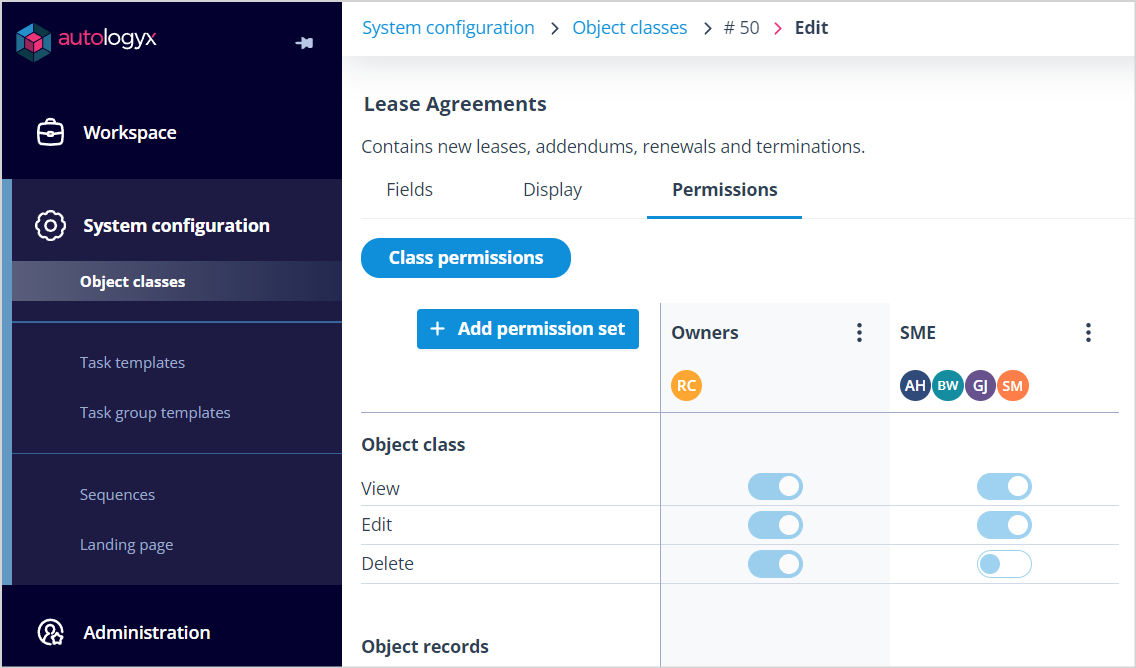
- Have a Permission set for the specific Object class with the Object class Edit permission enabled
The below illustrates Role "Administrator" which can be given to a user with a Config admin account type:
The below is an example of an Object class permission set called "SME". A user given this permission set will be able to make edits to the "Lease Agreements" Object class:
Edit a field
Having found the field you wish to change, select Edit in the Actions menu or double click on the field row. This will open the Edit field panel, which has the same sections and the same components as the Add field panel.
Key points:
- The Save button will be disabled until a change is made.
- The Alias and Type fields are greyed out and cannot be edited.
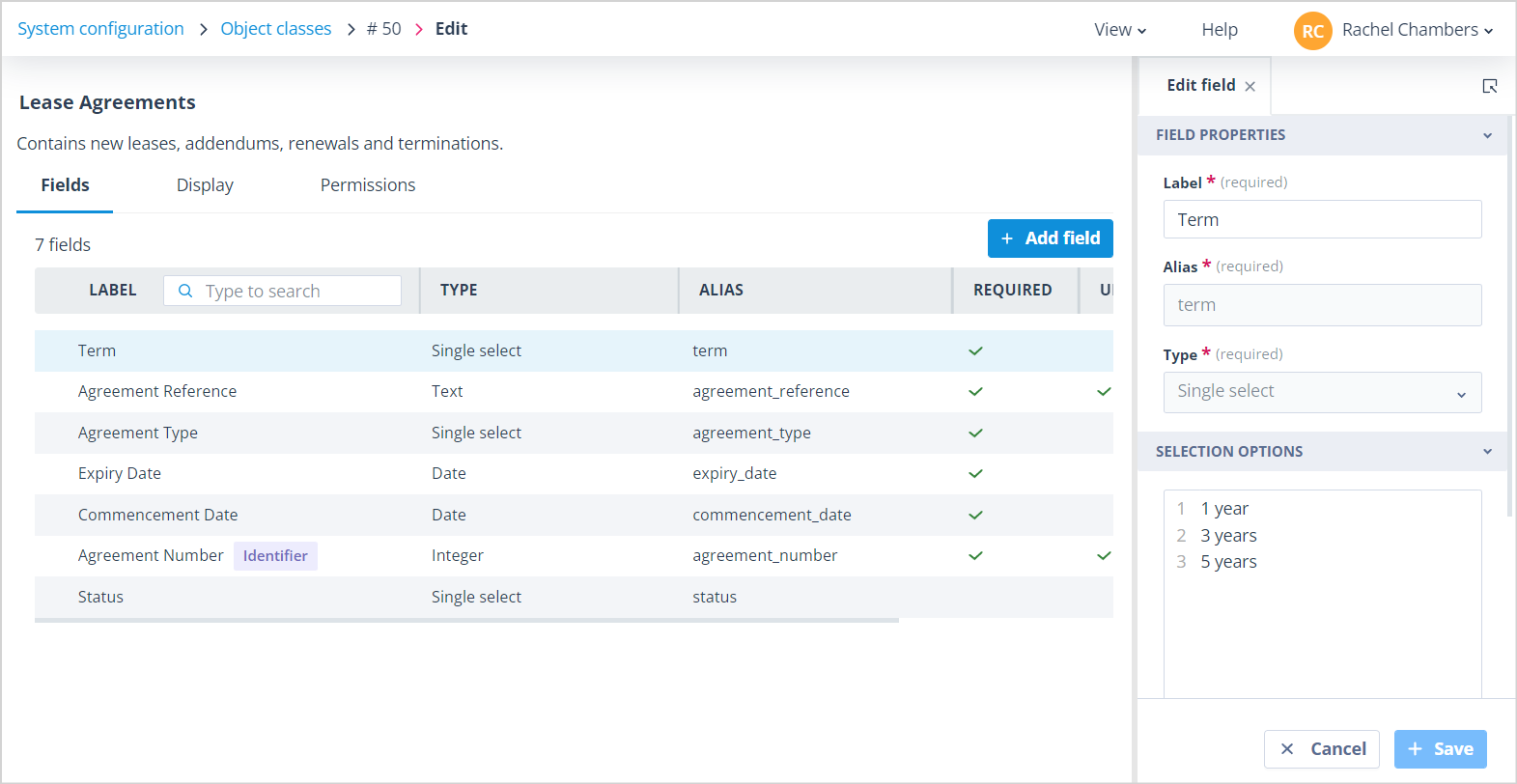
When a change is made, the Save button is enabled.
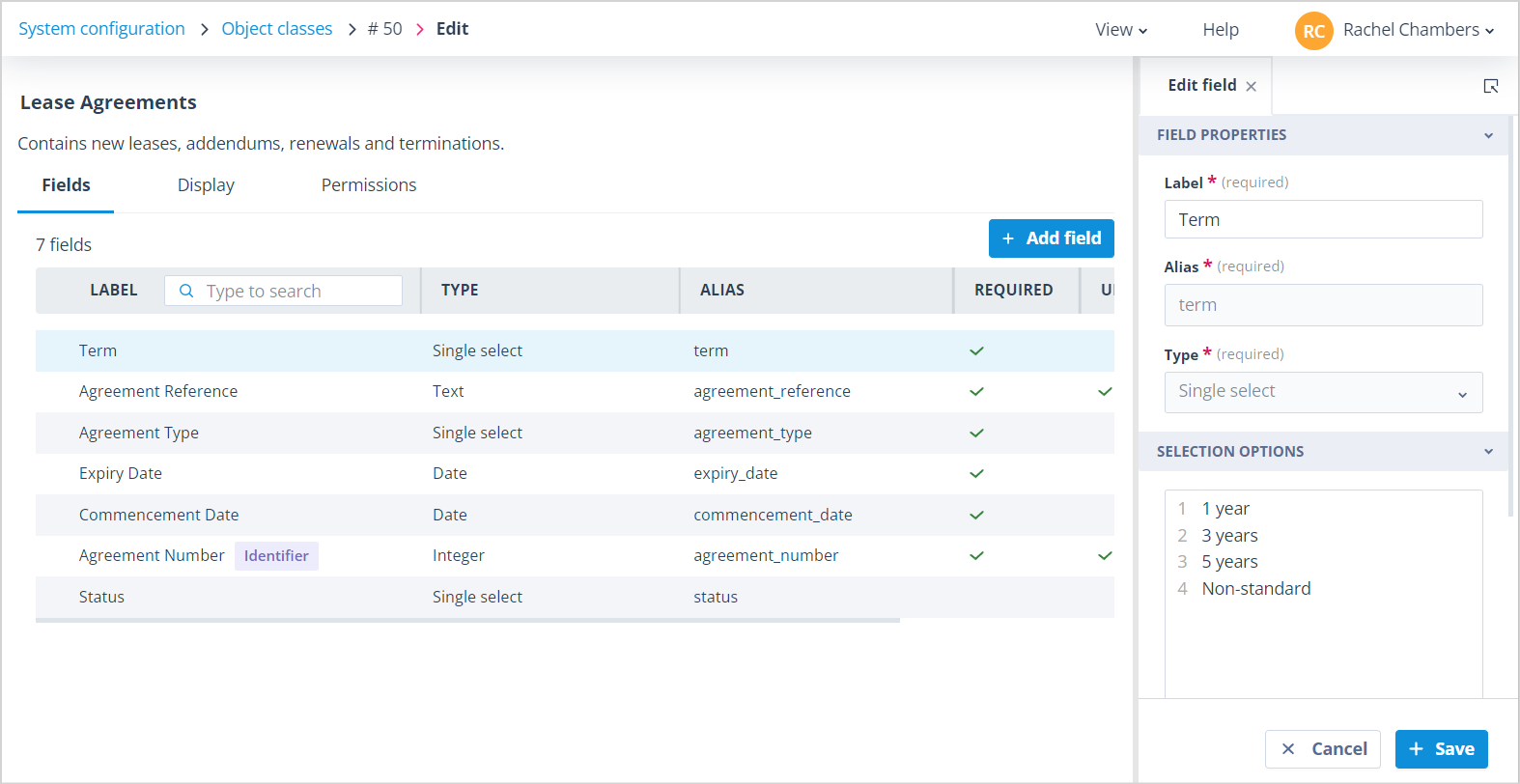
When Save is clicked, the green success toast message is displayed on-screen and the Edit field panel remains open.
This allows you to select another field and make any necessary edits in the panel without having to keep opening/closing it.
Specific changes and how they are applied
Field Label
If a change has been made to the field Label, this will be reflected in:
- The Fields list
- Object class Display views and standalone forms
- Object records
- Update Object record type tasks where the field is used
- Drop-down field lists in the sequencer, etc
Default value
Changes to the Default value will only be effective for records created after the change; they do not affect existing records.
Use as Identifier
If the Use as identifier flag is switched from off to on, this flag on the previously selected Identifier field is switched off. This is because only one field in an Object class can be used as such.
If the Use as identifier flag is switched from on to off, the Autologyx ID becomes the identifier but you will not see this field in the Fields list. The change of identifier will be reflected in the:
- Fields list
- Record card view
- Record: Tasks, Templates, Activity Log and Record access panel tabs
- Search return against a child object class in the parent create/edit view
Unique value
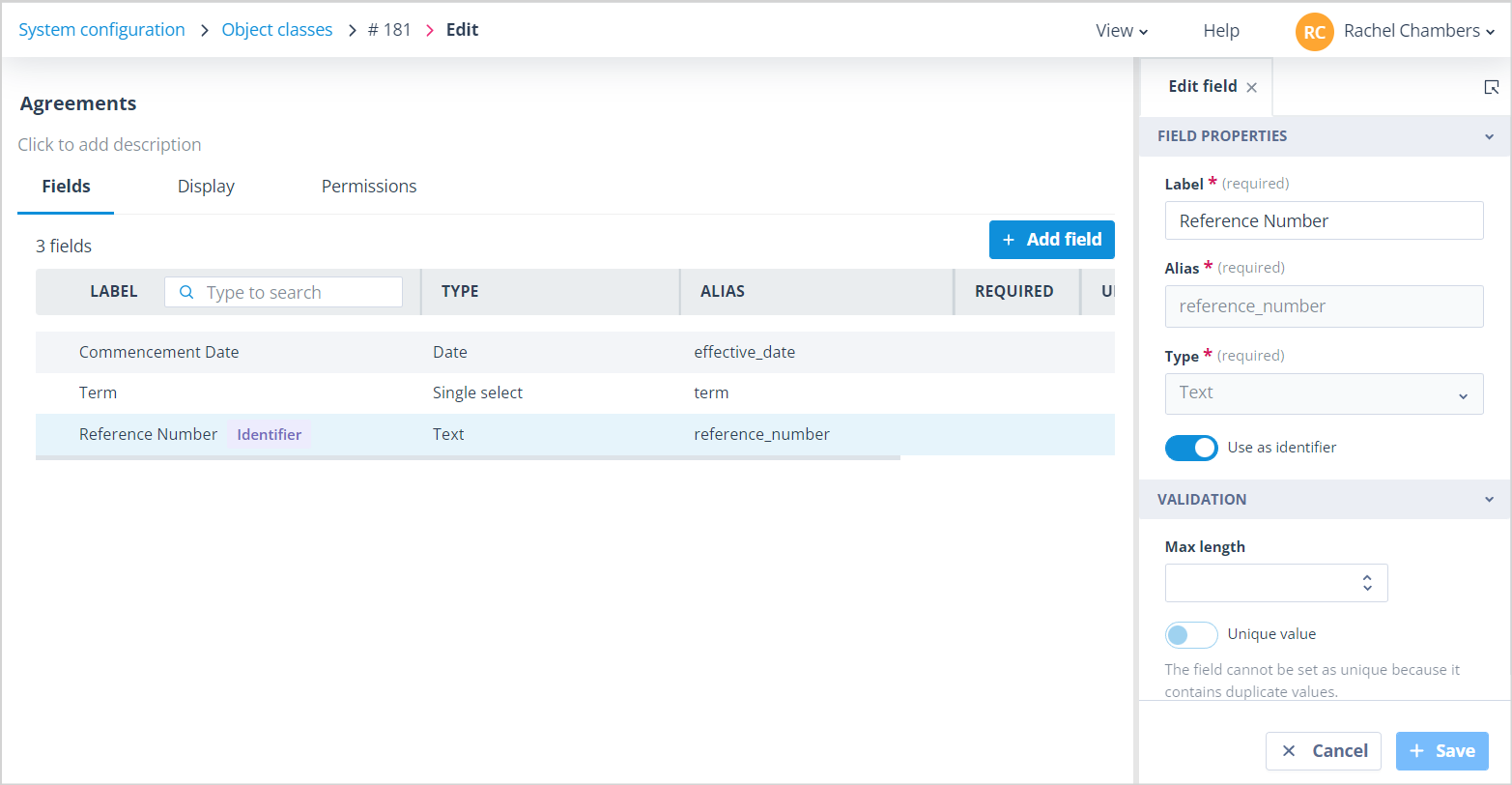
The Unique value flag can be removed from any field without restriction. However, you will not be able to add this flag to a field where duplicate values already exist. The Edit field panel will contain the below message which tells you that the field has duplicate values.
Select options
You can add select options without affecting any existing records, processes or any other system resource.
If you delete a select option which has already been chosen in a field on an Object record, it will remain in place until you edit the record at which point the value:
- will have to be replaced with an existing option if the field is required
- can be cleared if the field is not required
If you delete a select option which is used in a sequence trigger, the trigger is effectively broken and will no longer work.
Select options can be renamed but this is equivalent to deleting the original and creating a new option unless the change is simply letter case eg "First name" is changed to "First Name". Renamed select options are not updated in existing records.
Changing Validation
When Validation settings are changed, existing data remains unchanged until a record is edited at which point the system will enforce any new constraints.
Text field type
Increasing or clearing the Max length allowed for this field type will have no effect on existing records. Similarly, decreasing or setting (when it has not previously been set) a Max length will have no effect on existing records. However, the existing values that exceed the new Max length must be changed when the record is edited.
Integer and Decimal field types
- Decreasing or clearing the Min value for these field types does not affect existing records.
- Increasing or setting the Min value does not affect existing records. However, an existing value which is below the new Min value must be changed when the record is edited.
- Decreasing or clearing the Max value for these field types does not affect existing records. However, an existing value which exceeds the new Max value must be changed when the record is edited.
- Increasing or clearing the Max value of a numeric type field does not affect existing records.
Multi select field type
- Decreasing or clearing the Min selections of a multi select field type has no effect on existing records.
- Increasing or setting the Min selections of a multi select field type does not effect existing records. The existing values that have fewer than the new Min selections remain unchanged until the record is edited, at which point the value must be changed.
- Decreasing or setting the Max selections of a multi select field type does not affect existing records. However, the existing values that exceed the new Max selections must be changed when the record is edited.
- Increasing or clearing the Max selections of a Multi select field type does not affect existing records.
Document field type
Increasing the Max number of files allowed for this field type will have no effect on existing records. However, if you decrease the Max number of files allowed, records which exceed the new limit will have to be amended accordingly when next edited.
User field type
Individual Users and User groups can be added to/removed from this field type.
The avatars of User groups are listed first then individual user avatars follow in alphabetical order in the "Users and user groups that can be selected" (in the Edit field/Selection Options).
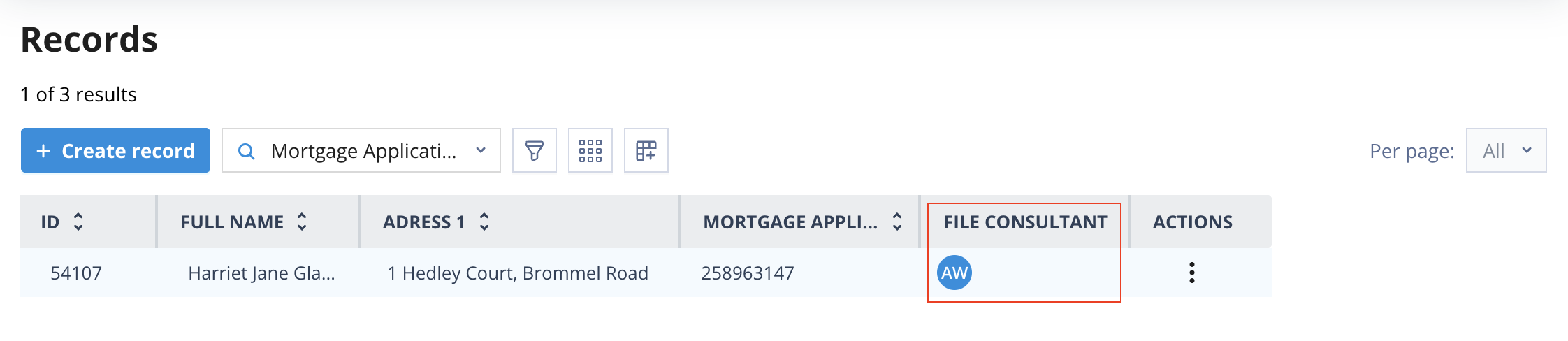
If a User is removed from the selection options, or a User is removed from a User Group, their avatar will remain on the records where they have already been selected, as below:
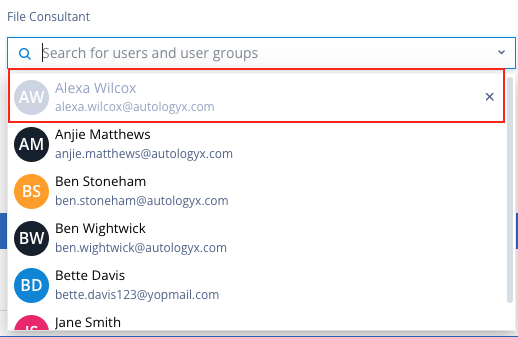
But if the field is clicked into on the record, individual Users will be shown as greyed out and they will not be available for selection in records going forward. Users removed from a User group in the field will no longer be available for selection.
| Validation on the Min and Max selections on the field configuration will prevent a User from Editing the field and removing User options which would make it impossible for these constraints to be met on the record create/edit forms. The Save button is disabled until the number of available selections or the Min/Max selections are altered. setting/editing the min and max users selections will take account of both individual users and those who are accessed via a User group. | 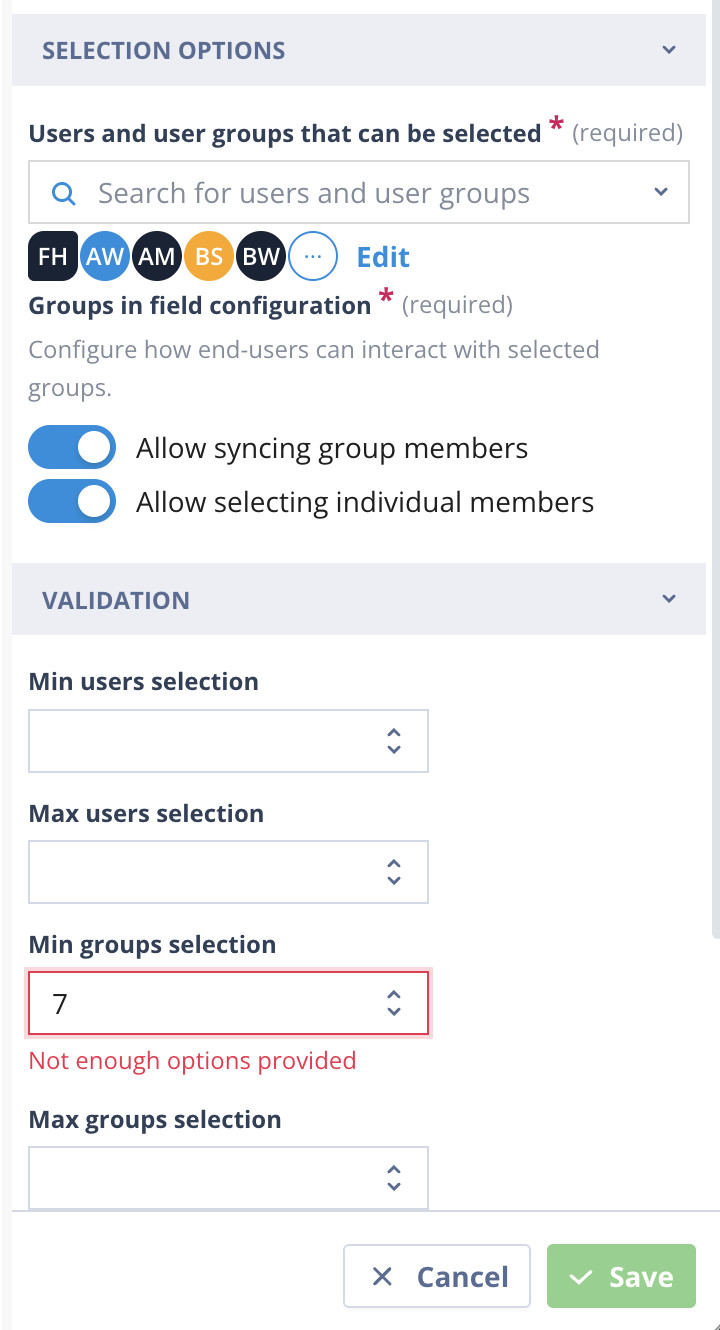 |
Click here for more information on specific field types and their attributes.
Useful info
- If you delete an option from a Single select type field which had been used as the Default value, the Default value drop-down will be cleared.
- In the case of a Multi select type field, if either of the min/max selections become invalid, for instance because max becomes larger than the number of remaining options, the value will be cleared.
- The maximum number of fields you can have in an Object class is 2,000.