
How do I create an Object Class?
Create an Object class
Like most lists in your system, the Object classes list has a + Create button on the top left-hand side. This, of course, is dependent on you having permission to create an Object class via your Role or because you have a Super admin account type.
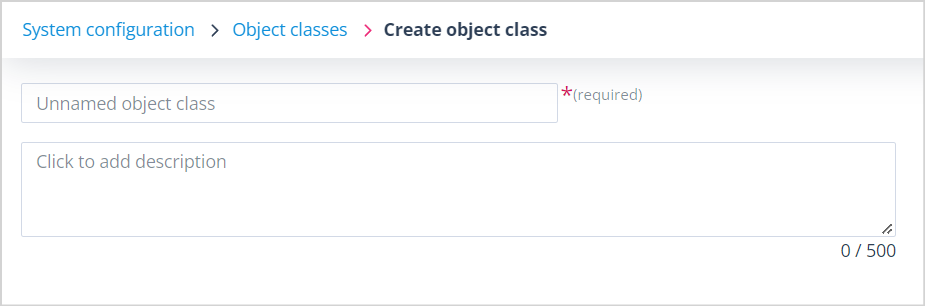
When the + Create button is clicked, you will be presented with a simple page containing two fields.
Fields
- The Name field is mandatory and must be given a unique value. The Save button will not be enabled until this field is populated.
- The Description field is optional, but is useful to determine the differences between Object classes with similar names.
On clicking Save, the success toast message will confirm that the Object class has been saved. In addition, you will be asked whether you want to add fields for the Object class.
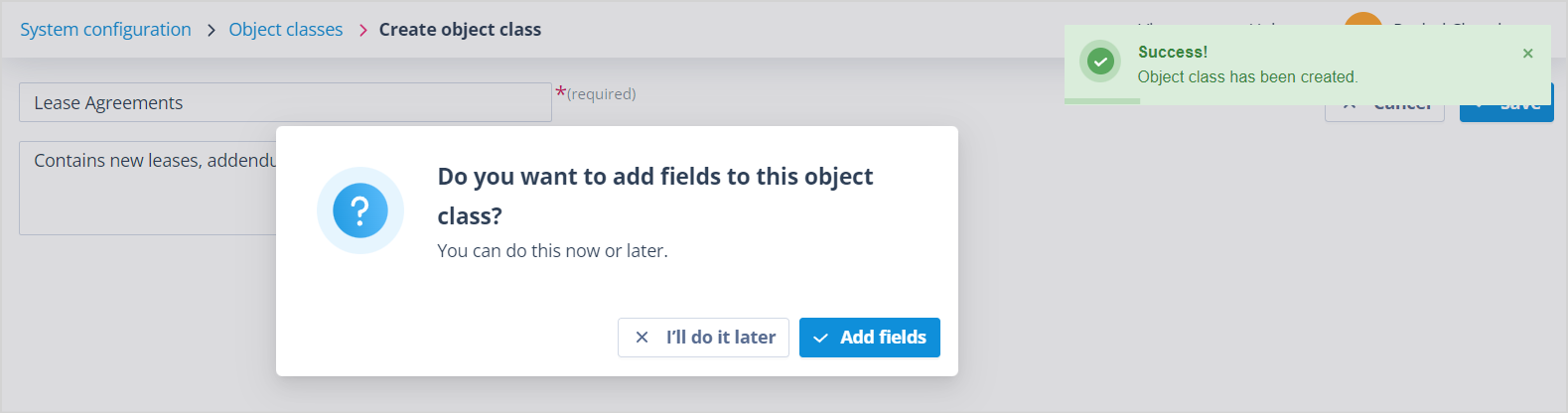
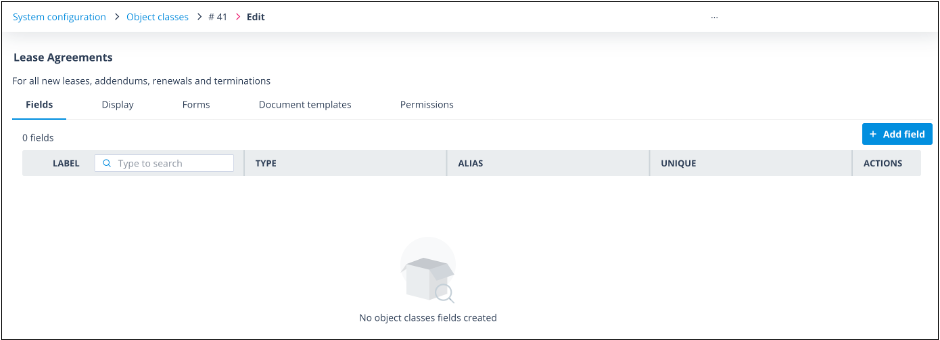
If you select "Add fields", you will be taken to the Edit Object class page where the first tab allows you to configure the required fields.
Four further tabs allow you to configure:
- Display — card view, create/edit view and summary view
- Forms — a stand alone form used to create records
- Document templates — view a section which will explain how to create and use document templates
- Permissions for sets of Users who will administer the Object class or interact with the associated records and/or tasks
If you select 'I'll do it later', your Object class will be saved and you will be taken back to the Object classes list.
Useful info
- The maximum number of Object classes you can have in your system is 10,000. If this limit is reached, the + Create button on the Object classes list will be disabled.
- The maximum number of Object fields you can have in each Object class is 2,000.