
Editing the Relational model
View an article which explains who can create/edit the relational model.
Go to the System configuration section of the main navigation menu. Click Relational modeller. The relationships which have already been configured will be displayed.
All object classes will be presented in the sidebar in alphabetical order. Those which have already been used in the model will be greyed out.
What can be edited?
- Object classes can be moved to a new parent or to the top level and become a root parent. When you do this, all descendent object classes will move too.
- Object classes can be deleted, but all descendent classes will be deleted too.
There are some limitations around being able to move or delete object classes from the canvas.
Padlock and bin icons
With the below as the starting model, the first thing to note is that some object classes have a padlock icon rather than the bin icon.
These object classes cannot be deleted.
| When the padlock is hovered over, the tooltip tells you that you cannot move the relationship. |
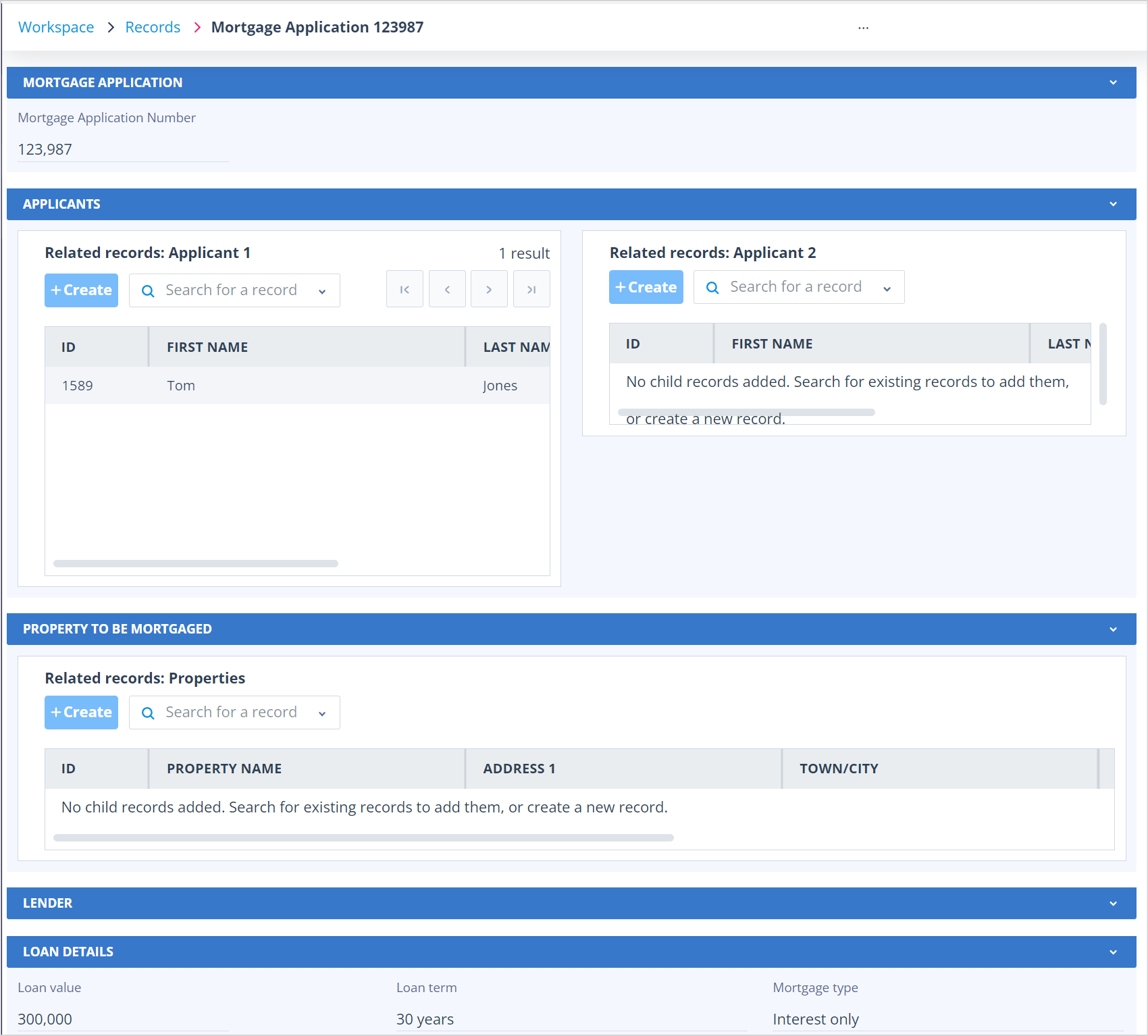
In most cases, the padlock indicates that a record has been created with a relationship between the locked object classes. This is true in the case of Mortgage Applications and Applicant 1 above. As an example, Mortgage Application number 123987 record below clearly shows that there is a related Applicant 1 record, called Tom Jones.
Therefore, neither of these object classes can be removed from the canvas. This record shows that there is no related Applicant 2 or Property. These two object classes do not have padlock icons, which tells the user that there are no records in these classes that have been related to a Mortgage Application record.
Removing a root parent object class
In the relationship shown on the left-hand side of the canvas, there are employee records which have related employment contracts. An example for Sam Smith is shown below.
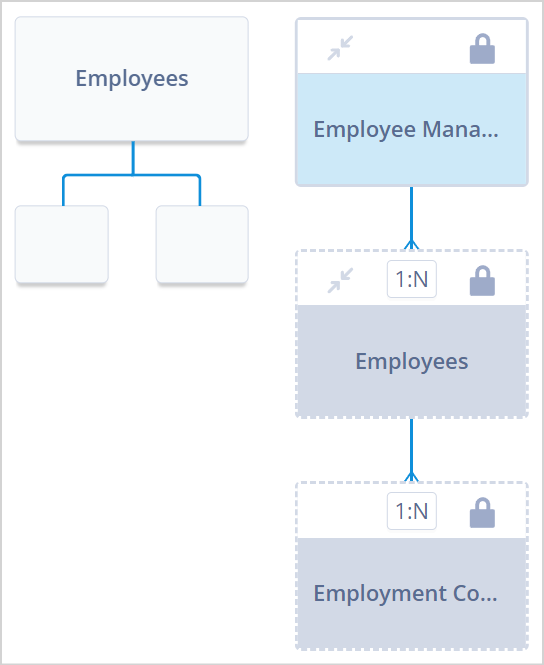
However, there are no records in the system under the root parent object class called Employee Management (HR).
But, this object class still shows a padlock rather than a bin. It cannot be deleted because its child and grandchild cannot be deleted.
To remove the redundant object class, Employee Management (HR), at the top of the relationship:
- Drag Employees off Employee Management (HR).
- Employee Contracts will move with Employees.
- Employees can then become a root parent itself, assuming that your model does not already contain five root parent object classes.
The Employee Management (HR) object class is then shown with the bin icon and can be deleted.
If the model already has five root parent object classes, the below error message will be shown.
Model limits
- You can add further child object classes to any parent so long as they do not already have five.
- You can also extend the relationship with further levels, but your model cannot exceed five levels deep.
The below error message is shown if the user attempts to add a sixth level.
Impact on the create/edit view
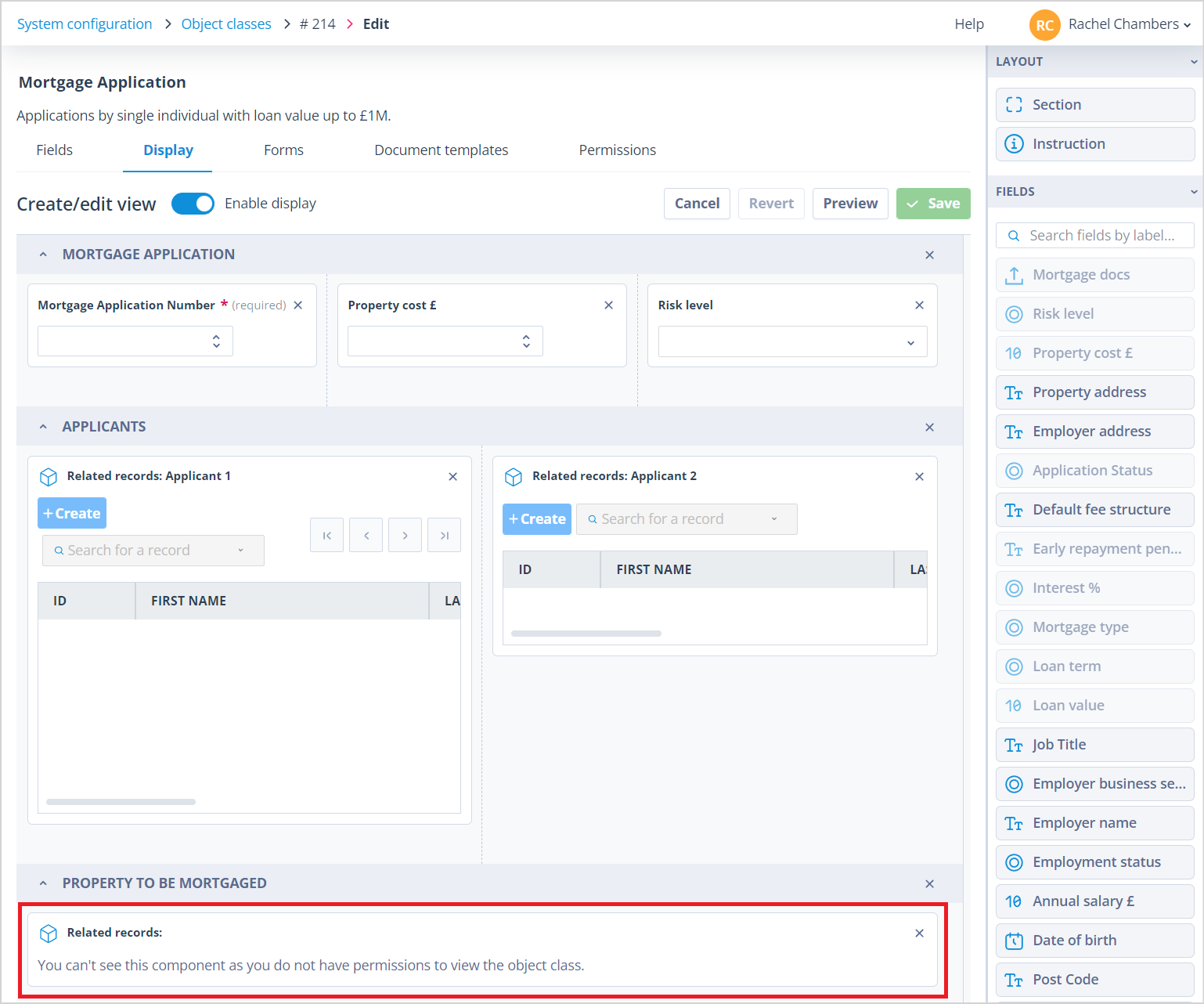
It is important to understand that if you delete a child object class component from the model which has been added to the create/edit view of the parent like this:
- the child object class component will be removed from the parent sidebar
- the create/edit view will display like this:
You can remove this component from the display, or if the model has been incorrectly edited, the child object class can be re-instated and the parent create/edit view will return to the original.
Useful info
- The relational model can accommodate five root parent object classes. Each of these can have 5 child object classes. In turn, each child can have five children and so on to five levels deep. Although it is highly unlikely that there will ever be the need for such vast relationships, the model can accommodate five relationships each consisting of 781 object classes.