
Editing a Sequence - Properties
Editing a Sequence is split into two distinct parts: Properties and Design.
Access requirements
To edit any part of a Sequence, you must meet one of the following requirements:
| - You have a Super admin account type - You have a Role with the Edit permission enabled under the Sequencer tab. This is commonly enabled together with the Create permission but can be applied alone if the User's Role is more about system maintenance rather than design and creation | mceclip0.png |
Opening the Edit properties page
To edit Sequence properties, find the Sequence in the list and select Edit properties from the Actions menu.
If you double-click the Sequence row, you will be taken to the Edit screen for the Sequence design.
The Edit properties page will open and look similar to the below:
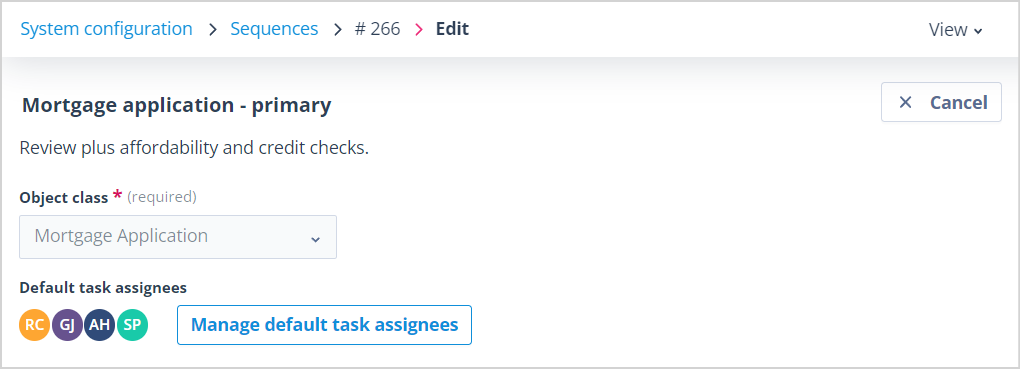
Editable and non-editable properties
Editable properties
The Sequence Name and Description can be amended, but the restrictions from creation are carried through, ie:
- Name must be unique and is mandatory, so cannot be blank; the character limit is 100
- Description has a character limit of 500. However, this field can be wiped as it is optional
Non-editable properties
The Object class cannot be edited. This field is disabled.
Managing default task assignees
Users can be added or removed as default task assignees.
Click the Manage default task assignees button to open the Manage default task assignees panel in the side stack.
| Existing default task assignees can be removed by clicking the x in their tile. If you select Cancel the modal will close. If you select Yes, remove, the User's tile will be removed, the default task assignees counter will decrement and the User's avatar will be removed from the main content page to the left of the Manage default task assignees button. That User will no longer be able to complete tasks created from the Sequence. | mceclip2.png |
| To add Default task assignees click the Add default assignees button. A search field will be presented. Start typing the first or last name or email address of the assignee you wish to add; the list will filter to the matching Users. Click on the User tile to select them and then click Add. The green success toast fly-in will be shown. Continue adding Users until all those required have been selected. | mceclip5.png |
| Users already selected will be greyed out, unavailable for selection and the Already added label will appear alongside their email address. | mceclip4.png |
The Default task assignees counter will be altered according to the changes made. Tiles representing the new Default task assignees will be added in the Manage default task assignees panel, and their avatars will be shown to the right of the Manage default task assignees button in the main content area.
Saving and leaving the page
The Cancel button can be used to navigate away from the Sequence Edit page, but any changes made will persist.
This is true in the case of adding Default task assignees if the Add button in the panel has been clicked. Otherwise, the Unsaved changes will be lost warning modal will display.
There is no Save button, as this page supports in-place editing and changes take immediate effect.
For information on editing Sequence design, please click HERE.