
Response configuration - Task type - Update object record
The Response configuration tab provides the area in which the task is defined, for example what it consists of, how it will be presented to the User completing it, and how it will be created - the Task creation mechanism.
In addition, for the Task type, Update object record, it is here that you must select the Object class for which you wish to use the Task template to create Tasks.
Select the Object class
The Object class field is a single-select which will filter as you type into it.
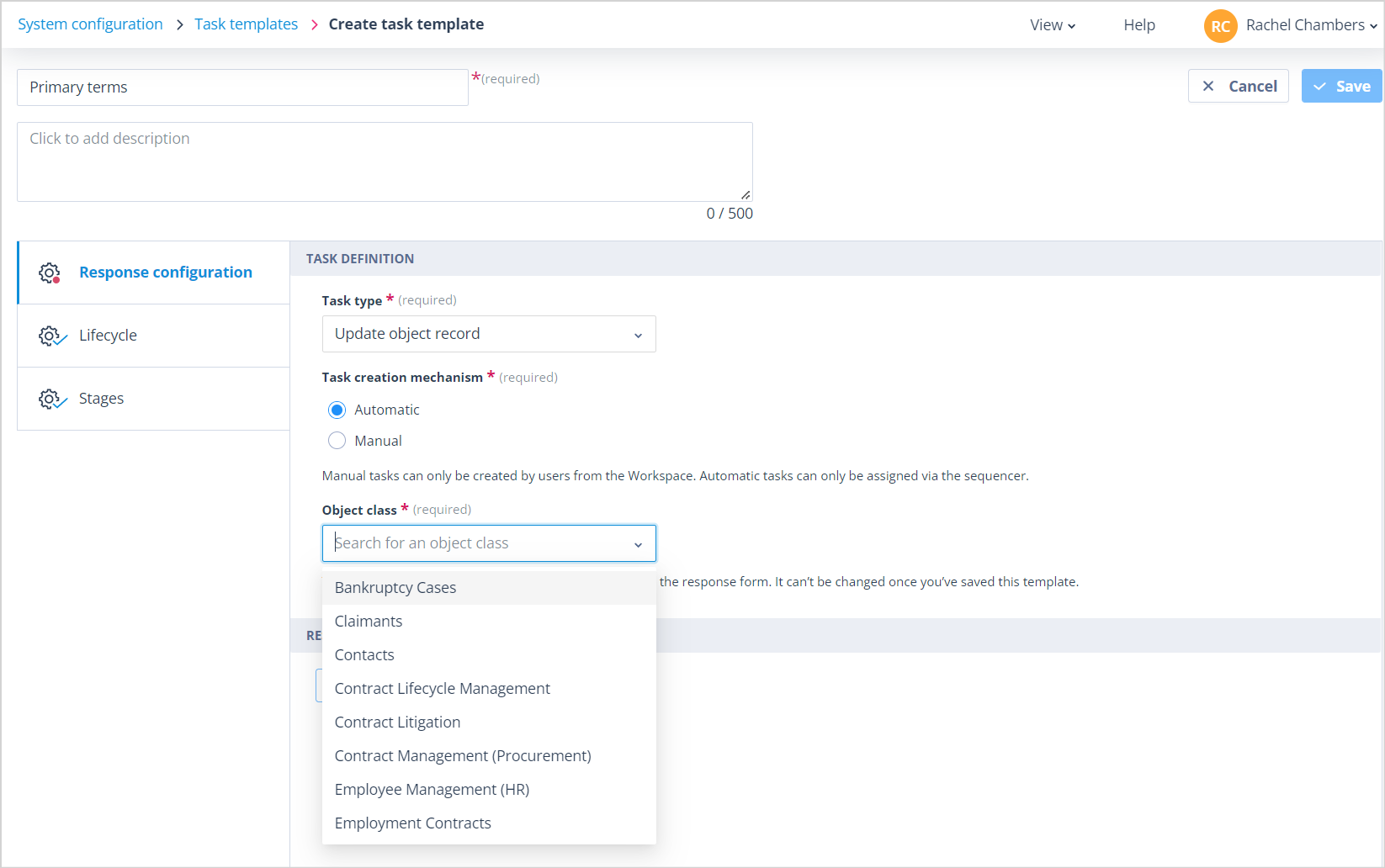
Having selected the required Object class, click the + Create response form button which will take you into the Form builder.
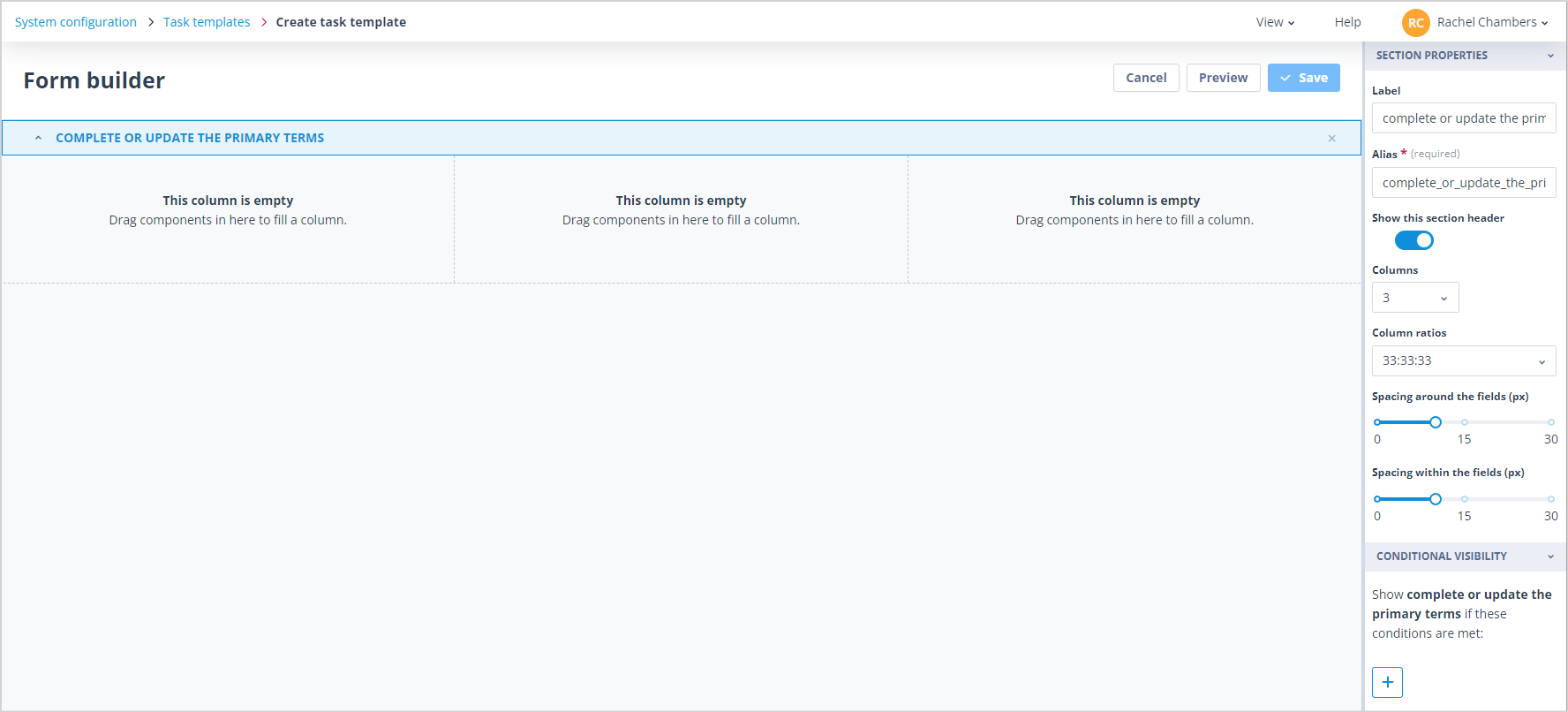
Build the response form
The Form builder is displayed with a section header. All other form components are in the layout panel on the right hand side.
Like the Task type, Complete self-contained form, the panel contains a section called Fields. These components can be used to create fields on the response form which have no relation to the Object class and its Records.
Most importantly, the panel contains a section called Object Class Fields under which you will have a ready-made component for each field that the chosen Object class contains.
To start building the form, click on the section header. The right hand panel will now display the section properties.
You can:
- Give the section the correct name by amending the Label
- Choose whether to show the section header on the form. It is useful to be able to section parts of forms but not necessarily have a distinct division between the sections - in this case turn off the selector to Show this section header
- Select how many columns you require for this section
- Adjust the column ratios; the options will change dependent on the number of columns selected
- If appropriate, use the Conditional Visibility feature to control the display of sections. CLICK HERE for more information
The example shown has 3 columns at a ratio of 33:33:33.
Click into the canvas below to start populating your columns.
Each component can be dragged and dropped into position. Clicking on each component from the Fields section will allow you to label it and define its properties.
However, this Task type is primarily designed to allow a User to enter data which will be used to populate or amend the fields for that Record.
Using Object class fields
When you drag and drop any of the Object class fields onto the canvas you will note:
- You cannot amend the Field label, Alias, Type of field, Default value if one has been defined, Selection options for Single and Multi select field types. These values appear in the Field Summary which is non-editable
- You can amend the Input type for Single and Multi select and Text field types
- You can make the field mandatory in the context of completing the form/task by enabling the Required selector
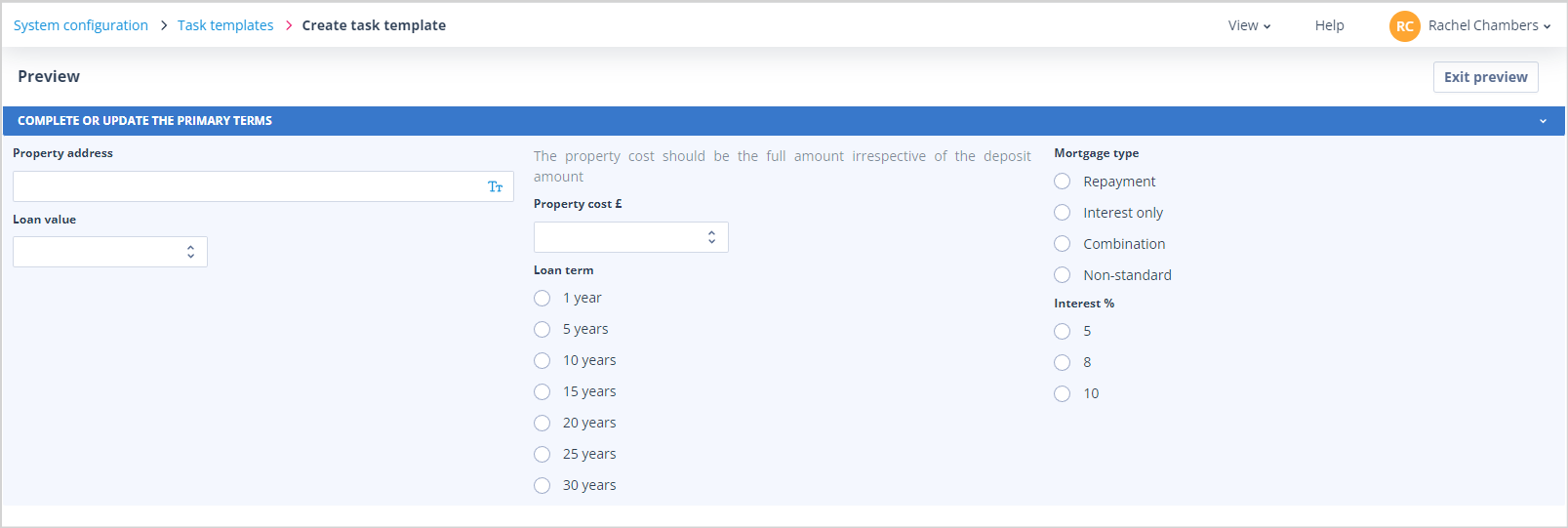
Instruction component
The Instruction component can be dragged anywhere onto your form in order to provide advisory text for the User who is completing the form. You can use up to 5000 characters as shown.
| mceclip5.png | mceclip6.png |
Preview and save
The Form builder has a Preview so that you can check at any stage how your form will look when displayed to the User responsible for completing the task.
Use the Exit preview button to return to the Formbuilder.
| The Cancel button can be used to abort the creation of the form. If you have unsaved changes, the Unsaved changes will be lost warning will be displayed. If you confirm Yes, you will be taken back to the Response configurationtab on the Create task template page. If you select x No, go back the Form builder will remain open so that you can continue. | mceclip0.png You will also see this warning if you navigate away from the page. |
The Save button is only enabled when you have unsaved changes. Ensure that you Save the form when you are happy with it. This will take you back to the Response configuration tab on the Create task template page. Here you can complete the configuration of the Task and Save it.
Availability in the Sequence designer
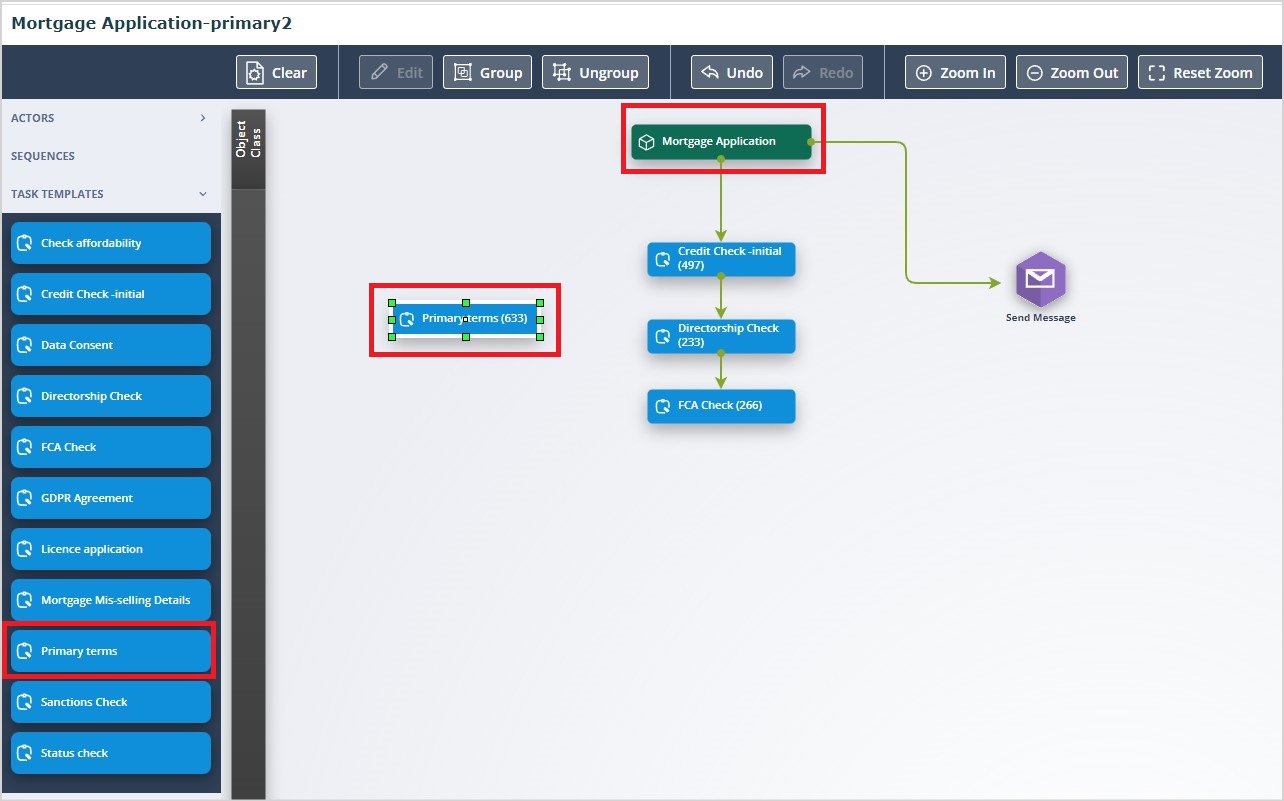
Task templates of the type Update object record, which have the Task creation mechanism, Automatic will be available in the Task Templates menu in the Sequence designer - ONLY for the Object class specified in the Response configuration tab of the Task template.
These can be dragged and dropped onto the Workflow section as required.
| Tasks of this type which have the Task creation mechanism, Manual will be available for creation against any Record in the specified Object class from the Tasks tab in the side panel. | |
| mceclip9.png | mceclip8.png |
What happens when the task is completed
When a User completes a Task of the Update object record type, the Record for which the task was created will immediately be updated in line with the User's response data.
Useful info
- If a Single or Multi select field has been defined in the Object class with numerous options, it is advisable to display this as a dropdown list rather than radio buttons otherwise the task page is unnecessarily elongated.