
Automatic generation of documents via the Sequencer
Having created a document template for an object class, it can be used to generate documents automatically as part of the workflow in a sequence.
Click here for information on how to create a document template.
The document generation can follow any other operation in a sequence, eg completion of task, sending of a message, or an Update Record actor being used to change a status or other record field value.
If you wish to store the document on a record once it has been generated, you will need to add an appropriately named Document type field on the same object class as the template.
For the actual document generation, you will need three actors:
| DocAuto | Screenshot 2024-01-29 at 15.05.17.png |
| Document Picker | Screenshot 2024-01-29 at 14.59.06.png |
| Update Record | Screenshot 2024-01-29 at 15.20.52.png |
Steps for sequencing the document generation
- Drag the DocAuto actor on the sequence workspace. Connect a trigger to it from the actor which precedes it in the workflow. Add the required trigger configuration and save this.
- Right click on the DocAuto actor and select Configure
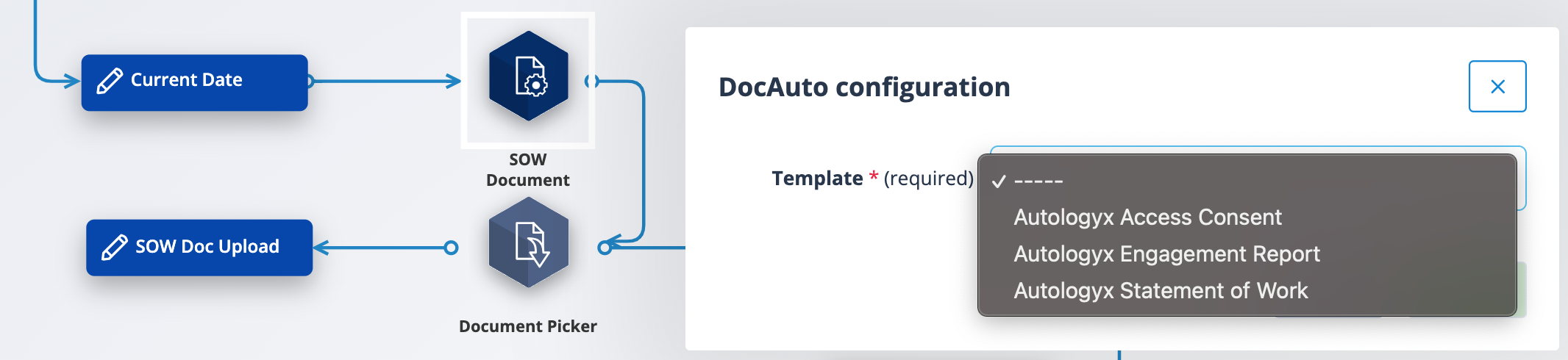
- Click into the Template field and select the required template. These are listed alphabetically by name. Click Save. This actor is responsible for getting the template and generating the document for the specific record.
- Drag a Document Picker onto the sequence workspace and position it so that you can connect it with a trigger from the DocAuto actor. Set the trigger conditions and save these.
- Right click on the Document Picker actor and select Configure.
- Click into the Source field. There are two options. In this case select "DocAuto Actor" as you want to take the newly generated document from the DocAuto actor. Click Save.
| The other option, "Document Field", would be selected when a Document Picker is used, without a Document Generation actor, to "take" an existing document from a field. This option requires you to select the field from which the document is referenced. | Screenshot 2024-02-06 at 17.42.13.png |
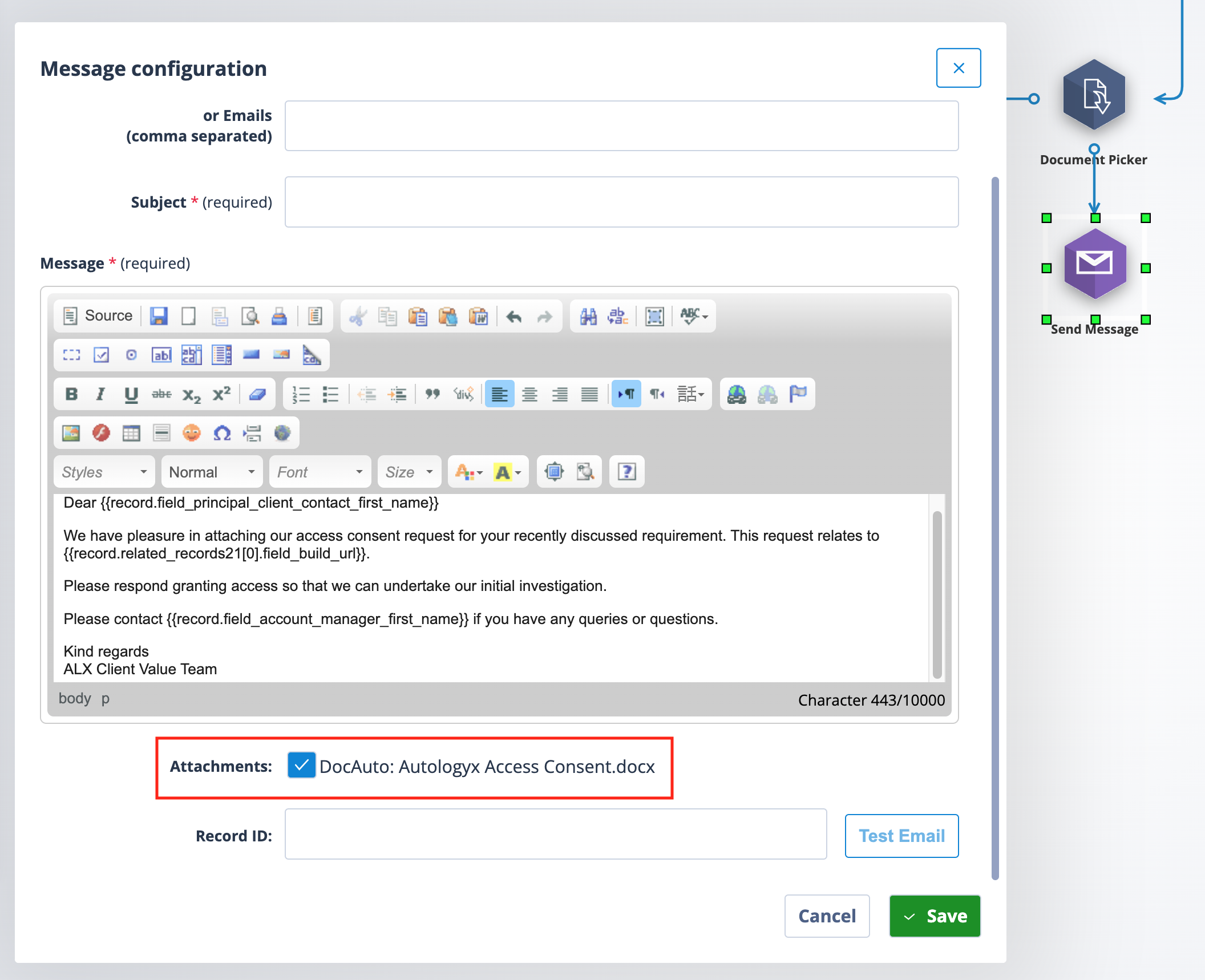
- Optional: send the generated document by email. At this stage, if you connect a Send Message Actor to the Document Picker actor the generated document will appear as an Attachment option. Simply tick the box to ensure that the generated document is attached to the outgoing email.
- To store the generated document on the record: connect an Update Record Actor from the Document Picker Actor for other uses of the generated document; configure the trigger conditions and save these.
- Right click on the Update Record Actor and select Configure. In the left hand "Set" field, select "Field from Document Picker".
- In the next field, select the document field you created as the file storage for the generated document.
- In the final field select "Add" if you wish to add the newly generated document to the field or "Replace" if you wish to remove the existing document from the field and replace it with this new one.
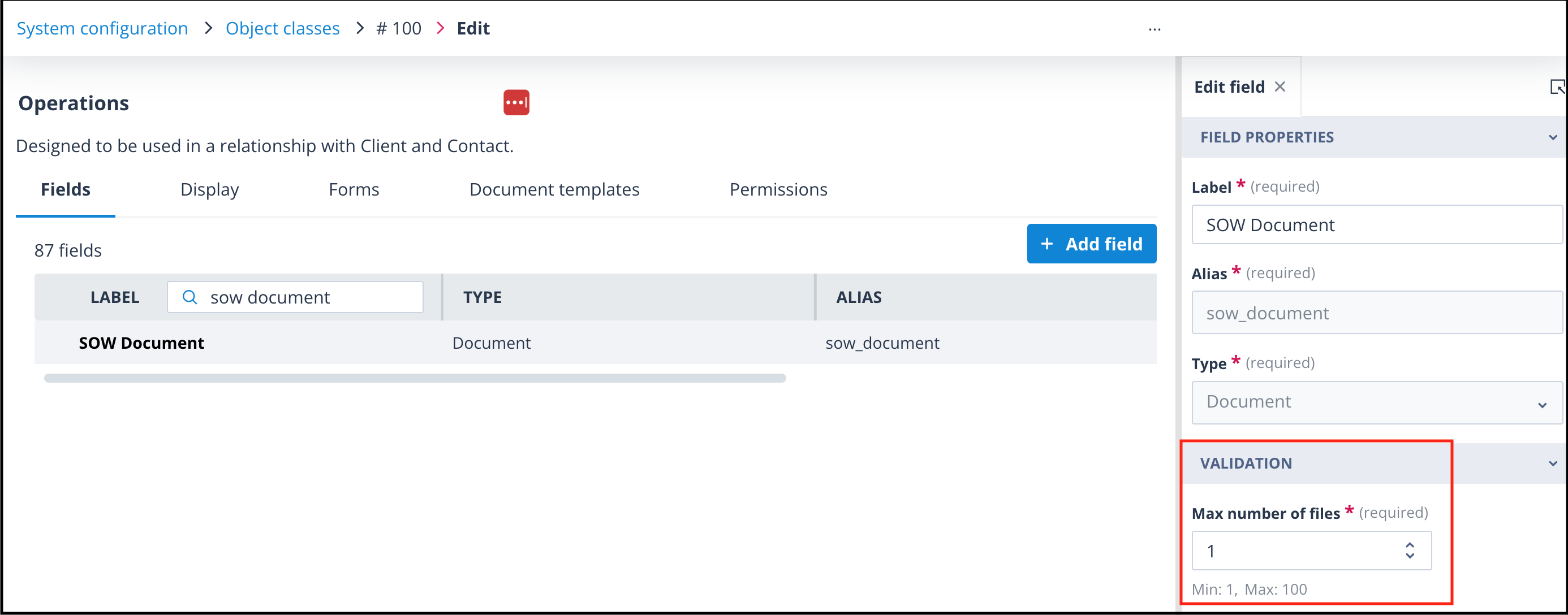
Important: Consider how your field has been configured. If your field has a maximum of one file allowed, you should select Replace. This is important if the process might cycle around more than once.
- Having saved the generated document to a field on the object record, it can be referenced in an API call as below. Documents sent via API are always taken from a field on the object record and sent in base64 format.
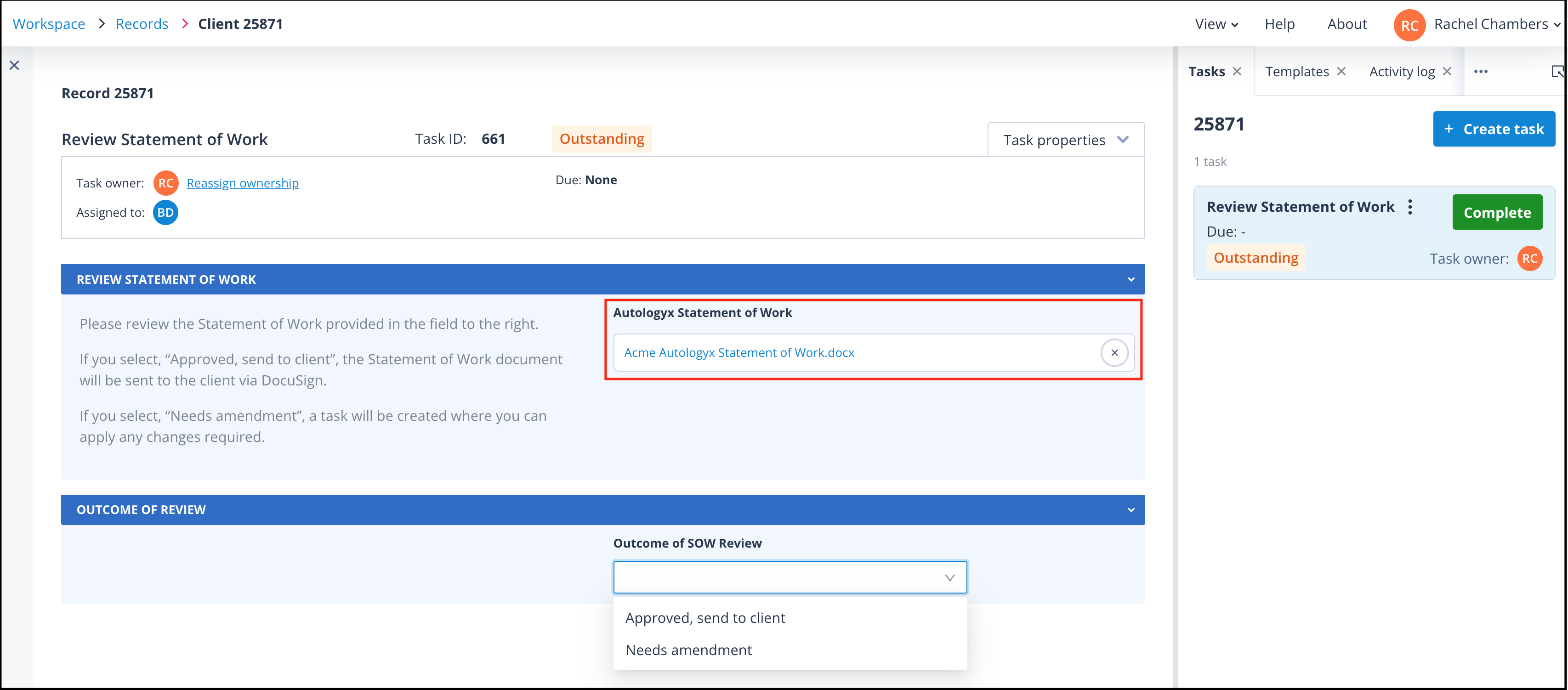
- If the document field is to be included in a task, the task template must be configured in the workflow after the Document Generation, Document Picker and Update Record actors. However, this does not have to be immediately after as is shown in the below screenshot. Once the document has been saved to a field on the object record it can be used at any stage.
The document will appear as a downloadable link in the task, as shown below.
Useful info
- In order to create workflow in sequences you will require either a Super admin account type or a Role with permission to create sequences.