
Create a Document Template
In order to create or edit a Document Template, you will need one of the following:
- A Super Admin user account
- A Role with permission to edit object classes
- Be a member of a Permission set which allows the User to edit a specific Object class
Document templates are created for specific object classes so that the document can be generated either manually or in a sequence for records in that class. Object class fields and fields from related object classes can be used to merge into the template.
Create the document template
From the main navigation menu, click Object classes under System configuration. Find the required object class and double click or select Edit in the Actions menu to open it.
Go to the Document templates tab and click + Create.
The create page consists of 3 fields:
- Template file name: mandatory. The template name must be unique in the context of the object class.
- Description: allows the user to add notes about the template being created. This is useful particularly where you have several similarly named documents which are used under different circumstances, or indeed, for users tasked with editing templates which they did not create. This field is limited to 500 characters; a counter shows characters used/remaining.
- Upload template file: mandatory. The saved Word document can be browsed for or dragged and dropped in.
The Save button will be disabled until the template file name and the upload template file fields have been populated.
When a file has been uploaded, the upload area is hidden. The file will appear in its own uploaded field tile. The name will appear as a link. If this is clicked, the document will download.
The tile also contains a delete button (X) which will remove the file and allow an alternative to be uploaded in the file drop area, which will reappear.
Finally, there is a radio button which, when enabled, will allow you to manually generate the template for a given record from the Templates tab in the side panel. Find out more about Manual generation of a document from a template which describes how this works.
When you have completed the create page, click Save. The green success toast will fly in stating that "The document template has been created".
However, if the template name is not unique, the following error will be shown and the name will have to be amended before the template can be successfully saved:
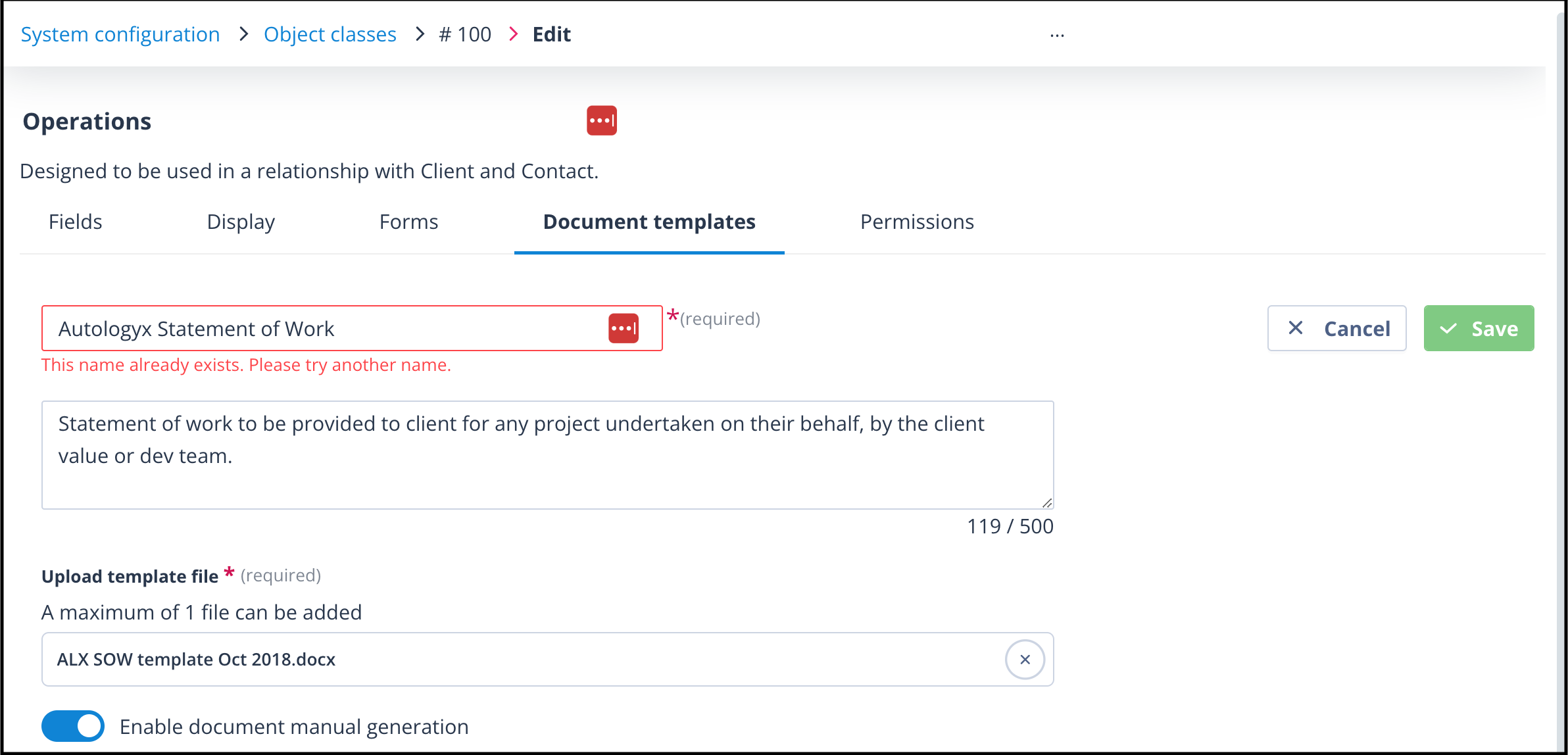
On save, the user is taken back to the document templates list.
The template file name and the description fields will be available for selection in the document templates list.
Add merge fields if needed
The above is all you need to do where the document template is the same in all cases; in other words, when it requires no personalisation with the input of data from records via merge fields.
However, this is most often not the case. Please see the MS Word-add in article for how to set up the Catalyst Word Add-in which will allow you to easily select and position the required merge fields from your object class into the document template.
If you don't have access to the Word Add-in, view the article which explains the correct syntax for merging field data into your document template.
Useful info
- You can create up to 1000 document templates in any object class.
- Only one document can be uploaded to create the template.
- Documents uploaded as templates must be in .docx format. Files with other extensions are not supported and will not insert or drop into the file upload area.