
Editing Object records
Depending on your permissions, the Workspace contains two main areas: Records and Tasks.
Open a record for editing
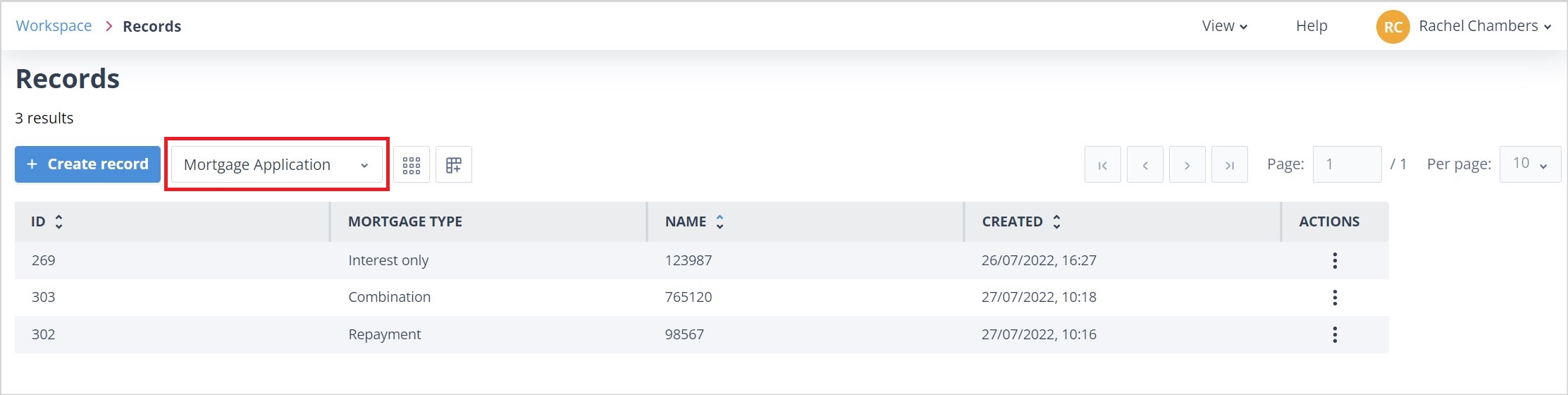
Clicking on Records opens the Records list.
One of the ways an Object record can be updated is from the list by selecting Open from the Actions menu, or by double-clicking an Object record.
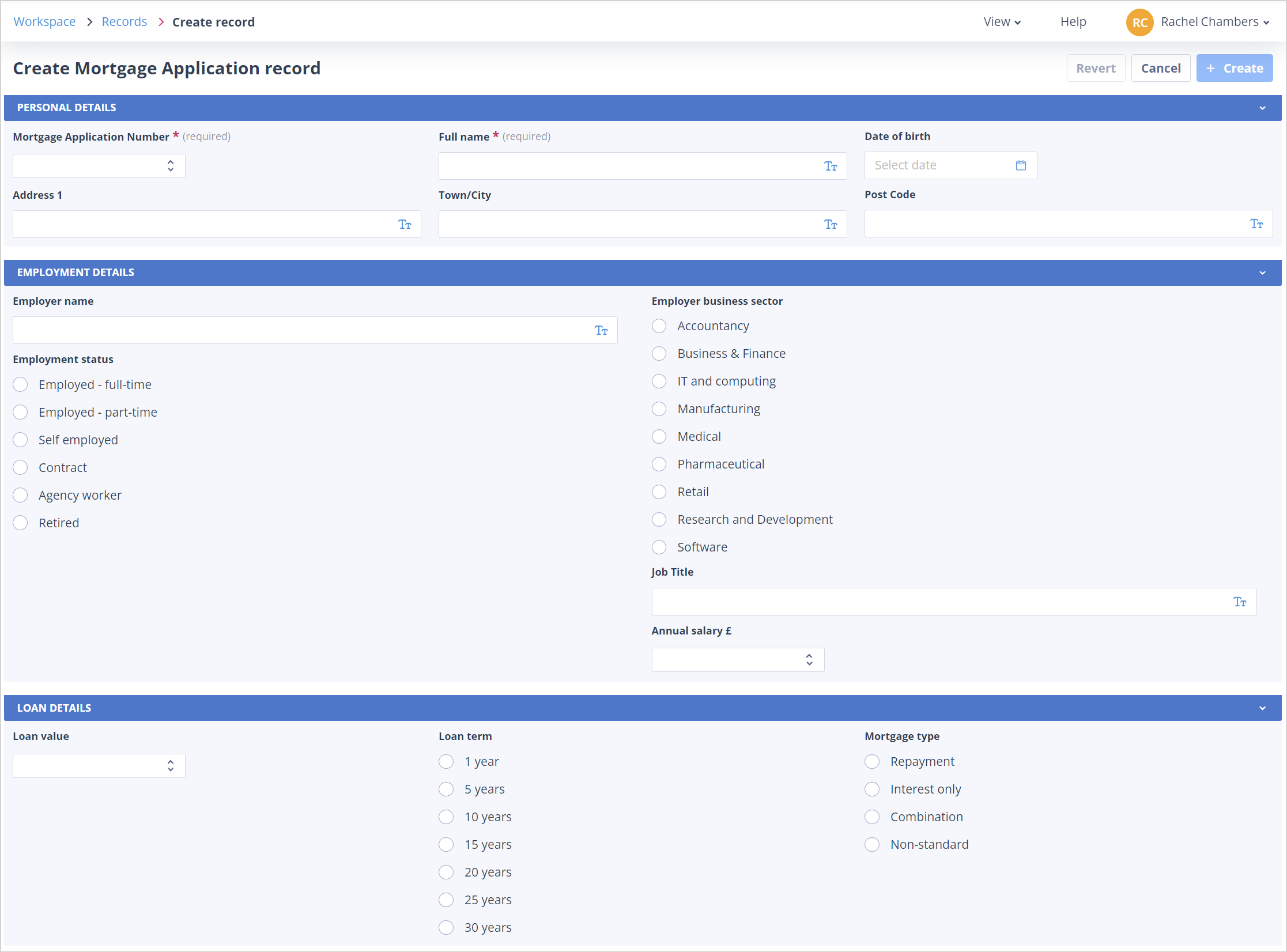
This opens the Create and edit view that was configured in the Object class Display tab.
If the Records list is displayed in Card View, each record includes an Open icon in the top-left corner.
The edit form supports in-line editing, which means changes take effect immediately and no additional save action is required.
Validation warnings
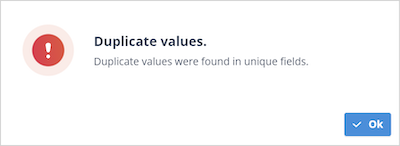
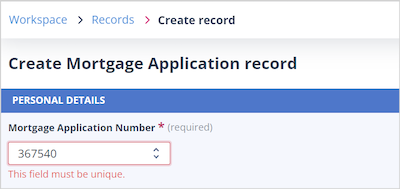
If a value is changed to one that already exists in another record and the field has been configured as Unique, an onscreen warning is displayed and the record is not updated.
The duplicate value must be corrected before the change can be applied.
If a value is removed from a field that has been configured as Required, an onscreen warning is displayed.
A value must be entered before the record can be updated.
Side panel tabs
While in Edit View, the side panel is available if one or more side panel options have been enabled in the Object class View settings.
Summary
Information only. This view cannot be edited.
The Summary tab is configured in the Object class Display tab and can be disabled if it is not required.
Tasks
With the appropriate permissions, a user can:
- view tasks
- create tasks
- complete tasks
- assign tasks
Record access
This tab is available to:
- Object record Owners
- users with a Super admin account
- Object class Owners
From here, authorised users can add or remove record Owners.
Activity log
The Activity log displays the history of the record.
It is shown as a timeline, with the most recent activity displayed first.
Each entry includes a date and time stamp and indicates whether the action was performed by a named user or by the system.
Things to remember
- Changes made in Edit View are applied immediately through in-line editing.
- Unique fields cannot contain values that already exist elsewhere in the same Object class.
- Required fields must contain a value before changes can be applied.
- The side panel tabs available depend on the Object class configuration and your permissions.
- Access to the Record Access tab is restricted to authorised users.